
Parsing Features Introduction
Basic Functions
Doc2X turns text, formulas, tables, and images from PDFs, scanned PDFs, and images into results you can read, copy, and export. Typical uses include papers, reports, textbooks, exams, further editing, search, and knowledge-base preparation.
Try a public example on the home page first. Examples are demonstrations, not your own tasks. Availability of a guest trial for your file, trial page counts, and quota after sign-in follow the current interface.
| Input | Current workflow | Before uploading |
|---|---|---|
| PDF or scanned PDF | Click Start Parsing File, drag in the file, or use a supported paste entry | Check completeness and orientation; unlock encrypted files when prompted |
| JPEG, PNG, or WEBP image | Select, drag, or paste an image for recognition | Avoid blur, glare, and clipped text; images have no PDF page-range field |
Word .docx or PowerPoint .pptx | Convert to PDF first, preview it, then click Start Parsing | Check fonts, page breaks, formulas, and tables; see Office conversion |
Current upload checks limit PDFs to 300 MiB and 1,000 pages for parsing, and images to 3 MiB. Available account pages are checked separately. The whole-file page limit is checked before page selection. Split a PDF locally before uploading if it exceeds that limit; selecting pages does not bypass the file limit.
Features
Remove Headers and Footers from PDFs
Parsing identifies structural content such as headers and footers. When preparing body text, check how page numbers, repeated journal names, and authors were handled. Review unusual documents whose headers contain essential content.
Universal Table Recognition
- Tables use HTML so they can represent merged cells unsupported by Markdown table syntax.
- Common and rotated tables, including formulas, images, and paragraphs inside cells, can be processed. Check complex cells against the original.
- Applicable export settings support cross-page table merging, continuation labels, cross-page cells, and repeated headers.
- Do not rely on nested table recognition without checking the structure.
- For Excel, use a table's paragraph actions or Table Excel; see table export.
- The matching JPG, scan PDF and actual XLSX files show two tables, five merged ranges and one corrected recognition error. Check IDs, percentages, dates and mathematical expressions separately.
Formula Recognition
Mixed text and formulas, including Chinese formulas, can be recognized. Check subscripts, superscripts, fractions, matrices, signs, and units, especially in large equation systems, low-resolution scans, and handwriting. Editing formulas in another application also depends on the export format.
Layout Restoration
Reflow arranges recognized content into a continuous text flow for editing and reading. Eligible v3 PDF parsing results can also use Preserve PDF Layout when exporting Word. These layouts serve different purposes; an exact match is not guaranteed for every complex file. Check multi-column reading order, heading levels, and code indentation.
Supported Languages
Try a representative page in the required language first. Chinese (Simplified/Traditional), English, Western European languages, Japanese, and mixed-language materials should be assessed with their fonts and image quality. OCR language support and translation target languages are separate concepts; the translation language list does not guarantee recognition accuracy.
Handwriting Recognition
You can try handwritten text and formulas, but check the result item by item. For photos, skewed pages, or shadows, supported upload workflows offer scan enhancement before parsing.
Parsing Tutorial
Step 1: Upload a Document
- Open Document Parsing (“图文解析”) in the left sidebar, then click Start Parsing File (“开始解析文件”) or drag a PDF or image into the upload area.
- If the intent dialog appears, select Extract Only (“仅解析提取”). Its other choices, Preserve Layout Translation and Bilingual Translation, enter translation workflows.
- The intent dialog mainly applies to eligible new PDF uploads. Images, Office files, existing translation history, or remembered choices may use a different flow.
- For DOCX/PPTX, check the PDF preview using the Office tutorial. Save old
.doc/.pptfiles as.docx/.pptxfirst. - If signed out, use the trial or sign-in option actually offered by the ready card. A trial of your own file usually covers the indicated pages, not the whole document.
The image below remains a workflow reference; follow the current interface and steps above for intent selection and Office preview.

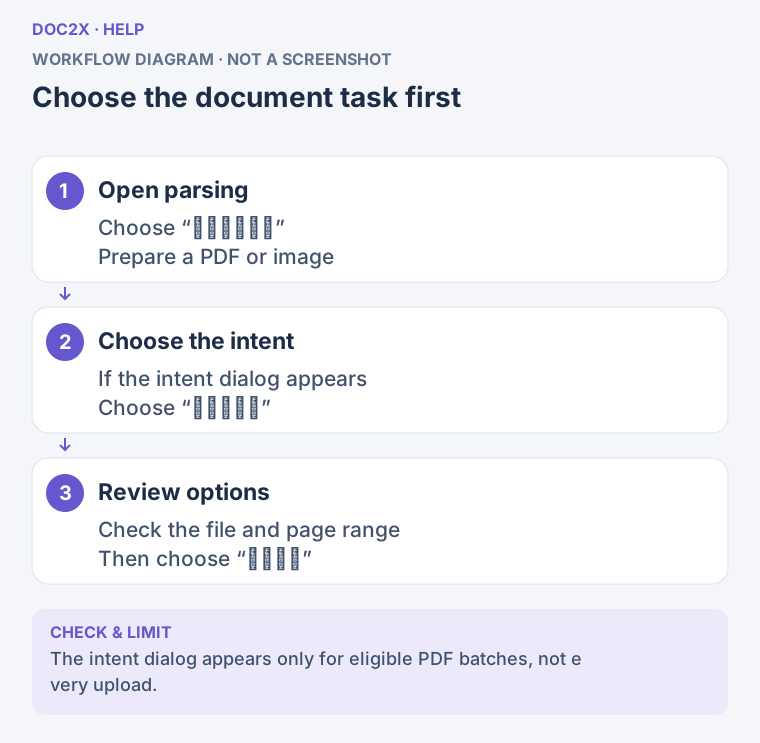
Choose the document task first (workflow diagram). Open the image in a new tab to enlarge it.
Step 2: Select Pages and Start Parsing
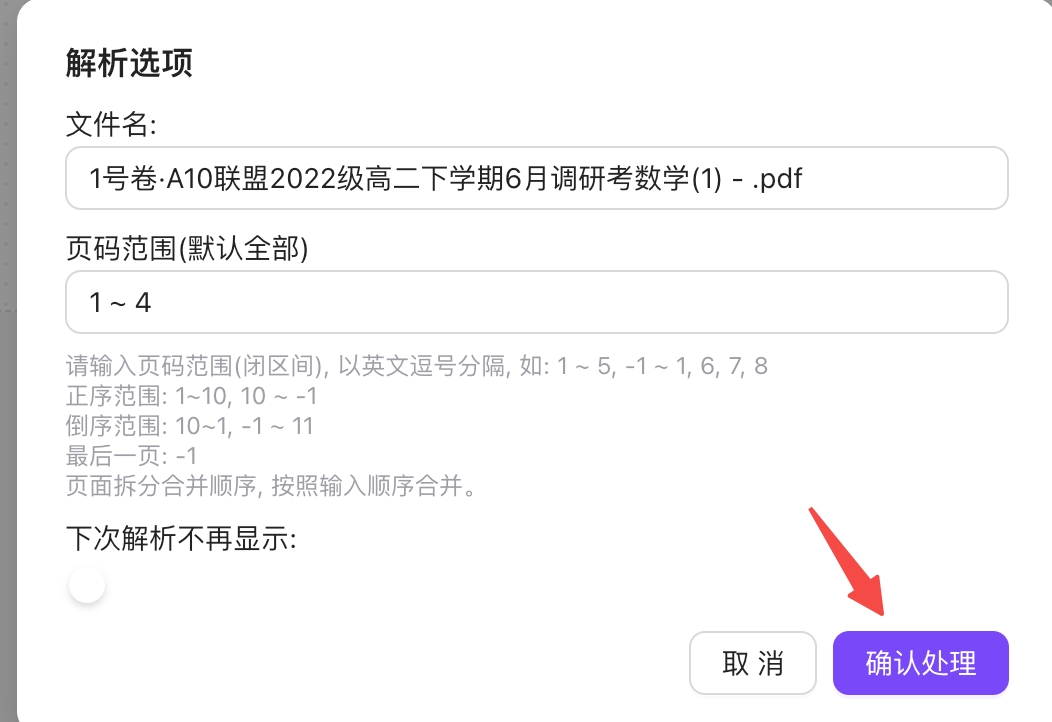
- Check the filename in Parsing Options (“解析选项”). Images use Image Recognition Options (“图片识别选项”).
- For PDFs, leave Page Range (All by Default) (“页码范围(默认全部)”) empty to process all pages. For a subset, follow the input instructions:
1~5,7,-1means pages 1 through 5, page 7, and the last page. Use English commas; input order affects output order. - Check that the selected pages fit your available parsing quota. Parsing does not require choosing a translation model.
- If scan enhancement is offered, adjust orientation, crop, or appearance first, review the preview, and click Continue Parsing (“继续解析”) in the scan workspace. Avoid submitting the same file both before and after enhancement.
- Click Start Parsing (“开始解析”). Follow upload and parsing status, then open the result under the document in the left sidebar.
If Parsing Options does not appear
The dialog can be skipped after Do not show next time is selected. In personal settings, enable 解析增强上下文翻译,可选指定解析翻译页码以及忽略翻译部分(默认开) (the parsing/translation options setting), then choose the file again when you need page selection. A submitted whole-file task does not automatically become a partial-page task.
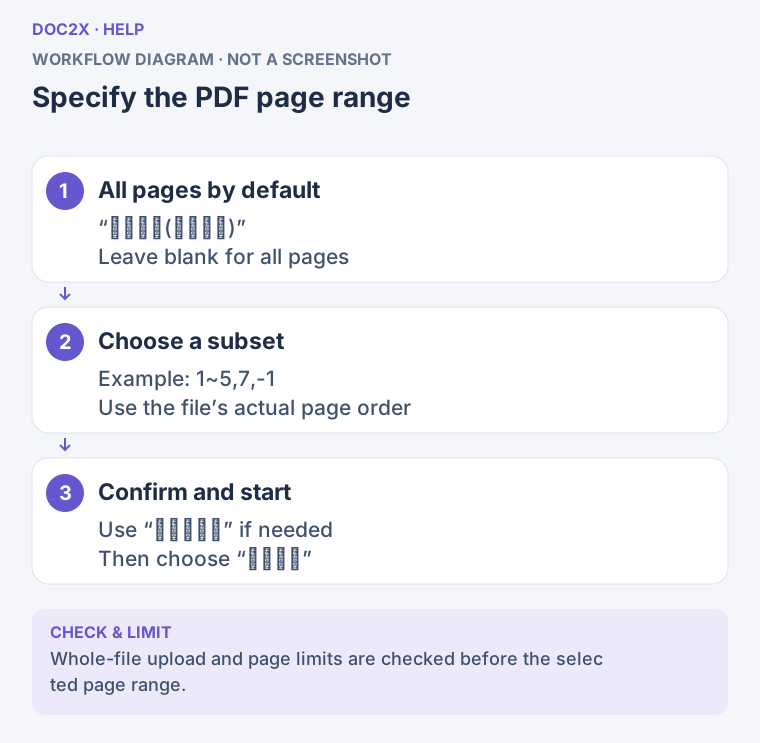
Specify the PDF page range (workflow diagram). Open the image in a new tab to enlarge it.
Step 3: Preview Parsing Results
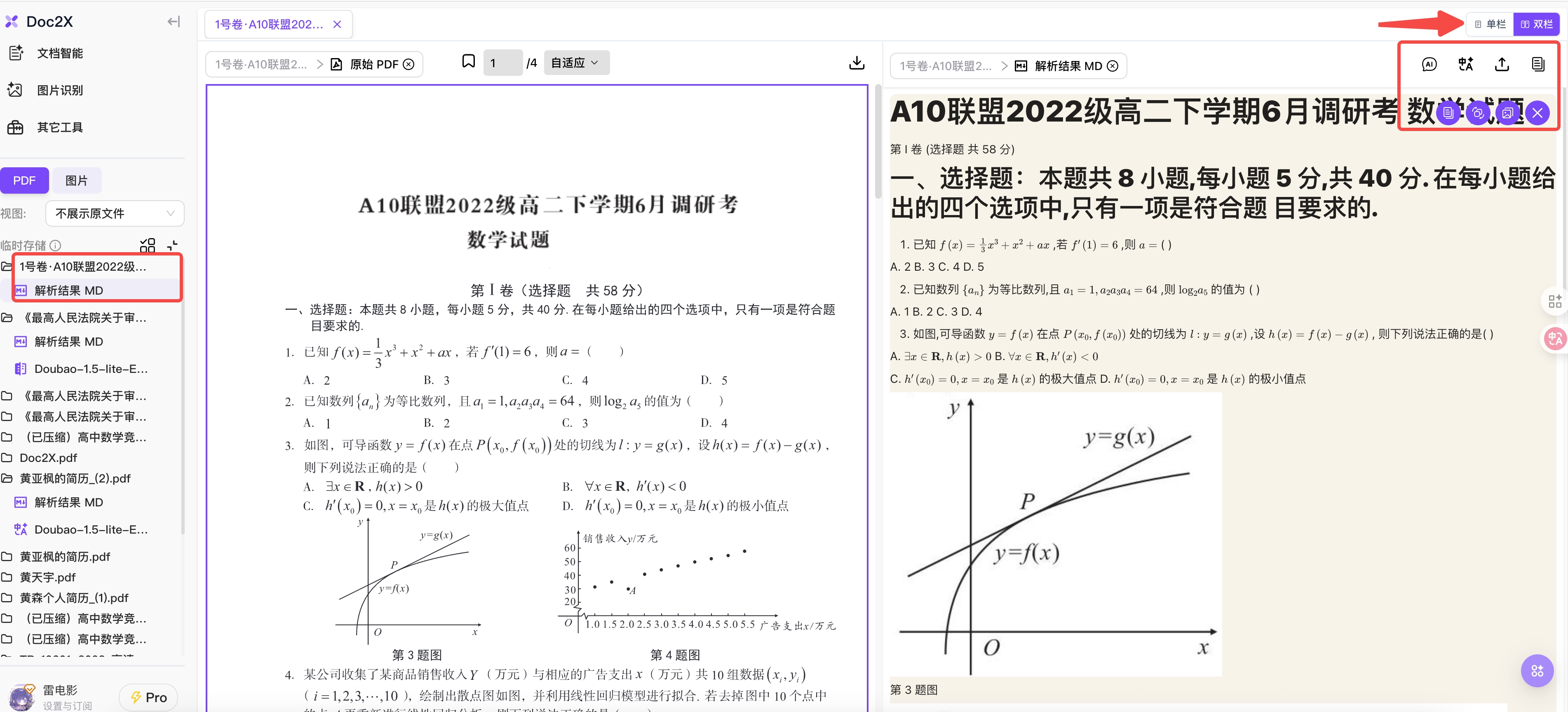
- Open the parsed result beneath its document in the left sidebar. Locate matching pages or paragraphs in the PDF and recognized content.
- Check headings and reading order first, then body text, formulas, tables, and images. In two-column papers, look for paragraphs read across columns in the wrong order.
- Use page or paragraph actions to copy Markdown, then paste into your target editor to check formula delimiters and tables. Copying text does not download the image files.
- Use the available layout, immersive, or focus controls for reading. Reader columns are separate from the page layout chosen for export.
- To correct content, follow result editing to use Edit Parsed Result when available, save it, then export. The standalone Markdown editor is a separate workflow: Export to MD Editor does not by itself write changes back to the original parsed record.
For a concrete example, use the same-source JPG/image-only PDF and original/reviewed Word files: find the omitted line, restore it from the source, confirm saving, and check the newly downloaded DOCX.
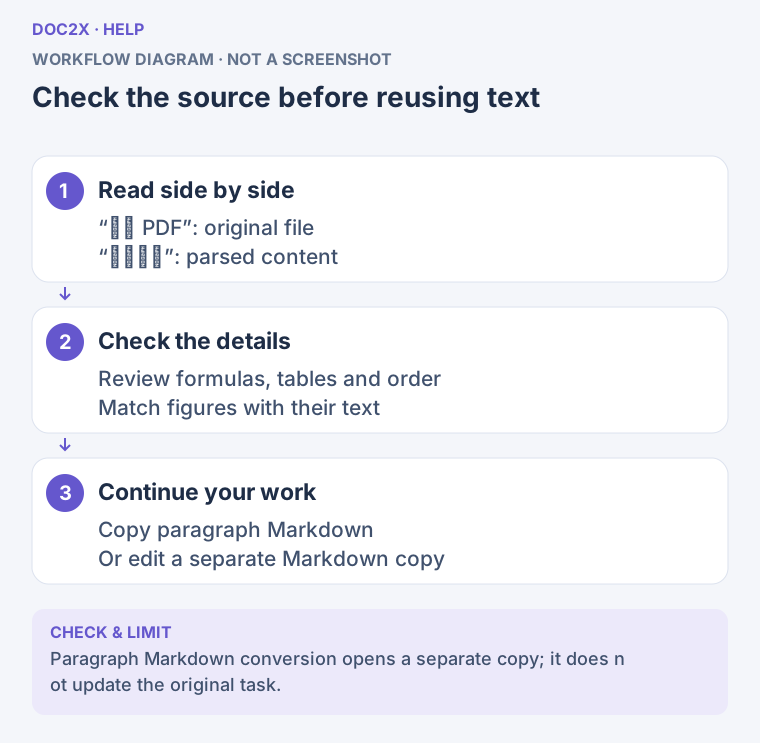
Check the source before reusing text (workflow diagram). Open the image in a new tab to enlarge it.
Step 4: Download the Result
- Click Export Document (“导出文档”) in the reader. Select a format, then one of the layouts it actually offers.
- Choose Word for further editing in Word. For WPS or MathType equations, select the matching format for your target application; see Word and MathType and WPS equations.
- Use Reflow when available to edit paragraphs and apply consistent styles. Choose Preserve PDF Layout when offered if original positioning matters. Select a Word template for eligible reflow exports in Advanced Parsing Configuration.
- Check image packaging, formula delimiters, cross-page tables, and other settings offered for that format. See the format and settings tutorial.
- Check the filename and destination, then click Start Export. Find the file in browser downloads or the selected local location and open it in the intended application.
- Inspect the first and last pages, a complex formula, a cross-page table, and an image. Keep image folders and relative paths together when using a locally packaged Markdown export.
Copy Full Markdown and Table Excel run immediately when clicked. Export to MD Editor must be selected and then submitted with Start Export.
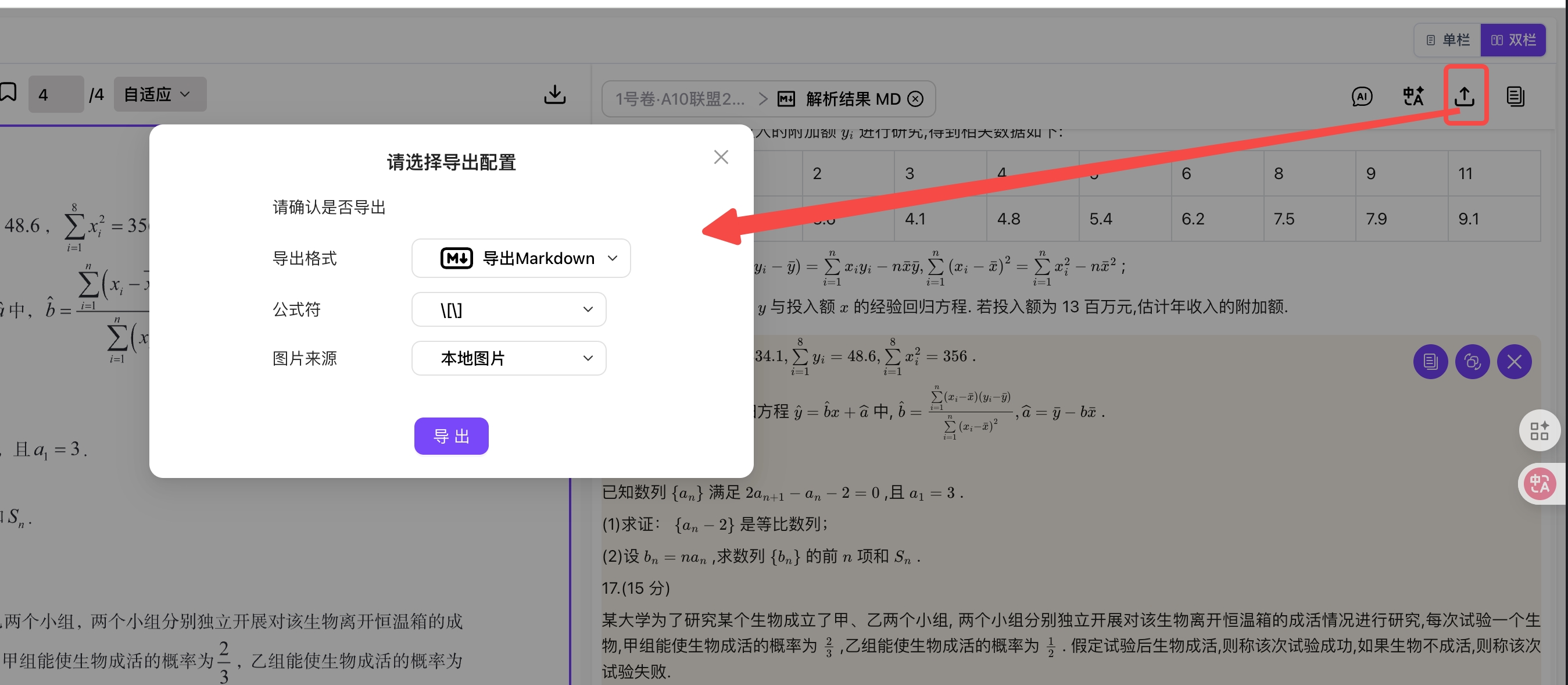
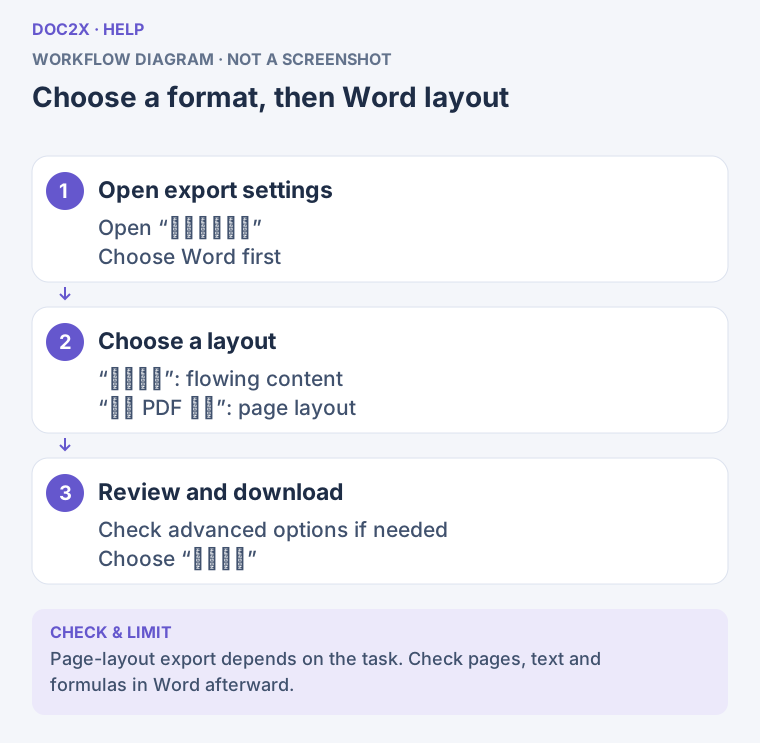
Choose a format, then Word layout (workflow diagram). Open the image in a new tab to enlarge it.
Failed, Cancelled, or Insufficient-Quota Tasks
| Situation | Next step |
|---|---|
| The file is retained but quota is insufficient | Check required and available pages. Eligible single PDFs offer Process the first … pages or Choose Pages → Process Selected Pages Only. After adding quota, click Quota Added, Continue This File |
| Page count or quota cannot be read | Keep the selected file, check encryption/corruption and connectivity, then click Check Again and Continue |
| An existing parsed result is found | Prefer Open Existing Result to check it. Choose Parse Again only if you need a new task; new processing uses the applicable quota |
| The task failed | Read its specific sidebar error. Fix the source or quota issue before retrying through the available entry point; a failed row is not a completed result |
| Cancel Parsing appears while queued | Cancel the pending task if needed. Cancellation or closing a window does not imply a completed task is refunded or undone |
| Leaving scan enhancement | Click Return to Upload Options, then Save and Leave to retain the local draft. Use Resume Editing when the draft appears again. If saving fails, follow the instruction to download the current file first |
| Export failed | Check the error and click Retry Export. If only saving failed, follow the system-download option; parsing again is unnecessary |
Selecting a subset processes only that subset. Submitting the full file later creates a new task with the corresponding quota checks and usage.