
Doc2X Features Introduction
Doc2X provides a one-click solution for PDF document parsing and document translation.
Parsing Feature Overview
Doc2X offers powerful PDF document parsing capabilities, supporting the conversion of various PDF formats into structured text formats. Key features include:
Intelligent Layout Recognition
Automatically identifies titles, paragraphs, tables, images, and other elements in documents
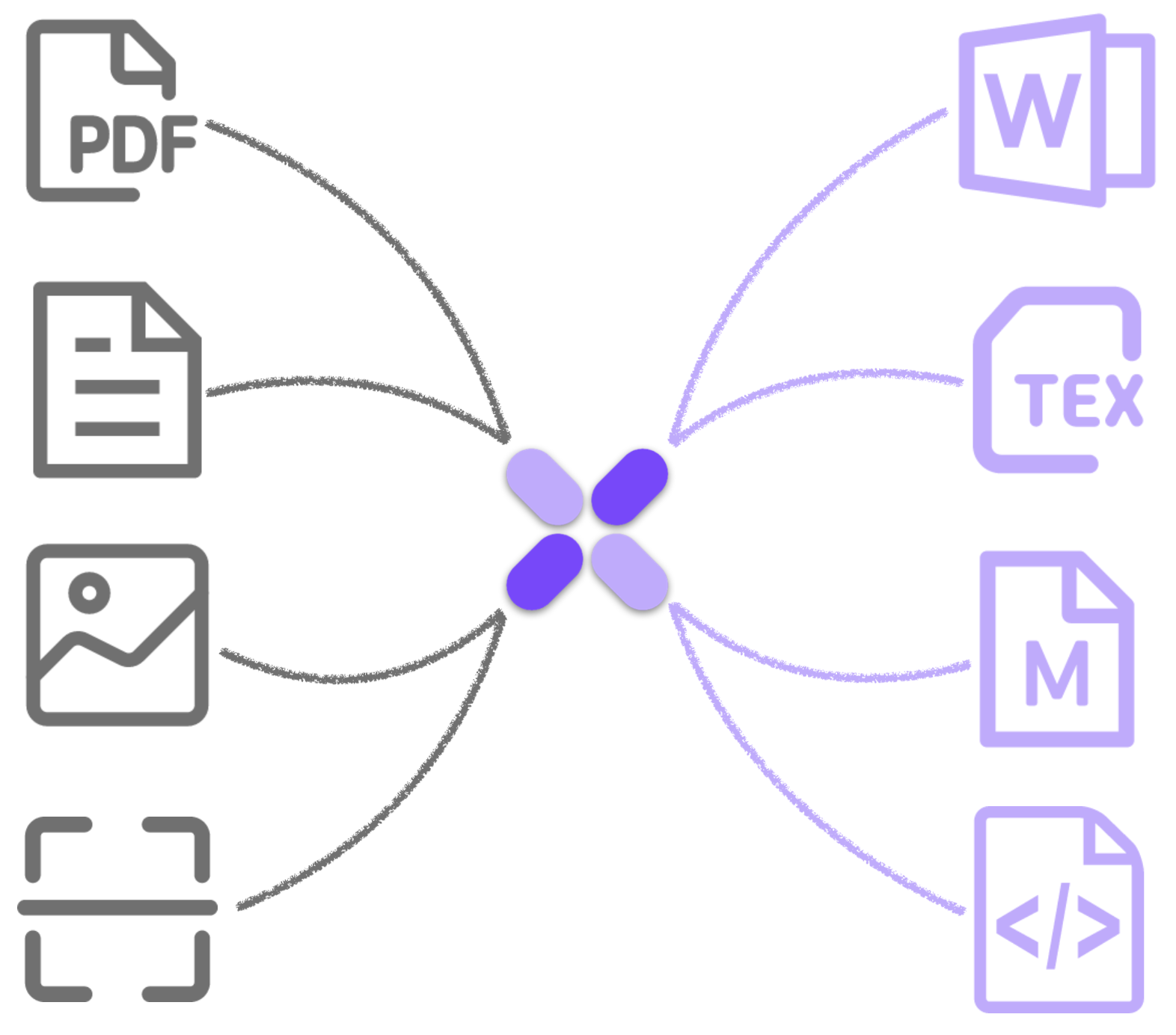
Multiple Output Formats
Supports conversion to Markdown, Word, plain text, LaTeX, and other formats
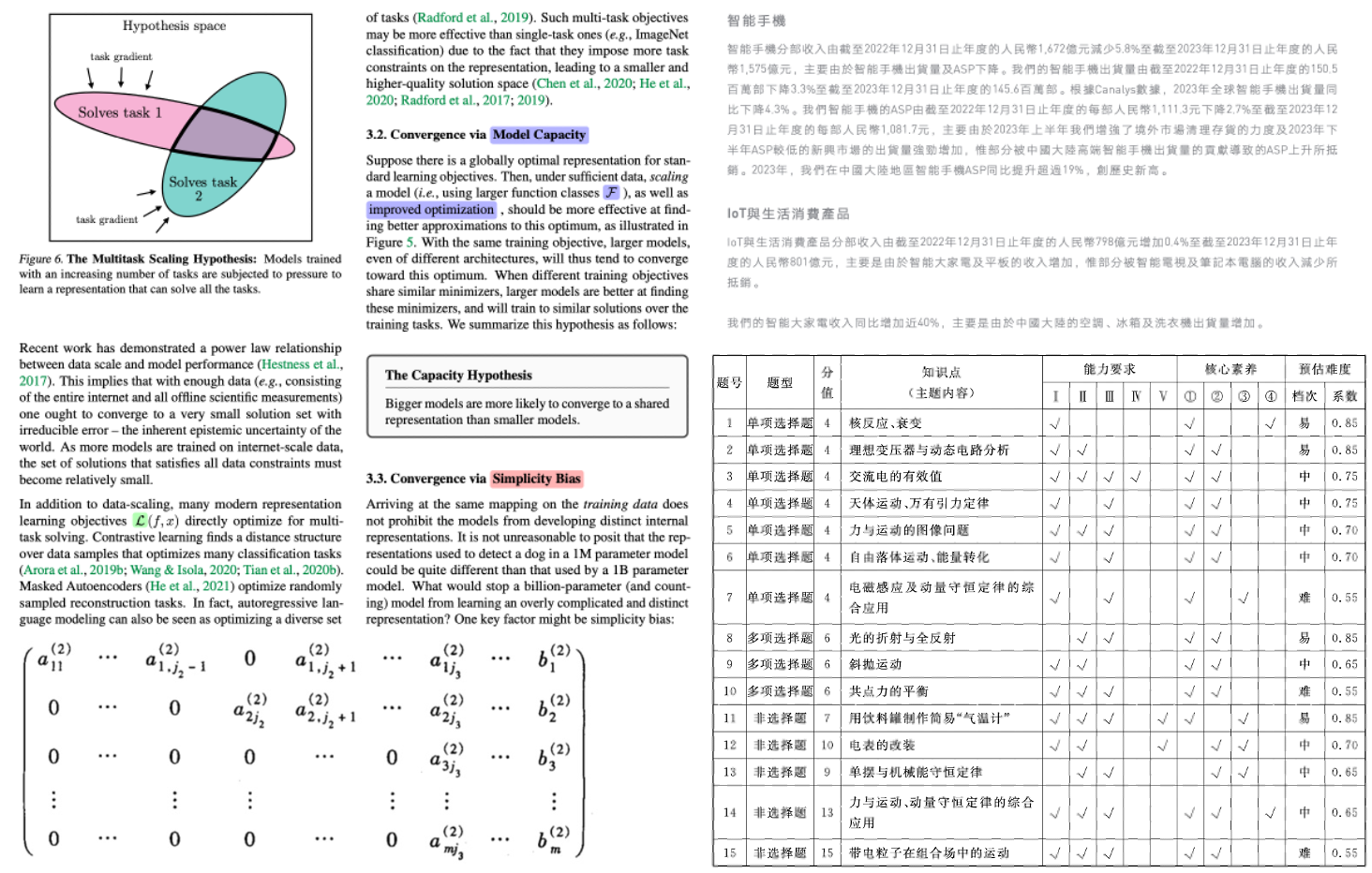
High-Precision Parsing
Utilizes proprietary high-precision OCR technology, supporting recognition of Simplified and Traditional Chinese, English, Japanese, Western European languages (excluding Russian), and other languages with accuracy rates exceeding 99%
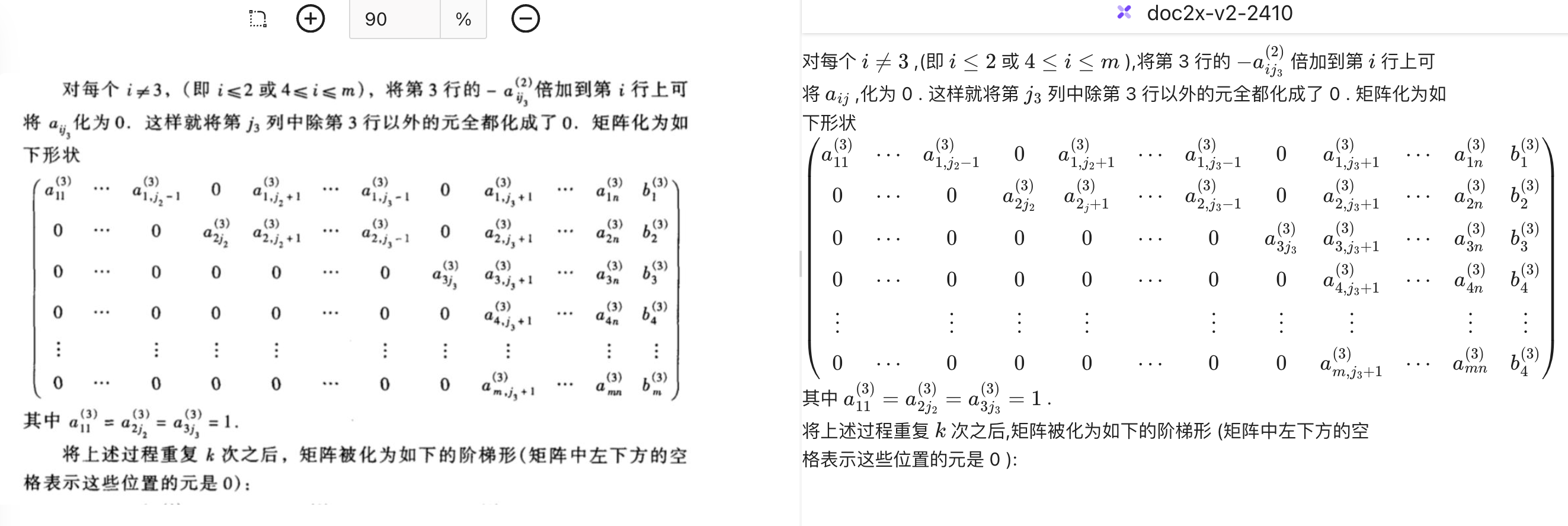
- Precise Recognition of Complex Matrices and Linear Algebra Formulas
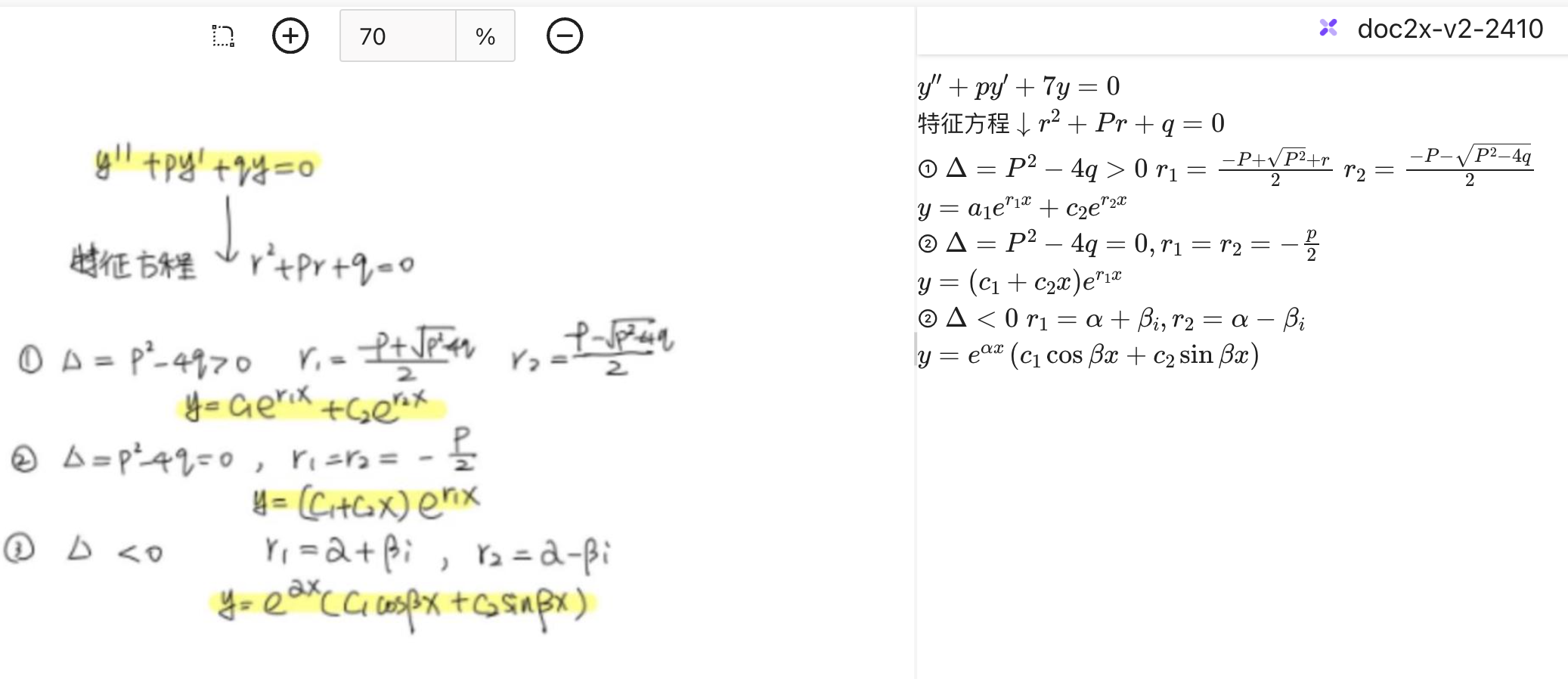
- Formula OCR Recognition in Handwritten Notes: Easy Conversion to Editable Format
- Correct Recognition of Complex Rotated Tables
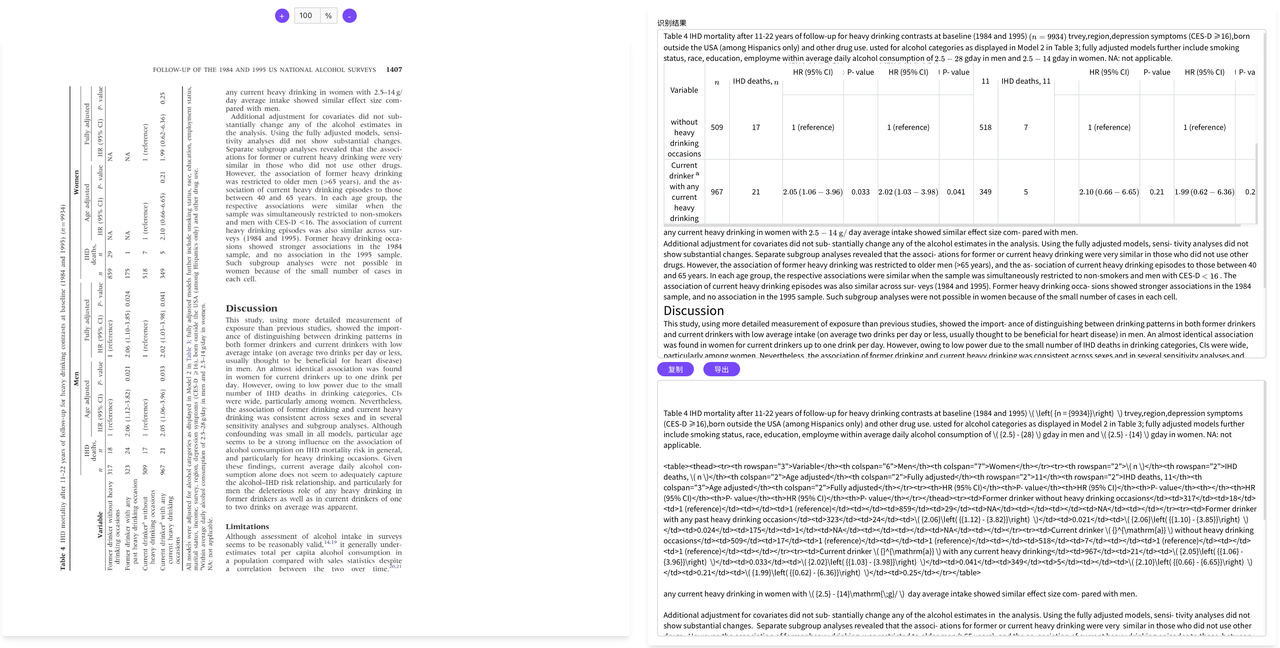
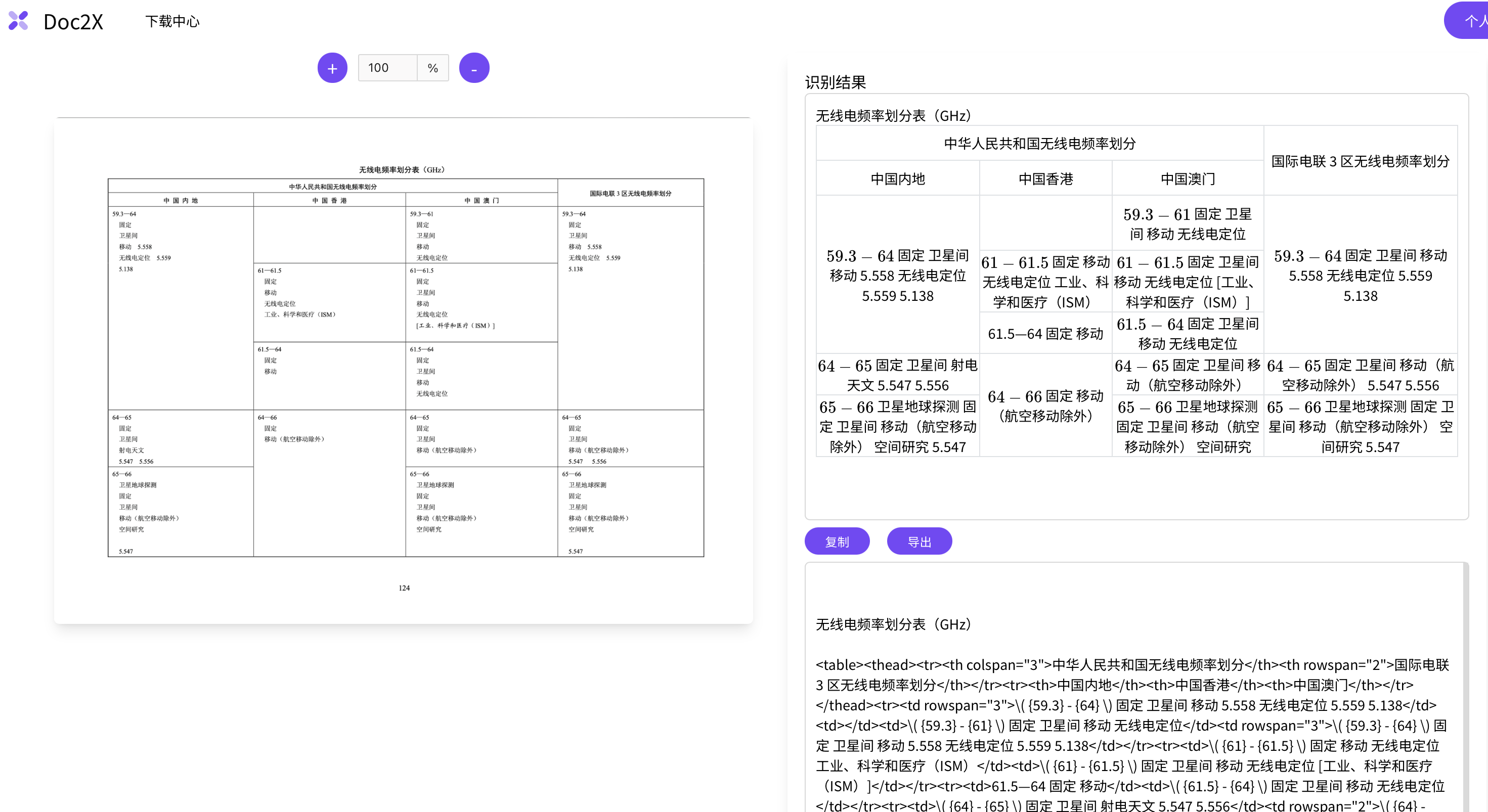
- Precise Recognition of Complex Merged Cell Tables
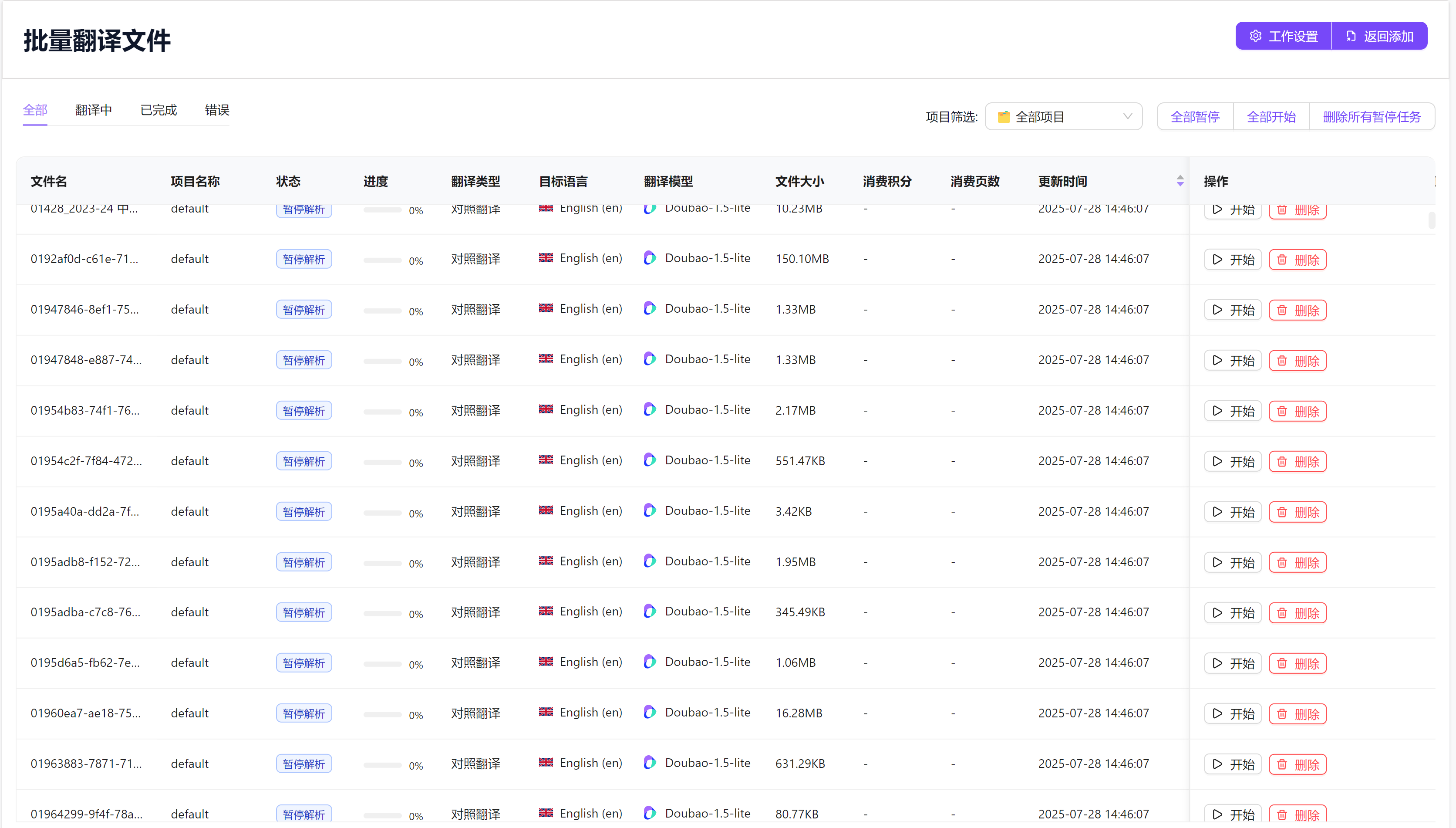
Batch Processing
Supports batch parsing and translation of multiple PDF documents; high-volume users can complete operations with one click
Translation Feature Overview
Doc2X integrates professional document translation functionality, providing users with high-quality multilingual translation services:
Multiple Large Language Model Translation Engines
Integrates GPT, Gemini, Deepseek, Qwen, Doubao, and other models, outputting multiple translation versions for comparison to ensure optimal translation selection
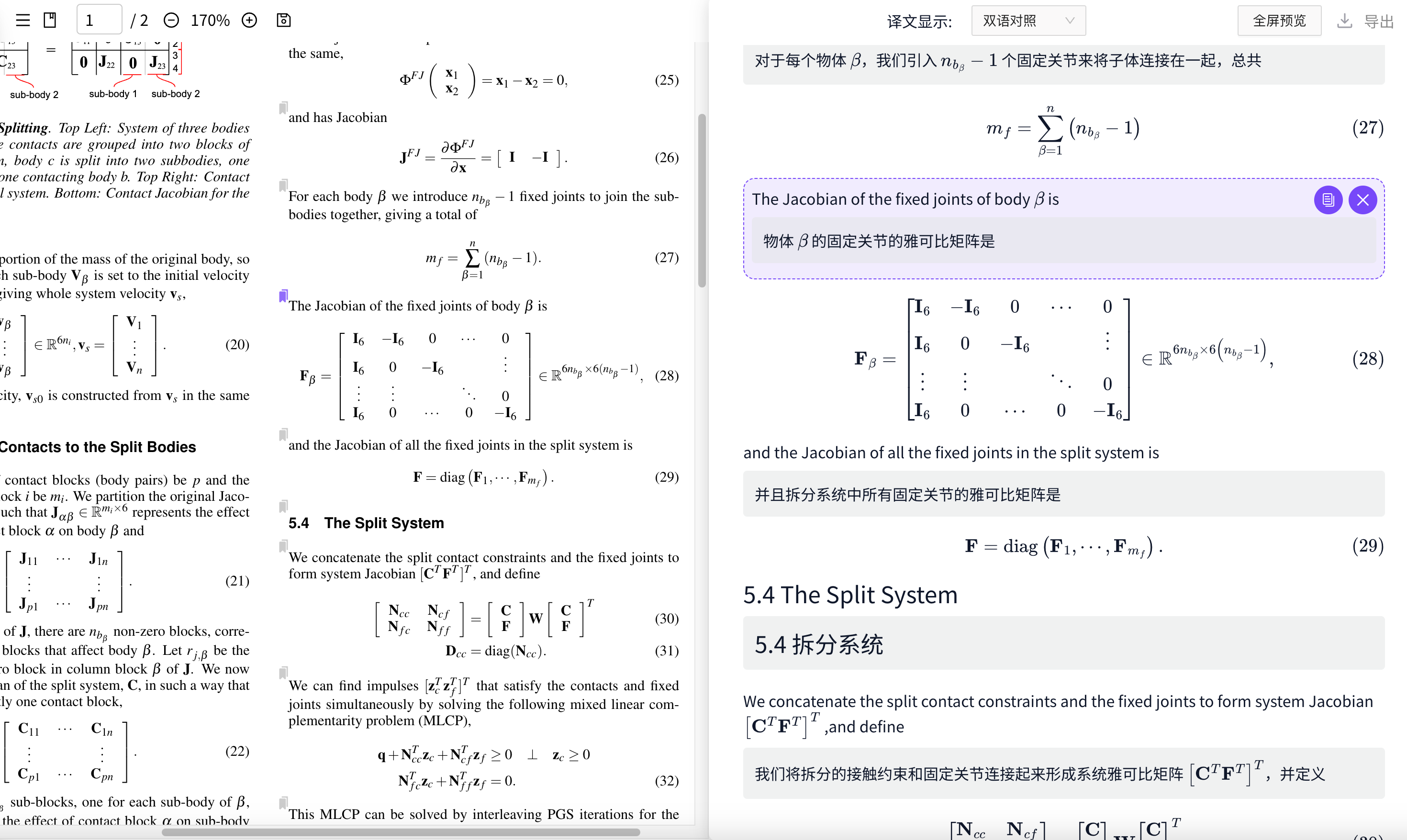
Bilingual Parallel Display and Bidirectional Navigation
Provides parallel display of original and translated text with one-click navigation to corresponding paragraphs, improving comprehension and proofreading efficiency
Formula and Layout Preservation
Unlike traditional machine translation services like Google Translate and Microsoft Translator, Doc2X can restore formulas and table structures when processing PDFs, supports translation of text within images, ensuring precise expression
Professional Terminology and Academic Scenarios
More accurate translation of professional terminology in academic papers, technical manuals, research reports, and educational materials, facilitating cross-language academic communication
Fast Batch Translation
Supports rapid translation processing of multi-page PDFs and batch documents, significantly improving work and study efficiency
PPT Generation Tutorial
Open Utilities → Magic Pic → AI Generate PPT to enter the presentation workspace. Some navigation layouts still offer Magic Slides → PPT Generator. Enter a topic or reference parsed PDFs, then choose a visual style.
| Method | Steps | Suitable output |
|---|---|---|
| Smart Layout (智能排版) | Describe requirements → Select slide count and style → Generate presentation → Edit text, formulas, images and shapes → Export PPTX | An editable presentation with individual elements |
| Creative Images (创意生图) | Generate and confirm outline → Edit outline → Page design → Generate images → Preview and export | Full-slide artwork; image PPTX directly, or editable PPTX after parsing |
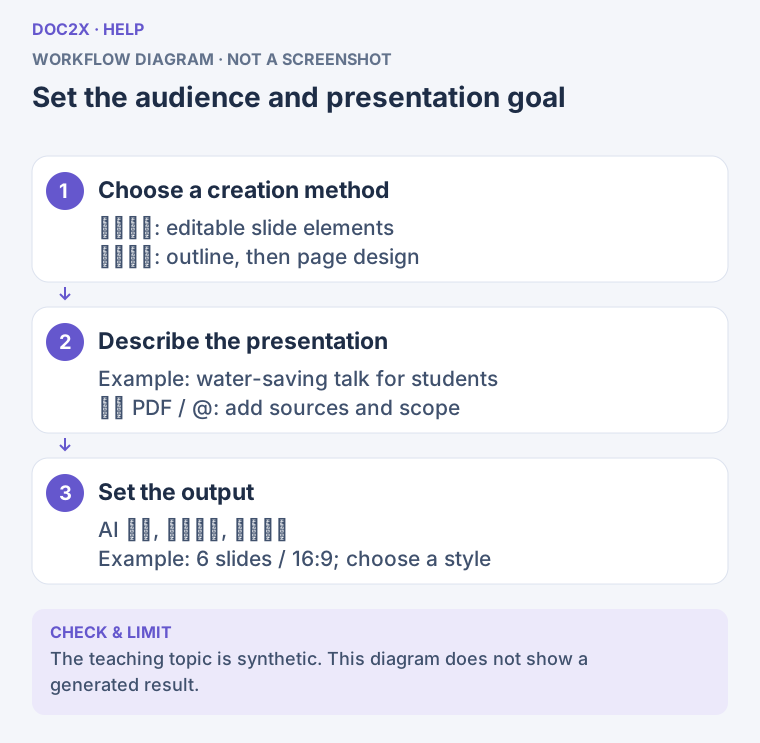
Create a presentation: choose a method, describe the audience and requirements, then set the slide count and visual style. (workflow diagram). Open the image in a new tab to enlarge it.
Start with a Simple Topic
- Sign in and open AI Generate PPT. If a project is already open, click New project (新建项目).
- Choose Smart Layout and describe a six-slide water-saving presentation for middle-school students, including everyday examples, three actions and a classroom discussion.
- Select Report, 6 slides, 16:9 and a visual style, then click Generate presentation (生成演示文稿).
- Review the generated slides, use Editing tools (编辑工具) to revise elements, and click Export PPTX (导出 PPTX).
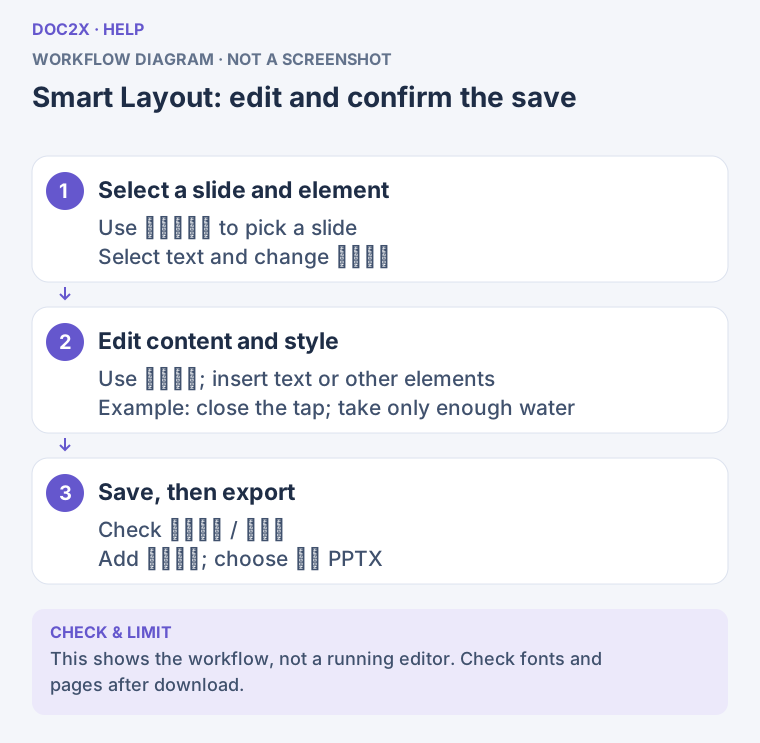
Smart Layout result: select a slide and an element, edit its content or style, check the save status, then export PPTX. (workflow diagram). Open the image in a new tab to enlarge it.
The default topic/document workflow uses the AI model selected on the creation page. Doc2X image generation uses account points without a third-party Key. Custom model setup applies when choosing Custom service or the older One sentence / Paste outline workflow. The former Key-first, image-generation and batch-parsing instructions described the older path, not the default steps for every user.
Read the full AI PPT tutorial for PDF references, both creation methods, outline editing, image regeneration, export requirements, points and local/cloud history. For reviewed question results, continue with Teaching Slides from Reviewed Questions.
Inspect a sample, then try your own file
- Open Parsing or Document Translation, then select a public sample card. Inspect text, formulas, tables or translation. Parsing, bilingual and layout-preserving translation samples show different outputs. A public sample is not your task and cannot be edited or exported as your own file.
- Return to the intended home page and select or drop your file. While signed out, check the filename on the File ready card. Select another file if needed.
- If offered, use Try without signing in or the equivalent link in the sign-in dialog, and complete any verification requested. The preview states how many pages were processed. Availability, daily allowance and page clipping depend on the current page and service; free full-document processing is not guaranteed.
- Check the preview, then choose Sign in and parse all … pages, the corresponding translation action, or Sign in to export and save. After sign-in, return to the original upload entry, check the restored original file and processing settings, then confirm processing. The guest preview is not a saved account task.
- When the account task finishes, open its result, verify the full page count and use its export controls. See the parsing tutorial and translation tutorial.
If trial controls are absent, the allowance is exhausted or preview fails, sign in to continue under your account allowance. If translation preview only shows parsing, read the message and sign in to translate. After a refresh, select the original file again if it was not restored; verify its name before submitting.
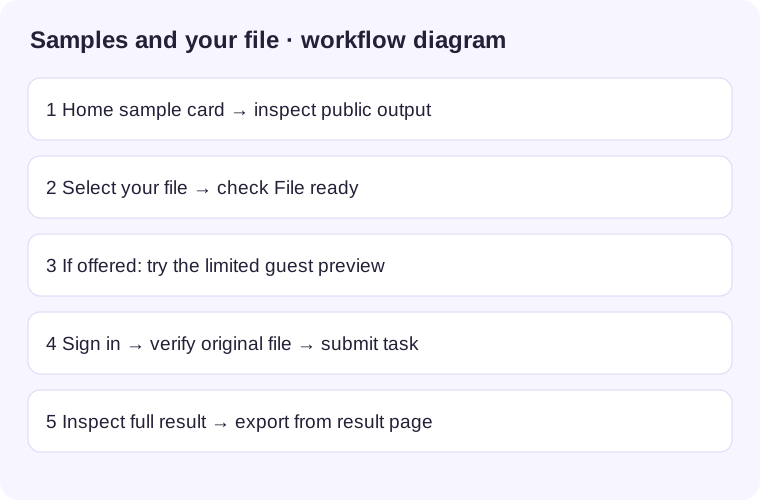
Workflow illustration, not a product screenshot. Click to enlarge in a new tab.
Pin frequently used entries
- Expand the main sidebar, hover over a feature or focus it with the keyboard, then click its pin button. Touch screens display the pin directly.
- Check that the pin becomes selected and the entry moves before unpinned entries. Click the entry itself to open the feature.
- Click the pin again to unpin. Reopen the page and verify the choice remains; preferences are stored in the current environment.
Only existing available entries with a pin can be pinned. Wait for preferences to load if the button is initially unavailable. If changes disappear after reopening, check that your browser or client can persist settings, then set and verify again. Desktop batch processing also requires a signed-in client main window.
Help, contact information and formula fonts
- Open the avatar menu → Help Center (帮助中心) and find the tutorial for your feature on the FAQ page.
- For assistance, open Contact us (联系我们) and follow the contact details or QR code shown. Record the reproduction steps and error message first. This dialog displays contact information; it does not provide an in-site chat or ticket system.
- If formula previews look correct in Word but special glyphs look wrong when edited in MathType, open MathType font installation (MathType 字体安装). Download and extract the font ZIP, then install all three
.ttffiles: use Install in Windows Font Viewer or macOS Font Book. - Save the document, fully quit Word and MathType, reopen the document and double-click a formula to check special digits, letters and symbols.
The package does not include MathType software and the page does not detect local installation. If glyphs remain wrong, check all three fonts and restart the applications. If the formula object cannot open at all, check MathType compatibility with your Word version. Viewing preview images alone needs no font installation.
Use Academic Navigation
- Open Utilities → Other → Academic Navigation (实用工具 → 其他 → 学术导航) to visit the external navigation site.
- Select a resource category there and open a resource link; follow the destination site's requirements.
- The destination site supplies the resource. Return to Doc2X to process your own documents.
This is an external resource directory, not a Doc2X full-text paper library. If a link fails, check the network or destination restrictions, or try another entry. Availability and access rights belong to the destination site.
Related Documentation
- FAQ Common Questions - Common questions and answers during usage