
NotebookLM: Import Project Materials into a Notebook
Start from a project menu in Doc2X desktop to send available parsing and translation materials to NotebookLM. Check the imported sources there before using the service's current research or learning features.
Before you start
- Use a signed-in Doc2X desktop version with NotebookLM connection support.
- Have a Google account eligible to use NotebookLM, and network access to the service.
- Have readable parsed content and the required results in the Doc2X project. Uploading a PDF without a usable parsing result does not by itself make the project ready for this transfer.
1. Connect NotebookLM
- Open avatar → 账户管理 (Account management) → 转存设置 (Online Save Settings).
- Find NotebookLM and click 去授权 (Authorize).
- Complete Google sign-in and the service's confirmation steps in the opened login window.
- Return to Doc2X and wait for 登录中... (Signing in) to change to 已授权 (Authorized). Use the desktop status, not just the external login page, to confirm connection.
- If it remains disconnected, check NotebookLM eligibility, desktop and network availability, then start a new connection.
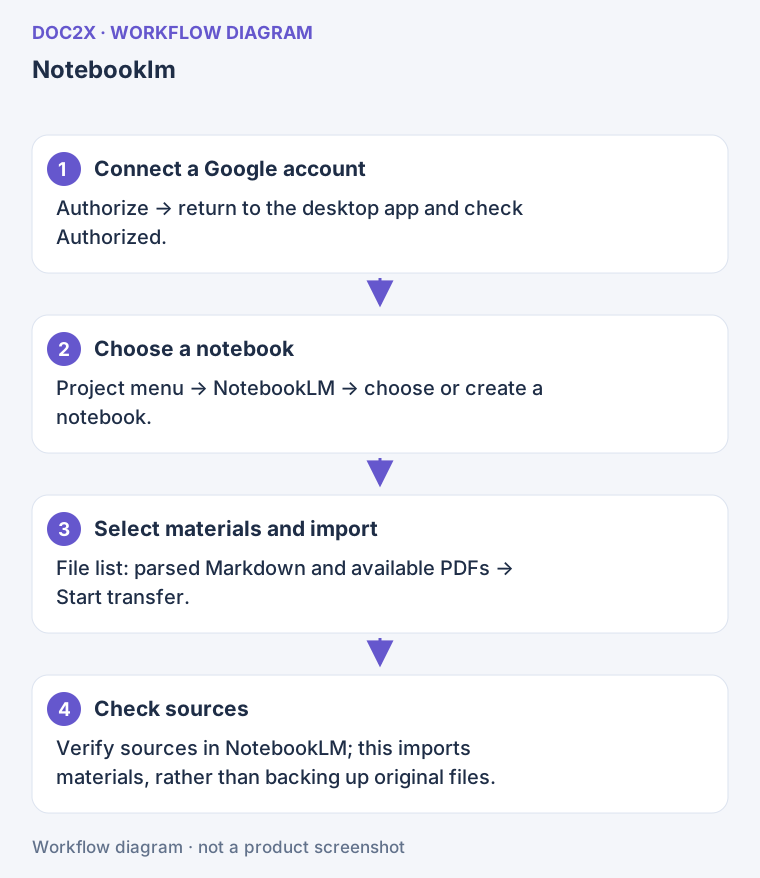
Diagram: Choose a notebook and materials from the project menu, then check the sources in NotebookLM.
2. Select project materials
- In 30天临时存储 (30-day temporary storage), find the processed project.
- Open the project menu → 转存第三方 (Transfer to a third party) → NotebookLM. Ordinary single-document and batch text dialogs list Notion/FlowUs, so check your entry if NotebookLM is missing.
- Enter a recognizable 项目标题 (Project title).
- Under 选择笔记本 (Select notebook), choose 新建笔记本 (New notebook) or an existing notebook. Resolve connection problems if the list fails to load.
- In 文件列表 (File list), select the materials you need. Depending on available results, these may include parsed Markdown, the original PDF, comparison-translation text and fixed-layout translated PDFs.
- Check any original, translated, bilingual or PDF-layout choices. An unfinished result is not an available source.
- Confirm the notebook and file selection, then click 开始转存 (Start transfer) and wait for preparation and upload.
The workflow assembles the selected materials before submitting them. Do not assume each checkbox becomes one same-name source file that can be downloaded unchanged.
3. Check NotebookLM sources
- Open the new or selected NotebookLM notebook.
- Inspect its source list and confirm that this project's content appears.
- Open the source and check the text, required PDF content, images and tables.
- Once the sources are readable, use questions or learning-material features. Availability and usage limits depend on the third-party account's current interface.
Six usage notes
- Content scope: this entry handles available Doc2X parsing/translation materials, including the Markdown, PDF and related resources listed in the dialog. It is not an arbitrary Word or LaTeX file uploader.
- Network: sign-in, notebook listing and uploads all require service access. Confirm NotebookLM works on the same network and follow the service's error guidance.
- Account and capacity: the Google/NotebookLM account must be eligible, and notebook/source capacity follows the provider's current limits.
- Compatibility: the connection depends on desktop and third-party behavior. Provider changes or an old desktop app may affect it; record the failed stage and check your app version.
- Third-party conditions: Doc2X membership does not supply a NotebookLM plan or quota. See NotebookLM Help for current features and limits.
- Keep originals: NotebookLM sources serve reading and research. They are not a guarantee of a byte-for-byte backup of original files, folders or formats. Keep original PDFs, Markdown and images separately, or use WebDAV/local archives.
Recovery
| Situation | What to do |
|---|---|
| Login times out or remains unauthorized | Check account eligibility and service access, then reconnect in Online Save Settings |
| Notebook list is empty or fails | Check the connected account; explicitly choose New notebook if that is your intention |
| No content is available to create a page | Confirm parsing succeeded and the project's text is readable; selecting only PDF does not supply missing parsed content |
| No file or notebook selected | Complete File list and Select notebook before submitting |
| Only some materials arrived | Inspect the existing sources first, identify missing content and retry the appropriate selection; avoid repeatedly creating new notebooks without checking |
| Doc2X account changed during transfer | Return to the initiating account and recheck the connection and notebook |
To clear this desktop client's NotebookLM login state, use 取消授权 (Revoke authorization) in Online Save Settings, then reconnect if needed. This does not delete already imported NotebookLM materials for you.