
Teacher question bank: import, organize, build papers, and export
The Doc2X teacher question bank stores questions for long-term use. Find them in collections and directories, select questions to build papers, edit teaching materials, and export files. This tutorial uses a fictional “Triangles and Equations” exercise: import reviewed questions into a “Middle-school Mathematics” collection, classify them under “Linear Equations” and “Triangles,” then create a classroom exercise.
If you are starting with an unreviewed PDF, use the exam-organizing tutorial first. Reviewed exam results can also go directly to the teaching PPT workspace. This page covers management and output after questions enter the separate question-bank website.
Chinese interface labels are retained below so you can locate the controls on screen.
Step 1: open the bank and check your space and role
In the Doc2X web app, open 实用工具 → 文档 AI → Doc2X 教师题库 (Tools → Document AI → Doc2X Teacher Question Bank), or use 探索功能 → 文档 AI → 教师题库 (Explore features → Document AI → Teacher Question Bank) on the home page. You can also open the teacher question-bank website. It is a separate web application. Click 使用 Doc2X 授权登录 (Sign in with Doc2X authorization) and complete sign-in. External question-bank entries in the desktop client open in a browser; the client's tools page may omit the web-only question-bank card.
Check 切换空间 (Switch space) at the top left before working. Choose 私人空间 (Private space) for personal preparation, or a team for shared departmental resources. Questions, directories, materials, and capacity are scoped to that space. Switching spaces returns to the question center; reopen the import link or choose the source record in 导入中心 (Import center) to continue an import.
| Entry | Use it for |
|---|---|
| 试题中心 (Question center) | Find, review, edit, classify, collect, and directly export questions |
| 试卷中心 (Paper center) | Open imported or assembled papers; create analysis tables, answer sheets, parallel papers, or A/B versions |
| 公开题库 (Public question banks) | Browse openly available resources |
| 教学材料 (Teaching materials) | Edit handouts and papers assembled from questions and other content |
| 导入中心 (Import center) | Import completed Doc2X tasks or JSON packages, or start organizing a new document |
Your space role also controls available actions. Administrators and editors can enter/edit questions and build papers. A publish-only role cannot edit questions or materials; a view-only role can view and export. If a card shows 查看答案 (View answer) instead of 编辑与答案 (Edit and answer), or write actions are unavailable, check the space and role. Follow the account's current sign-in, membership, capacity, and AI-usage notices. Team capacity follows the space creator's plan.
Step 2: create a collection and directories
In 试题中心, click 新建 (New) beside 我的题库 (My collections). In 新建题库 (New collection), enter a 题库名称 (Collection name), such as “Middle-school Mathematics,” then click 创建题库 (Create collection). The collection appears in the left tree.
Use the directory creation entry to open 新建目录 (New directory). Enter its name, check 上级目录 (Parent directory), and click 创建目录 (Create directory). For example, create “Linear Equations” and “Triangles” under the mathematics collection. Collections and directories organize questions; knowledge points, type, difficulty, and tags support additional searches across directories.
You can also import into 当前空间 · 未分类 (Current space · Unclassified), then review and classify questions later.
Step 3: choose an import method
Method A: import a reviewed exam-organizing result
This preserves the connection to the Doc2X task and avoids repeating OCR or question-answer matching.
- In the Doc2X 整理试题 result, finish your matching corrections and exclusions, then click 导出整理结果 (Export organized result).
- Set 导出范围 (Export scope) to 全部保留题目 (All retained questions) and click 导出到题库 (Export to question bank). This first saves the current revision.
- Once the save is confirmed, click 前往题库确认入库 (Go to question bank to confirm import). Opening the new page does not itself complete the import.
- In the question bank's 导入中心, verify “已载入 Doc2X 的保存结果” (Saved Doc2X result loaded), the source title, and question previews.
- Under 存入当前空间 (Save to current space), enter 教学材料名称 (Teaching material name), optionally add 出处 (Source), review 试卷信息 (Paper information), and choose the destination under 存入题库 (Save to collection). Search can also offer 新建题库「…」 to create a collection.
- Under 导入后 (After import), keep 先放进待审核(推荐) (Put in pending review first, recommended). Use 直接入库 (Import directly) only when the content has already been sufficiently reviewed.
- Review AI 核对配图归属 (AI checks illustration assignment), then click 存入题库并生成材料 (Save to collection and generate material).
- Wait for 归档进度 (Archiving progress) to finish and verify 已存入 N 道题 (N questions saved). Use 打开教学材料 (Open teaching material) or 修正切题 (Correct question splitting) to continue checking.
AI illustration checking is enabled by default. When an illustration's assignment is uncertain, it uses the chosen model and AI points. This check is not called when there are no illustrations. Review and disable the option if you want to retain the existing image assignments without that AI check. Avoiding repeat OCR/matching does not mean every optional operation is free of AI usage.
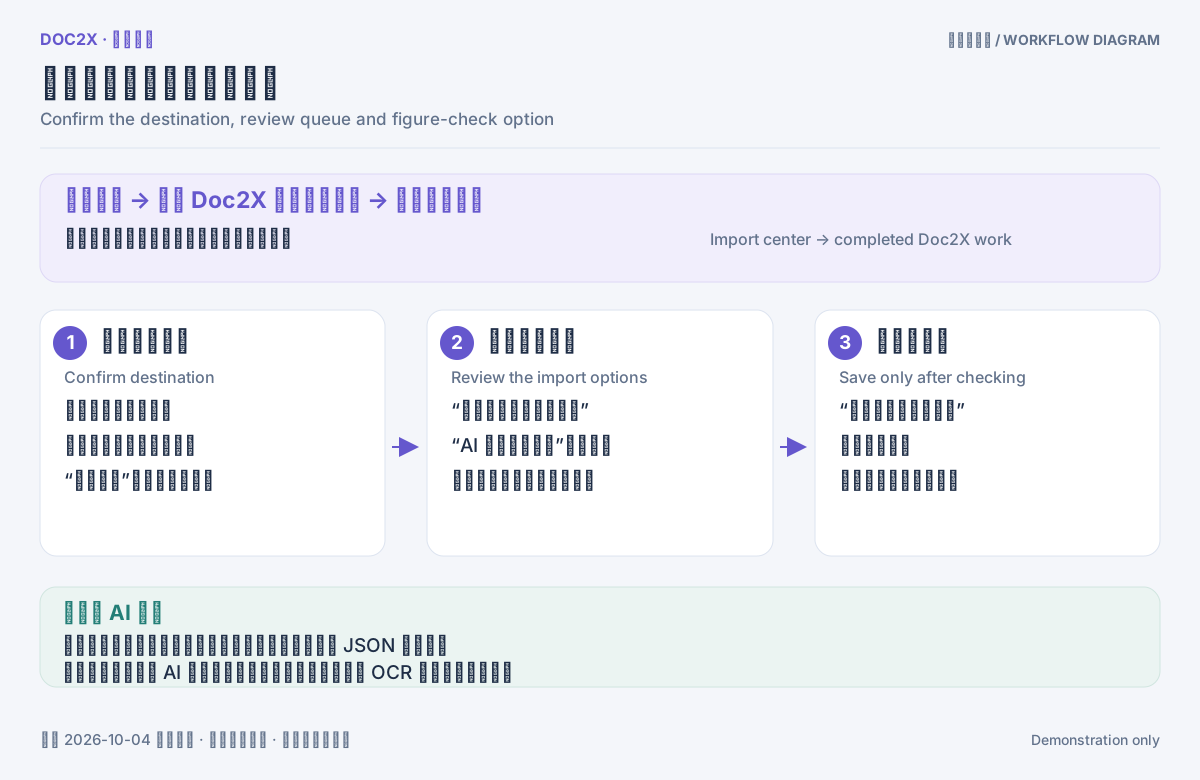
Figure: Workflow diagram: confirm the space, collection, review queue and default-on AI figure check before importing.
Without a handoff link, choose a task under 继续 Doc2X 已完成的工作 → Doc2X 配对与校对记录 (Continue completed Doc2X work → Matching and proofreading records), or enter a Doc2X 任务号 (Doc2X task ID). Resolve an unconfirmed save in the source task before importing it as the latest version.
Direct handoff includes all nonexcluded questions. To import only selected questions or chapters, use JSON instead. A full-text edited result may show 讲义全文已归档 · 未新增题目 (Full handout archived · No new questions): it is retained as a complete material, not necessarily split into individual questions.
Method B: import JSON or an image-containing ZIP
- In the exam-result export dialog, choose the desired range and export 结构化数据 (Structured data).
- Open 导入中心 → 导入已配对的 JSON (Import center → Import paired JSON) and click 选择 JSON / ZIP 文件 (Choose JSON / ZIP file). Use the complete ZIP when images are included.
- Review the question count, image count, items requiring review, and chapters. Set the material name, collection, and review mode.
- Click 确认导入 N 道题 (Confirm import of N questions), then review the saved questions in the question center.
Accepted files use Doc2X's exam JSON or the documented migration format, not arbitrary JSON. Use 下载最小示例 JSON (Download minimal JSON example), 下载完整迁移示例 (Download complete migration example), and 格式说明与迁移文档 (Format and migration documentation) to prepare external data. The package limit is 20 MB, its JSON must be no larger than 10 MB, and an import supports up to 2,000 questions. Excluded questions are omitted. Prefer online task import when original-PDF source navigation matters.
Method C: upload a new PDF or Word file in the bank
Find 整理试题(PDF / Word) (Organize questions, PDF / Word) in the import center and click 整理试题. Choose the file, target collection, material name, and organizing model; enter the source and any necessary additional requirements. After reviewing usage, enable 确认使用 Doc2X 解析页数与 AI 额度 (Confirm use of Doc2X parsing pages and AI allowance), then click 上传并开始整理 (Upload and start organizing).
When processing finishes, review the result, click 存入题库 (Save to collection), then 打开教学材料. This starts new parsing and organizing work and uses the associated allowance. Prefer methods A or B when a completed result already exists.
This entry accepts PDFs up to 200 MB and Word files up to 100 MB. Word availability depends on the Office conversion service. These limits are separate from the main app's 300 MB PDF limit.
The import center also retains a step-by-step entry: 上传文档 → 开始解析 → 开始题答整理 → 选择导入 (Upload document → Start parsing → Start question-answer organization → Select for import), followed by the destination form on the right. Follow the entry you started; do not mix its buttons with the all-in-one dialog.
Method D: screenshots or phone photos
Click 截图录题 (Enter questions from screenshots) in the question center and add images. You can also click 手机拍照 (Phone photography) to create a QR code. Scan it with the phone's system camera, then take photos or choose images in Safari or Chrome; the photos appear in the computer's image list. This entry does not support WeChat scanning. The code accepts the first connected phone only; do not forward it. Use 不是我的手机 (Not my phone) to disconnect an incorrect phone.
Under 录入方式 (Entry mode), choose 逐张录题 (Process each image separately) for isolated questions, or 整张试卷 (Whole paper) to combine ordered images into one paper with questions spanning pages. Whole-paper mode creates a matching teaching material after saving. Check image order, destination collection, education stage, and 整理模型 (Organizing model). In whole-paper mode, also enter 试卷名称 (Paper title).
Read and confirm the usage notice, then click 识别并整理 N 张截图 (Recognize and organize N screenshots). Each new screenshot uses one parsing page, and organizing invokes the chosen model. Review each question, answer, explanation, and illustration against the image. Deselect unwanted questions and click 存入 N 道题 (Save N questions). After saving a whole paper, use 打开试卷 (Open paper), or 继续录题 (Continue entering questions).
Use 返回修改截图 (Return to edit screenshots) to adjust sources. 重新整理 (Organize again) uses AI allowance again but does not repeat existing image recognition. Continuing unfinished work reuses successfully recognized and organized content. Generate another QR code when phone capture ends or the code expires.
Step 4: review, edit, and save questions
Return to 试题中心 and inspect pending-review questions. Check wording, options, answers, explanations, formulas, and illustrations, followed by type, difficulty, knowledge points, and chapters. Click 确认 (Confirm) for an individual reviewed question, or select already-reviewed questions and use 确认所选 (Confirm selected).
To edit, click 编辑与答案 (Edit and answer). In 编辑题目 (Edit question), check these fields:
| Field | What to check |
|---|---|
| 学段、学科 (Education stage, subject) | Use consistent classifications, such as middle school and mathematics |
| 题型、难度 (Type, difficulty) | Match the actual demands of the question |
| 出处 (Source) | Record the source exam, school, or “Original classroom example” |
| 章节(以 / 分隔) (Chapters, separated by /) | Check the hierarchy, for example “Triangles / Area” |
| 知识点、标签 (Knowledge points, tags) | Reuse knowledge points and add purpose tags such as “Class exercise” |
| 题干与选项、答案、解析 (Question/options, answer, explanation) | Check formulas, option mapping, steps, and shared passages |
Click 保存题目 (Save question) to save to the server. “草稿已保存在本机” (Draft saved locally) only confirms a local draft. Existing questions offer 历史版本 (Version history). If a conflict occurs, preserve your work and compare the latest version instead of repeatedly attempting to overwrite it.
To enter an original question directly, click 新建题目 (New question) in the question center, fill the same fields, check wording, options, and formulas in 实时预览 (Live preview), then click 保存题目. Put shared passages in the shared-material field instead of repeating the whole passage in each question.
If answers are printed inside a question, inspect and edit 学生版题干 (Student question text) to avoid revealing them in student output. Use 附图与裁剪 (Illustrations and cropping) to upload or crop an image, select the insertion point in the question, then use 插入到题干 (Insert into question text). Put preparation reminders in 教师备注 (Teacher notes), which do not enter the student version. Existing questions offer 使用记录 (Usage records) and 原文与定位 (Source and location); manually created questions have no automatically imported original PDF source.
To assign directories, select questions and use 批量整理 / 共享 (Batch organize / share). Moving pending-review questions into a directory also removes them from the pending-review area, so review before batch classification.
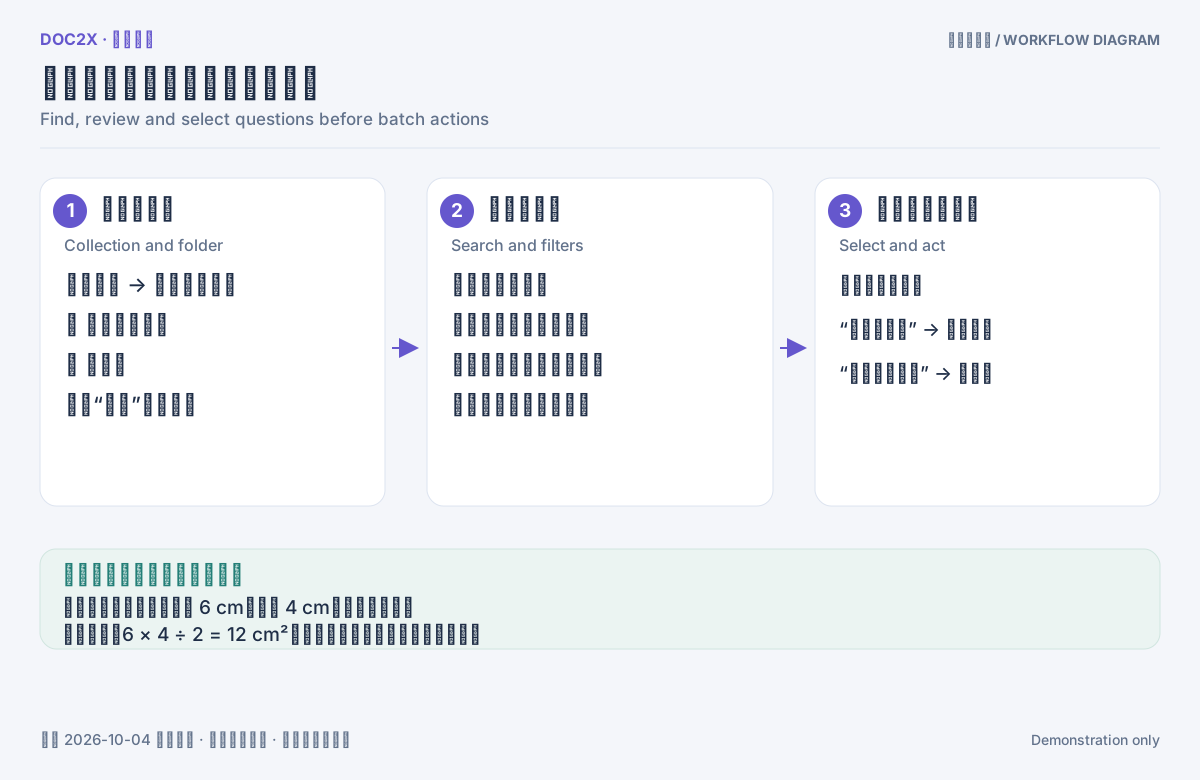
Figure: Workflow diagram: browse collections and folders, search and filter, review questions, then add selected questions to the basket or export them.
Inspect source location and material usage versions
- Open the editor for an existing question and select 原文与定位 (Source and location). An unsaved new question has no source tab.
- Select the file and page under 来源页面 (Source page), then inspect 原文保存版本 (Saved source version). An archived original page appears on the left. Use 放大原页 / 缩小原页 (Zoom in/out) between 100% and 300%, enable 显示原文定位 (Show source location), and scroll the page to compare the highlighted stem and figures.
- Compare the text on the right: it preserves edits saved at import and can differ from the original image. Without an archived image, only saved paragraph coordinates appear. “此题没有导入来源” means no import source is available. JSON migration does not provide original PDF location.
- Select 使用记录 (Usage records), open a material by its title, and check the adjacent 讲义版本 (Handout version). That number belongs to the referencing material; the saved source version belongs to the import source, while 历史版本 (Version history) in the question toolbar records the question itself. With no references, the page says no teaching material uses this question yet.
Shared copies show the shared library and contributor source. Copying across spaces does not share a private source PDF with the copy.
Generate answer drafts or classification suggestions when needed
Save the question before opening AI 答案草稿 (AI answer draft). Select 使用模型 (Model), enable 我确认使用 Doc2X 额度生成这道题的答案草稿 (Confirm Doc2X usage for this answer draft), and click 生成答案草稿 (Generate answer draft). Open a ready result with 查看并编辑草稿 (View and edit draft). Check and edit its answer and explanation, then click 核对后采用到题目 (Apply to the question after review), or 丢弃草稿 (Discard draft).
For AI 归类 (AI classification), save first, choose a model, confirm usage, and click 生成建议 (Generate suggestions). Open 查看草稿 (View draft), review knowledge points and difficulty, then click 核对后采用 (Apply after review). Selected questions also support batch AI classification; each question invokes the model separately, so check the count first.
AI drafts do not automatically overwrite saved content or change the source-answer matching status. A draft based on an older question version cannot be applied directly. If a result is unconfirmed, use 刷新生成记录 (Refresh generation records). 新建一次生成 (Start a new generation) is not a refresh and uses allowance again.
Step 5: search, combine filters, and save queries
Enter an area or equation keyword in 搜索题干、答案、知识点… (Search questions, answers, knowledge points…). Combine knowledge point, question type, difficulty, source paper, textbook chapter, imported chapter, usage, and tag filters. For example, choose the Triangles directory, 没用过的题 (Unused questions), and a difficulty level for a first classroom exercise.
Knowledge points and tags each have a matching-mode control. If combined filters produce no results, remove restrictive conditions one at a time before assuming the questions need importing again.
For queries across directories, open 高级目录查询 (Advanced directory query):
- Choose directories and scope in group A, such as 所选目录及所有下级 (Selected directory and all descendants).
- Add group B if needed and select a relationship such as A 或 B(并集) (A or B, union), 同时属于 A 和 B(交集) (Both A and B, intersection), or A 中排除 B (A excluding B).
- Click 预览题数 (Preview count), then 应用目录条件 (Apply directory conditions).
- Save a useful combination with 保存当前查询 (Save current query), enter a name, and choose 另存为新方案 (Save as new scheme).
Other scopes include only the selected directory, only direct children, all descendants excluding the directory itself, and the directory plus its ancestor path. Query schemes are personal and available across devices in the current space; they do not change other members' filters.
Check duplicates and find similar questions
Click 查重 (Check duplicates) to inspect groups with similar wording, shared passages, and options in the current collection or all questions. Use 查看 (View) to compare differences and usage counts before moving an actual duplicate to 移至回收站 (Recycle bin). Detection does not delete automatically, and fixed versions already used in teaching materials are not rewritten by removal.
Use 找相似题 (Find similar questions) on a card to open 相似题候选 (Similar question candidates). Filter by 相同难度 (Same difficulty), 换简单一点 (Easier), 换难一点 (Harder), knowledge point, and 相同题型 (Same type). Inspect 答案与解析 (Answer and explanation), then click 选择这道题 (Choose this question). If the source question has no difficulty, try 不限难度 (Any difficulty); relax filters if no candidates appear.
The candidate panel also offers 生成同类变式 (Generate a similar variant). Choose a variant model, enable 确认使用 Doc2X 额度生成变式 (Confirm usage for a variant), and click 生成变式草稿 (Generate variant draft). Check conditions, options, answer, and explanation before 核对后入库并换题 (Review, save, and replace). This generates a new question, unlike criteria-based selection of existing questions. For an unconfirmed result, use 查询或继续本次生成 (Query or continue this generation).
Step 6: build a paper from the question basket
- Click 加入试题篮 (Add to question basket) on a card, or select several questions and add them together. Continue selecting across pages and collections.
- Open the floating 试题篮 (Question basket). Check the question count and summaries. A basket holds up to 200 questions.
- Use 上移 (Move up), 下移 (Move down), or 移出试题篮 (Remove from basket) to adjust the selection and order.
- Click 用这 N 道题组卷 (Build a paper with these N questions). Keep 用已选的 N 道题 (Use the N selected questions) in 组卷 (Build paper).
- Enter 试卷名称 (Paper title). Check sections, question counts, points per question, and total score, then click 生成试卷 (Generate paper).
- Open the generated result in the teaching-material editor, adjust its title, content, and output style, then save.
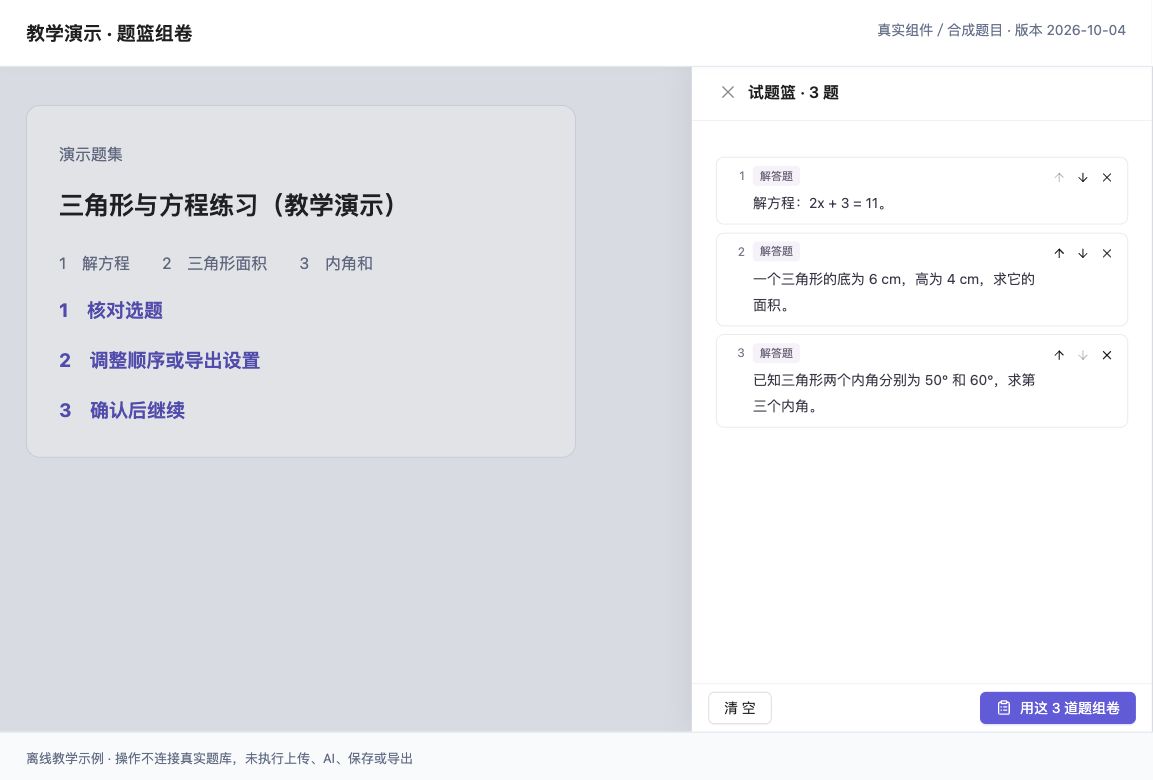
Figure: Collect questions in the basket, adjust their order, and create editable teaching material. (Offline demonstration using the real component and synthetic teaching data; interface version 2026-10-04.)
Randomly pick within the current filters
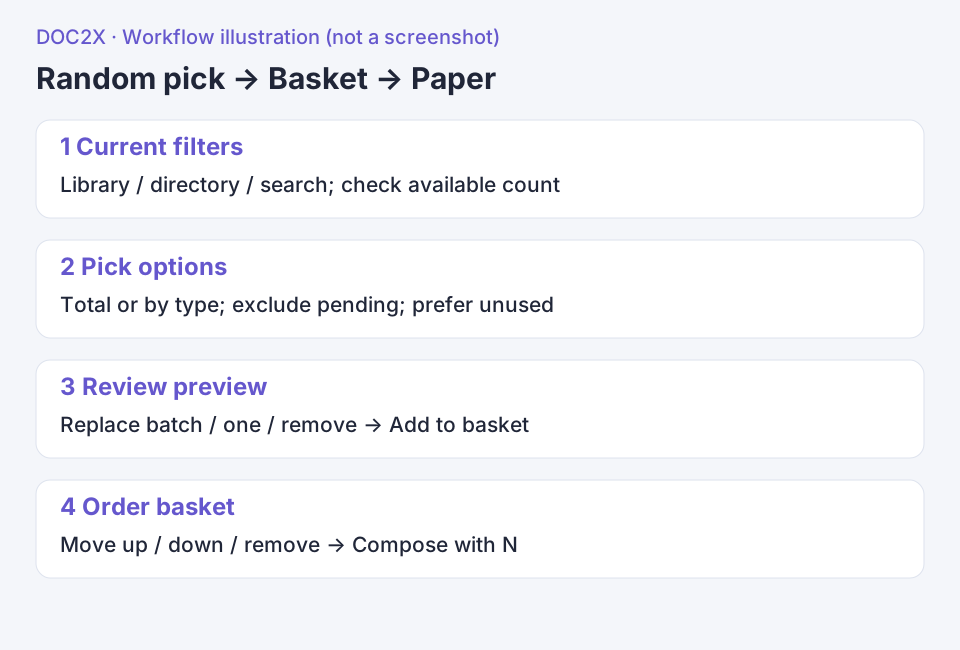
- Choose the library, directory and search filters first. Open 随机抽题 (Random pick), then check the displayed filter scope and available question count.
- Choose 按总数 (By total) and enter a count, or 按题型 (By type) and enter counts for individual types. Optionally select 不抽待审核的题 (Exclude pending review) and 优先抽没用过的题 (Prefer unused). Preference does not guarantee every question is unused; adjust the scope or count when there are too few candidates.
- Click 抽题 (Pick) and review the preview. 换一批 (Replace batch) redraws the batch; some previous questions can remain when the pool is small. 换一题 (Replace one) changes one question, while 移除 (Remove) excludes it from this preview.
- Click 加入试题篮(N 道) (Add N to basket) and check how many were actually added. Existing items are not duplicated and a full basket may accept only part of the batch. Continue selecting across pages and libraries, then use the move up/down, remove and compose controls described above to order the basket and build the paper.
The basket holds at most 200 questions. Deleted questions or questions outside the current space are flagged and skipped during composition. Shared questions are copied into your space before entering the basket. Question cards use a basket; favorites belong to the template community.
Step 7: build by criteria or a sentence
Click 组卷 in the question center and choose 按条件自动选题 (Automatically select by criteria). Set the title, knowledge points, difficulty, source scope, question types/sections, counts, and points per question. Enable 优先选没有用过的题 (Prefer unused questions) if needed. Check the total count and score, click 生成试卷, then review the actual selected questions.
Alternatively, click 一句话组卷 (Build a paper from a sentence) in the paper center, or use 说一句话组卷 inside the builder. For example: “Middle-school mathematics, triangles and linear equations, six questions, prefer unused questions.”
For AI parsing, choose a 解析模型 (Parsing model), enable 确认使用 Doc2X 额度解析这句话 (Confirm Doc2X usage to parse this sentence), and click AI 解析条件 (AI parses criteria). Review the populated scope, types, counts, and scores before generating the paper. Parsing the sentence does not itself save a completed paper. You can also choose 不用 AI,按关键词填表 (Fill by keywords without AI) and refine the form manually.
If a request is still unconfirmed, use 查询或继续上次生成 (Query or continue the previous generation). After a result exists, 另外再生成一份 (Generate another copy) starts a separate composition. If there are too few matching questions, adjust scope, difficulty, or count instead of repeating the same criteria.
Step 8: edit teaching material and save before preview
Open imported or assembled materials from 教学材料. Edit 教学材料标题 (Teaching material title) at the top and organize the question/content blocks into a handout or paper. Adjust the required answer position, paper size, and layout. Use 撤销 (Undo) and 重做 (Redo) as needed.
Click 保存 (Save). Wait for 本机有未同步修改 (Unsynced local changes) to become 已同步 · 版本 N (Synced, version N), then click 预览与输出 (Preview and output). Unsynced edits, collaboration conflicts, or changed permissions can disable preview/output. Resolve the notice and save; preview does not silently adopt unsaved text.
Use 历史 (History) to inspect earlier material versions. Reuse a layout with 保存为模板 (Save as template) and 应用模板 (Apply template). Questions and materials retain version relationships: changing a library question does not mean historical materials or already-exported papers all update automatically. Check the saved version used for output.
Step 9: choose the appropriate export entry
There are three export paths with similar names but different purposes.
Export selected questions directly to Word or another file
Select questions in 试题中心, then click 导出所选文件 (Export selected files):
- Choose Word 原生公式 (Word native equations), WPS, Word MathType, EE, HTML, or 结构化数据 JSON (Structured JSON).
- Choose 答案解析随题 (Answers/explanations with each question), 答案解析放末尾 (Answers/explanations at the end), or 不含答案解析 (No answers/explanations).
- Click 开始导出 (Start export). Wait for 文件已生成,可以重复下载 (File generated; repeat downloads available), then click 下载文件 (Download file). Use 刷新任务状态 (Refresh task status) if the state stops updating.
This reads the saved versions captured when selected, produces an independent file, and does not change question usage records. Word, WPS, MathType, and EE use Doc2X export entitlements and billing rules; review the current notice.
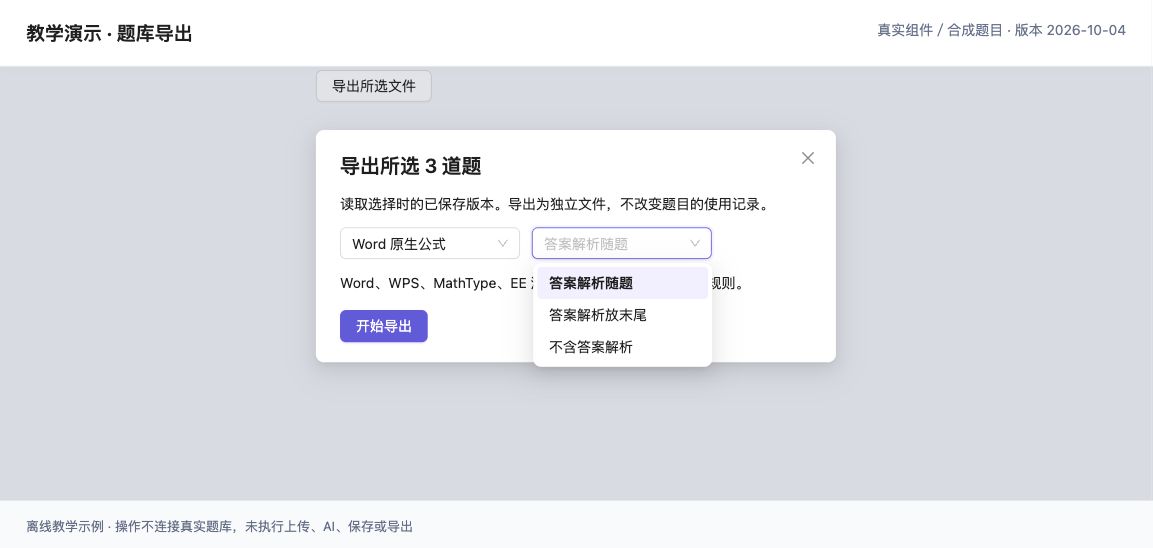
Figure: Export selected files in Word and other formats after choosing where answers appear. (Offline demonstration using the real component and synthetic teaching data; interface version 2026-10-04.)
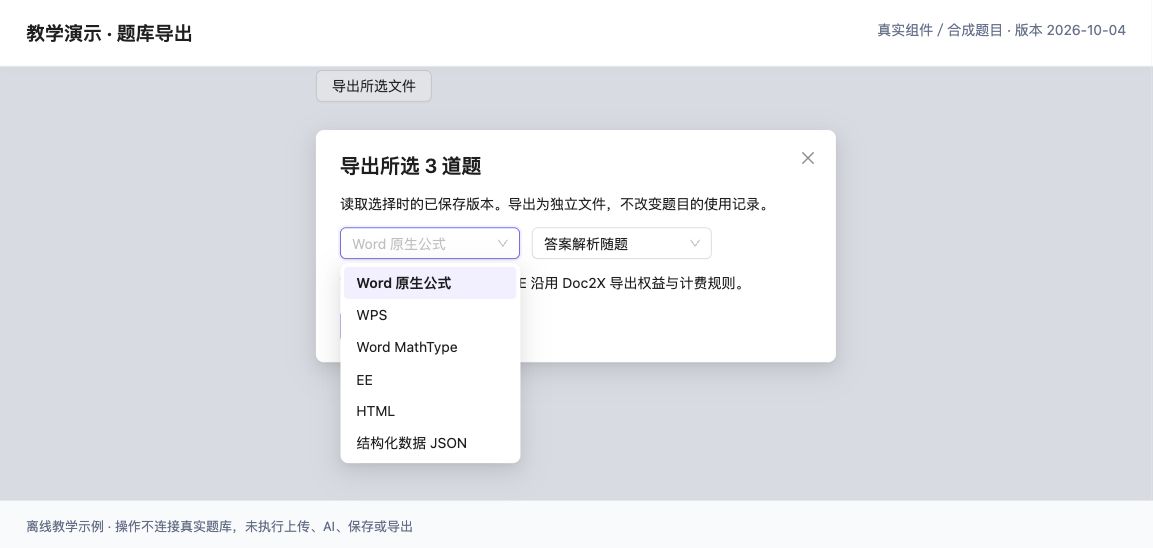
Figure: The question-bank export menu offers native-equation Word, WPS, Word MathType, EE, HTML and structured JSON. (Offline demonstration using the real component and synthetic data.)
Quickly export question images or PDF
Use 导出 (Export) on a question card or 导出所选 (Export selected) in the selection bar. Check 含题号 (Include numbers), 含答案解析 (Include answers/explanations), and 含出处 (Include source), then select 导出图片 (Export image), 复制图片 (Copy image), or 导出 PDF. The limit is 30 questions per operation. On phones, PDF remains available while long-image export and image copying are disabled.
For Word, return to 导出所选文件 rather than looking for a Word button in the image dialog.
Export a formatted material as a handout, paper, or courseware
- 保存 the material and verify 已同步 · 版本 N.
- Open 预览与输出 → 导出文件 (Preview and output → Export file) to reach 导出教学材料 (Export teaching material).
- Choose Word, WPS, Word MathType, EE, PDF / Print, HTML, structured data, offline classroom HTML, or teaching courseware PPTX.
- Select 教学用途 (Teaching purpose): 学生讲义 (Student handout), 考试 / 练习卷 (Exam / practice paper), or 逐题授课 (Teach question by question). Courseware and offline classroom use the saved question-by-question teaching settings.
- Click 开始导出 for regular formats. For PDF, click 打开打印 / PDF (Open print / PDF), then print or save as PDF in the system dialog.
The export dialog identifies the saved version. To change answer position, paper size, or layout, return to the editor, save, and export again. Server-generated files listed in recent exports are labeled 成品保留 24 小时 (Files retained for 24 hours), and completed files can be downloaded again. Directly generated files such as PPTX do not use that record-retention period. Save long-term results to your own download or document folder promptly.
The bank's PPTX/offline classroom output is its own workflow. The linked teaching PPT workspace starts from an exam-organizing result in the main app. Check the save location and controls for the entry you are using.
Step 10: create answer sheets, parallel papers, and A/B versions
In 试卷中心, distinguish 导入的原卷 (Imported original papers) from 我组的卷 (Papers I built). Open 试卷工具 (Paper tools) for a paper; these tools read its saved version.
Analyze knowledge points, types, and difficulty
Choose 试卷分析(细目表) (Paper analysis/specification table) and verify the version in the dialog title. In 细目表, select 按知识点 (By knowledge point), 汇总到上一级知识点 (Group by parent knowledge point), or 汇总到最上级(章) (Group by top-level chapter). Choose paper order or knowledge-directory order for the rows. Use 难度与题型 (Difficulty and type) for distributions and 题目明细 (Question details) to inspect individual items.
If scores are unconfirmed, return to the material and use 设分值 (Set scores). In 待归类 (Awaiting classification), use 归类 (Classify) for individual questions or classify selected questions of the same type together. 按最新归类查看 (View latest classification) changes the statistical basis without changing the question versions fixed in this paper. Use 重新分析 (Analyze again) after saving a new material version. Confirm the basis, then 打印细目表 (Print specification table) or 导出 Excel (Export Excel).
Create an answer sheet
Choose 答题卡 and confirm its paper version. Set 纸张 (Paper) to A4 or A3, 准考证号位数 (Candidate-number digits) to 6–18, and 解答题空间 (Written-answer space) to compact, score-based, or spacious. Expand 调整填空题每题空格数 (Adjust blanks for each fill-in question) if needed.
Check numbers, types, scores, and response areas in the preview, then click 打印 / 保存答题卡 PDF (Print / save answer-sheet PDF). Use actual size / 100% and disable browser headers/footers in the print dialog. If option labels require correction, edit and save those questions before reopening the answer sheet.
Parallel and A/B papers
For similar practice, choose 生成平行卷 (Generate parallel paper). It searches for replacements with matching knowledge points/types and similar difficulty, retaining sections and scores. Compare originals and replacements. Questions without candidates and shared-material groups may remain unchanged with a reason. Click 保存平行卷 (Save parallel paper) after review; generation alone is not the save step.
For reordered versions of the same paper, choose 生成 A/B 卷 (Generate A/B papers). Enable 题序乱序 (Shuffle questions) and 选项乱序 (Shuffle options) as needed. Review order, option mappings, and answers, use 重新乱序 (Reshuffle) if needed, then click 保存 A/B 两份卷 (Save both A/B papers). Open the saved versions under 我组的卷 to preview and export.
Use the built-in tutorial center and practice files
- Click 使用教程 (Tutorials) in the question-bank sidebar to open
/tutorials. Enter a keyword in 搜索操作或功能 (Search an operation or feature), then select a matching directory item. Search matches titles and introductions; change or clear the keyword if no result appears. - Read the ordered steps and operation tags on the right. Topics marked 录屏 (Screen recording) show a video; other topics still provide text instructions. Click 前往页面实操 (Open practice page) to open the corresponding feature.
- Use the top 下载练习文件 (Download practice file) button to obtain “函数练习示例.json”. In the library or import topic, open the import center and select 导入 Doc2X 配对文件 (Import Doc2X paired file), choose the JSON and review it before saving your own questions and material. Follow the import steps on this page for saving.
- Select the classroom whiteboard topic (
/tutorials?topic=whiteboards). Under its practice notice, click 课堂白板示例 (Classroom whiteboard example) to download “课堂白板示例.whiteboard.json”. Open the practice page and use 导入白板文件 (Import whiteboard file), then practice editing notes, dragging, zooming, undoing and saving.
These are example files. Tutorial text and recordings do not replace current page state or permission messages.
Continue preparing, teaching, and collaborating
Continue with the relevant guide when preparing lessons, teaching, or maintaining a shared bank:
- Teaching materials and handouts: editing, versions, templates, and purpose-specific output.
- Classroom, practice, and Q&A: knowledge cards, whiteboards, presentation, and student activities.
- Sharing and team collaboration: public collections, template community, space members, and the recycle bin.
Troubleshooting
| Symptom | What to do |
|---|---|
| Export-to-bank button is disabled | The source exam scope must be all retained questions. Use JSON to transfer a subset |
| Source task is missing after opening the bank | Check the account and space; select a completed record in the import center or enter its task ID |
| No individual questions were added | Look for “Full handout archived · No new questions”; full-text edits can be retained as complete materials |
| Archiving stops or fails | Inspect import progress and use “继续归档” (Continue archiving), then verify counts and material |
| JSON import fails | Compare the file with migration examples and check size/count limits. Upload the full ZIP when images are included |
| Newly imported questions cannot be found | Check the space, destination collection, review state, and filters; clear overly restrictive conditions |
| Only View answer is available | Check your team role and request editing permission from its administrator |
| Local draft changes do not appear elsewhere | Click “保存题目” for questions or “保存” for materials and wait for server-synced confirmation |
| Collaboration conflict | Preserve your work and compare server changes using the prompt; do not repeatedly save over other people's content |
| Preview or export contains old text | Save the material, then verify the new version number used by preview |
| Export is awaiting reconciliation or has expired | Follow the current export-state controls to check or retry. Download completed files promptly |
After completing the example, verify three results: classified questions in the question center, a synced paper in teaching materials, and an openable downloaded output file. This confirms that importing, paper building, and output all completed.