
Teaching PPT: turn reviewed questions into classroom slides
This tutorial creates one slide per question from an 整理试题 (Organize exam questions) result. First review the questions and answers using the exam workflow, then enter the courseware editor, choose a teaching template, edit elements, rehearse answer reveals, and download PPTX.
This entry point reuses the existing question-and-answer structure. AI 生成 PPT (AI-generated PPT) also offers book and exam modes, but those create a new AI generation task. The distinction is explained near the end.
Chinese labels are retained below to match the current interface.
Check what will enter the presentation
Sign in and open an exam task that has completed or has usable results. See the exam tutorial for membership, trial, and AI-point requirements. The teaching workspace is available on the web and in the desktop client.
A presentation contains the selected questions, one per slide, up to 200 questions. Excluded questions are omitted. Questions with missing answers or unfinished processing may still be included with notices, so review them before creating slides. For more than 200 questions, select chapters or individual questions and create several presentations.
The editor uses the reviewed questions, answers, and original images. Inspect what actually appears in the slides, particularly separately generated AI explanations. Their presence in the exam result does not guarantee every supplementary paragraph has been copied into the presentation.
Step 1: enter the editor from an exam result
- Open the exam task and review its matches and exclusions. Click 保存修订 (Save revision) and confirm the successful save.
- Click 导出整理结果 (Export organized result).
- Under 文件格式 (File format), select 教学课件 (Teaching courseware), marked PPTX.
- Choose 全部保留题目 (All retained questions), 当前筛选 (Current filter), or 指定章节或题目 (Specified chapters or questions) under 导出范围 (Export scope). For a specified scope, select a chapter and adjust individual questions as needed.
- Enable 附上原文出处 (Include source references) if needed. Check the question count, then click 进入课件编辑 (Enter courseware editor).
A successful transition shows slide thumbnails on the left, the canvas in the center, and controls for teaching templates, original PDF images, and answer reveal. The source filenames appear at the top.
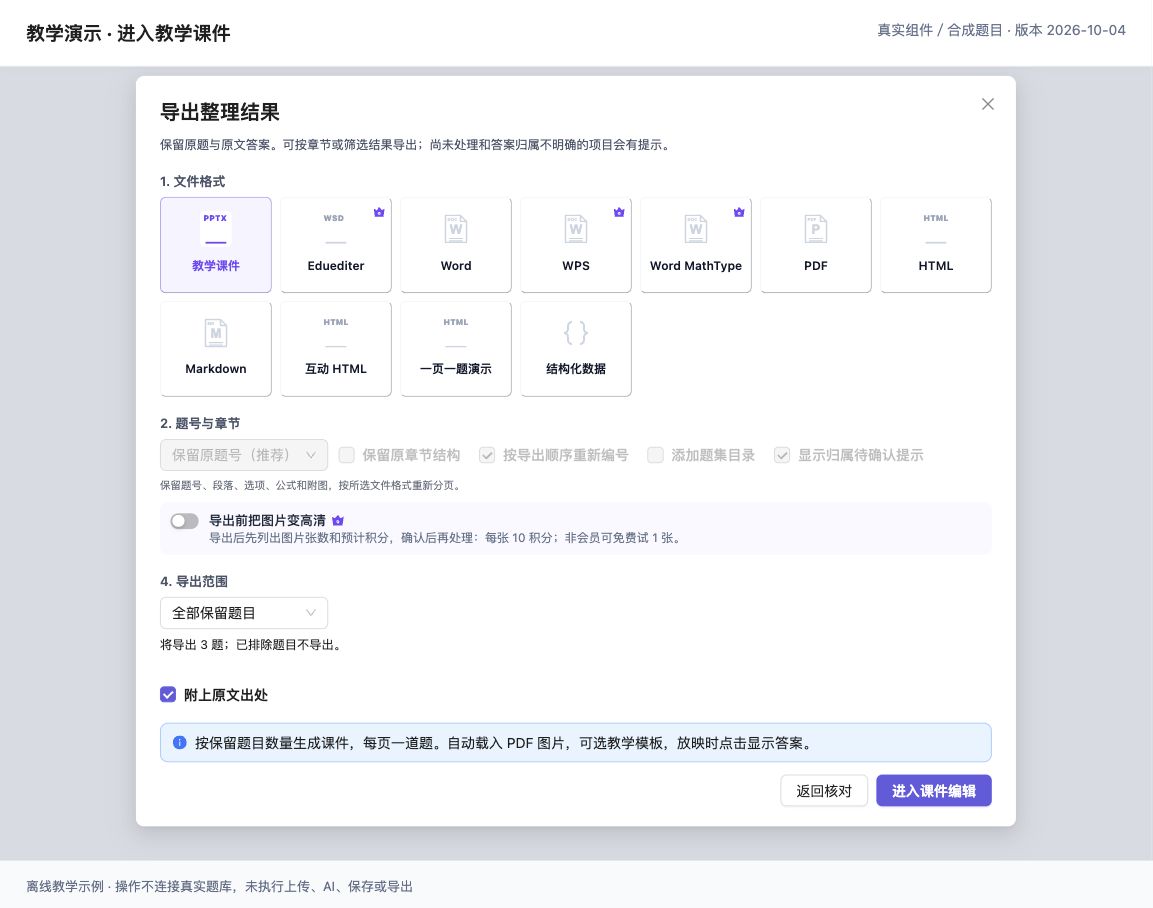
Figure: Choose Teaching courseware from a reviewed exam result and select its question range. (Offline demonstration using the real component and synthetic teaching data; interface version 2026-10-04.)
Converting reviewed results does not start another question-matching task. However, enabling 导出前把图片变高清 (Enhance images before export) performs additional image enhancement. If images are not ready, click 重试加载附图 (Retry loading illustrations) first.
Full-text manual edits block this PPTX route so unstructured changes are not silently lost. Export the text you need in an ordinary document format before considering 还原原始结果 (Restore original result) and reviewing the structured questions again. Restoration affects existing changes; it is not a lossless conversion.
Step 2: choose a template and display options
Choose a 教学模板 (Teaching template):
| Template | How to use it |
|---|---|
| 清新讲堂 (Fresh classroom) | Start with a clear classroom layout, then adjust type and emphasis |
| 深绿黑板 (Dark green blackboard) | Use a blackboard style and check text/formula contrast |
| 几何习题 (Geometry exercises) | Use a geometric style for question explanations |
| 暖色手记 (Warm notes) | Use a warm classroom-notes style |
The canvas updates when you choose a template. Switching templates retains edited content and source images, but inspect the resulting layout.
使用 PDF 原图 (Use original PDF images) controls source illustrations. It is disabled if there are no usable source images. For the triangle-area example, check that the base and height labels are readable before adjusting the image's position and size.
With 点击显示答案 (Click to reveal answers) enabled, classroom presentation shows the question first, then reveals its answer on click. The downloaded PPTX uses the corresponding answer-reveal setting. Turn it off to show questions and answers together.
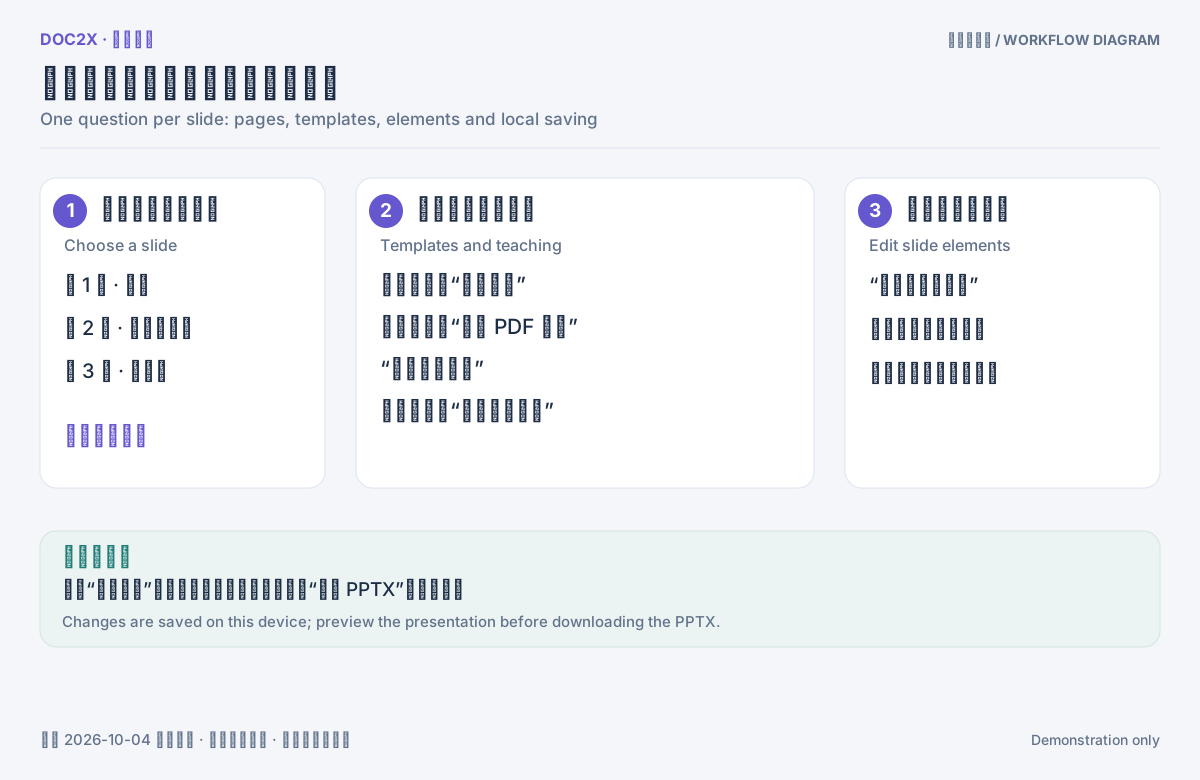
Figure: Workspace diagram: select a slide on the left, choose templates and teaching options above, edit elements on the right, and check the local-save status.
Step 3: edit text, formulas, and illustrations
Choose a question slide from the left thumbnails, then click an element on the canvas. The right 幻灯片编辑工具 (Slide editing tools) panel shows its content and styling.
For example, to turn the answer “
| Change | Action |
|---|---|
| Add an explanation | Click 插入文本 (Insert text), enter content, and adjust its position and font |
| Add a mathematical expression | Click 插入公式 (Insert formula), enter the formula, and check its rendering |
| Add an illustration | Click 插入图片 (Insert image); use PNG, JPEG, WebP, or GIF, up to 8 MB per image |
| Add a box, colored area, or shape | Click 插入形状 (Insert shape), then adjust its position, size, and style |
| Edit an existing element | Select it on the canvas, then change content, geometry, font size, color, bold, or italic |
| Reuse or remove an element | Use 复制节点 (Duplicate node) or 删除节点 (Delete node) |
| Reverse an action | Use 撤销修改 (Undo), then 重做修改 (Redo) if needed |
| Restore a block | Use 恢复该块 (Restore this block) only if you intend to discard its local edits |
Add speaking prompts under 演讲备注 (Speaker notes). If a new element should appear with the answer, check 随答案显现 (Reveal with answer). Otherwise, your added hint may be visible immediately. Check answer labels, illustrations, and newly inserted elements as well as answer text.
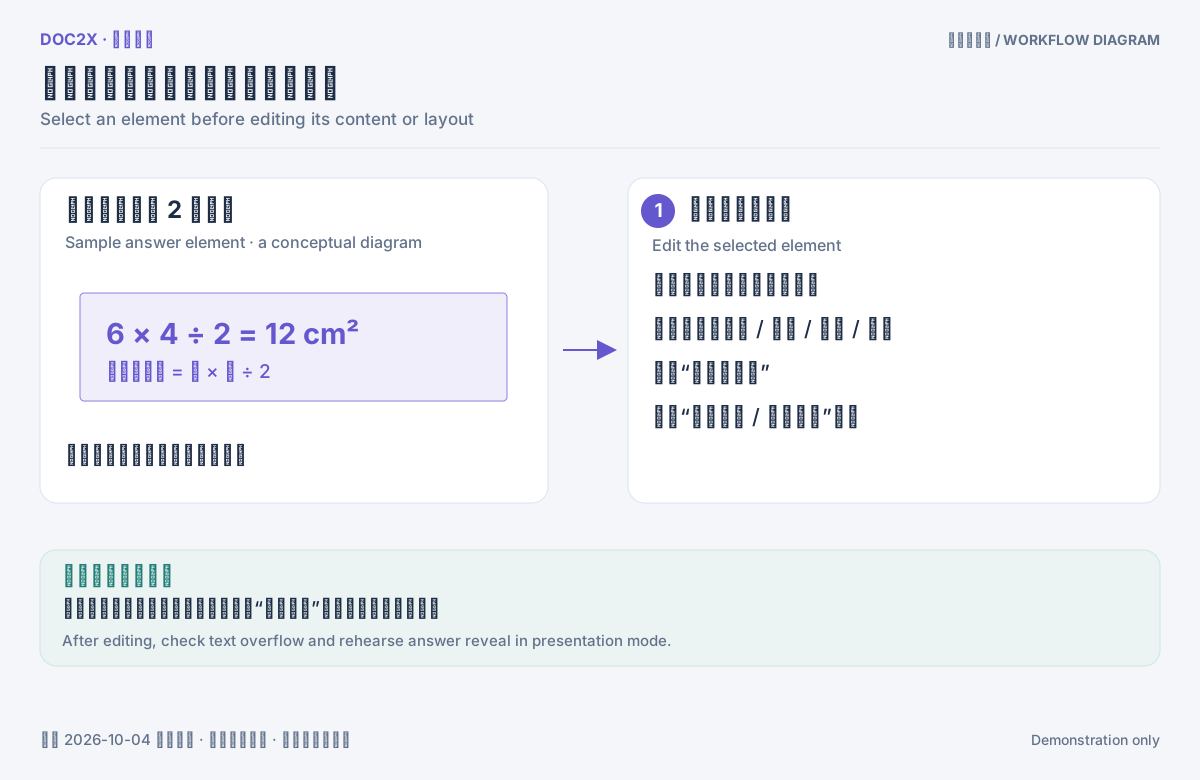
Figure: Editing diagram: select a canvas element, edit text, size and color, insert elements as needed, and configure answer reveal.
Step 4: confirm local saving
Edits save automatically to this device. Wait while the header says 正在保存… (Saving); 已保存到本机 (Saved locally) confirms that the changes were stored. Click 重试保存 (Retry saving) if saving fails.
The teaching project belongs to the current account and is stored in this browser's or client's local data. Do not assume it will appear on another device or browser, or after local data is cleared. Keep the project's page link and reopen it with the same account in the same environment. Export a PPTX as a portable result as well.
Selecting 进入课件编辑 again from the exam result creates a new teaching project; it does not recover the manual layout edits in the previous one. The ordinary PPT project list is not the recovery entry point for these teaching projects. Editing a presentation does not update the original exam review.
Step 5: rehearse the lesson
- Click 课堂放映 (Classroom presentation) to open the large presentation view.
- With answer reveal enabled, check that the initial question view does not already reveal the answer.
- Click the canvas or 显示答案 (Show answer). Check that answers, explanations, and elements configured to appear with them reveal together.
- Click 下一题 (Next question) to inspect the remaining slides. Use
Spaceor→to advance,←to step back, andEscto return to editing. - Fix small type, cramped formulas, or overlapping images, then rehearse again.
Reopening classroom presentation starts at slide 1. This is the application's presentation view. Also check screen proportions, projected type size, and answer reveals on the equipment used for class.
Step 6: download and inspect the PPTX
Click 导出 PPTX (Export PPTX). In 导出演示文稿 (Export presentation), enter a 文件名称 (Filename), such as “Triangles and Equations”. Check the slide count and 16:9 information, then click 下载 PPTX (Download PPTX).
The file retains editable text, shapes, original images, and SVGs. Mathematical formulas may be SVG image objects; “editable PowerPoint” does not mean every formula is converted to a native PowerPoint equation. Open the file in your presentation software and inspect its layout, formula clarity, and answer animations before teaching.
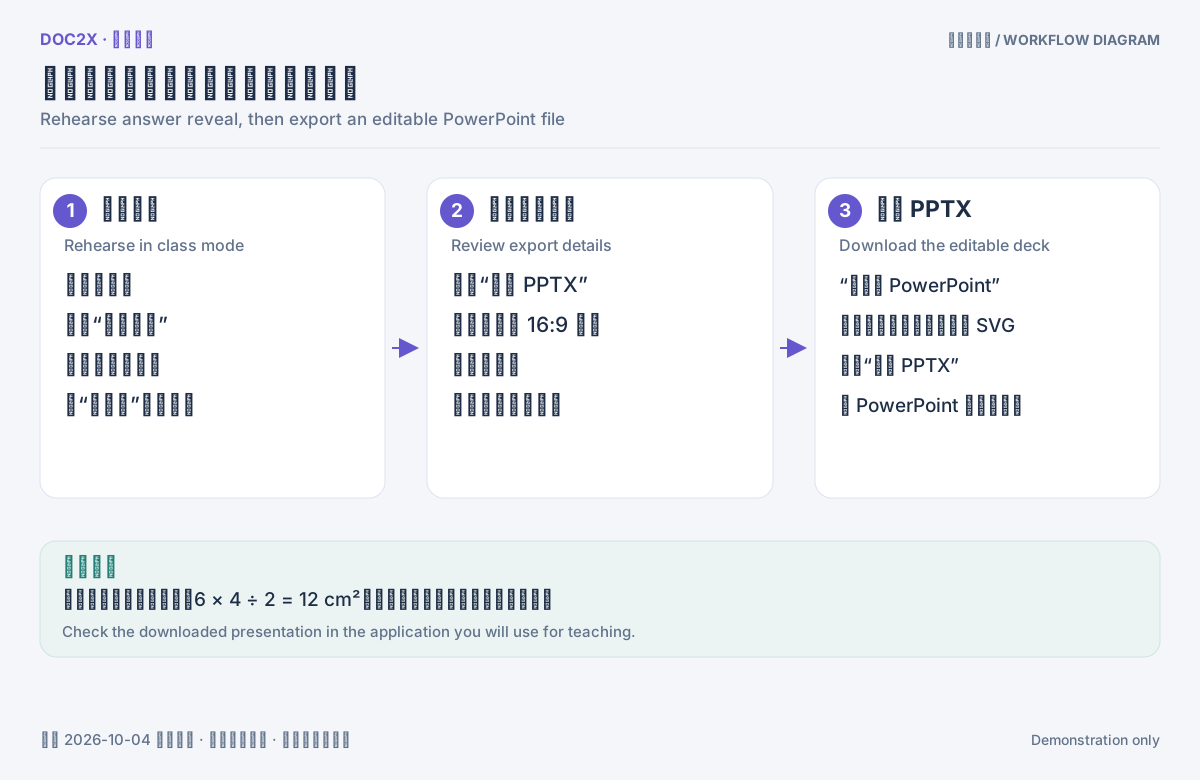
Figure: Workflow diagram: rehearse answer reveal, confirm the presentation filename, and download the editable PPTX.
Find the PPTX in your download list or chosen save location. A warning listing slides whose text exceeds its text box can appear even after the file has downloaded. Adjust those pages in the editor or PowerPoint and export again. This teaching editor outputs PPTX. Return to 导出整理结果 for Word, PDF, or interactive HTML.
Another starting point: generate a new PPT from a book or paper
Use AI 生成 PPT (AI-generated PPT) when you want to plan a new presentation from reference material:
- Select 智能排版 (Smart layout). Describe the audience, topic, and emphasis in PPT 主题与要求 (PPT topic and requirements), using
@to reference PDFs. - Under 使用场景 (Scenario), choose 书籍转课件 (Book to courseware) or 试卷讲解:一页一题 (Exam explanation: one question per slide).
- Book mode accepts a topic alone or reference documents. Exam mode requires 1–2 PDFs: question paper first, then answer booklet; select one file if it contains both.
- Set 内容范围 (Content scope): chapters for a book, or question numbers for an exam. Exam slide count follows question count, so the target page count cannot be edited manually.
- Select AI 模型 (AI model), check 允许参考 PDF 原图 (Allow original PDF images), choose a visual style, and click 生成演示文稿 (Generate presentation).
This creates a new AI PPT task, with entitlements and points applied to the selected model and actions. It does not automatically adopt confirmations, exclusions, or edits from a separate exam-organizing task. To reuse a reviewed result, use the exam-result-to-courseware route described above.
If this AI generation task completes but its result does not open, 重新打开结果 (Reopen result) retrieves the generated content without generating it again. Recovery of that cloud task result is separate from local saving of the teaching project's edits described earlier.
See the AI PPT tutorial for the complete general-generation, editing, and export workflow.
Troubleshooting
| Symptom | What to do |
|---|---|
| No separate Teaching PPT menu | Select “教学课件” in an exam result's export dialog |
| More than 200 questions | Create batches using the current filter or specified chapters/questions |
| Original PDF images cannot be enabled | This project has no usable source images; insert an image manually if needed |
| Slides show missing-answer or unprocessed notices | Finish and save the source exam review, then create a new project from the correct range. Preserve any existing slide layout edits separately |
| Project does not exist or belongs to another account | Check the account, browser/client, and original project link. If local data is lost, recreate it from the exam result |
| Automatic saving fails | Keep the page open, retry saving, and verify “已保存到本机”. Download PPTX to preserve the result |
| Export fails | Read the dialog error, resolve it, and retry “下载 PPTX” |
| A template change needs adjustment | Inspect element positions, text boxes, and images on each page, then rehearse again |