
Convert Word or PowerPoint to PDF, Then Parse or Translate
Selecting a DOCX/PPTX in Document Parsing or Translation first converts it to PDF for preview and download. Check fonts, pagination, and figures before starting further processing. Successful conversion, parsing, and completed translation are separate stages.
Prepare the File
| File | Preparation |
|---|---|
Word .docx | Select it directly; check formulas, pagination, and embedded images |
PowerPoint .pptx | Select it directly; check slide dimensions, fonts, and charts |
Legacy Word .doc / PowerPoint .ppt | The current picker offers the newer formats. Save as .docx / .pptx in Word, WPS, or PowerPoint, or export a PDF yourself |
| Encrypted, damaged, or poorly converted files | Repair or export to PDF in the original app. Use Choose a Separately Saved PDF to Continue if offered in an error dialog; otherwise upload the PDF from the original entry |
The current upload guidance limits each Office file to 300 MB. Conversion also checks format, file validity, and daily usage. The dialog currently describes a limit of 100 conversions per person per day, one at a time; previewing and downloading do not count as additional conversions. Follow the live usage and error messages.
Step 1: Select the File from the Intended Feature
- For extracting text, equations, and tables, open Document Parsing (“图文解析”), click Start Parsing File, and choose DOCX/PPTX.
- For translation, open Translation, choose the target language, model, and mode. After signing in, select a glossary if needed, then choose DOCX/PPTX. Conversion carries the settings selected when the file was chosen.
- Wait for upload and rendering in the Office conversion dialog. Parsing or translation has not started yet.
- Close during conversion ends the current wait without creating the next task. To resume, select the same file again and follow the dialog. Automatic file recovery is not guaranteed after every close or refresh.
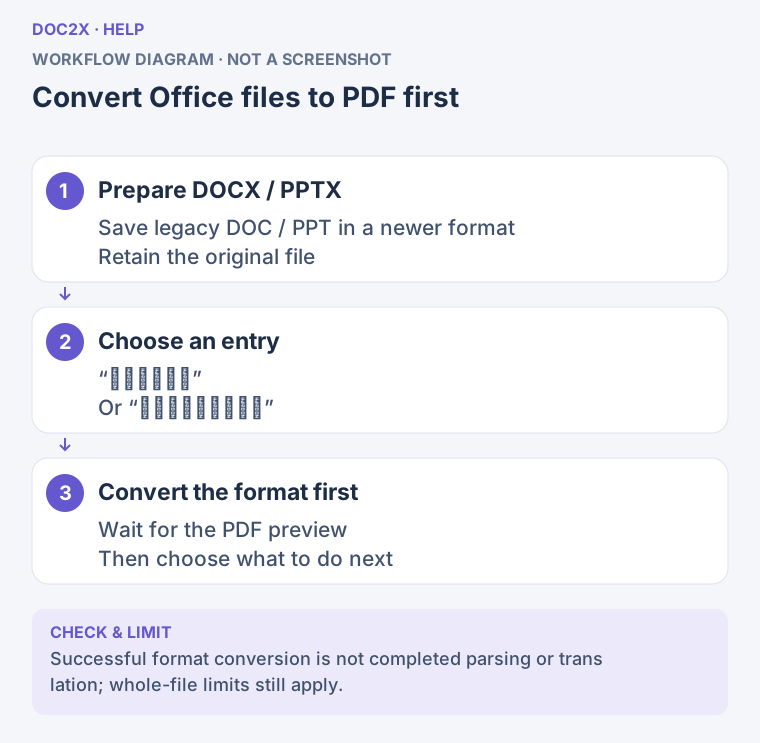
Convert Office files to PDF first (workflow diagram). Open the image in a new tab to enlarge it.
Step 2: Review the PDF
After Office Rendering Succeeded (“Office 格式渲染成功”) appears:
- Check the total page count for unexpected blank pages or clipped content.
- Check fonts, line breaks, headers, footers, and slide charts extending past the page.
- Inspect formulas, complex tables, footnotes, and images. A correct original does not guarantee an identical converted PDF.
- Click Download PDF (“下载 PDF”) to keep the intermediate file. Follow the system or browser save behavior, then open and check it.
If you only need Office-to-PDF conversion, download the PDF and click Not Now (“暂不处理”). Further parsing or translation is unnecessary. Downloading this PDF does not produce an editable parsed result.
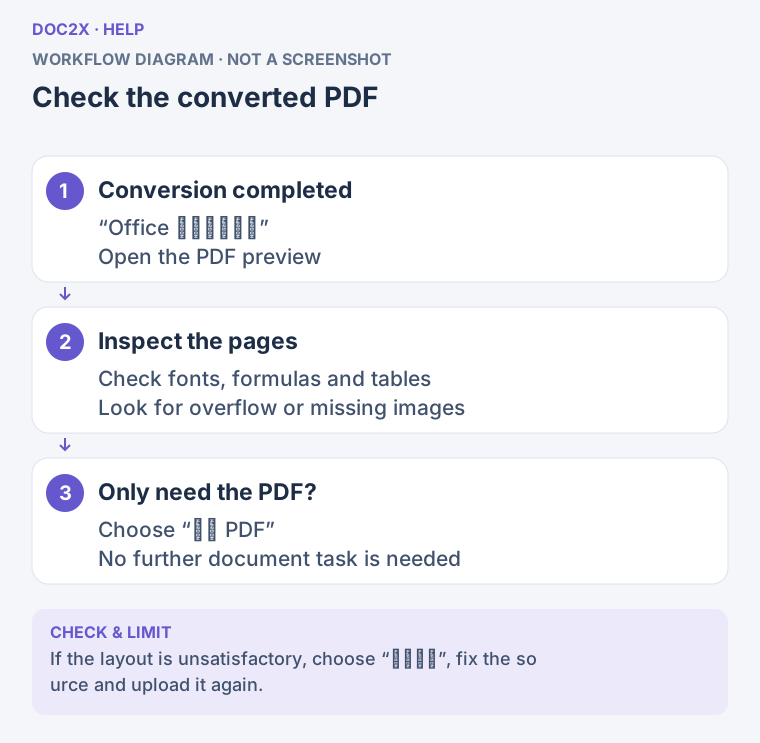
Check the converted PDF (workflow diagram). Open the image in a new tab to enlarge it.
Step 3: Start Parsing or Translation
- Once the preview is correct, click Start Parsing (“开始解析”) or Start Translation (“开始翻译”) at the bottom. The button follows your original entry point.
- The app checks your current account, the converted PDF's page count, and available parsing quota again. Successful conversion can still be followed by a quota or page-limit block.
- If the options dialog appears, check the filename, page range, skip options, and available enhancement/font settings. Confirm language, model, and glossary before selecting the file; to change those settings, cancel and return to the translation home page. Submit with the start button in the current workflow.
- Follow processing in the document records on the left. Open the corresponding parsed or translated result once ready.
- Export the required format from its reader. The PDF downloaded during conversion and a Word, Markdown, or translated PDF exported from the result are different outputs.
Next: parsing and page selection, translation tutorial, and export format selection.
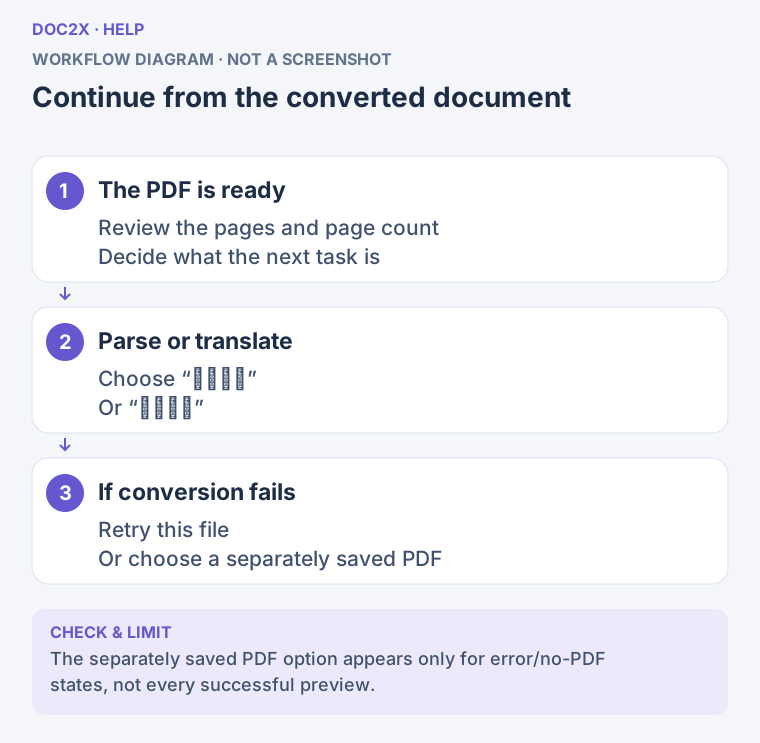
Continue from the converted document (workflow diagram). Open the image in a new tab to enlarge it.
Failure, Cancellation, or Preview Problems
| Situation | How to continue |
|---|---|
| A network issue leaves the conversion result unknown | If Retry This File (“重试处理此文件”) is offered, use it to continue checking; avoid repeatedly choosing new files just because of a wait |
| Confirmed failure with retry available | Click Retry This File and read the new message. If it fails again, save a PDF in the original app |
| Legacy format, corruption, encryption, oversize file, or daily limit reached | The original-file retry button may be absent. Follow the message to resave, unlock, reduce, or try later |
| Unacceptable converted layout | Click Not Now to close the successful preview. Fix fonts or pagination in Word/WPS/PowerPoint, export a PDF, then upload it from the original parsing/translation entry. Choose a Separately Saved PDF to Continue (“选择另存的 PDF 继续”) is offered only in the error view |
| The replacement is rejected as an invalid PDF | Select a genuinely exported PDF; renaming an extension does not convert a file. The replacement must pass size and validity checks |
| PDF preview failed | Try Download PDF to inspect it. Start Parsing/Start Translation still requires a usable file and page count; you cannot continue while the button is disabled |
| You clicked Not Now or Close | The next parsing/translation task was not created. You can upload a downloaded PDF later. Closing does not imply conversion usage or created tasks are refunded |
| Conversion succeeded but parsing quota is insufficient | Office preview checks quota for the whole PDF before a page selector is available. Add quota and click Start Parsing/Start Translation again; or download the PDF, click Not Now, split it locally, and upload the smaller file |
Reselecting identical file content in the same account within a short period may reuse a local conversion record. This does not promise permanent storage of the original file. Keep your DOCX/PPTX and downloaded PDF.