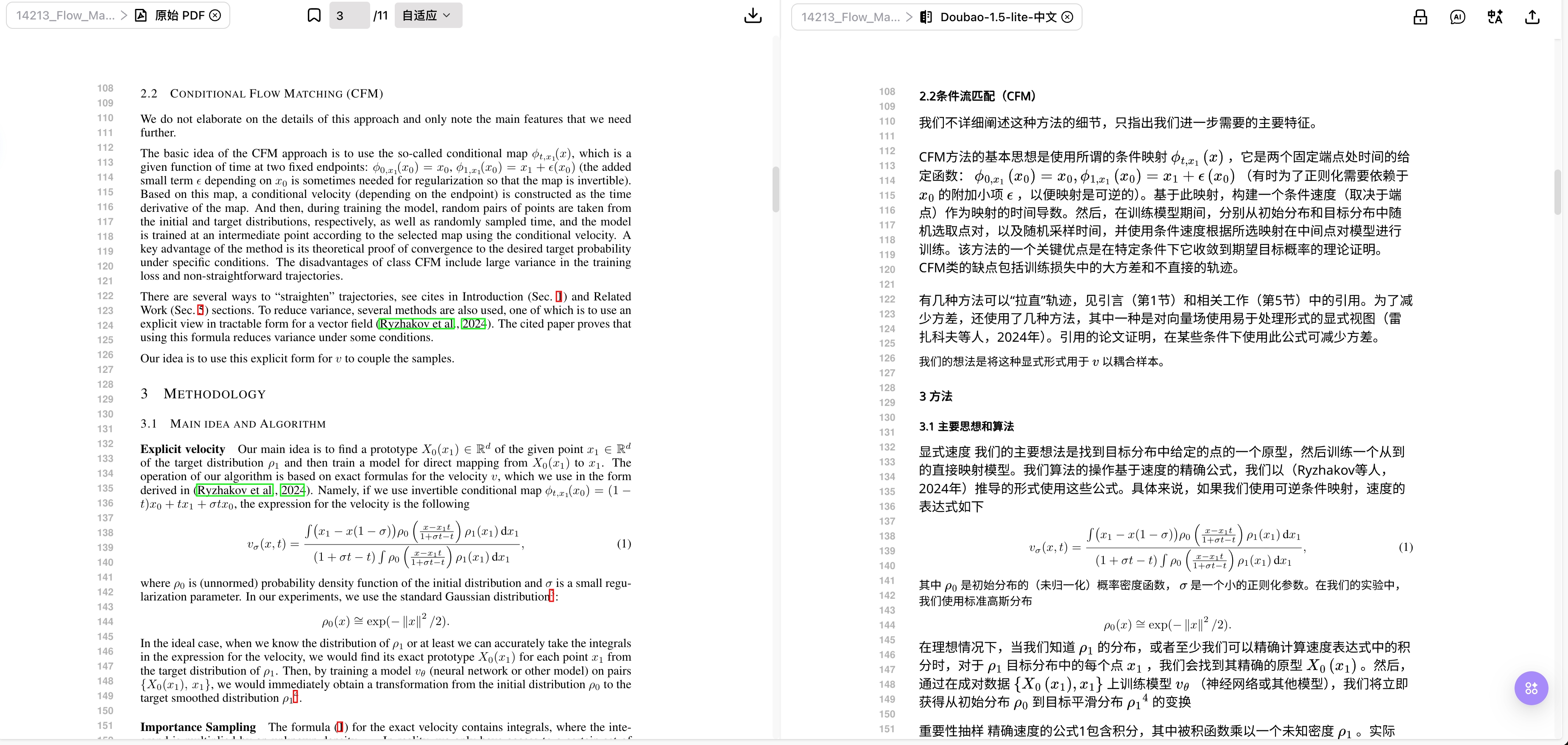
PDF and Word Translation: Bilingual Reading and Preserved Layout
Before translating a PDF or Word (DOCX) document, choose bilingual content for reading and editing or preserved layout for reading along the original page. DOCX is first converted to a PDF for preview and confirmation. Check translated terms, numbers, formulas and tables against the source, then download a format supported by that task. The example below includes one English DOCX, its actual Chinese translation and exported files.
Features
Model-Based Document Translation, Bilingual Reading, and Preserved Layout
Doc2X offers multiple translation models and target languages. Depending on the task mode, it produces bilingual content, a layout-preserving translation, or both. Use it for papers, textbooks, manuals, and reports, then check terminology, values, formulas, and tables against the original.
Feature Highlights and Core Advantages
- Model and language choices: Choose from the current lists. Create separate translations of the same parsed result with different languages or models to compare them.
- Bilingual reading and navigation: Read source and translation in supported results and locate corresponding pages or paragraphs.
- Formulas, tables, and layout: Recognized content supports reflow editing; Preserve Layout produces translated PDFs close to the original page positioning. Complex pages still need review.
- Glossaries and Context Enhancement: Specify terms or enable enhancement as needed; availability depends on the entry point and account access.
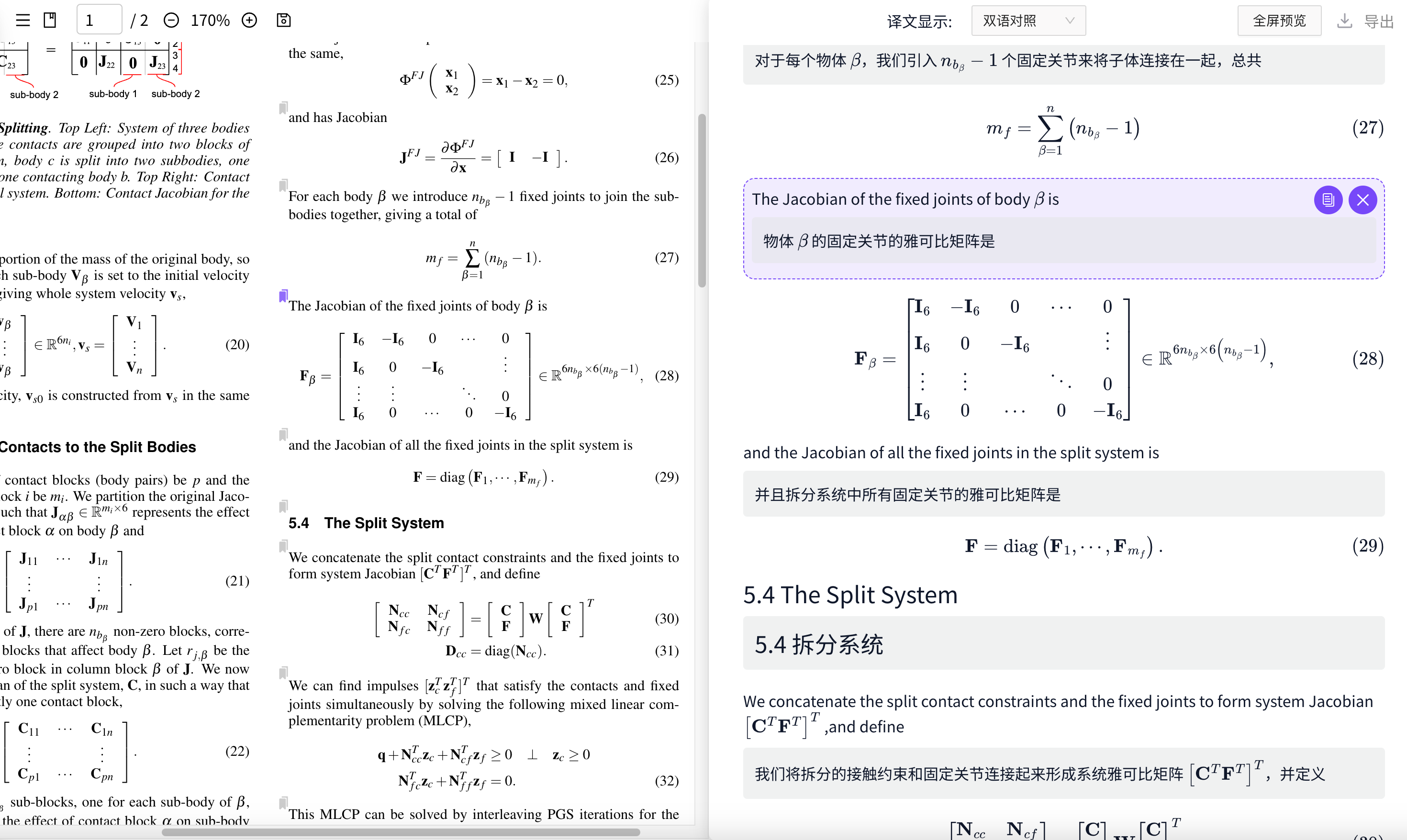
Bilingual Display and Bidirectional Navigation
Bilingual results support paragraph-by-paragraph reading and review. Where the original PDF and recognized content appear together, use paragraph and page positions to verify content. Navigation depends on the available page and layout information. Content without valid coordinates can still be selected or copied and located manually.
What to Check in PDFs and Formulas
- Formulas: Subscripts, superscripts, Greek letters, fractions, signs, numbering, and units.
- Tables and figures: Titles, cells, footnotes, and labels. Retaining an image does not mean all text inside it has been translated.
- Layout: Multi-column reading order, line breaks, font size, and overlap caused by longer translations.
- Meaning: Negation, conditions, values, references, and technical terms. Task completion does not mean the translation has been validated.
One DOCX: English Source, Chinese Translation, and Three Word Exports
On 2026-10-10, we selected Simplified Chinese → Bilingual + Preserve Layout → gpt-5.6-luna on the translation home page and uploaded a self-authored English handout. We reviewed and downloaded the one-page Office-converted PDF before confirming translation. No glossary, Context Enhancement, image upscaling, manual OCR correction, or translation editing was used.
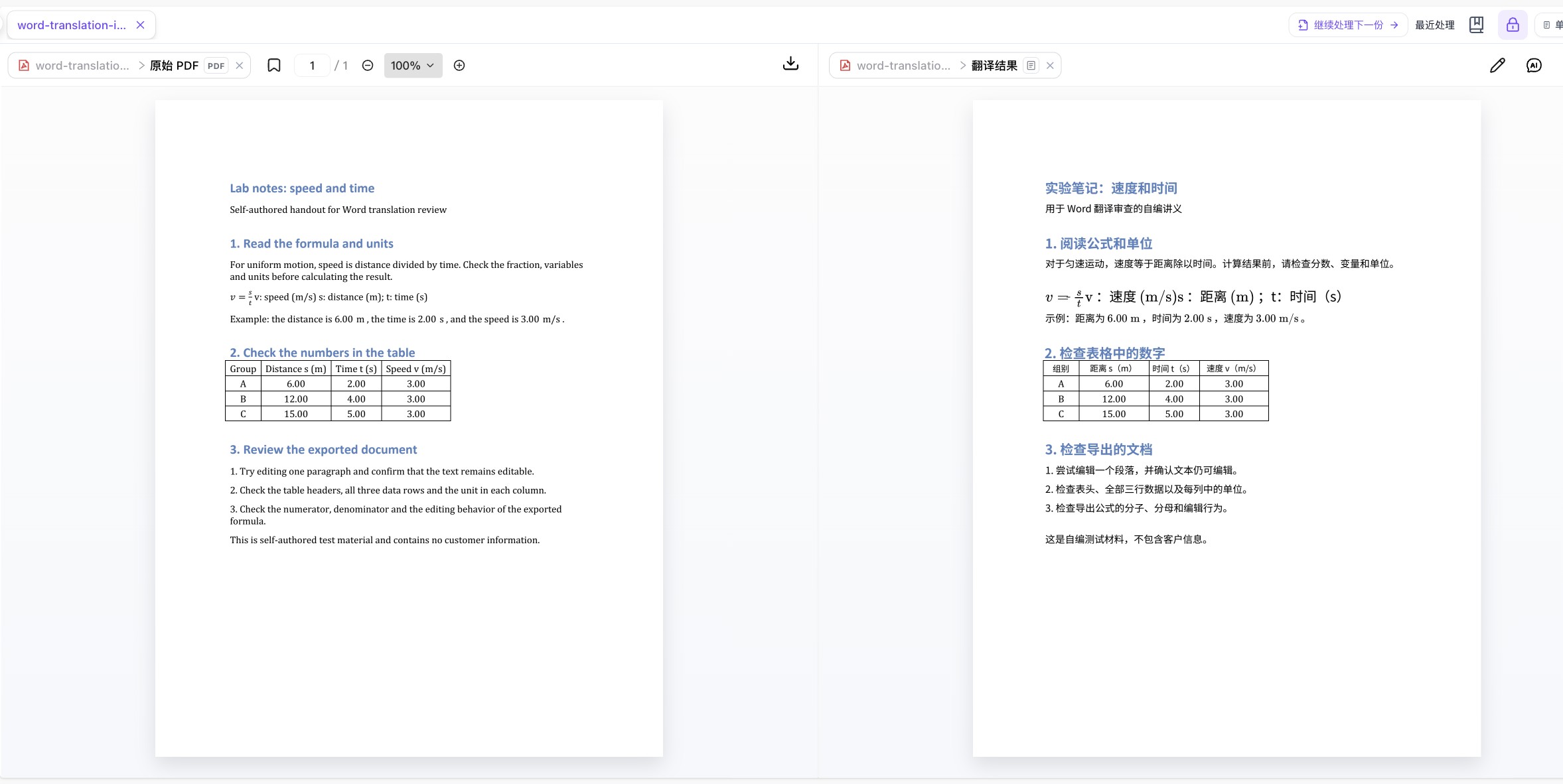
This is an actual workbench comparison, not a downloaded DOCX rendered in desktop Word. The self-authored fixture contains no customer information.
| Actual download | Content and structure in this sample | Useful next step |
|---|---|---|
| Chinese only · flowing Word | Chinese text, one native 4×4 Word table, six native math objects | Rewrite paragraphs and organize table rows or columns |
| Bilingual · flowing Word | Source and translation, two corresponding tables, twelve math objects | Compare English and Chinese paragraph by paragraph |
| Chinese only · layout Word | Twenty-eight positioned text boxes and six math objects; this sample has no native Word table | Review content at page positions and check object editing separately |
| Preserved-layout Chinese PDF | One page with the same dimensions as the converted English PDF; fonts, wrapping, and spacing still need review | Read or share the page output |
Download the English source DOCX, the Office-converted English PDF, or the complete review bundle: input, three DOCX files, two PDFs, and notes.
The three data rows and the s/t fraction remain consistent in this sample, while exported object structures differ. Layout Word provides translation only; use flowing bilingual export when you need both languages. Native Word/WPS interaction was not tested. Check fonts, pagination, formulas, and tables in your own editor; this short document does not establish the same result for all languages or complex documents.
One PPTX: English Translation and Side-by-Side PDFs
On 2026-10-10, we uploaded a self-authored three-slide Chinese/English PPTX and selected English → Bilingual + Preserve Layout → gpt-5.6-luna, with Per-page priority for the PDF font strategy. We downloaded and reviewed the three-page Office-converted PDF before confirming translation of all three pages. No glossary, Context Enhancement, scan enhancement, ignored content types, manual OCR correction, or translation editing was used.
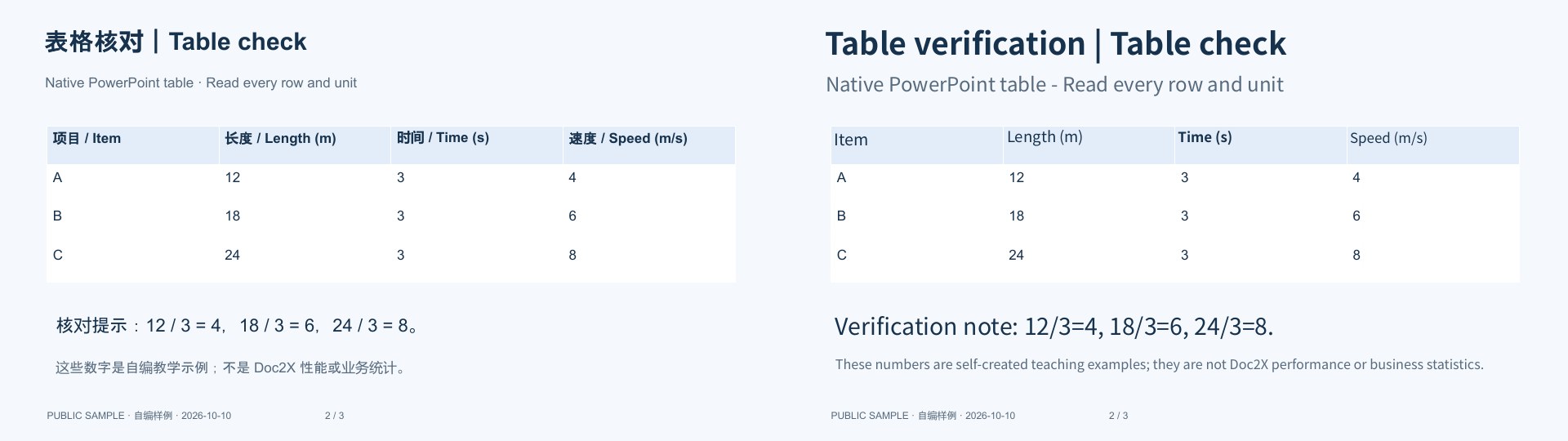
This image is rendered directly from the actual PDF download. Titles, column headings, and notes are translated into English; A 12/3/4, B 18/3/6, and C 24/3/8 remain consistent. All content and numbers are self-authored teaching examples, with no customer information.
| Actual download | Export selection | Pages and dimensions in this sample |
|---|---|---|
| English translation PDF | PDF → Preserve original layout · Translation only | Three pages, each 960 × 540 pt |
| Side-by-side PDF | PDF → Side by side · Source on the left; default local merge | Three pages, each 1920 × 540 pt; source left, English right |
Download the same source PPTX, the converted PDF before translation, or the complete review bundle: PPTX, three PDFs, and notes. The converted PDF downloaded in this run is byte-identical to the Office conversion example.
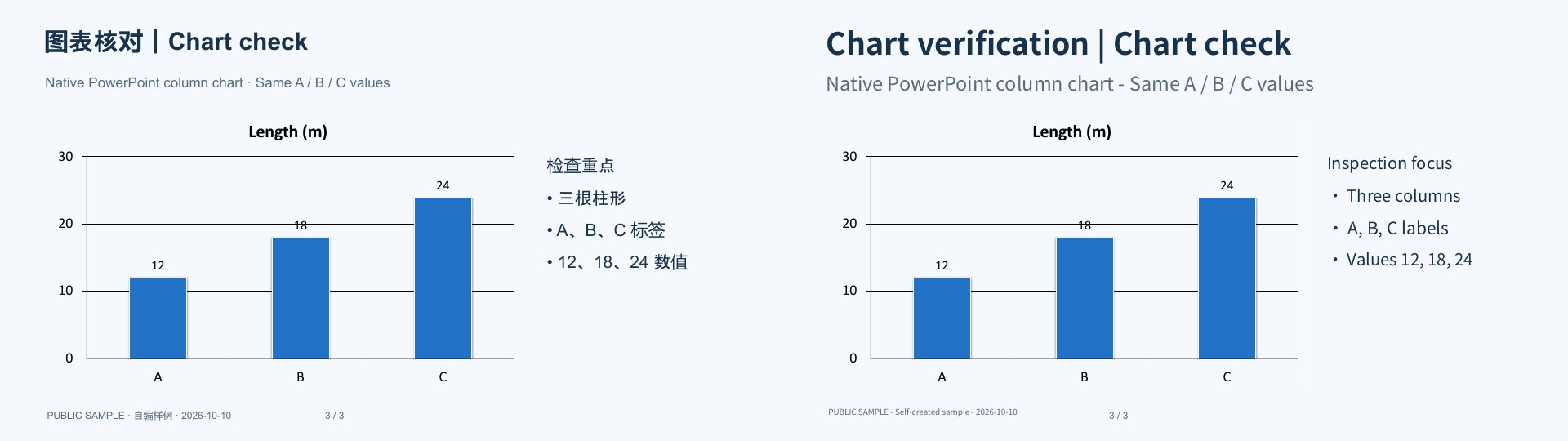
What still needs review: font sizes, line wrapping, and spacing change. The first two page footers still contain the Chinese phrase “自编样例”; the corresponding text on page 3 is translated. A/B/C and Length (m) inside the chart were already English, so this does not test translation of every kind of text inside images. Check footers, small print, captions, numbers, and units separately; edit and export again where needed. This bundle preserves the original output, including the untranslated text.
The observed export list did not include PPTX. These files support reading and comparison; keep the source deck when you need to edit text boxes, masters, animation, notes, or native chart objects. Native PowerPoint/WPS interaction, animation, notes, and multimedia were not tested. The combined mode also offers formats such as Word according to the current task; this example downloaded and inspected the two PDF outputs.
Pure Preserve Layout: Export Translation-only Word Directly
On 2026-10-12, we uploaded a self-authored two-page English PDF and selected Simplified Chinese → Preserve Layout → gpt-5.6-luna, with Per-page priority for the PDF font strategy. No glossary, Context Enhancement, or image upscaling was used. This task directly offered Preserved-layout Word, with Translation Only selected and Reflow unavailable.
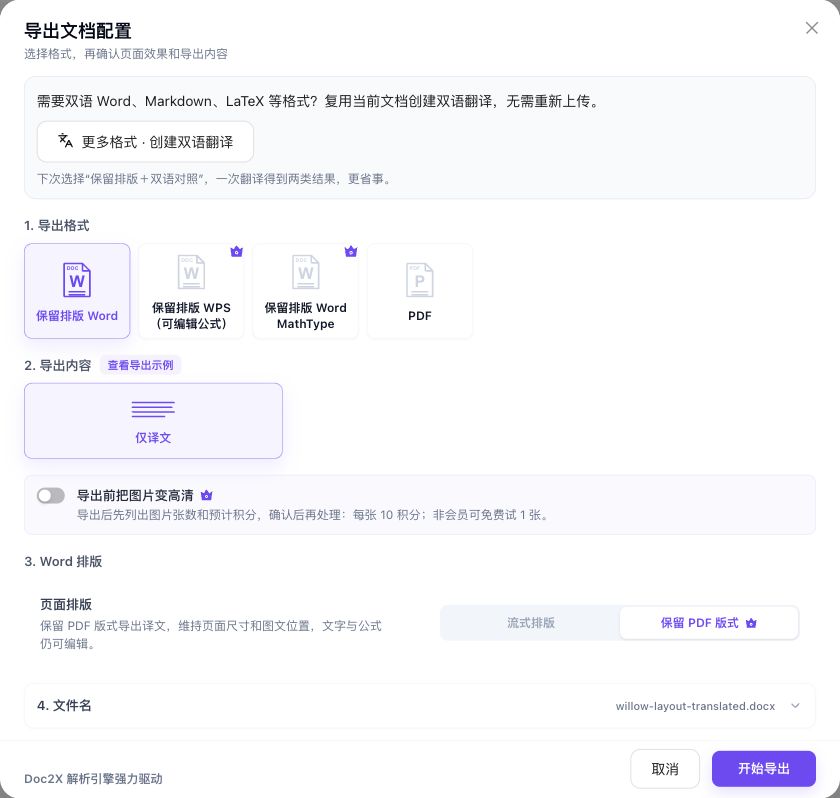
The screenshot reopens the actual configuration after download, with the original base filename restored and no additional export. The unchanged native DOCX contains 43 positioned text boxes, six math objects, and no native Word tables. Its two section configurations use A4-sized paper. These are package-structure checks; Word/WPS opening, editing, fonts, and actual pagination were not tested.
We then used More Formats · Create Bilingual Translation with the same source, without another upload. The dialog states that parsing-page quota is not used again, while translation uses the selected model’s credits. The new task produced different wording: packets in this packing example appears as terms including “包装件” and “数据包”. The original outputs were not rewritten for publication.
| Actual output in this example | Structure checked in the file |
|---|---|
| Translation-only layout Word | 43 text boxes, six math objects, no native tables |
| Word from the new bilingual task | Two native tables, eleven math objects, Letter paper configuration |
| Markdown ZIP from the new bilingual task | One Markdown file and one JPEG; English picture labels remain |
The bilingual Word and Markdown share the same original chart picture, while their text and captions provide bilingual content. Keep the relative image path after extracting the ZIP. These files do not establish lossless layout for arbitrary inputs, tasks, or formats. See the public Preserve Layout guide for further usage guidance.
Translation Tutorial
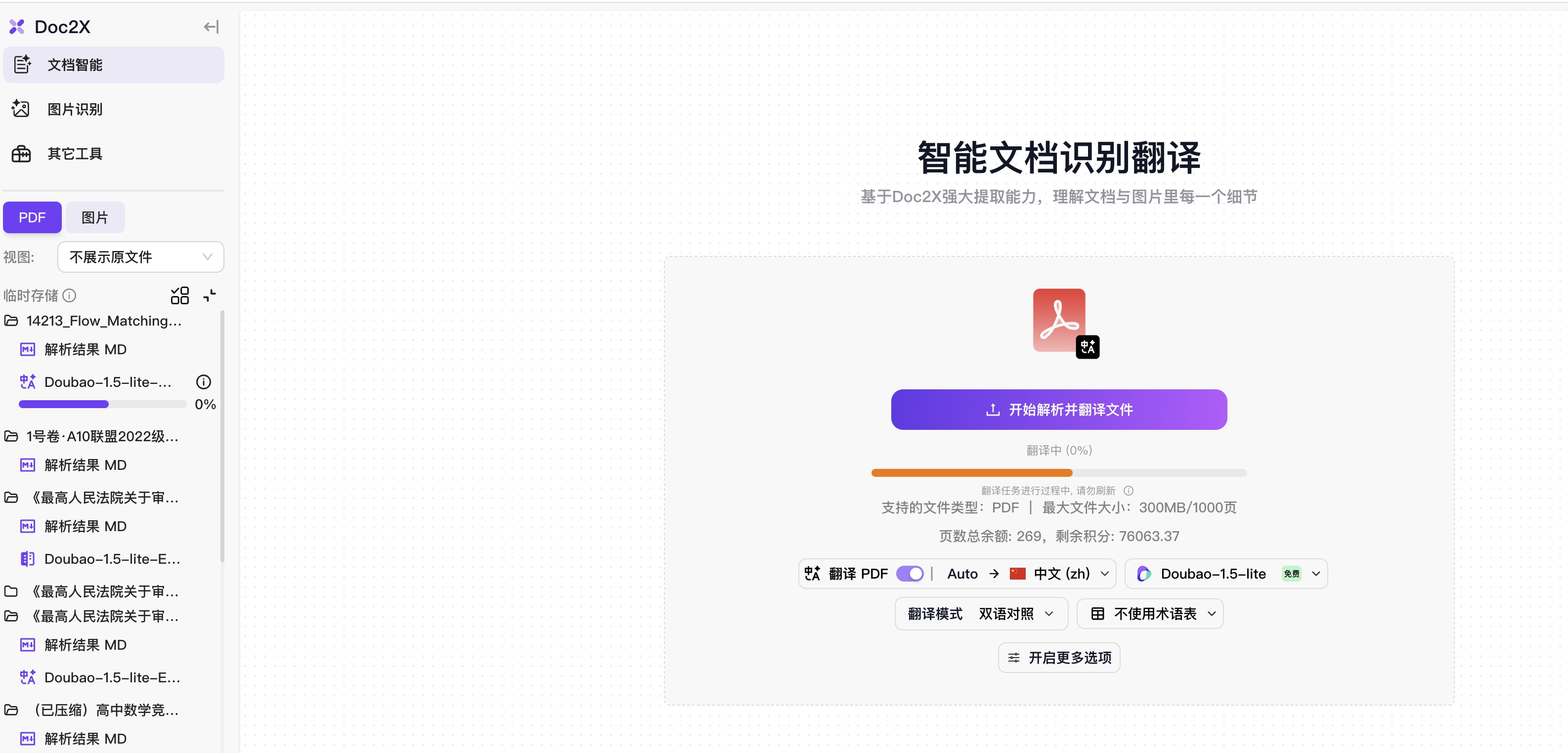
Step 1: Set Translation Parameters
- Open Translation in the left sidebar. First-time users can inspect public bilingual and preserved-layout examples.
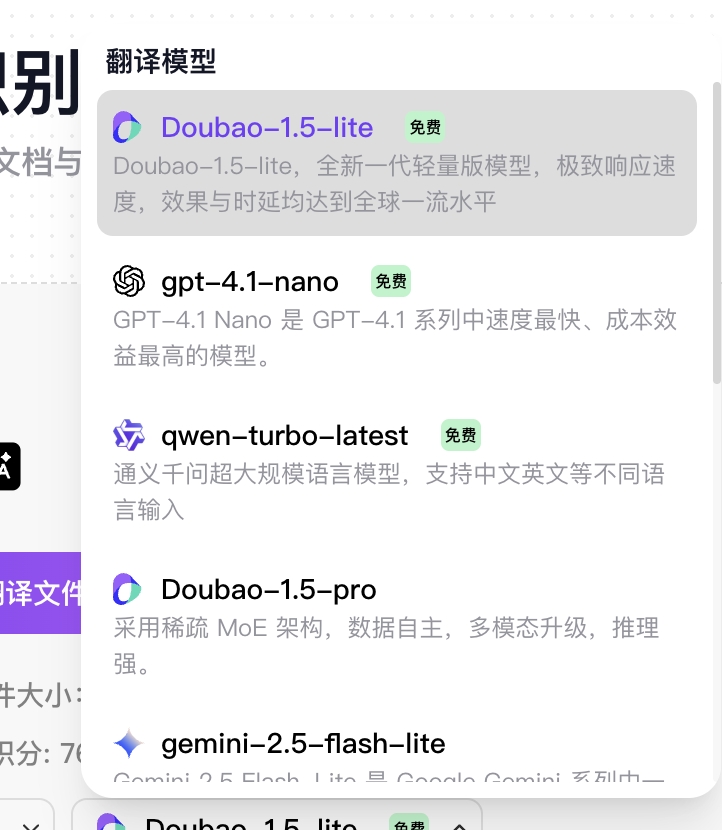
- Choose Translation Mode, Translation Model, and the target language under Translate To (“翻译到”). Model names, availability, and credits follow the current list.
- Choose the mode for your final output before submitting:
| Mode | Reading and output use | Before submission |
|---|---|---|
| Bilingual (“双语对照”) | Paragraph comparison and editable reflow formats such as Word, Markdown, and LaTeX | PDF uses repaginated Continuous Reading rather than the original PDF page layout |
| Preserve Layout (“保留排版”) | Replaces source text while aiming to preserve positioning; PDF offers translation only or side-by-side pages, and eligible results directly export translated Word with preserved layout | Bilingual Word, Markdown, and other content formats require a later Create Bilingual Translation task. An available preserved-layout Word output needs no extra translation just to download it |
| Bilingual + Preserve Layout (“双语对照+排版”) | Both editable content and fixed-layout PDF | Requires a supported version and Pro access; wait for both outputs. Combined results are not limited to PDF |
- Expand Translation Preferences (“翻译偏好”). After signing in you can select a glossary; check skip options and enable Context Enhancement if needed.
The existing images illustrate parameter selection. The current home page groups common options under Translation Preferences; follow the current labels and steps above.
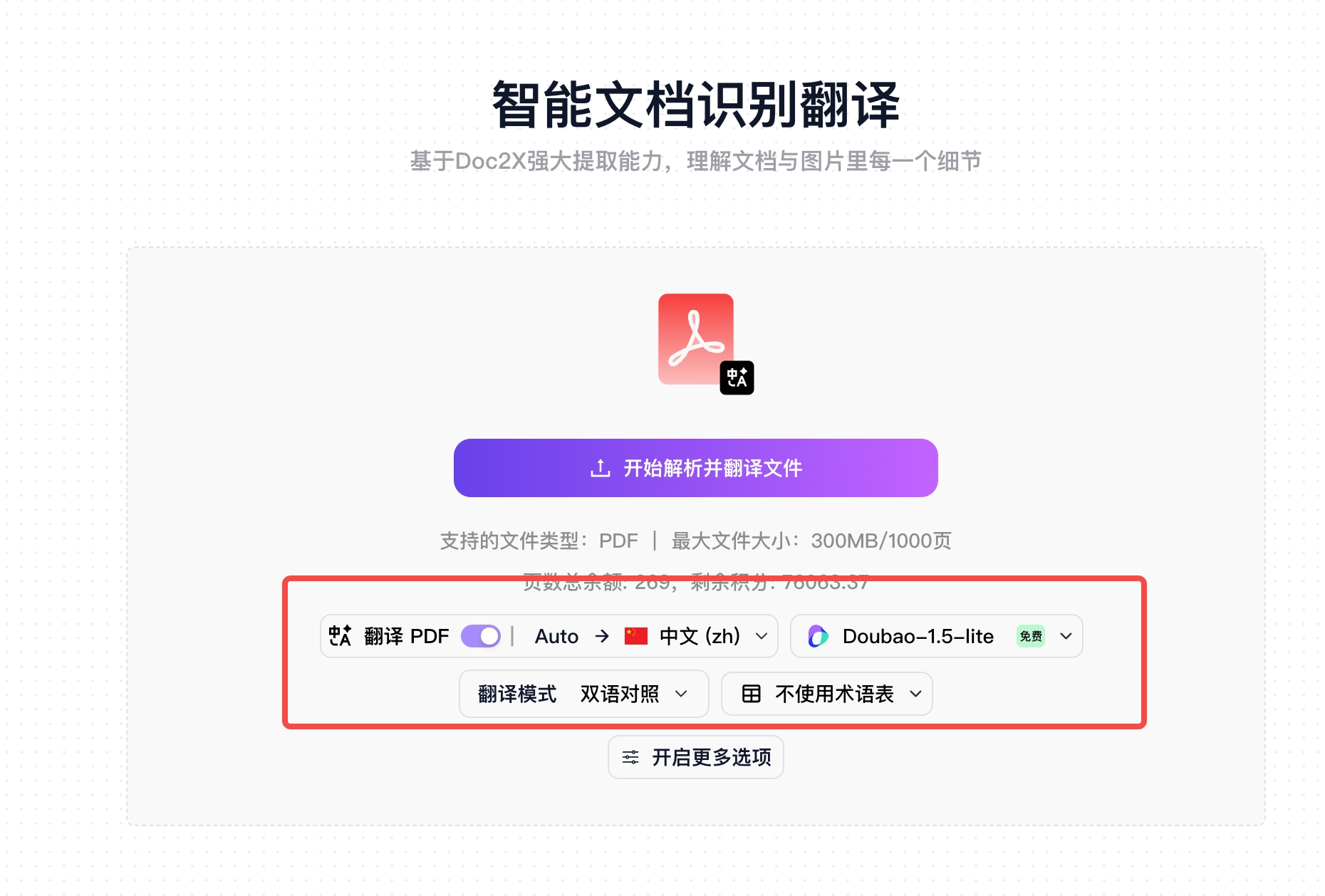
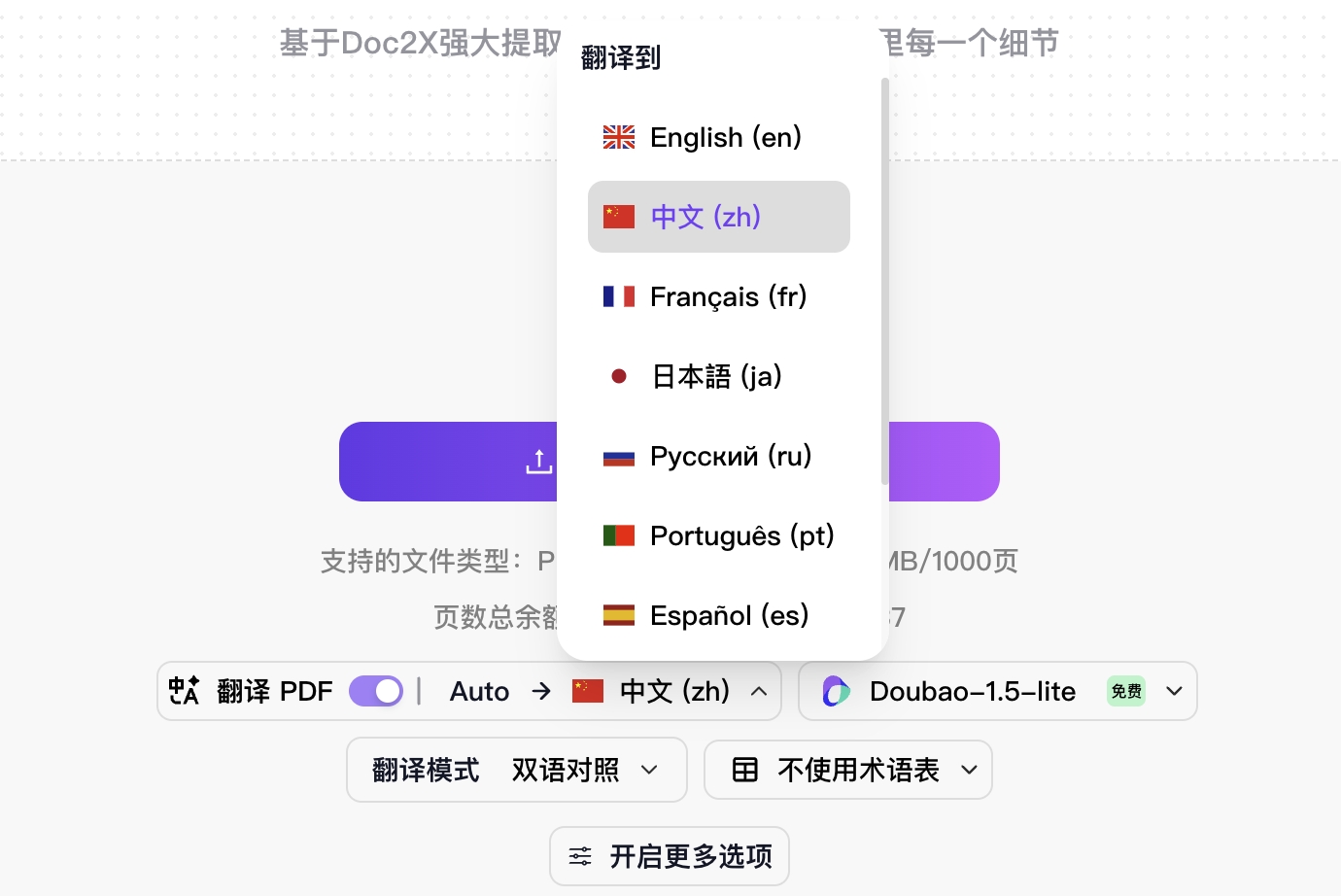
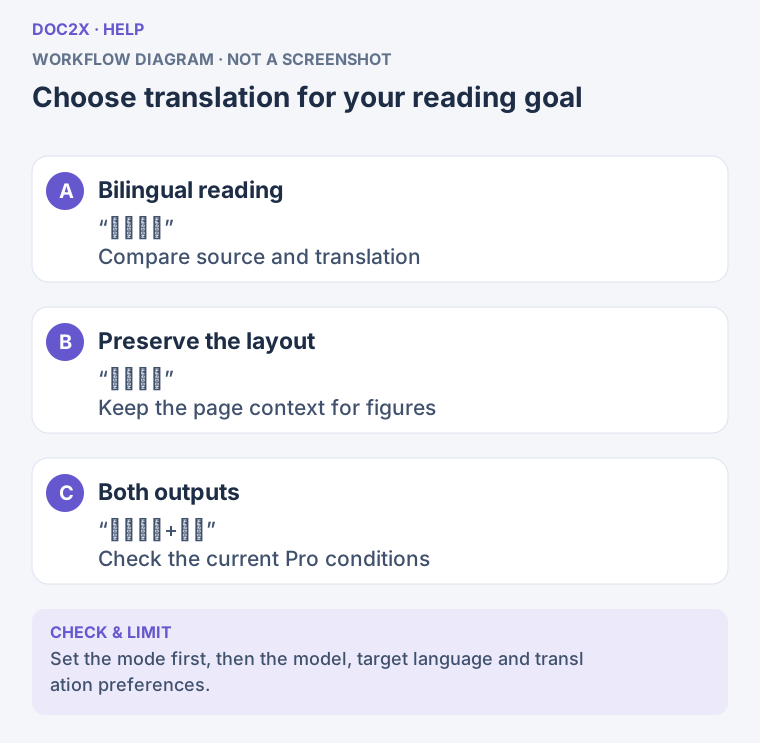
Choose translation for your reading goal (workflow diagram). Open the image in a new tab to enlarge it.
Step 2: Upload and Review Translation Options
- Click Start Parsing and Translating the File (“开始解析并翻译文件”) or drag a file into the upload area.
- PDF / scanned PDF uses document translation. Current limits are 300 MB per file, 1,000 pages for Bilingual, and 700 pages for Preserve Layout or the combined mode. Whole-file page count is checked before page selection; split oversized documents locally first.
- DOCX / PPTX first converts to PDF. Check the preview and click Start Translation; see Office conversion. Save legacy
.doc/.pptas a newer format or PDF first. - Images enter the separate Image Translation Editor, one at a time, rather than this PDF three-mode workflow. Upload images separately; selecting images together with documents prompts separate image processing. Recheck the image editor's own language, model, and glossary settings; see image translation and canvas.
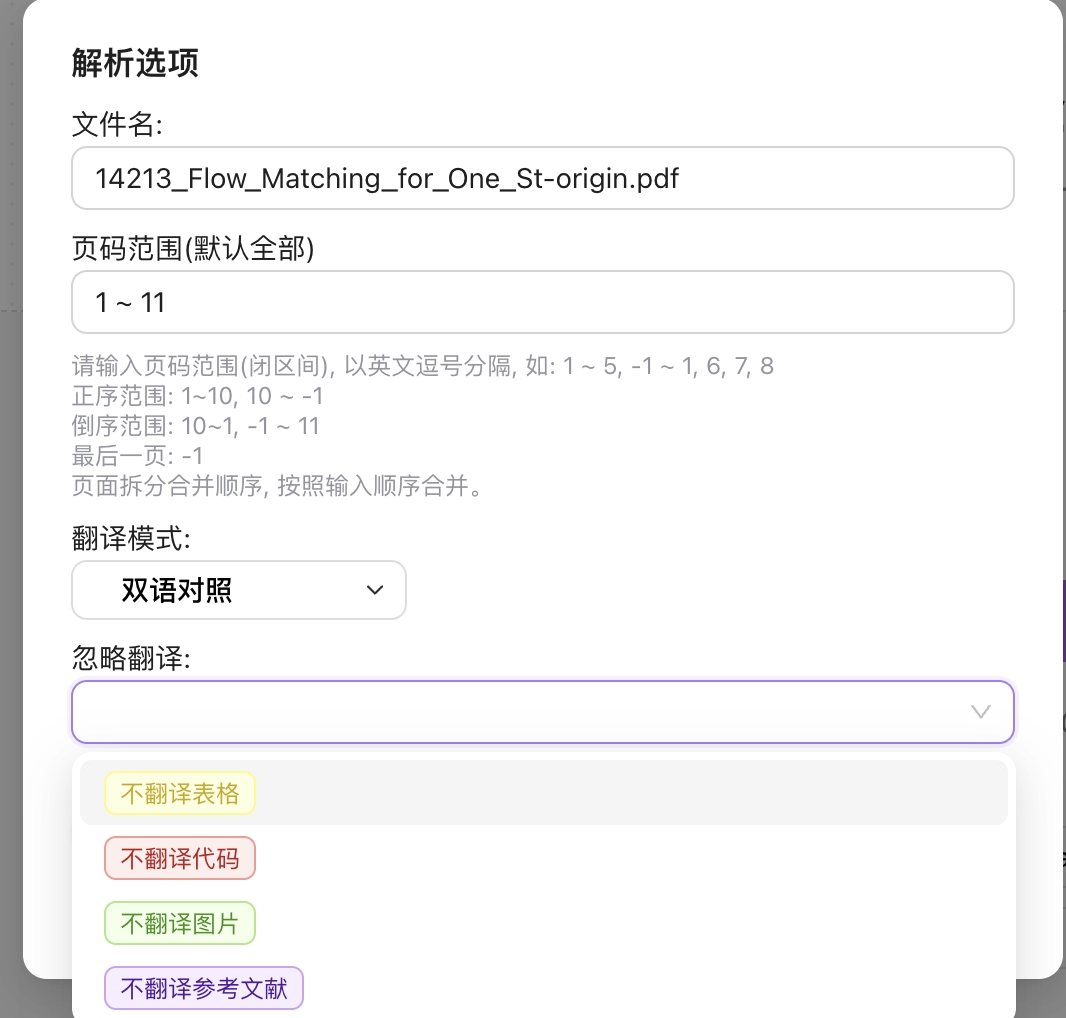
- In PDF Translation Options (“翻译选项”), check the filename and Page Range (All by Default). Leave it empty for all pages;
1~5,7,-1means pages 1–5, page 7, and the last page. Input order affects output order. - If a scan needs correction or cleanup, enter Scan Enhancement, review it, then Continue Translation and confirm the options again.
Selected Skip Translation types retain their source content:
| Option | What to check |
|---|---|
| Do Not Translate Tables | Whether table content should stay in its original language |
| Do Not Translate Code | Whether code and related recognized blocks should remain unchanged |
| Do Not Translate Images | Whether image-type content should be excluded; check text within images separately |
| Do Not Translate References | Whether the reference list should retain the original wording |
Prepare a glossary with the CSV glossary guide, then sign in and select it in Translation Preferences. Importing without selecting it does not establish that the task uses it. See Context Enhancement for membership and upload-trial availability.
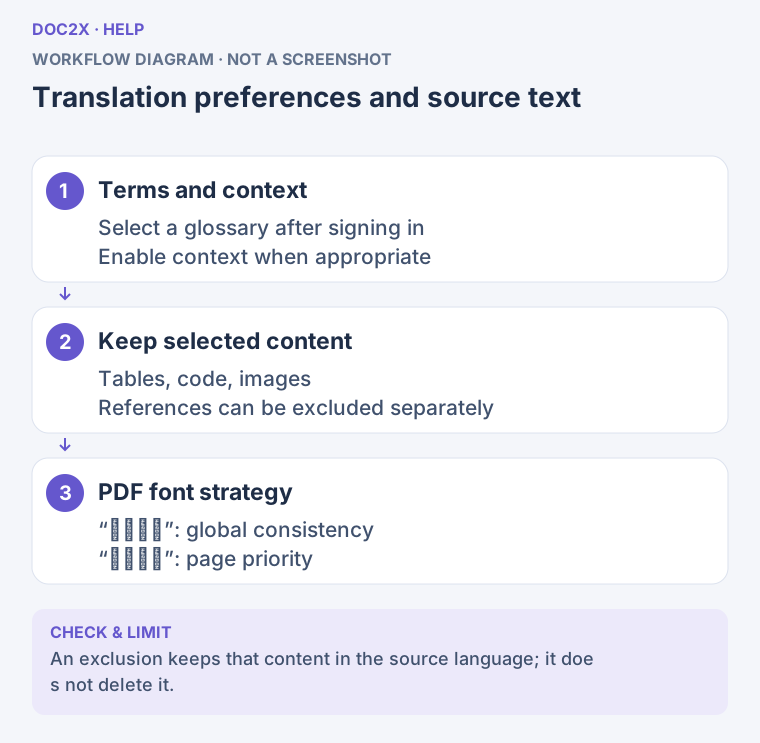
Translation preferences and source text (workflow diagram). Open the image in a new tab to enlarge it.
PDF Font Strategy for Layout-Preserving Modes
Preserve Layout and Bilingual + Preserve Layout show PDF Font Strategy when the current result version supports those PDF options. It controls font-size handling in the translated layout, independently of content, Context Enhancement, and export format.
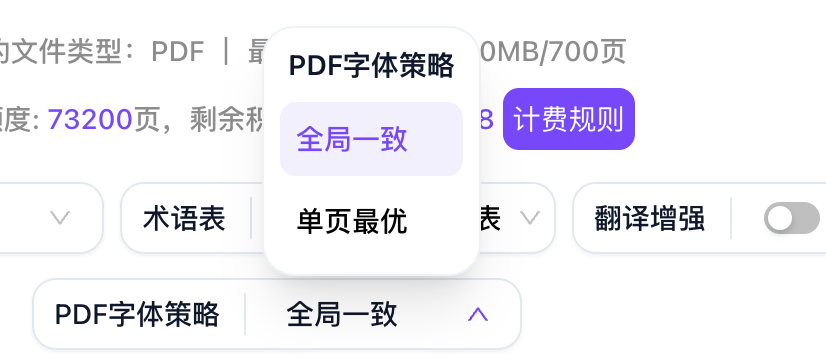
| Current option | Purpose | What to check |
|---|---|---|
| Globally Consistent (“全局一致”) | Prioritizes a consistent font-size appearance across the document | Crowded pages and visual consistency across pages |
| Page Priority (“单页优先”) | Prioritizes fitting the individual page | Acceptable variation between pages and readable tables/captions |
The initial strategy is Globally Consistent, but remembered preferences may apply; check before submitting. Historical font-color information may show Color, Black and White, or Not Recorded. Not Recorded does not mean black and white was selected. Do not use older screenshots to look for a color switch absent from the current entry point.
Step 3: Start Translation
- Follow sign-in, parsing-quota, and model-credit prompts during upload; these checks may occur before Translation Options. Parsing pages and translation model credits are separate requirements.
- Confirm the file, pages, and preferences in Translation Options, then click Start Translation. If the options dialog was previously disabled, upload may continue using saved settings.
- Follow upload, parsing, and translation status under the document in the sidebar. Preview While Translating (“边译边看”) opens readable pages when available.
- Wait for the whole translation and required outputs before full export. Seeing some pages does not mean the entire document is complete.
Step 4: Read, Review, and Correct the Result
- Open the newly generated translation beneath its document. Check its model, language, and mode so you do not mistake an older translation for the new one.
- Review bilingual content paragraph by paragraph and fixed-layout output page by page. For combined tasks, use the available controls to open the bilingual or layout output you need.
- Inspect a body-text page, complex formula, table, and image, then check that the end of the document is complete. Verify technical terms against the source and glossary.
- If Edit Translation is available, follow result review and editing to correct it. It requires a supported editable snapshot; older or unfinished records may not show it. Wait for Saved or retry saving as instructed before finishing and exporting.
- Use paragraph/page actions for a small selection. For the full text, use Copy Full Markdown in export; it does not create a downloaded file.
- New Translation reuses the parsed result to create another translation; follow the next section. Reader AI Features open document chat. For a systematic check, use AI proofreading and review each suggestion.
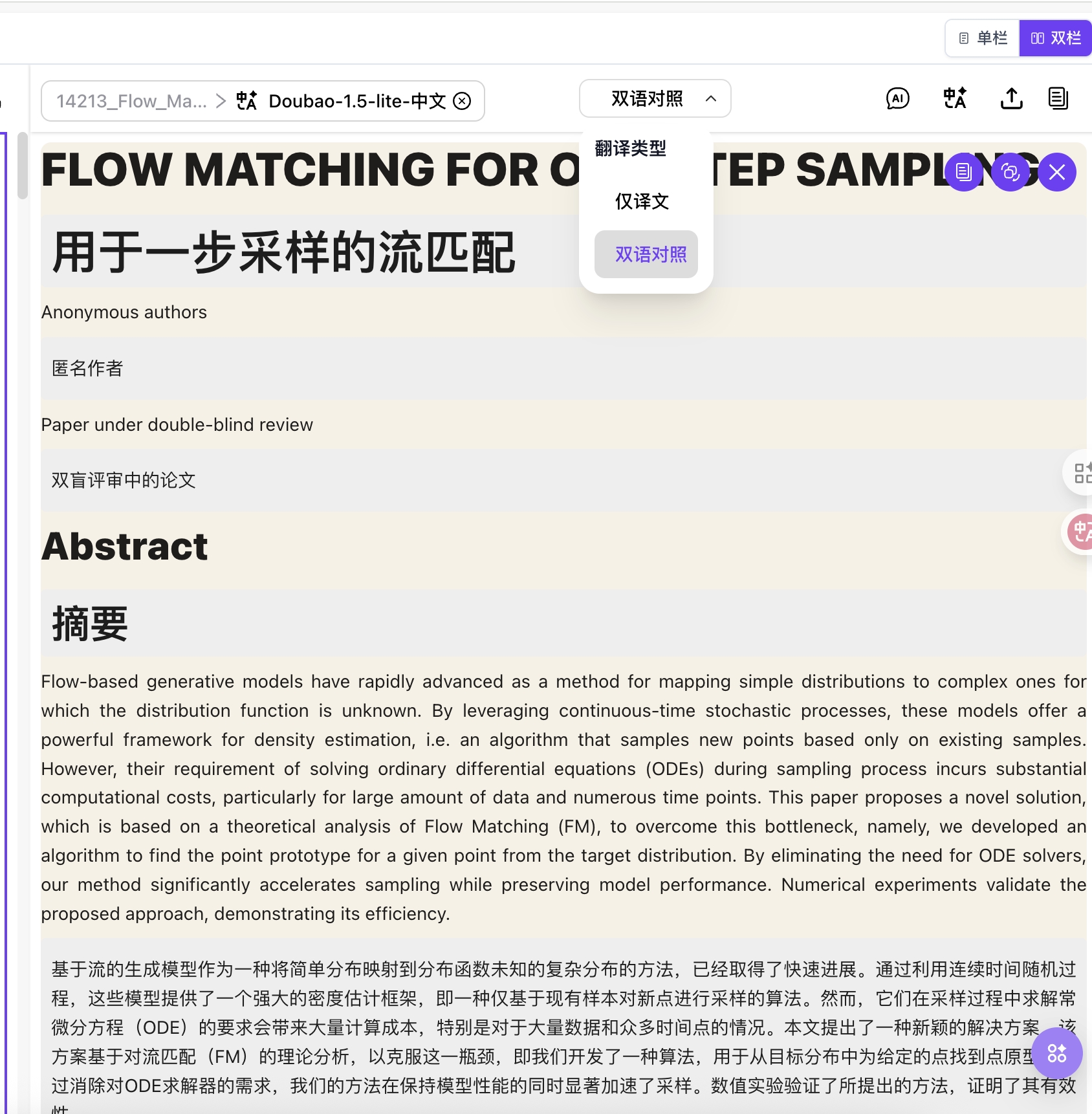
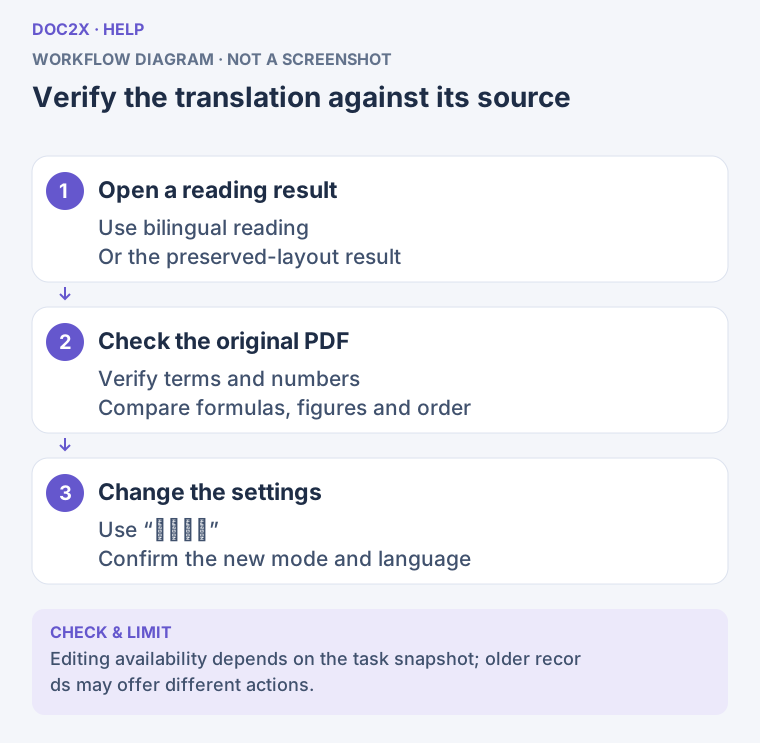
Verify the translation against its source (workflow diagram). Open the image in a new tab to enlarge it.
Create a Translation from an Existing Result
- Open a completed parsed result or a translation reader that supports this action, then click New Translation (“新建翻译”). It reuses the current parsed result without uploading the original again.
- In Choose Translation Settings (“请选择翻译配置”), choose Translate To, Translation Mode, and Translation Model. Check Skip Translation, Glossary, Context Enhancement, and applicable PDF Font Strategy.
- Wait for page-count and credit checks. If the page count cannot be read, click Read Page Count Again rather than repeatedly confirming.
- If model credits are insufficient, choose a currently available free model or View Top-up Options. If the parsed source exceeds the mode's page limit, use a smaller source for a new task; this dialog does not reselect pages from the original file.
- Confirm. After the submission message, find the new translation under the same document.
This workflow does not consume parsing pages again; translation is charged according to the selected model. Changing language, model, glossary, or enhancement does not alter a completed translation automatically.
For a Preserve Layout result, first check whether the export list offers Preserved-layout Word; when available, export Translation Only directly. For reflow Word, bilingual Word, Markdown, or other content formats, use More Formats · Create Bilingual Translation (“更多格式 · 创建双语翻译”), select language and model, and confirm the new task. It reuses the parsed source but generates a new translation and uses the selected model’s credits. Wording may differ from the earlier layout result. Export from that new bilingual result after completion.
Step 5: Export the Required Content and Format
- Wait for completion, then open Export Document Settings in the result reader.
- Reflow formats from bilingual or combined results: Choose Word, Markdown, LaTeX, or another available format, then select Translation Only, Bilingual, or Source Only.
- PDF from combined results: Choose Preserve Original · Translation Only, Side by Side · Translation on Left, Side by Side · Source on Left, or Continuous Reading. The first three require fixed-layout PDF; Continuous Reading requires bilingual content and offers source/translation/bilingual content choices.
- Preserved-layout Word from combined results: After selecting a Word variant, use Word Layout → Preserve PDF Layout only when the record has that capability. This supports translation only. For unsupported historical records, use reflow or follow the prompt to translate again.
- Pure Preserve Layout results: PDF offers translation-only or side-by-side output. When Preserved-layout Word is available, export Translation Only directly under the task’s layout and access conditions. Create a bilingual task when you need reflow, bilingual content, Markdown, or other content formats.
- Check the displayed filename, destination, and available settings. Edit Base Filename when offered; the tested pure-layout task provided it for both Word and PDF. Export, find the actual file in downloads or the selected directory, check its content suffix and extension, then review it in the target application.
See export format selection for the full content/format/layout matrix, formula compatibility, long-term image storage, and download troubleshooting. See Word templates for reflow styles.
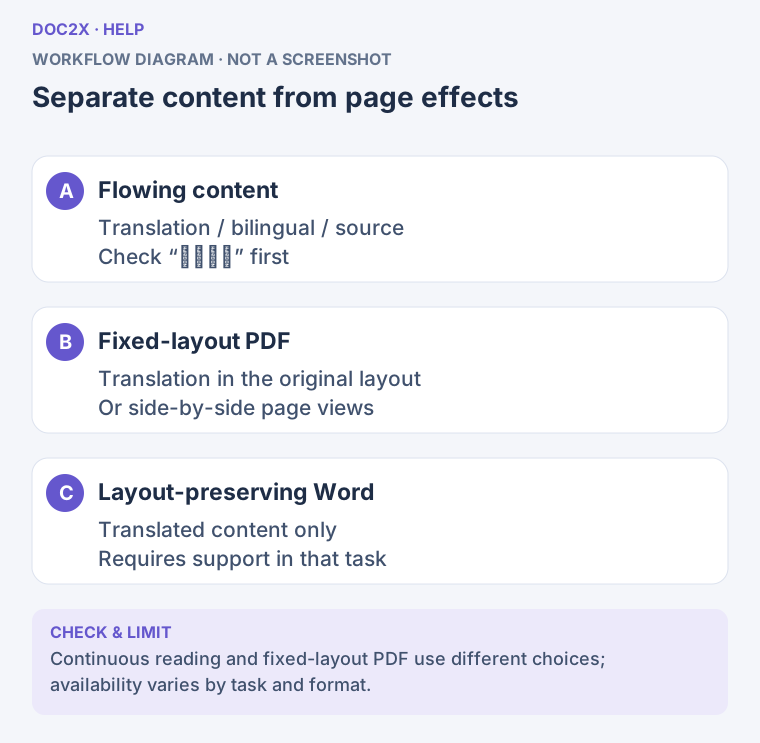
Separate content from page effects (workflow diagram). Open the image in a new tab to enlarge it.
Failure, Cancellation, and Insufficient Quota
| Situation | How to continue |
|---|---|
| You want to cancel or change the file before submission | Use Cancel in upload/options, or Not Now in Office preview; check settings before choosing another file |
| Cancel Translation appears on a queued task | Cancel that pending task if needed. Processing tasks may not offer the same action; closing the page is not a server-side cancellation |
| Parsing pages are insufficient and the file is retained | Follow available page-selection or quota top-up options; avoid repeatedly uploading the same file |
| Model credits are insufficient | Select an available model or add credits, then confirm again. Membership access and credits are checked separately |
| Translation failed but parsing already succeeded | Read the error, then use New Translation from the parsed result instead of immediately uploading the whole file again; the new task follows the model's charges |
| Only some pages appear | Check whether translation is still running or you submitted only a subset; wait for completion before full export |
| Fewer export options appear than in this guide | Check task mode, readiness, historical layout capability, and account access |
| Combined export failed | Read the retained dialog's error, adjust as needed, and click Start Export again; export failure alone does not require reparsing or retranslating |
Any return of used quota after cancellation, failure, or leaving the page depends on the actual task and account record. A cancel button does not imply every processing stage can be undone.
Bilingual Translation Example
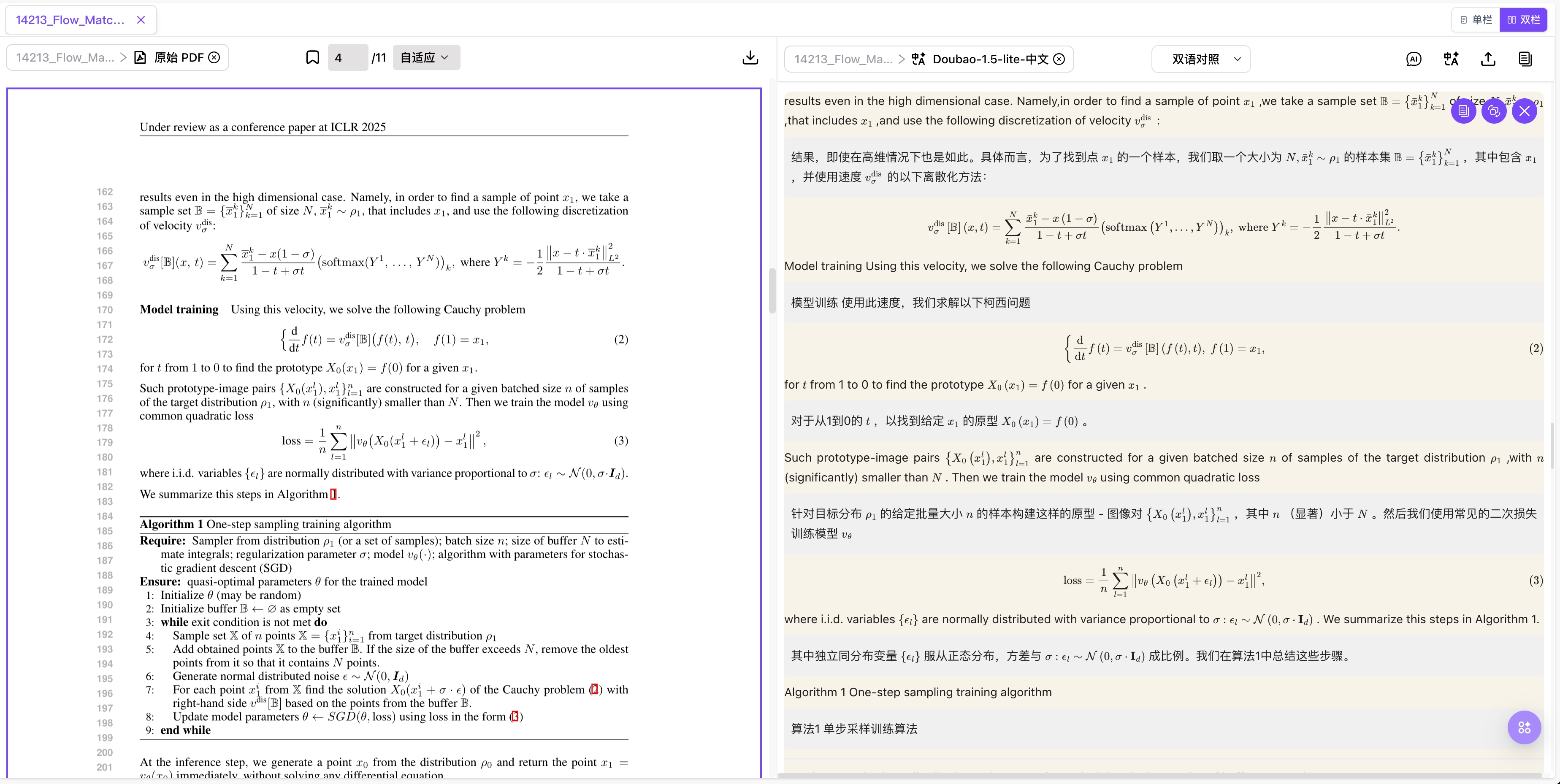
Preserve Layout Translation Example