
PDF tools: split, merge, compress, encrypt, crop, and edit bookmarks
Open Utilities (实用工具) → PDF tools (PDF 工具). This guide uses a synthetic six-page course PDF: a cover, contents page, two handout pages, and two exercise pages, visibly numbered 1–6. Keep the original PDF and check page count, order, text, and bookmarks after downloading.
The tools can be opened from the web and desktop apps. Their processing pages must load successfully. On narrow phone screens, configuration and downloads are usually behind the purple menu button.
| Tool | Input and purpose | Output |
|---|---|---|
| Split (切分) | One PDF; divide it or extract pages | Individual PDFs, ZIP |
| Merge (合并) | Multiple PDFs; concatenate or interleave | |
| Compress (压缩) | One or more PDFs; trade file size against quality | PDF, ZIP |
| Encrypt / Decrypt (加密 / 解密) | One PDF; set an opening password or decrypt with its existing password | |
| Crop (裁剪) | One PDF; adjust visible page areas | |
| Bookmark editing (书签编辑) | One PDF; edit bookmark hierarchy and destinations | Bookmarked PDF, bookmark text/JSON |
To combine images into PDF, use the scan workspace: add images, arrange pages, check previews, and download the image-based PDF. This list has no separate image-to-PDF tool. For Word or Markdown, parse the document and export from the parsing workspace.
Split: extract pages or divide a document
- Open Split, upload the sample PDF, and wait for the page count and preview.
- Choose a mode and verify it with a small example:
| Mode | Example | Check |
|---|---|---|
| Page ranges | Enter 1-2,3-4,5-6 | Produces three parts; use actual PDF page positions |
| Equal division | Choose the number of parts, or two pages per part | The last part may contain fewer pages |
| File size | Set a target size | Uses average page-size estimation; output is not guaranteed to match or stay below the target |
| Bookmarks | Choose an existing bookmark level | Individual results and Download all may currently use different ranges; use explicit ranges for complete chapters |
- Adjust the output naming pattern and start splitting.
- Preview each result and verify start/end pages, count, and order. For an exact chapter, find its actual start and end pages in the source PDF and enter that range.
- Download an individual PDF or Download all as ZIP. Extract and inspect every part.
Do not treat tolerance, output-order, or preserve-bookmarks settings as guarantees that the downloaded result satisfies those conditions. Check important bookmarks in a PDF reader and repair them with the bookmark editor if necessary.
Merge: concatenate files or interleave pages
- Open Merge and upload the source PDFs. The first selection accepts up to 10 files; the workspace can then add files up to 20. Use separate batches above that.
- Drag files into reading order. Put the handout before the exercises in the example. Remove incorrect files and add replacements.
- Under Merge method (合并方式), choose Sequential merge (顺序合并) to append each complete document. For separately scanned fronts and backs, try Interleaved merge (交错合并) and verify the resulting page order.
- Enter Output filename (输出文件名), start merging, and wait for a downloadable result.
- Download the PDF. Check that its total equals the sum of the source pages, and inspect the beginning, file boundaries, and ending.
The default interleaving behavior alternates individual pages from the files; do not assume the “interleave page count” setting groups multiple pages. Check Preserve bookmarks (保留书签) after downloading as well. Validate a small sample before relying on a specific page or bookmark arrangement.
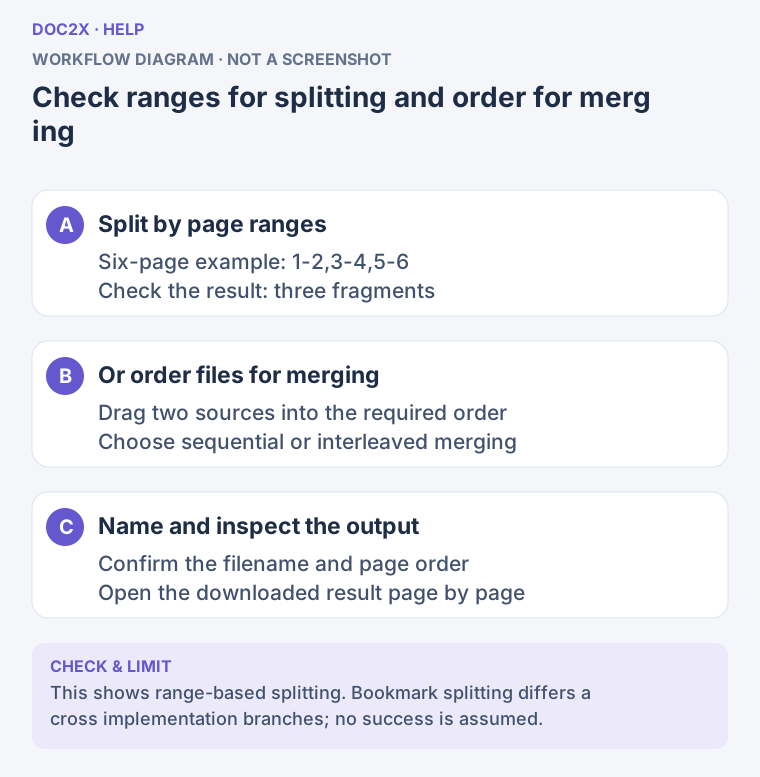
Split by explicit page ranges, or arrange files before merging. (workflow diagram). Open the image in a new tab to enlarge it.
Compress: compare size and readability
- Open Compress and add PDFs, up to 10 in one batch.
- Start with High fidelity, Standard, or High compression. Adjust image quality and DPI only if needed; retain more detail for small-print handouts.
- Choose All pages (全部页面) or Custom range (自定义范围), using actual PDF positions such as
1-5,8,10-12. - Review options such as metadata removal, linearization, and structure optimization, then click Start compression (开始压缩).
- Check each file's status and before/after sizes. Inspect small text, formulas, and images, then download individual PDFs or Download all (下载全部) as ZIP.
Compression does not guarantee an exact file size or even a smaller file. Raise quality/DPI if content becomes blurry, or keep the original if it is already compact. Large scan-heavy PDFs need more memory; split them first if processing fails.
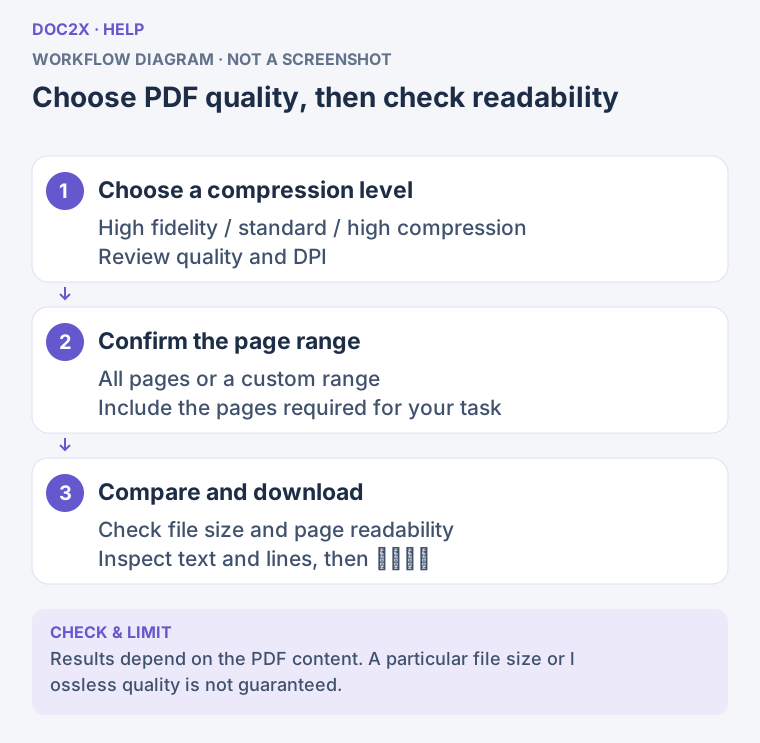
Choose compression quality, then compare size and readability. (workflow diagram). Open the image in a new tab to enlarge it.
Encrypt and decrypt: set or remove a known password
Select one PDF at a time. The tool checks whether it is encrypted.
Set an opening password
- Open Encrypt / Decrypt, upload an unencrypted PDF, and choose the encryption tab.
- Enter and confirm the opening password. Keep it safely: it is needed to open or decrypt the file later.
- Choose permissions shown in the interface, such as printing, modification, copying, annotation, forms, extraction, and assembly.
- Click Start encryption (开始加密), then Download file (下载文件) after completion.
- Open the downloaded PDF in a reader and verify that the password works.
Decrypt using the existing password
Upload the encrypted PDF, choose the decryption tab, enter its original password, and click Start decryption (开始解密). Download and verify the result. Correct the password and retry if necessary; this tool does not crack unknown passwords. The current flow is for one file, with no batch operation or user-selectable 128/256-bit algorithm step.
Reader software determines how permission restrictions are enforced. An opening password and editing/copying permissions serve different purposes; test the actual receiving application when those restrictions matter.
Crop: adjust visible page bounds
- Open Crop, upload a PDF, and select a page in the preview.
- Drag a crop frame around the required content. Zoom in to avoid removing page numbers, headers, or questions.
- Select Current page (当前页面) or All pages (所有页面). Try the current page first when dimensions, orientation, or margins vary.
- Click Start cropping (开始裁剪), inspect the result, then Download crop result (下载裁剪结果).
- Open the downloaded PDF and check all affected pages.
Cropping changes the visible page area. Content outside it may remain inside the PDF, so this does not permanently remove sensitive material or provide secure redaction.
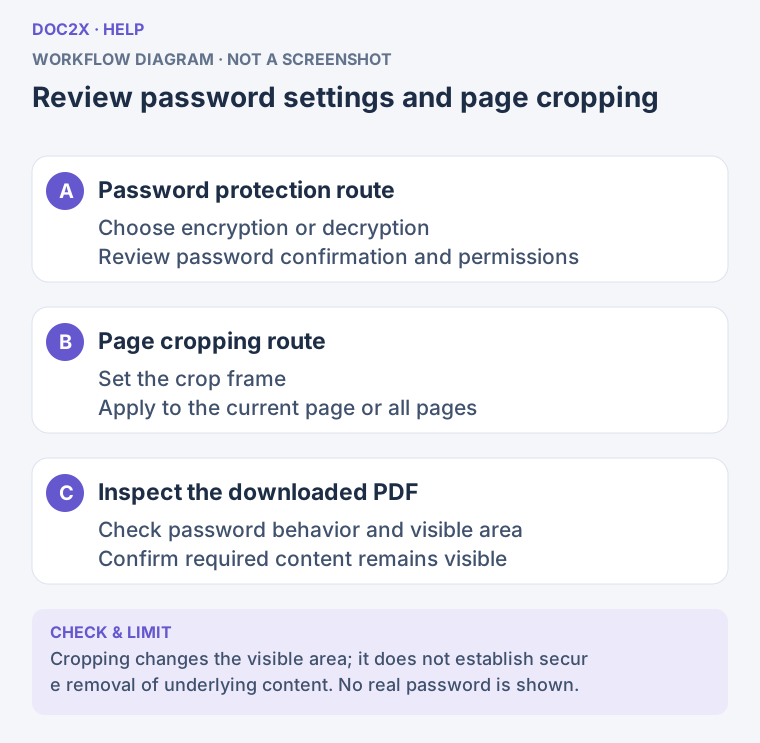
Set a PDF password or adjust the visible page area. (workflow diagram). Open the image in a new tab to enlarge it.
Bookmark editing: create a clickable contents tree
Bookmarks control navigation in a PDF reader's sidebar; editing them does not change body headings. The host app currently opens the Chinese tool interface, so the Chinese button labels below can help you find controls.
Edit manually and save
- Open Bookmark editing and upload the PDF. Inspect the PDF on the left and wait for its bookmark tree on the right. An empty tree can be used as a starting point.
- Click Add (添加), enter a title and actual PDF page number. Add “Handout” at page 3 and “Exercises” at page 5 in the example.
- Edit existing titles and destinations, adjust hierarchy/order, and optionally apply bold, italic, color, and expanded/collapsed state. Select multiple entries for batch styling or deletion.
- Click bookmarks to check their destinations. Printed page numbers may differ from actual PDF positions.
- Click Save and export PDF (保存并导出 PDF), wait for Bookmarks saved (书签保存完成), then Download file. Open the result in a PDF reader and test the bookmarks.
Import, export, and shift page numbers
Under More actions (更多操作), choose Import from text (从文本导入). Use one bookmark per line, Tab indentation for hierarchy, and a Tab between title and page number. Follow the dialog's example; use the supported schema when importing bookmark JSON. Test two entries before importing a full contents list.
Batch page offset (批量偏移页码) supports page mapping and direct offsets. If printed page 1 is actual PDF page 3, set that mapping and check the first and last bookmarks before applying it. Bookmarks read directly from the PDF usually need no new offset.
Export as text (导出为文本) lets you copy bookmark text or Export JSON file (导出 JSON 文件). These contain bookmark data. Use Save and export PDF separately to write bookmarks into a PDF.
Optional: AI contents recognition and bookmark translation
- Choose AI contents recognition (AI 识别目录) from More actions. Configure your model service's API Key, Base URL, and model name.
- Enter the actual PDF page range containing the contents list, then choose Start extracting bookmarks (开始提取书签).
- Review titles, hierarchy, and destinations. Map or offset printed page numbers to actual PDF positions, and inspect out-of-range entries.
- If needed, choose a target language and Translate bookmarks (翻译书签). Recheck terminology and destinations.
- Select Append to existing bookmarks (追加到现有书签) or Replace existing bookmarks (替换现有书签), then Import bookmarks (导入书签). Inspect the tree and save/export the PDF.
AI extraction sends images of the selected contents pages to your configured model service. Translation also uses that service, so both require connectivity and applicable service allowance. Without a configured service, you can still edit manually or import text. Always review recognition and translation, especially the offset between printed and PDF page numbers.
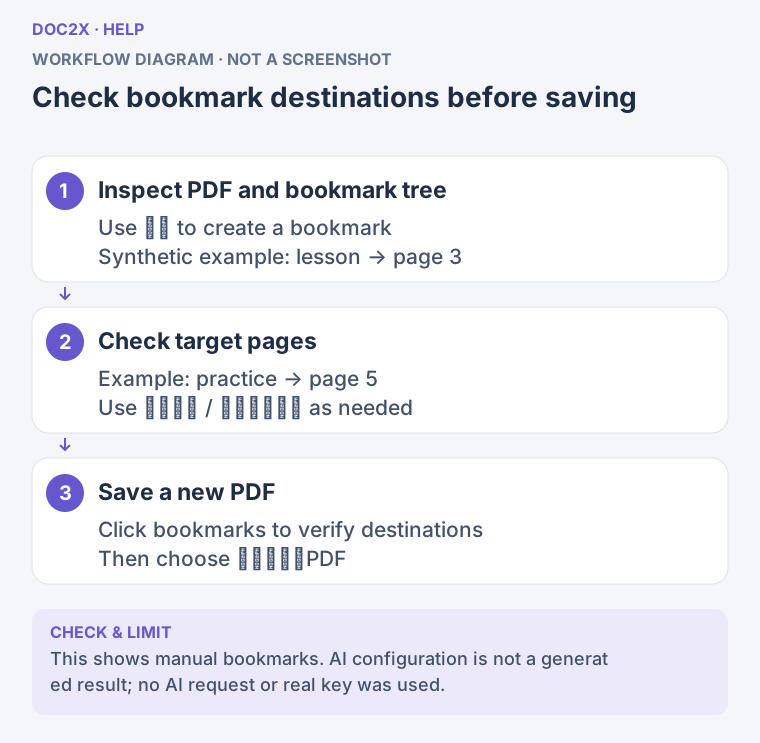
Check bookmark destinations before saving a new PDF. (workflow diagram). Open the image in a new tab to enlarge it.
Downloads and troubleshooting
Downloaded PDFs and ZIPs appear in the browser download list, the default download folder, or the location chosen when saving. Follow the actual prompt in the desktop app. A preview is not a saved file; download results before closing the tool.
| Problem | Recovery |
|---|---|
| PDF cannot be read | Check it opens in a reader and is complete; decrypt with its known password before using other tools |
| Invalid range | Use actual PDF positions starting at 1, not printed numbering; try 1-2 and stay within the total count |
| Bookmark split misses pages or differs from ZIP | Use explicit start/end ranges and check both individual files and the extracted ZIP |
| Merged pages are out of order | Rearrange source files and try sequential merge; test interleaving with a small sample |
| Compression fails or stops responding | Preserve completed results, reduce the batch or split large PDFs, then reopen and retry |
| Encryption/decryption fails | Check matching confirmation or the correct original password; retain the original file |
| Cropping cuts required content | Start from the original with a larger frame, or crop the current page first |
| AI contents extraction fails | Check model configuration and contents-page range, or create bookmarks manually |