
PDF tables across pages: review Excel and prepare CSV
Inspect the actual worksheets before joining a continued PDF table. Matching headers do not prove that tables belong together, and matching totals do not prove that every row is present. This tutorial starts with an actual XLSX download and checks sources, identifiers, missing values, amounts and CSV fields.
Open document parsing for your PDF · Download the example and review files
Identify the source and each output
On 2026-10-13, we parsed a fictional, self-authored two-page Willow supply record and downloaded one XLSX through Table Excel. The source has six detail records, uses yuan throughout, and repeats its header on page 2. The native download contains 第1页 表1 and 第2页 表1, each with four rows and six columns including its header. They were not automatically joined into one table. The source data and the captured product interface are in Chinese.
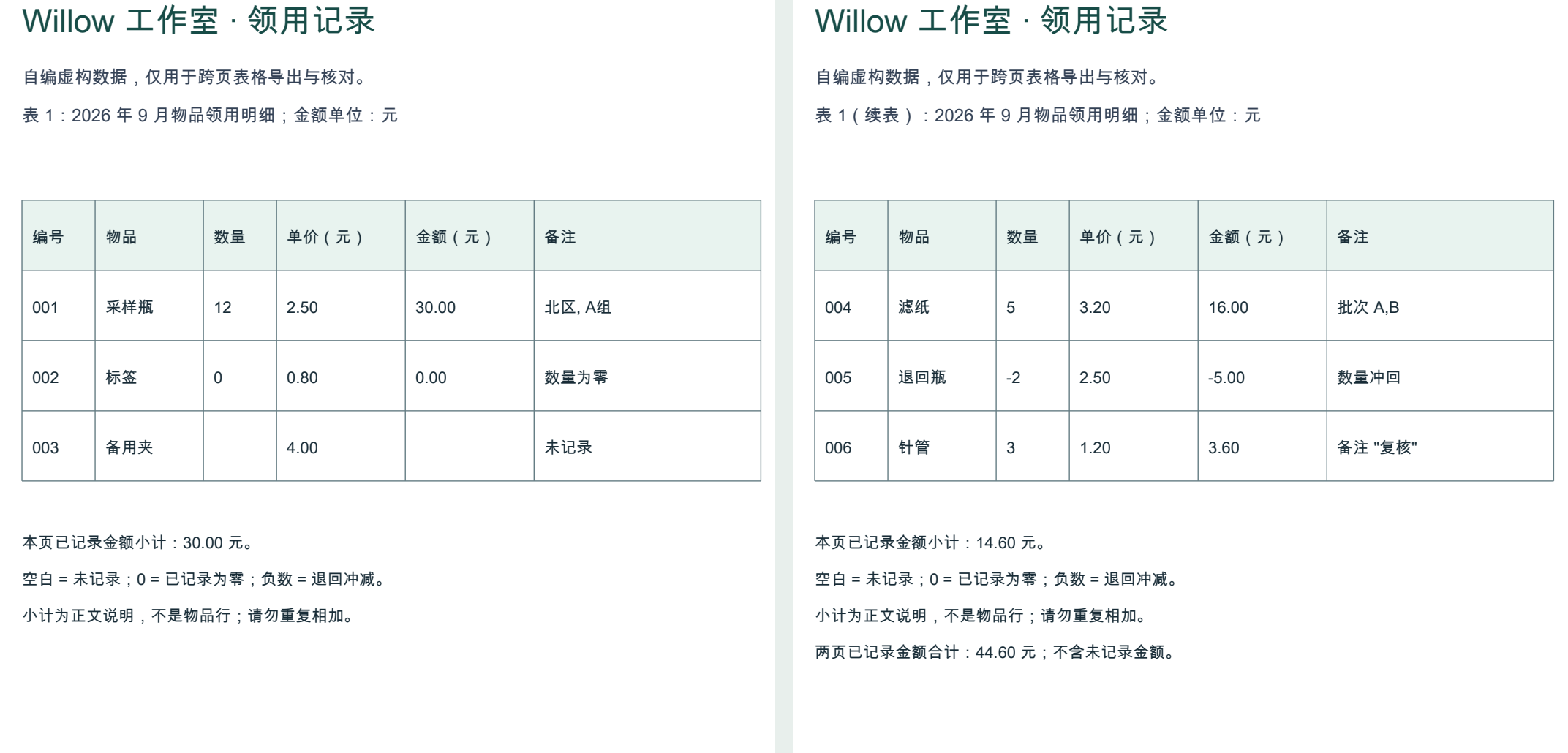
The two source pages shown side by side. Open the image to enlarge it; use the original PDF for the complete pages.
| File | Origin | What to check |
|---|---|---|
| Two-page source PDF | Authored input, unchanged | Source pages, units, records and body-text subtotals |
| Native XLSX | Actual Doc2X download, unchanged | Two worksheets, original cell values and types |
| Reviewed XLSX copy | Prepared locally after export | Six records, source page and worksheet columns, review notes |
| Reviewed CSV | Generated locally from the checked data | UTF-8 BOM, eight columns, six records and escaped quotes |
| Complete review ZIP | Packaged locally | These four files, checks and a readme |
The reviewed workbook contains static check values, not calculation formulas. The reviewed XLSX, CSV and ZIP are follow-up examples; they do not demonstrate automatic joining, reconciliation or direct CSV export by the product.
Step 1: Compare pages, then export tables
- Select the PDF in document parsing. When results are ready, compare each source page with its recognized content. Check the table name, units, column order and continuation boundary.
- If recognition is wrong, edit the result and confirm it is saved before exporting.
- In the result reader, open 导出文档 → 表格 Excel (Export Document → Table Excel). This shortcut runs immediately; Start Export is unnecessary. See table export conditions.
- Open the actual XLSX and inspect each sheet. If you need only one page or paragraph, check the corresponding table-export entry. A filename alone does not prove which pages were exported.
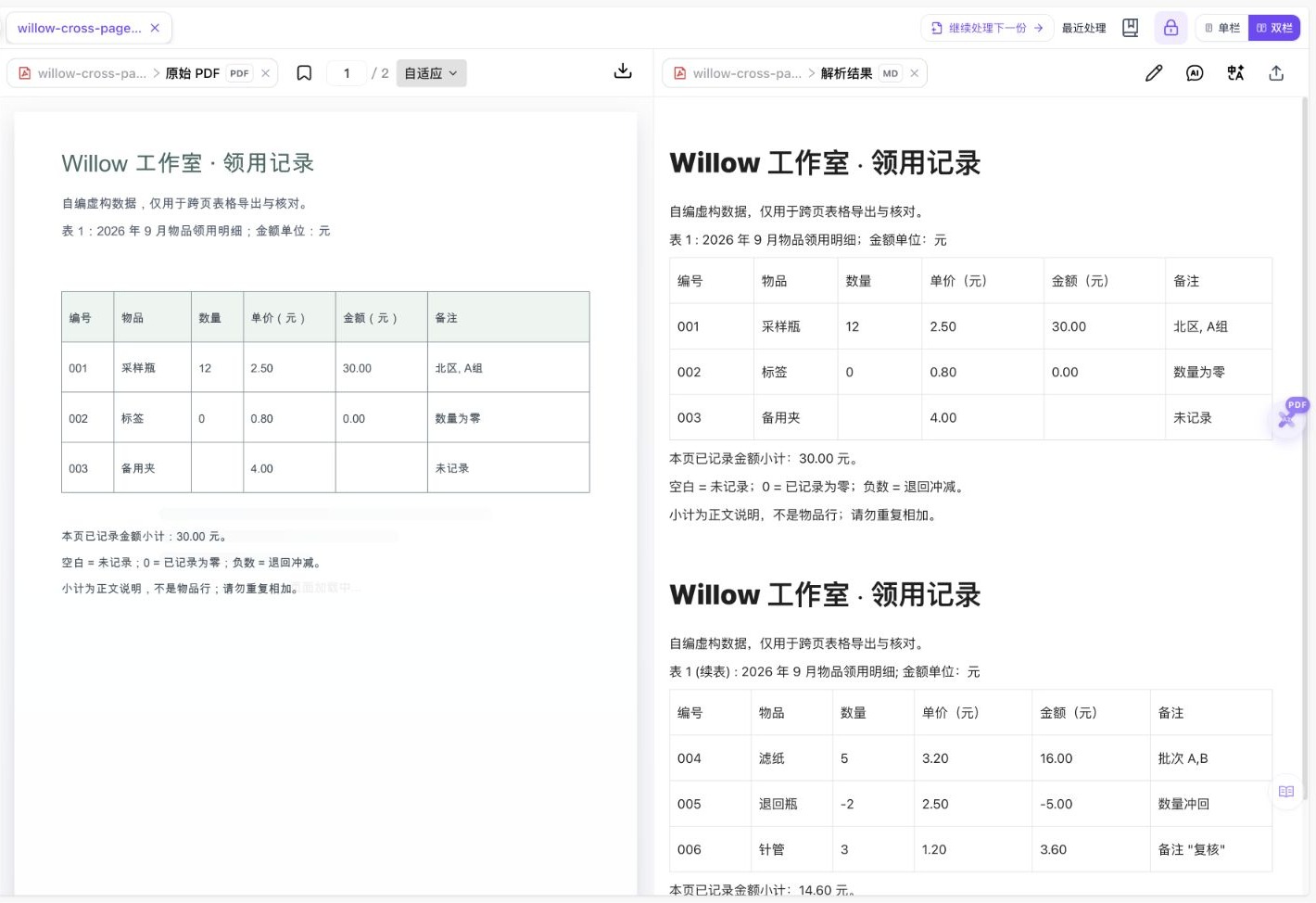
This reader screenshot shows source and recognized content. The two worksheets and cell types were checked separately in the actual downloaded file.
Step 2: Confirm continuity before keeping one header
Check that both pages belong to the same table, reporting scope and unit. Equal column counts are insufficient when months, currencies or field meanings differ. A record split over a page boundary also needs source review before it can be treated as one complete row.
The example has matching fields and units. In a working copy, we:
- Kept the first six-column header followed by records
001,002and003. - Compared page 2, skipped its repeated header and appended
004,005and006. Remove only a confirmed repeated header; do not delete records simply because their values look alike. - Added 来源页码 (source page) and 来源工作表 (source worksheet), making eight columns that retain a route back to the source.
- Kept identifiers as text. Native XLSX identifiers
001through006are text; forcing them to numbers and later applying a display format does not preserve the original identifier value.
| Source worksheet | Page | Identifiers | Detail rows | Recorded subtotal |
|---|---|---|---|---|
| 第1页 表1 | 1 | 001, 002, 003 | 3 | 30.00 yuan; 003 has no recorded amount |
| 第2页 表1 | 2 | 004, 005, 006 | 3 | 14.60 yuan, including the -5.00 adjustment |
| Reviewed detail table | 1, 2 | 001 through 006 | 6 | 44.60 yuan from five known amounts |
The example does not include split records or complex merged headers. Resolve those boundaries separately before deciding how to join a different document.
Step 3: Check rows, missing values and amounts together
Check identifiers, detail-row count, known-amount count, page subtotals and then the total. This example retains six detail records, five known amounts and one missing amount.
| Source condition | Example | Check |
|---|---|---|
| Zero amount | 002 has 0.00 | Keep the record: deleting it leaves the same 44.60 total but loses a row |
| Blank amount | 003 has no recorded quantity or amount | Keep the blank and flag it for review; do not insert zero |
| Return adjustment | 005 has quantity -2 and amount -5.00 | Confirm the source meaning and retain the sign; do not take an absolute value |
| Body-text subtotals and total | 30.00, 14.60 and 44.60 | Use them as checks, not extra detail rows to sum again |
The known amounts are 30.00 + 0.00 + 16.00 - 5.00 + 3.60 = 44.60 yuan. This excludes the unknown amount for 003. Adding the body-text total of 44.60 again would produce an incorrect 89.20.
The native workbook stores quantities, unit prices and recorded amounts as numbers, and identifiers as text. Other files still require checks for currency symbols, parentheses indicating negative amounts, decimal separators and units. Convert only confirmed meanings in a working copy. Two-decimal display formatting cannot replace value and type checks.
Step 4: Convert to CSV, then read it back
CSV carries the data of one table. It does not preserve XLSX worksheets, cell types, merged cells or display formats. This CSV contains only the six reviewed detail records and eight fields; it does not include the separate notes sheet.
- Confirm the receiving system's requirements. This example uses UTF-8 with BOM and commas. Another system may require a different encoding, delimiter or no BOM.
- Use an exporter for quoting.
北区, A组and批次 A,Bmust remain single fields. The double quotes in备注 "复核"require CSV escaping. Do not split every line at each comma. - Import identifiers as text. A receiving spreadsheet can still interpret
001as1. Quoting a field or preserving zeros in the CSV file does not configure the receiving software's types. - Compare after reading back. Check six records, eight fields per record, source pages, Chinese notes, the blank for 003, the zero for 002 and the negative value for 005. A CSV parser read this example back with those values intact.
See RFC 4180 section 2 for field escaping. It does not specify how Excel or WPS infers types when a file is double-clicked; test the import in your own software.
Common questions
Why did a continued PDF table become two worksheets?
This run exported the two recognized tables separately. Inspect the file and compare names, fields and units before joining it. A cross-page table option offered for other export formats is not a guarantee of automatic Excel joining.
Why count rows when the total matches?
Losing a zero-amount row can leave the total unchanged. Removing 002 does that here. Check identifiers, row counts and missing-value counts as well.
Was the reviewed CSV exported directly by Doc2X?
No. The native output was XLSX; the CSV was prepared locally afterwards. For your own CSV, review the XLSX, convert it and check the receiving software's import.
What does this example verify?
It checks a clear, fictional two-page table with matching fields and units, and the structure of its files. It does not test noisy scans, complex merged headers, split rows, multiple currencies or hundreds of pages. Native Excel/WPS opening, recalculation and CSV import were not tested. Retain original files and complete those checks in your target software.
Further Chinese-language guides: tables across PDF pages, PDF tables to CSV and amount and row checks.