
Review and edit results: check the source, save revisions, then export
After parsing or translation, compare the result with the original PDF, correct text, formulas, and tables, confirm the save, and export. This page explains how the reader, task editors, and separate fragment conversion relate. For uploads and translation configuration, see Parsing and Translation.
For practice, use a fictional “Functions and Triangles” exercise containing a paragraph,
Step 1: check the result in the reader
Open the document from a completed task or history. The outer 单栏 / 双栏 (One/two columns) controls the number of reader areas. Each area can select 原始 PDF (Original PDF), 解析结果 (Parsing result), or an available translation. Available views depend on task outputs; changing views does not create a missing output.
Translation Markdown has separate 仅译文 / 双语对照 (Translation only/Bilingual comparison) controls, followed by 上下对照 / 左右对照 (Stacked/Side by side) in bilingual mode. Completed combined translations may also offer 保留排版 PDF / 对照翻译 MD (Layout-preserving PDF/Bilingual Markdown), shortened to “对照 MD” on narrow screens. These differ from the outer one/two-column layout.
- Use page navigation or scrolling to locate the exercise. Confirm that the original PDF and recognized result refer to the same passage.
- Check reading order and paragraph completeness, then superscripts/subscripts, signs, fractions, table rows/columns, merged cells, values, images, and captions.
- Use 复制此页为MarkDown / 复制此段为MarkDown (Copy page/paragraph as Markdown). 编辑转换此页MarkDown / 编辑转换此段MarkDown opens 编辑与转换 Markdown (Edit and convert Markdown), a separate fragment copy that does not modify the source task. Selecting a paragraph changes the active toolbar from page actions to paragraph actions.
- When that page/paragraph contains a table, use 导出此页表格为 Excel / 导出此段表格为 Excel (Export page/paragraph tables to Excel). Content containing image tags may offer an additional copy option without image tags. 复制全文 Markdown (Copy all Markdown) and 表格 Excel (Tables to Excel) are in the export dialog and execute when clicked. Each full-document table becomes a separate worksheet. See Export formats and settings.
Supported same-document comparisons show a lock control: 解锁跟随滚动 (Unlock following scroll) disables linking, and 跟随滚动 (Follow scrolling) enables it again. Paragraph clicks can locate source content where valid location data exists. Expand the bottom-right reading toolbar for 沉浸视图 / 退出沉浸 (Immersive view/Exit immersive view), which controls sidebar visibility. When available, 专注模式 (Focus mode) opens a separate clean reading page. A plain original PDF or unfinished output may not offer Focus mode.
Page navigation, zoom, and reading layout affect viewing. To edit content for future exports, use the task editors below.
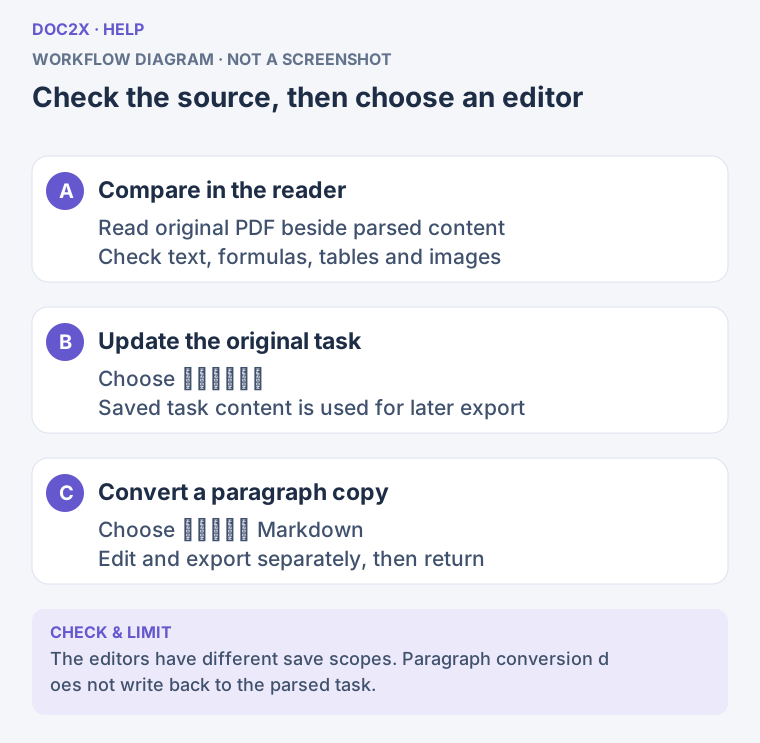
Check the source, then choose task editing or a separate paragraph conversion. (workflow diagram). Open the image in a new tab to enlarge it.
Step 2: choose the correct editing entry
| Your goal | Entry point | Where changes apply |
|---|---|---|
| Correct recognized text, formulas, and tables before exporting the document again | 编辑解析结果 (Edit parsing result) | Saved version of this parsing task; the original PDF remains |
| Correct a translation or adjust supported layout content | 编辑译文 (Edit translation) | Saved translation edits, subject to output and format support |
| Prepare one fragment and save it separately as Word/PDF/etc. | 编辑与转换 Markdown | A fragment copy; export before closing; the task stays unchanged |
| Work on a separate text draft containing several passages | Markdown 编辑器 | Separate content and a device-local draft; follow Markdown editor to save files |
Task editing requires sign-in and an access check. Eligible accounts can choose 免费编辑这份文档 (Edit this document free): one document trial, counted after the first successful save. Cancellation or a failed save does not consume it, and that document remains editable afterward. Parsing, image OCR, bilingual, and layout editing share this trial. Current membership prompts govern editing more documents. These conditions differ from the one-task trials for document research and proofreading.
Step 3: edit a parsing result
Open the editor and locate the passage
In the parsing reader, find the pencil whose tooltip says 编辑解析结果. A document item's menu may provide the same entry. If the record lacks online action permission or an editable parsing identifier, open the accessible original task; public demonstrations are not personal editable documents.
The editor shows the source on the left and 解析内容 · 第 N 页 (Parsed content, page N) on the right. Use 编辑页码 (Page to edit), then locate the paragraph. Some embedded layouts also provide a paragraph selector. Wait for source location data before inserting content.
Edit text, formulas, and tables
- Edit text or LaTeX in the relevant paragraph. When correcting a typo, check that neighboring formulas remain unchanged.
- Preserve complete expressions and formula delimiters. Inspect the rendered fraction, superscript, and subscript placement.
- Click a table cell to edit it. Use 添加行 / 删除行 / 添加列 / 删除列 (Add/delete row/column) for structure changes. Deleting requires a selected cell and must leave at least one row and column.
- If a paragraph contains several tables, use 选择编辑表格 (Choose table). Check the entire cell when it contains formulas, images, or rich content.
- Use 新增内容 (Add content) for missing material, choosing its location as prompted. Use 删除文字 (Delete text) for unwanted content, or 恢复原文 (Restore original) for a block you need to revert, then check again.
Images are not ordinary text paragraphs. Use the reader's relevant image controls to inspect or extract them. 图片变高清并替换 (Enhance and replace image) is a separate flow with its own access notices and creates a parsing edit after successful confirmation. Text editing, fragment copying, and zoom are not general image editing. For missing images in a separate Markdown draft, see Resolve images.
Confirm saving before returning
The workspace attempts automatic saves, and 保存修改 (Save changes) saves explicitly. Watch 未保存 / 正在保存 (Unsaved/Saving) change to 已保存 (Saved). An unconfirmed save does not establish that exports include your changes. Use 保存并返回 (Save and return), then wait for saving before returning to the reader.
Confirmed saved versions are used for subsequent reading and exports. If the reader cannot confirm the latest edited version, click 重试确认 (Retry confirmation) before checking and downloading the result.
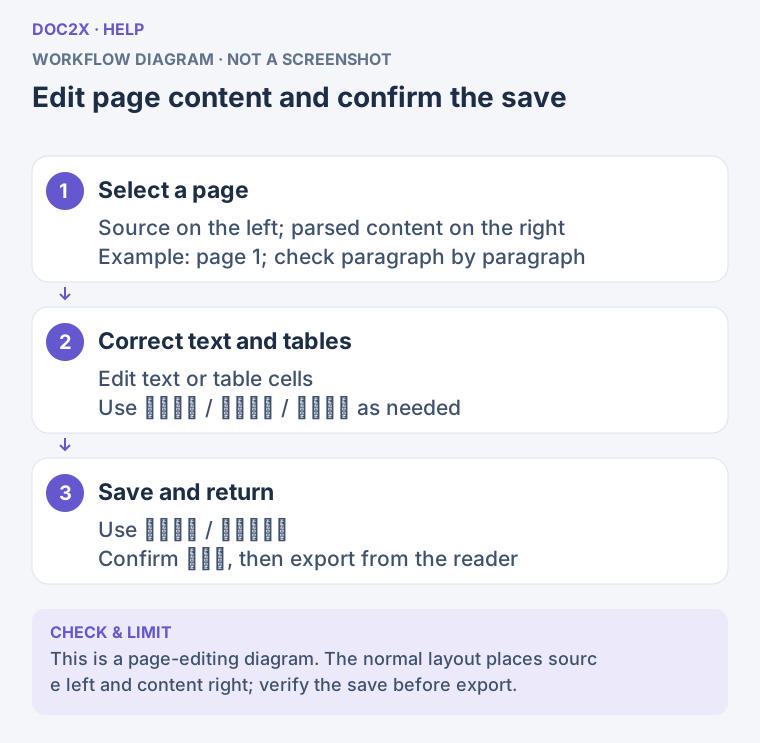
Correct page content and tables, confirm the save, then export from the reader. (workflow diagram). Open the image in a new tab to enlarge it.
Step 4: edit translation text and layout
Check whether the translation is editable
Open the completed translation and use 编辑译文. The button can be disabled with 编辑数据尚未就绪 (Editing data not ready). Older records without an editable snapshot may have no button. Task completion and editing-data readiness are separate conditions; visible translation text alone does not establish that all editing is available.
In 译文编辑 (Translation editing), select 双语对照 (Bilingual comparison) or 保留版式 (Preserve layout) as supported by the task. Bilingual-only tasks cannot switch to layout editing. 切换单栏/双栏显示 (Switch one/two columns) opens or collapses the source and editing tools.
Bilingual comparison: revise paragraphs
- Find the source passage and edit its translation, for example replacing an inaccurate term with a verified translation.
- Use
\(…\)or\[…\]for formulas. Preserve units, variables, and subscripts/superscripts; inspect the rendering and adjacent sentences. - Use the visual editor for tables. Some tables lock their row/column structure; when structure controls are disabled, edit only the permitted cell content.
- Image-only paragraphs do not offer a normal translation text box. Do not use a paragraph field to rewrite text inside an image.
- Paragraph edits save automatically, but check the save state. Unfinalized paragraphs or pages whose editing data is not ready cannot be edited yet; work on other ready content first.
Preserve layout: select a text or formula block
Select text or a formula on the page. Edit its text/LaTeX and, where available, font, size, color, bold/italic styling, position, and dimensions. For precise layout, check X/Y/W/H, aspect-ratio locking, and font scaling options to avoid overflow or overlapping neighboring blocks.
Use the supplied controls to insert text/formulas, duplicate/delete blocks, clear translation text, or restore an individual block. Change one block at a time, then inspect the whole page. Image and shape features from other tools should not be assumed to exist here. View rotation changes the viewing orientation, not the export.
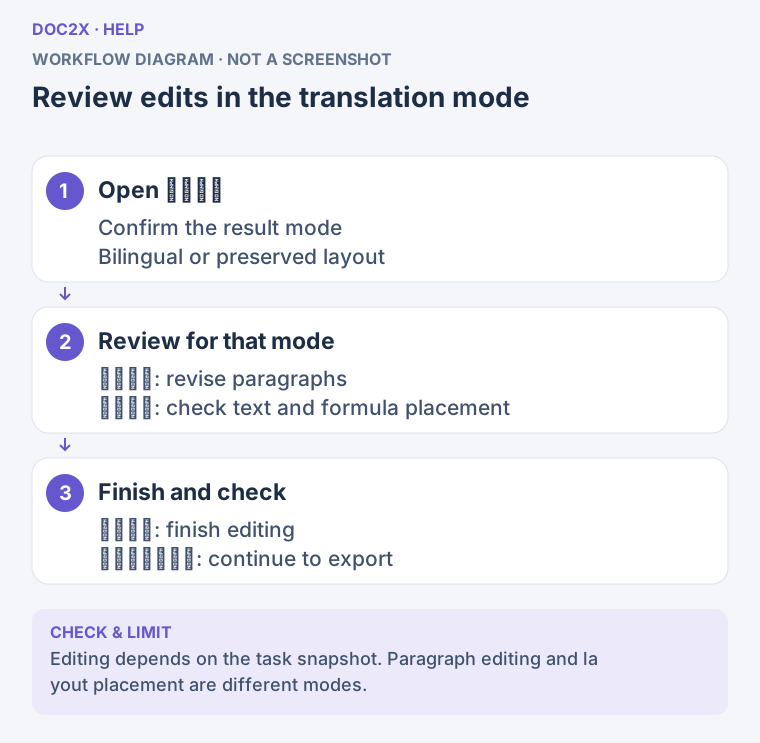
Revise paragraphs in bilingual mode; check text and formula placement in layout mode. (workflow diagram). Open the image in a new tab to enlarge it.
Finish and export
完成编辑 (Finish editing) confirms saving before returning to the reader. 完成编辑并导出 (Finish editing and export) also waits for confirmed saving, then returns to the reader's export flow; it is not an immediate download of one fixed PDF format.
Choose content and formats supported by the task, such as translation, original, or comparison, and applicable Word/PDF outputs. Different outputs and layout edits cannot always be represented in every format. If a notice says some edits are incompatible, follow its suggestion to use 保留排版 PDF 或 Word (Layout-preserving PDF or Word). If saving succeeded but file generation failed, retry export before rewriting the content.
Step 5: recover drafts, versions, or conflicting edits
Parsing editor
- For 检测到未保存的草稿 (Unsaved draft detected), choose 恢复草稿 (Restore draft), review, and save. Use 丢弃草稿 (Discard draft) only when it is unnecessary.
- For an unconfirmed save, try 重试保存 (Retry save). Alternatively, 载入最新版本并合并 (Load latest version and merge), then choose 保留我的修改 / 采用已保存修改 (Keep my edit/Use saved edit) for each conflict. Check and save after resolving them.
- To restore history, first confirm current changes are saved. Click 版本历史 (Version history), then select 原始解析 (Original parsing) or 版本 N (Version N). Save the loaded content to make it a new version for subsequent use.
- If the login state changes, preserve needed text and reopen the editor with the correct account.
Translation editor
- Use toolbar 撤销修改 / 重做修改 (Undo/Redo changes) for current editing actions. 历史 (History) separates current editing history from 云端保存版本 (Cloud-saved versions), which can be restored after refreshing. Restoring a saved version first saves current changes, then creates a new version. Saved history begins with the first successful save; conflicts, different translation generations, or an unfinished task can disable restoration.
- Use 重试保存 after a save error. For a conflict, use 同步最新版本 (Sync latest version), inspect the retained draft, and save manually rather than overwriting another window's work.
- For a device-local unsaved draft, use 查看草稿 (View draft) or 恢复草稿. Review and save the restored draft before it changes the saved translation.
- Drafts from a version before retranslating cannot be restored directly. View/copy them, then manually apply the text after checking its location in the current translation.
- 删除草稿 (Delete draft) removes that local draft without changing the saved version.
- Confirming 放弃修改并恢复原版 (Discard edits and restore original) clears the current draft and saved edits from current and historical translation versions. It cannot be undone. This differs from restoring one block or deleting a local draft; use it only when you intend to discard those edits, after exporting anything you need.
Image recognition results: review, compare models, and copy
Upload, paste, or drag an image through the parsing flow, then open its completed result; you can also reopen an existing record. Select the model at the top and compare recognized text, formulas, and tables with the original image. A structured image workspace appears only when the result has valid layout information. Older results may use a LaTeX editor/preview layout with different controls.
Correct image paragraphs
- Click a recognized paragraph to 定位原图对应段落 (Locate its source-image paragraph), or select a region in the source image.
- Click 编辑解析结果 (Edit parsing result). Correct text, formulas, or editable tables in the paragraph inspector. This does not redraw the original image.
- Click 保存修改 (Save changes), confirm 已保存 (Saved), then 完成编辑 (Finish editing). Return to 已保存版本 N (Saved version N) before copying/exporting. Unsaved changes block switching models or entering comparison.
- Click 导出文档 (Export document) and select a supported format. If a notice reports newer edits, reload the result and reopen export to use the latest confirmed version.
For an older LaTeX layout, use that interface's editing entry and compare source with preview, then use its 复制 LaTeX / 复制到 Word / 导出 Word (Copy LaTeX/Copy to Word/Export Word) controls. Online saved results may require a separate task editor. Desktop local records depend on local files; the web app cannot be assumed to access them. Do not treat an older temporary edit as a new structured task version.
Compare two models on the same image
In an online image result, click 添加模型 (Add model), then choose an available unprocessed model under 选择解析模型 (Choose parsing model). Follow sign-in, VIP, and usage notices. Wait for completion, inspect each model's result, then use 对比 (Compare) on a desktop-width interface. Select two processed models and check the same formula, number, or table cell. At least two results are required; the comparison button is hidden on mobile, and desktop local previews do not offer Add model.
Comparison does not merge answers or introduce a separate export format. Click 退出 (Exit), confirm the active model, then edit, copy, or export its result. Changing images exits comparison; an in-progress model cannot be submitted again.
Copy to Word, WPS, LaTeX, or Markdown
Save and wait for the latest version to be confirmed, then use 复制到 (Copy to). Open 复制参数 (Copy parameters) before copying when needed:
| Target or parameter | Action and condition |
|---|---|
| Word | Choose native equations under Word 公式格式. Use a browser with rich-text clipboard support or the client, then paste into Word and inspect |
| Word MathType | Select MathType as the Word formula format; it requires a compatible client and membership. This clipboard format is unavailable directly on the web |
| WPS | Requires a client with WPS clipboard capability. Follow prompts for a current Windows client, or export a WPS document instead |
| LaTeX / Markdown symbols | Choose \( \) / \[ \] or $ / $$; this changes formula delimiters, not formula content |
| LaTeX copy scope | Choose 仅正文 / 含导言区 (Body only/Include preamble) for the destination. Use the separate Markdown button for Markdown |
Paste into the target application and check equation editability. If a notice says illustrations could not be copied, use 导出文档 for complete text and images. For oversized content, unsupported browsers, or rate limits, follow the notice to reduce content, retry later, or export a file. File-export access and clipboard capability are separate conditions.
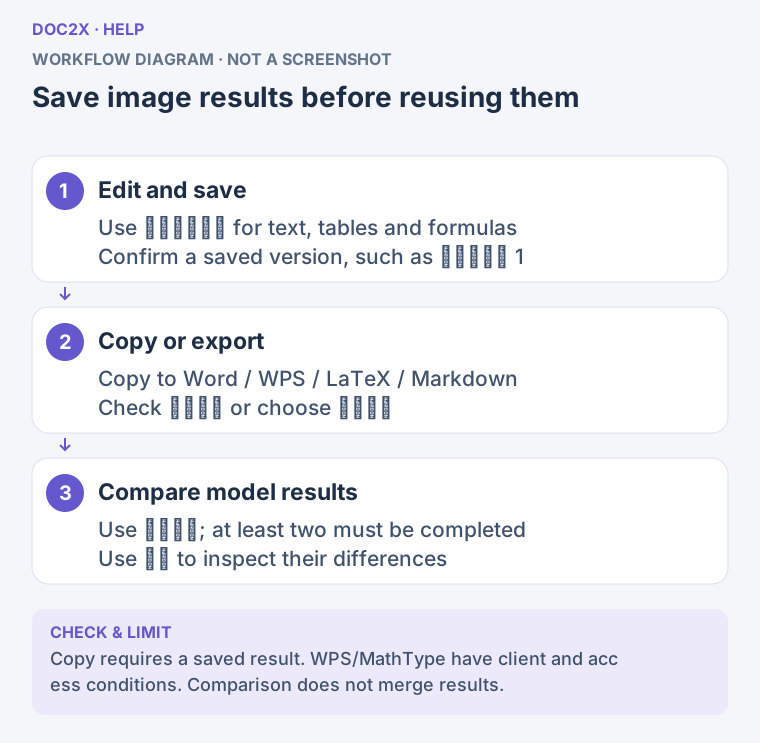
Save image results before copying or exporting; model comparison does not merge results. (workflow diagram). Open the image in a new tab to enlarge it.
Step 6: check the downloaded result
Open 导出 (Export) in the reader, then follow Export formats and advanced settings for format, content, layout, and image choices. Use the Excel controls for tables. Send content to the Markdown editor for further free-form work, remembering that it becomes separate content.
Open the downloaded file in the software you actually use. Check that the last saved words are present, formulas are correct and use the selected equation format, table structure and numbers are complete, and every image has the correct caption. Use the exact paragraph or cell you changed as a verification point rather than checking only the first page.
| Problem | What to do |
|---|---|
| Export still contains old content | Confirm you used the task editor, saving was confirmed, and export belongs to the correct task; fragment edits do not write back |
| Table structure cannot be read | Restore the original as prompted and retry; preserve complex structure before correcting individual cells |
| A page is not editable yet | Wait for its editing data; edit another ready page or reload the source when offered |
| Translation export fails | Check whether edits are saved, then retry according to the format/resource error; do not substitute an unchecked original for your revision |
| Leaving shows an unsaved warning | Return and save; unconfirmed parsing edits are not used for task exports |
For AI suggestions reviewed one at a time, see AI proofreading. For question/answer organization, handouts, and teaching slides, see Organize exam questions.