
Main product account MCP authorization
This page covers credential delivery for a personal Doc2X workspace account. Open-platform MCP uses an Open-platform SK with stdio configuration. Check the integration provider's instructions to identify the required credential.
Check the source and permissions
Enter from trusted MCP integration instructions or the client's connection control. Check the domain, account and app identity. The consent text covers reading documents and results, uploading documents/images, submitting parsing/translation/export tasks and checking their status, options, models, languages and quota. Actions belong to the current account and may consume pages or points. Frontend source verifies authorization and credential delivery; it does not establish an external MCP server's tool list, service URL or installation command.
Manual authorization and Token copy
- Follow trusted integration instructions to open the Doc2X MCP manual authorization page. The fixed identity is Doc2X MCP.
- After signing in, recheck the account and permissions. Sign-in does not grant consent automatically. Use the page's agree/connect action when ready.
- Wait for Access Token generated. Click Copy Token and check Copied to clipboard. If copying fails, manually select and copy the read-only Token field.
- In a trusted client, follow its instructions to place the credential in the local stdio environment variable or remote HTTP header. These are credential fields, not a complete installation configuration:
DOC2X_ACCESS_TOKEN=<paste access Token>
Authorization: Bearer <paste access Token>- Save the client configuration and connect according to its workflow. Check connection status in the client; Token generation confirms delivery and does not establish a successful client connection.
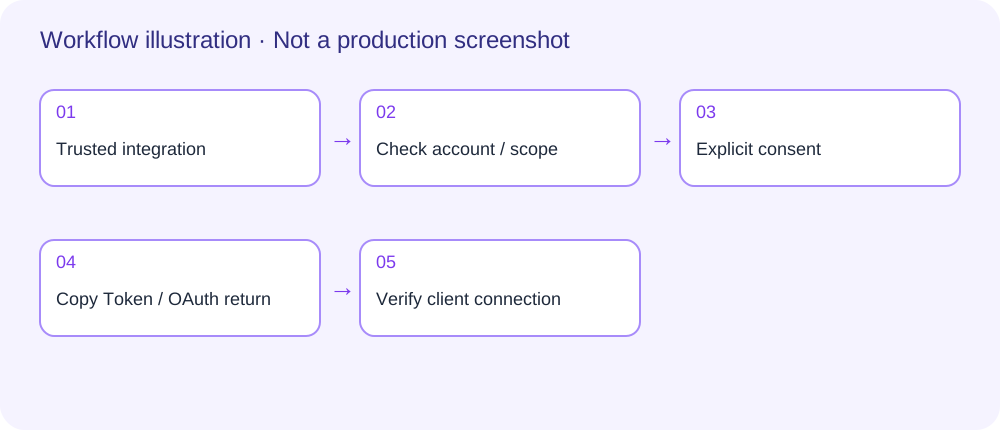
Authorization workflow illustration, not a production screenshot. No real credentials are shown.
The Token stays only in the current page's memory. Refreshing or leaving requires new authorization. Expired or rejected Tokens require authorization, copying and a client configuration update; they do not refresh automatically. Keep Tokens out of URLs, logs and shared screenshots. Cancel before delivery if needed; restarting requires confirmation again. Recheck the account after a session change.
Remote MCP OAuth return
- Start connection in a supported MCP client. Let it generate the complete authorization request and open Doc2X. Do not assemble authorization codes, state or PKCE yourself, or use the manual-copy URL as an OAuth request.
- Sign in on Doc2X, check the account, app and permissions, and explicitly agree before waiting for processing.
- Doc2X validates the server callback and returns to the client, which continues credential exchange and connection. Check connection status there before starting tasks.
- Use the page's cancel control if you do not want to connect. Restart and confirm again to continue. For a failed return, retry as prompted or start a fresh connection from the client.
- Sign in again when the session expires and recheck the account after a change. App not recognized by the authorization service requires the integration administrator to check OAuth configuration; repeated sign-in will not fix it.
The frontend accepts a supported fixed integration identity and constrained callbacks, and rejects duplicated or injected parameters. Return to the originating client for an invalid request; constructing an authcode is not a recovery method.
Stop use and recover expired access
Cancel on the authorization page prevents a pending delivery. After delivery, this source provides no confirmed personal-account MCP authorization list or revoke button. Removing client configuration stops that client's use but does not establish server-side revocation. If a credential may have leaked, stop use and contact support to check supported remedies. Client/server revocation capabilities depend on the integration's actual instructions.