
AI proofreading: review suggestions and export a revised document
AI 校对 (AI proofreading) reads a document and flags possible text, formula, structure, and illustration issues. Check each suggestion against the original PDF, accept it, ignore it, or revise it manually, then save and export the revision. The original PDF is not overwritten.
This walkthrough uses a fictional “Introduction to Functions” handout. One sentence deliberately contains the Chinese typo “函数的到数描述瞬时变化率,” and the handout also includes
Before you begin
Open 实用工具 → 文档 AI → AI 校对 (Utilities → Document AI → AI proofreading), or use AI 功能 → AI 校对 in the parsing reader to bring in the current document. The desktop client opens an independent workspace.
If you see 这是示例效果 (This is an example), inspect the built-in “到数 → 导数” correction and source screenshot. Viewing the example uses no points, and its review controls are read-only. Click 校对我的文件 (Proofread my file) or 开始新任务 (Start a new task) to use your own material.
Select one parsed document per task. New uploads must be PDFs, no larger than 300 MB, and must finish parsing. For Word or PowerPoint, first use Office document conversion, then select the resulting parsed record.
Sign in before using your documents. Members can use this feature. Eligible nonmembers can try it once with Qwen or LongCat; actual usage still consumes AI points. Follow the eligibility, model, and balance notices on screen. Viewing an example without points does not make an actual proofreading task free of points.
Step 1: choose the file and proofreading focus
- In 选择文档 (Select documents), click 上传我的文档 (Upload my document) or drag a PDF into the dialog. Alternatively, select a record under 从已解析的文档中选择 (Choose parsed documents).
- Use 搜索文档 (Search documents), 刷新 (Refresh), or 加载更多 (Load more) as needed. New files become selected after parsing finishes.
- Check the original PDF preview. With one document already selected, deselect it before choosing another.
- Click 下一步:配置任务 (Next: configure task) and choose a 模型 (Model).
- Optionally enter 校对重点 (Proofreading focus), for example the request below. Leaving it blank uses a default request to inspect structure, images, formulas, and text with source evidence.
- Click 开始 AI 校对 (Start AI proofreading). Use 更换文档 (Change documents) if the source is incorrect.
Check typos, formula symbols and subscripts, and consistency between definitions,
formulas, and their explanations. Preserve the original tone without adding
teaching content. Locate any suggested change to a formula's meaning in the
source. Flag uncertain points instead of guessing missing content.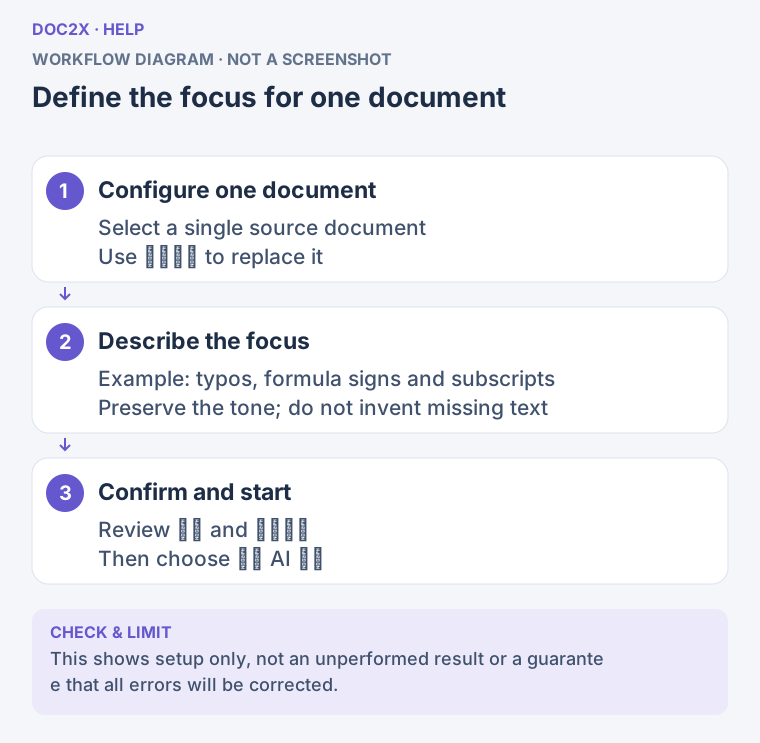
Select one document, describe your proofreading focus, and start. (workflow diagram). Open the image in a new tab to enlarge it.
Step 2: wait for suggestions and check coverage
The task moves from 排队中 (Queued) to 正在阅读和整理 (Reading and organizing). Expand the execution record to see segment reading, original-text checks, and suggestion preparation. Use 停止 (Stop) to cancel and check the resulting status, or leave and reopen the task from 任务历史 (Task history).
At 逐项审阅修改 (Review changes individually), check the total number of suggestions and the accepted/ignored counts. A notice that only some segments were read means this is a partial review, not a completed review of the entire document. No suggestions also does not establish that the document is error-free. Check important formulas, numbers, names, and conclusions yourself.
Step 3: compare each suggestion with the source
Each suggestion shows its category, title, reason, source screenshot, and a before/after comparison. Review it in this order:
- Inspect the source screenshot, then click 定位原文 · 第 N 页 (Locate source, page N) for context. Confirm the issue belongs to that passage rather than a recognition or location error.
- Compare 模型解析结果 (Recognized text) and 模型解析渲染 (Rendered recognized text). Determine whether the issue is in the original or its recognized representation, including formula symbols.
- Check 建议修改结果 (Suggested text) and 建议修改渲染 (Rendered suggestion). Look for missing negation, units, formula delimiters, and neighboring text.
- If 已对照原件核实 (Verified against the original) appears, select it only after checking. Suggestions requiring this confirmation cannot be applied first.
- Click 应用修改 (Apply change); the item becomes 已应用 (Applied). Use 忽略建议 (Ignore suggestion) when no change is needed, and 下个修改 / 上个修改 (Next/previous change) to continue.
For example, correcting “到数” to “导数” is appropriate, but a nearby suggestion that changes the meaning of
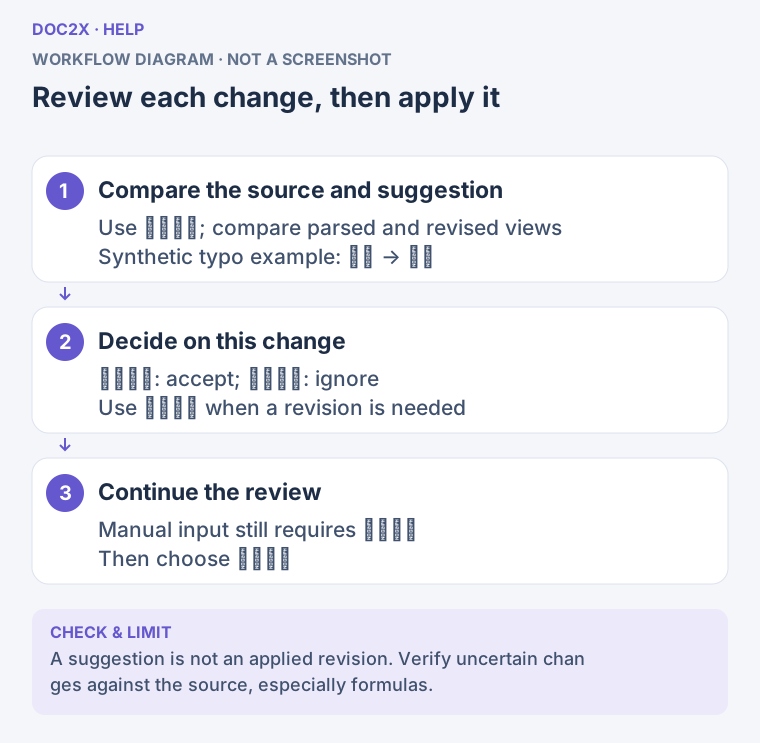
Check the source, then apply, ignore, or revise; manual text still requires Apply change. (workflow diagram). Open the image in a new tab to enlarge it.
Step 4: revise manually or undo a decision
Where the suggestion has a valid source range, click 手动编辑 (Edit manually) and edit 手动修改文本 (Manual correction text). Check the rendered preview for formulas and paragraph structure. You must still click 应用修改; typing alone does not apply the text to the revised document. 恢复模型建议 (Restore model suggestion) removes the manual text.
An applied item cannot be edited directly. Click 撤销决定 (Undo decision), edit it, and apply it again. Undo decision also returns an ignored suggestion to the review state.
Some suggestions only flag an issue and have no automatic replacement. The interface asks for manual verification. Locate the source, then ignore or continue reviewing. If the recognized source itself needs correction, use the parsing result editor. A flagged issue is not an applied correction.
Step 5: save the revision and export
When the bottom bar says 修改尚未保存 (Changes not saved), click 保存修订 (Save revision) and wait for 修订已保存 (Revision saved). This saves the proofreading task's revision and decisions. It does not overwrite the original PDF or automatically replace the parsing record. History restores confirmed saved revisions.
- Click 导出修订稿 (Export revised document).
- Choose Word, WPS, Word MathType, PDF, HTML, Markdown, or Eduediter. Follow the membership badges and availability shown in the dialog.
- Word supports further layout work and native equation editing. WPS and Word MathType also produce DOCX, with formulas for their respective workflows. PDF is suitable for reading/printing; HTML for browsers; Markdown for text editing, with included images packaged alongside it.
- For Markdown, check the table output option. For Eduediter, read the font notice. If needed, configure 导出前把图片变高清 (Enhance images before export); follow that feature's own access and points notices.
- Wait for illustrations to be ready, then click 导出文件 (Export file). Open the result and inspect accepted corrections, formulas, tables, and images.
The export contains applied changes. Suggestions awaiting review, ignored suggestions, and manual text not yet applied do not change the source content. Export uses the current revision, but downloading is not the same as saving the task, so save first. Continue extensive layout work in Word or another target editor, or take Markdown content to the Markdown editor.
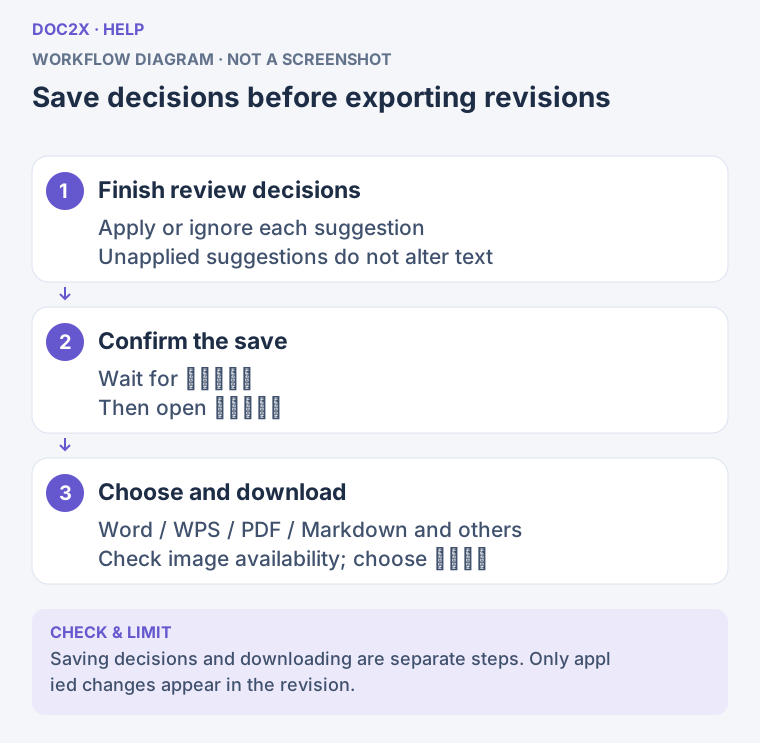
Save review decisions, then download the revision with applied changes. (workflow diagram). Open the image in a new tab to enlarge it.
Recover a task and resolve problems
Reopen earlier proofreading tasks from 任务历史 on the left; narrower screens use the Task history button. The sidebar states 记录保留 30 天 (Records retained for 30 days). If a task shows an expiry date, download important files before it expires. Copy the task ID to identify its AI usage record.
| Problem | What to do |
|---|---|
| Apply change is disabled | Check whether it is already applied, identical to the original, or requires 已对照原件核实 first |
| The suggestion overlaps an accepted change | Undo the conflicting decision, compare both suggestions, and choose one or combine them into a manual correction |
| The original no longer matches or its range is uncertain | Preserve manual text you need, then use 重新加载结果 (Reload result) or reopen the task and compare again |
| Save is unconfirmed or another window updated the result | Preserve manual text, reopen the task, check the saved revision, and reapply as needed; do not assume it saved |
| Illustrations are not ready for export | Click 重试加载附图 (Retry loading images). The total image-resource read limit is 100 MB; split or reduce image-heavy sources and process again if necessary |
| Only some segments were checked, or the task exceeds limits | Read the coverage notice and process smaller documents/sections; do not treat a partial result as a full review |
| Parsing is incomplete or no text can be proofread | Wait for parsing and inspect the recognized body in the reader; use a clearer PDF and parse again when necessary |
| Login, access, or points error | Follow the notice and reopen with the owning account; check usage records when settlement is pending |
If leaving or switching tasks opens 放弃未保存的修改? (Discard unsaved changes?), choose 继续编辑 (Continue editing) to return and save. 放弃修改 (Discard changes) returns to the last saved result. For matching questions with their answers, use Organize exam questions.