
Points, Parsing Quota and Usage Records
Check parsing pages, points and membership access separately before starting. Points do not unlock every member feature, and membership does not make every task unlimited.
Scope and current rules
This page explains the current web/desktop entries for viewing and using quota. Packages, grants, model rates, trial eligibility and validity come from your account and task prompts. Old screenshots, model tables and another account's prices do not replace current confirmation.
Membership services apply to personal web/desktop use; the API platform serves developer integrations. Confirm their purchases and quotas separately.
1. Check the balance
- Sign in and inspect the Free / Pro balance card near the bottom of the sidebar.
- Check the package, 解析页数 (Parsing pages) or relevant quota, 高级积分 (Advanced points), and validity information.
- Open avatar → 账户管理 (Account management) → 我的账户 (My account) to check membership validity.
- If quota loading fails, use the offered retry action rather than treating a blank state as an exhausted balance.
The current balance help states that advanced points are frozen when ordinary membership expires. Access depends on your current membership and the feature prompt. Special packages such as lifetime membership have their own weekly/reserve displays; follow their current terms. This guide does not redefine those service rules.
2. What to check for each task
| Scenario | Before starting | Afterward |
|---|---|---|
| PDF parsing or image recognition | Page/recognition quota and selected scope; any separately displayed model conditions | Parsing records and balance |
| Document translation | Whether a valid parsing result exists, language, model, membership and points prompt | Translation records and the result |
| Document AI, images or other AI tasks | The feature's model/usage explanation and membership/points conditions | The relevant task/category under AI usage |
| Download an existing result again | Whether this is only export or a newly created processing task | Export state and related task records |
Batch and plugin tasks also use the applicable capabilities and quota. Retry export is different from uploading the whole document again. Reuse valid results through continue-translation or export entries when possible.
3. Check models and points usage
Translation and AI
The model selector shows currently available models and access requirements. Input, output and other usage may be priced differently. Page count alone does not predict exact points, and an old free-model list is not a permanent availability promise.
After a task, open avatar → 解析记录 (Parsing records), then switch to 翻译记录 (Translation records) or AI 消费 (AI usage). AI usage offers the task, call or feature categories shown in that interface.
Images and additional recognition models
When choosing another model in image settings, check its current access and usage prompt. Basic parsing pages, additional-model points and the external provider's own subscription are different things.
4. Exchange points for parsing pages
- Sign in, open Membership services and find 积分兑换 (Points exchange), or use 兑换页数 on the balance card.
- Read 当前积分余额 (Current points balance) and enter the number of pages.
- Check the calculated points required. Zero pages cannot be submitted.
- Click 兑换解析页数 (Exchange for parsing pages) when ready.
- After 兑换成功 (Exchange succeeded), check the refreshed pages and points. On failure, keep the message and check whether the balance changed before retrying.
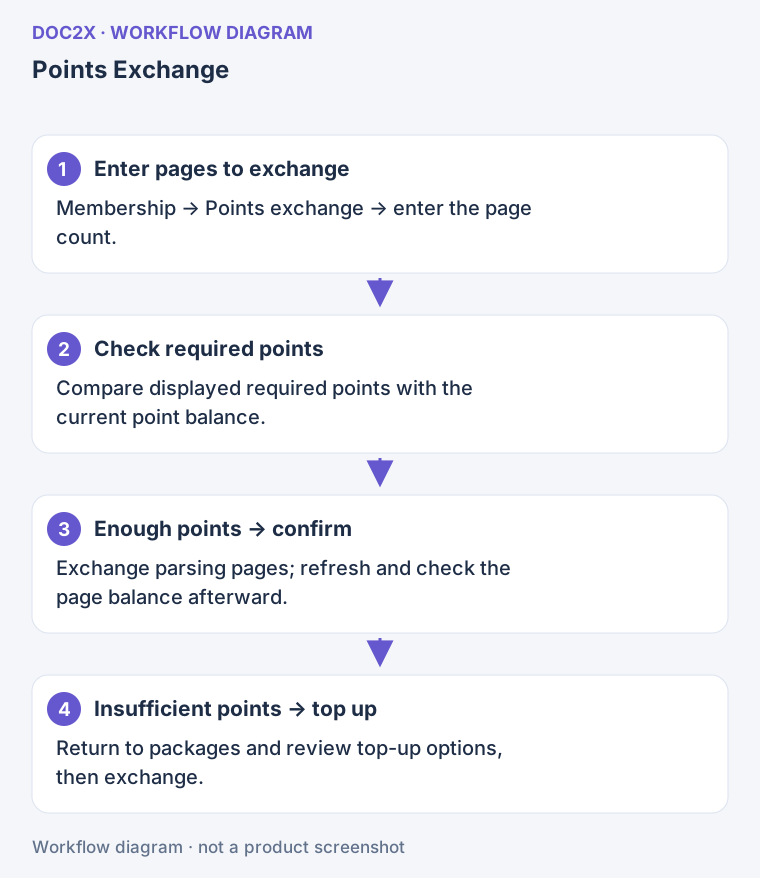
Diagram: Check the page count and required points before exchanging, then verify the updated quota.
补充积分后兑换 (Add points before exchanging) opens the relevant points offer; it does not mean the exchange completed. Decide whether and how much to purchase after checking current price and benefits.
5. Packages and add-ons
Avatar → Membership services shows packages and add-ons available to your account. Read validity, quota and scope before the payment confirmation. If the catalogue or price fails to load, retry rather than substituting an old amount.
Members, nonmembers and special-package accounts may see different options. After paying, check your account and Orders & invoices. Avoid paying again while the first status is unclear. See the account guide for the workflow.
Check historical benefits
For old grants, inherited credits or exchanges, use current balances, orders, usage records and official handling of your account. If something differs, keep the time, task/order reference and message and contact support. Do not infer an expected grant from an old example.
Current features and points entries
Check usage at the actual feature entry rather than treating a historical “future scenarios” list as an availability promise. Translation, document AI and image tools show their own models or access conditions. External entries such as browser plugins have separate installation/usage instructions. A points balance does not establish availability of an unlisted format or feature.
Claim quota through an activity link
Activity claims and daily check-in use separate entries. The current code retains Claim activity quota, but active campaigns, eligibility and granted pages depend on the server response.
- Open the claim link from the original official activity page and check the Doc2X domain and campaign description. Do not invent campaign parameters; bare
/claim-pagesis not a valid campaign entry. - If signed out, click Sign in to claim and sign in to the receiving account. Check the account again, then click Claim to current account.
- Wait for the outcome. Success displays N pages credited and says the quota was added to the current account. N comes from the actual response; no fixed amount is guaranteed.
- On success, click Start processing documents to return to parsing and check the account quota. If no quota is available or the activity ended, follow the notice and stop repeated submissions.
- For Invalid activity entry; return to the original activity page, reopen the original link. Network failures can also show a no-quota/ended notice, so that message alone does not identify the cause. Recheck eligibility after changing accounts.
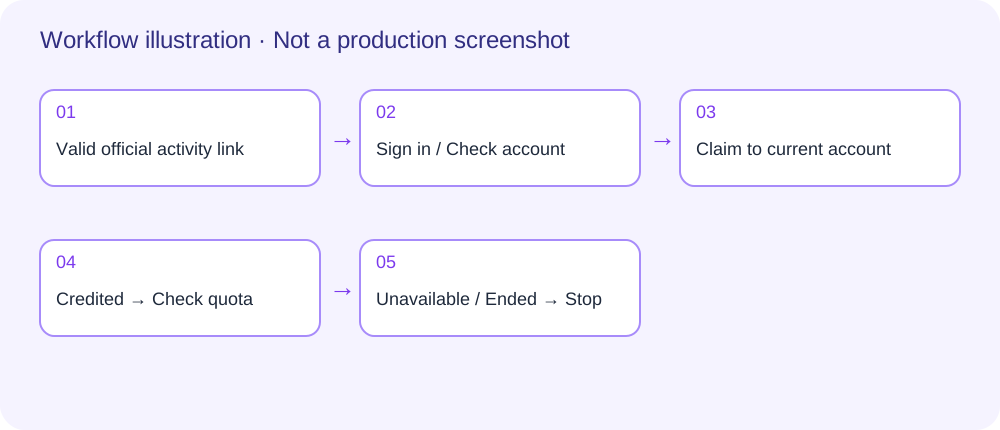
Synthetic workflow illustration, not an account screenshot. Eligibility and page amounts depend on the current response.
Frequently asked questions
Why does a feature require membership when I have points?
Points are usage balance; membership is access. Check both, including synchronization state, expiry and any feature-specific condition.
How do I check charges after a translation fails?
Check the task and actual usage in Translation records, then see whether parsing already succeeded. An error does not establish that every stage had zero usage. Do not submit the file again merely to investigate.
Payment succeeded but the balance did not update
Check that you are using the same Doc2X account and purchased personal-product benefits rather than API quota. Inspect Orders & invoices and the balance, then contact support with the order reference instead of immediately paying again.
Where do I claim free quota?
Open 免费额度 / 已签到 (Free quota / Checked in) in the avatar menu. Review today's state and current rules, act as needed, then verify the balance. Another account's grant amount is not a guarantee for yours.