
FlowUs Transfers: Connect and Create Pages
The Doc2X desktop app can create FlowUs pages from completed parsing text and comparison-translation content. The ordinary transfer entry selects text content; it does not treat a fixed-layout PDF as page text.
Before you start
- Sign in to Doc2X desktop and prepare a completed parsing or comparison-translation result.
- Make sure the FlowUs account can access the intended space and pages.
- Doc2X settings indicate that FlowUs requires the relevant paid API access. Check your space's eligibility; consult FlowUs's current plans for packages and prices. Authorization alone does not guarantee API entitlement.
1. Authorize the connection
- Open avatar → 账户管理 (Account management) → 转存设置 (Online Save Settings), then find FlowUs.
- Click 去授权 (Authorize). In the browser, sign in to the FlowUs account that should receive the content.
- Check the provider's permission page, select the accessible pages and confirm. Include the intended destination.
- After authorization, allow the browser to open the installed Doc2X desktop app.
- Return to Online Save Settings and confirm FlowUs shows 已授权 (Authorized).
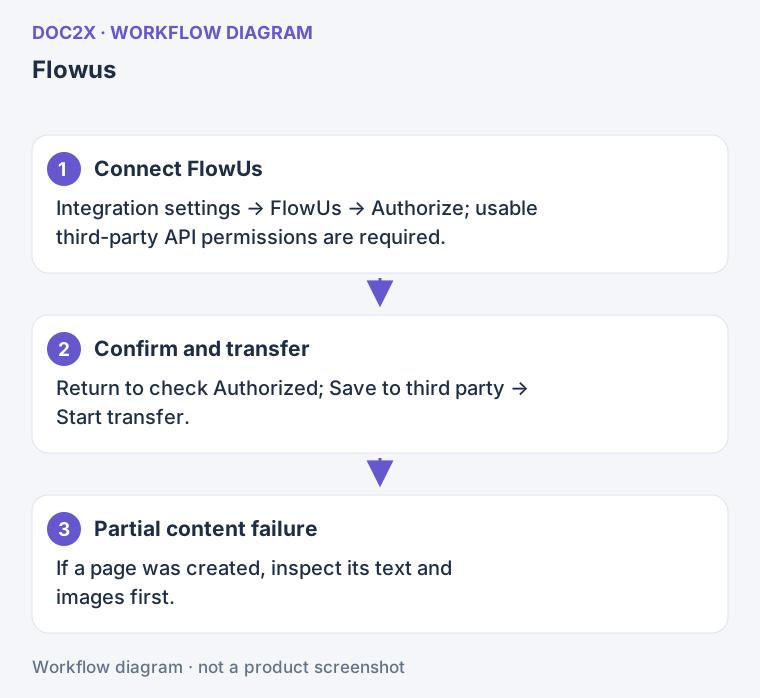
Diagram: FlowUs requires usable third-party permissions; after partial success, inspect the page that was already created.
You can also start from a result: 转存第三方 → FlowUs → 去配置 (Configure), complete the same connection flow, then return.
2. Transfer the current result
- Open the completed result and choose 转存第三方 (Transfer to a third party) in its menu.
- Select FlowUs and check 已配置 (Configured).
- Enter 页面标题 (Page title). For a translation, check 导出内容 (Export content) and choose bilingual, translation-only or original content.
- Wait for preparation, then click 开始转存 (Start transfer).
- Keep the app and network available until success or failure is reported. Creating a long page and adding tables can take time.
3. Inspect the saved page
Find the new page in the authorized FlowUs space. Check its title, the end of the text, tables and images, and verify the original/translation scope.
The page is a copy of this result at transfer time. Later Doc2X translations or edits do not automatically update it. Use batch transfer for multiple results.
Recover by failure stage
| Stage or symptom | What to do |
|---|---|
| Browser authorization completed but desktop is still unauthorized | Keep desktop open, check the Doc2X account, and start a new authorization rather than reusing an old callback |
| Authorized but page creation is rejected | Check FlowUs API eligibility and access to the destination pages |
| 请先完善配置 (Complete configuration first) | Finish authorization and reopen the result's transfer dialog |
| Text is empty or loading | Confirm the task completed and wait for content preparation |
| The selected result is a fixed-layout PDF | The ordinary FlowUs transfer does not support it; use WebDAV or local storage to keep the PDF |
| A page exists but tables or later blocks failed | Inspect what was saved and record the failed stage before repairing; avoid repeatedly recreating the entire page |
| Already transferred or skipped | Find the earlier page first; duplicate checking avoids creating the same result again |
Change or remove a connection
In Online Save Settings → FlowUs, click 取消授权 (Revoke authorization). To use another FlowUs account, authorize again and check which account the browser is using. This does not move existing pages into the new space.
If the issue remains, contact support with the stage, desktop version and a redacted error screenshot. Authorization codes and credentials are not needed.