
Desktop Batch Parsing and Translation
Batch processing queues local files, processes them through cloud parsing or translation, and saves results in the project's output directory. If the files already have completed cloud results and you only need to download them together, use multi-select export from history.
Requirements and entry
- Open the Doc2X desktop main window, sign in and check the network and quota.
- Select 批量处理 (Batch processing) in the main sidebar. Switch between 仅解析 (Parse only) and 解析+翻译 (Parse + translate).
- Complete 工作设置 (Work settings) before adding files. An ordinary browser or auxiliary window does not provide this desktop queue.
Parsing accepts PDF, PNG, JPG and JPEG; batch translation uses PDFs. Current batch input limits are below 300 MiB per PDF and below 3 MiB per image. PDF parsing supports up to 1,000 pages, and fixed-layout translation up to 700 pages. Split larger documents in their source application before adding the relevant parts.
Batch parsing
Step 1: Configure output
- Choose 仅解析 → 工作设置 to open 设置后续解析输出 (Configure subsequent parsing output).
- Choose the converted formats you need, such as Markdown, LaTeX, Typst or Word. Source files, parsing JSON and converted documents serve different purposes; use the options shown.
- Choose an output layout: 按文件分组 (Group by file) creates a subfolder for each source; 扁平布局 (Flat layout) puts outputs at one level and may require renaming collisions.
- Configure formula delimiters, a Word template or image attachments where relevant. PDF resource modes require PDF input.
- Check the directory and formats, then confirm. Work settings may be locked while processing is active; wait for the current step or pause as instructed rather than moving folders during work.
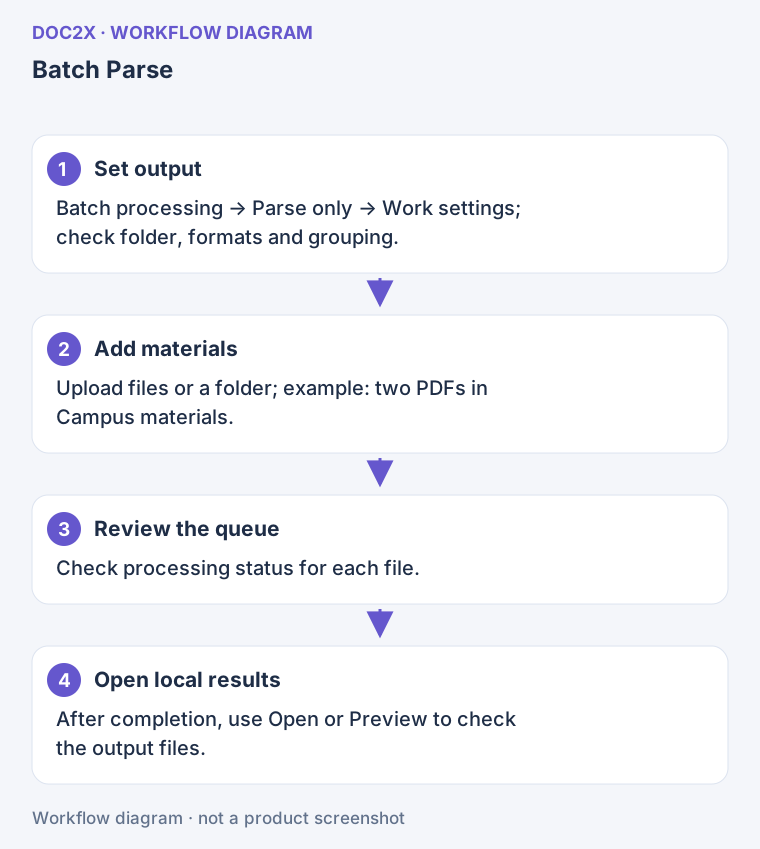
Diagram: Batch parsing: set the output directory and formats, add files, then open the local results after completion.
Step 2: Choose files or a folder
| Entry | Action |
|---|---|
| 上传文件 (Upload files) | Select one or more supported files, enter a project name, choose the output directory and check the list |
| 上传文件夹 (Upload folder) | Enter a project name, choose input and output directories, then decide whether to include subfolders |
深度扫描文件 (Deep scan) includes subfolders. 去除重复文件 (Remove duplicates) deduplicates file content within this scan; it does not tell you whether a document was processed or charged in an earlier task.
Resolve duplicate filenames and output-path warnings before continuing. Keep input and output locations distinct in your review, especially for same-name PDFs in a flat layout.
Step 3: Start and monitor
- Click 确认 (Confirm) to add the files to the queue.
- Use the project and status filters: 全部 / 处理中 / 已完成 / 错误 (All / Processing / Completed / Error).
- Wait for upload, parsing and local export. A file with successful parsing but failed export still needs attention.
- Use 全部暂停 (Pause all) or a per-item pause to defer further work. Resume with 全部开始 (Start all) or the per-item start action.
Step 4: Open the result
- Use 打开 (Open) on a completed item to inspect its local output folder.
- Check file extensions, counts and image attachments, then open the files to verify their contents.
- Use 预览 (Preview) to inspect the record. Previewing a record and opening the final disk file are separate checks.
Batch translation
Step 1: Configure translation and output
Switch to 解析+翻译 and open Work settings:
- Target language and translation model: check availability and the displayed membership or points requirements.
- Export content: where editable text results are available, choose original, translation or bilingual content.
- Output formats: select the offered Markdown, LaTeX, Typst, Word, PDF, JSON or other relevant options.
- PDF reading layout: check available translated-only, translation-on-left, original-on-left or continuous-reading options. This is separate from text-content selection.
- Optional preferences: glossary, ignored content, color or font strategy and context enhancement. Set only what you need; follow the current access and cost prompts.
Your output selections determine which results are needed. Parse + translate does not automatically generate every format and layout. Keep the current mode active during processing rather than assuming both modes run without restriction in the background.
Step 2: Add new PDFs
- Choose Upload files or Upload folder.
- Enter a project name and output directory; for folder imports, configure duplicate removal and deep scanning.
- Check the language, model, output scope and file list, then Confirm.
Already parsed: import parsing records
- In translation mode, click 从解析导入 (Import from parsing).
- In 从解析记录导入翻译任务, click 选择解析记录 (Select parsing records) and choose successful records.
- Choose an output directory, check translation settings and confirm.
- The queue continues from the available parsing result. If a source record has expired, follow the error message; not every historical record can be reused indefinitely.
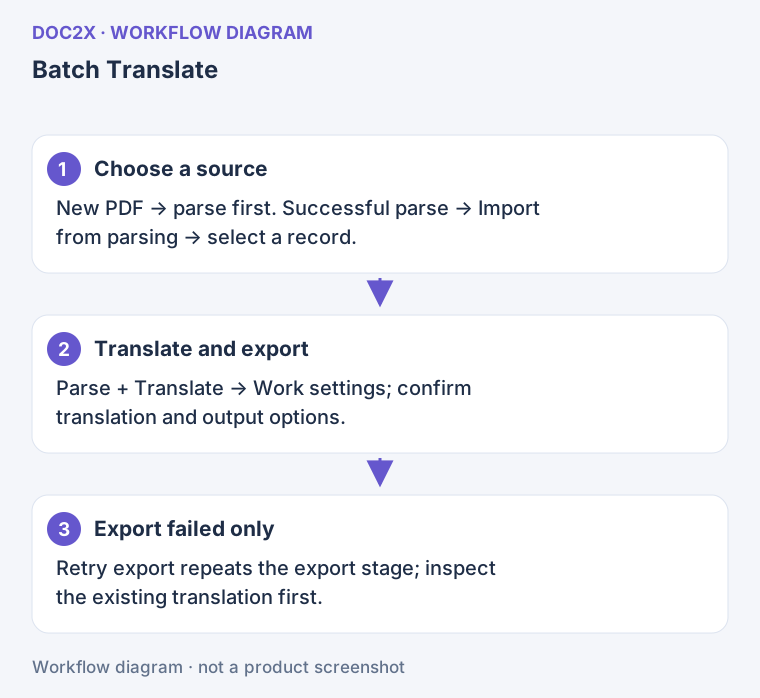
Diagram: Reuse successful parsing records; if only export failed, retry the export step first.
Step 3: Monitor translation
Inspect the project and each file's state. New PDFs require parsing first; imported parsing records reuse the available result. Check parsing pages, translation points and membership requirements separately. A local queue does not make processing free.
Step 4: Verify the output
Use Open to check the disk folder and Preview to inspect content and layout. Compare the outputs with your settings: original, translated, bilingual and PDF files as selected. Check language, formulas and images.
Pause, interruption and recovery
| Situation | What to do |
|---|---|
| Pause subsequent work | Use Pause; a remote step already submitted may finish. Pausing is not remote cancellation or a refund |
| Parsing/translation succeeded, export failed | Use 重试导出 (Retry export); first check write permission, free space and whether another app has locked the file |
| A file failed | Read the error and retry that item instead of immediately reimporting the entire folder |
| Quota, concurrency or network error | Resolve the stated condition, then resume; see points and quota |
| Remote creation outcome is uncertain | Keep the queue and local records and follow recovery prompts; do not create a duplicate task just to test it |
| The app closed unexpectedly | Reopen with the same account and queue location, then inspect recovery of unfinished tasks |
| Paused after an account or database switch | Restore the task's account and configuration before continuing |
删除所有暂停任务 (Delete all paused tasks) removes the relevant queue records. Keep them when recovery information is still needed. Check whether the queue permits changes before editing work settings for subsequent output.
To send completed results elsewhere, use the transfer guides. To archive ordinary cloud history, use permanent local storage.