
Notion Transfers: Authorization and Result Pages
The Doc2X desktop app can create Notion pages from completed parsing text or comparison-translation content. To keep the original PDF or a project's files, use a project backup or local archive.
Before you start
- Install the Doc2X desktop app and sign in.
- Use a Notion account with access to the intended workspace and pages. Follow Notion's current service requirements.
- Have readable parsing Markdown or comparison-translation content in Doc2X. The ordinary Notion dialog is not a general PDF/Word uploader.
1. Connect Notion
- In desktop, open avatar → 账户管理 (Account management) → 转存设置 (Online Save Settings).
- Find Notion and click 去授权 (Authorize). Alternatively, open 转存第三方 from a result and click 去配置 (Configure) when prompted.
- In the browser's Notion authorization page, sign in to the intended account and check the workspace, permissions and accessible pages.
- Complete the provider's Select pages / Allow access flow. Include the pages you intend to use.
- If the browser asks to open Doc2X, allow it to return to the running desktop app.
- Back in Doc2X, confirm that the Notion card shows 已授权 (Authorized). A browser callback success message alone does not confirm the desktop connection.
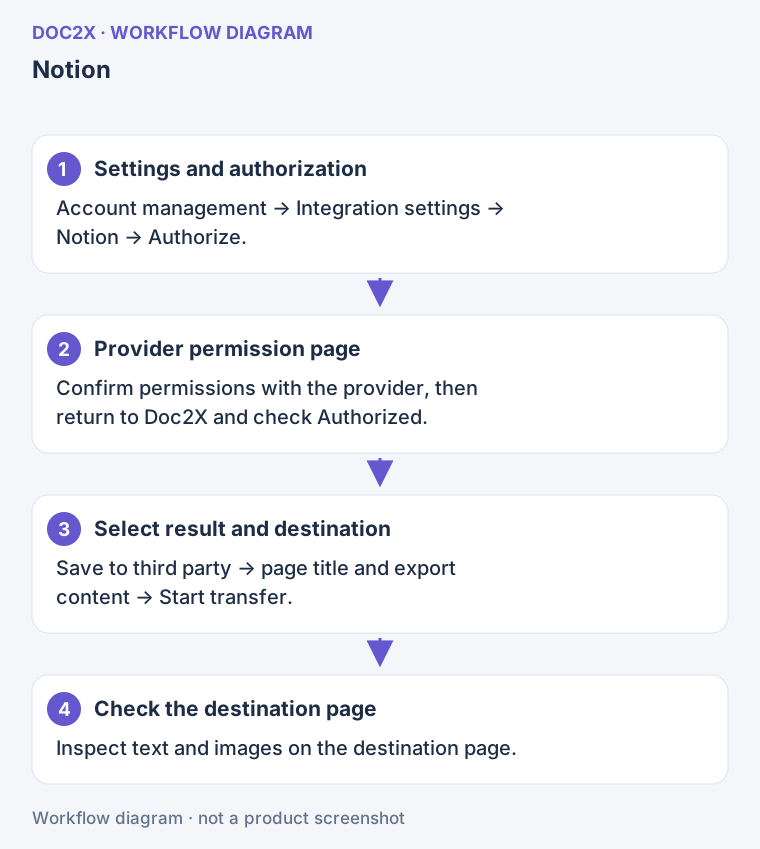
Diagram: Return to the desktop app to confirm authorization, then create the destination page and check its text and images.
2. Select and transfer content
- Open a completed parsing result or a translation with comparison text content.
- Choose 转存第三方 (Transfer to a third party) in that result's menu, then Notion 工作区 (Notion workspace).
- Check 已配置 (Configured) and enter 页面标题 (Page title). Keep it short; the current transfer title limit is 100 characters.
- If 导出内容 (Export content) is shown, choose bilingual, translation-only or original content. Parsing results use the parsed text.
- Wait for content preparation. If the button says 请先完善配置 (Complete configuration first) or remains disabled, resolve authorization or content-loading messages first.
- Click 开始转存 (Start transfer) and keep the app and network available until the result is reported.
Content is converted to Notion blocks. Images must be readable and uploadable; unavailable images or attachment limits can stop the transfer. Do not treat a missing-image state as complete output.
3. Check the Notion page
Open the authorized workspace, locate the new page by title, and check:
- Complete text and the original/translated/bilingual scope you selected.
- Readable tables and formulas, and images that actually display.
- Whether a page was created but only some later content was added.
A transfer delivers a snapshot. Later Doc2X edits or translations do not continuously update the existing Notion page.
Troubleshooting and recovery
| Situation | Next step |
|---|---|
| Browser authorization finished, Doc2X still says unauthorized | Keep desktop open and start a new authorization from the original Doc2X account; do not reuse an old callback link |
| Workspace or page is unavailable | Check the Notion account and authorized page scope; authorize again if needed |
| No transferable content | Select a completed parsing or comparison-text result and wait for text to load; a fixed-layout PDF is not handled by this ordinary text-transfer flow |
| Image or attachment failure | Check access to the source image; the current per-attachment limit is 5 MiB. Resolve the specific error before retrying |
| Partial success or a page already exists | Inspect that page before repairing or resuming; do not immediately repeat the entire page transfer |
| Already transferred or skipped | Locate the existing destination page first; transfer records help avoid duplicates |
| Interrupted after a Doc2X account switch | Return to the initiating account and recheck authorization and destination |
Manage authorization and batch use
Use 取消授权 (Revoke authorization) on the Notion card to disconnect, then authorize again when needed. Disconnecting does not manage or remove the pages already created in Notion.
For multiple existing results, use batch transfer. Fixed-layout PDF results unsuitable for text transfer are filtered, so review the actual transferable count before starting.