
Maimemo: Connect an Account and Collect Words
Connect Maimemo in Doc2X desktop, select a default wordbook, then confirm words collected from parsing or translation text. The current flow uses account authorization: you do not manually enter the old Access Token.
Before you start
- Use a signed-in Doc2X desktop app and a working Maimemo account.
- Open avatar → 账户管理 (Account management) → 墨墨背单词 (Maimemo).
- If the page says 当前环境暂未开放账号连接 or 账号连接暂不可用 (Account connection is unavailable in this environment), check desktop version/support. Do not search for a hidden token field.
- For a new Maimemo account, complete any dictionary initialization and synchronization in the Maimemo app first.
1. Connect and choose a wordbook
- Click 连接墨墨背单词 (Connect Maimemo).
- Complete sign-in and permission confirmation on the opened Maimemo page, then return to Doc2X.
- Wait for 已连接墨墨 (Maimemo connected). If authorization was cancelled or incomplete, read the reason before reconnecting.
- Select the destination under 默认同步词本 (Default wordbook).
- If necessary, click 新建词本 (New wordbook), then check the selected default target.
- Click 测试连接 (Test connection). Continue to reading after 墨墨连接正常 (Connection is working) appears.
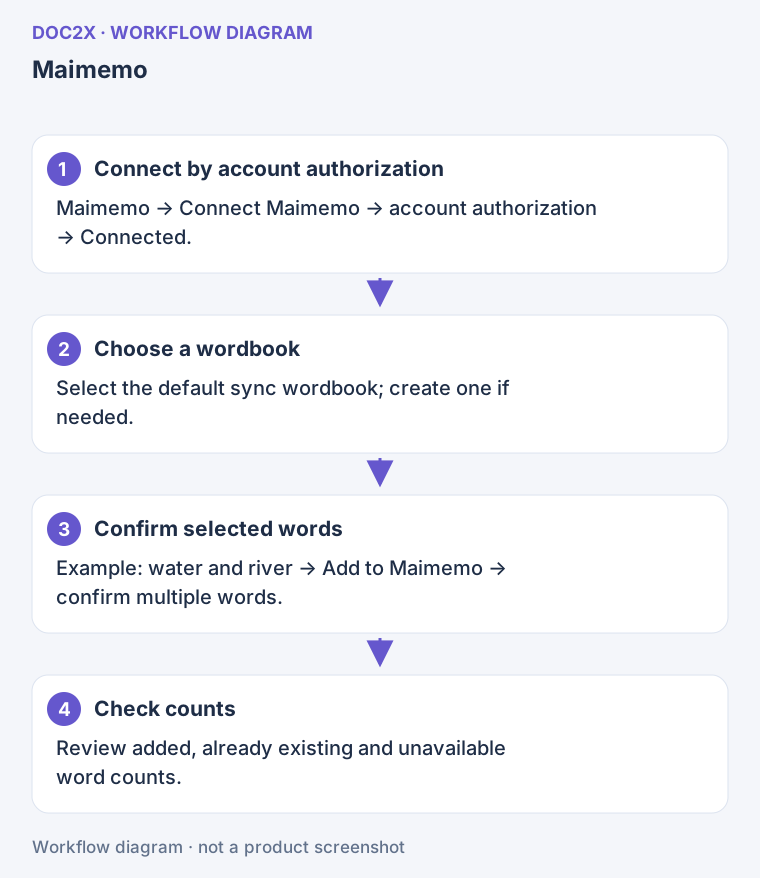
Diagram: The current Maimemo connection uses account authorization; choose a default wordbook before confirming selected words.
2. Collect words from a result
- Open a Doc2X parsing result or comparison-translation text result.
- Select text containing Latin letters and use the Maimemo action in the selection toolbar or corresponding context-menu entry.
- One candidate shows 加入墨墨 (Add to Maimemo). Multiple candidates may show 墨墨 · N; click to open 确认加入墨墨 (Confirm words).
- Review and select the candidates, then click 加入 N 个生词 (Add N words), or Cancel.
- Wait for the result and inspect the destination wordbook in the Maimemo app.
A confirmation handles up to 100 candidates, with up to 50 characters per word. Review candidates when selecting a paragraph; not everything in the sentence is necessarily a vocabulary item. No usable add action appears when no candidates are recognized.
3. Understand the result
| State or result | Meaning and action |
|---|---|
| Adding | The request is running; wait rather than clicking again |
| Added | New words were submitted to the selected wordbook; check Maimemo |
| Already exists | The word is already in that wordbook and need not be added again |
| Partial success | Review added, existing and not-found counts separately |
| Not found | Maimemo did not accept that candidate; check spelling and selection |
| Retry countdown | Rate limited; wait for the countdown to finish |
This collects words you confirm. It does not upload the entire parsed document as a wordbook file.
Messages and recovery
- Connect Maimemo in settings first: complete account authorization; an old token is not a substitute.
- Select a default Maimemo wordbook first: choose a usable target, then reselect words in the document.
- Default wordbook is invalid/deleted: reselect it in settings, or create another one.
- Wordbook capacity reached: manage capacity in Maimemo or choose another available wordbook, then handle unsuccessful words.
- Dictionary initialization: open Maimemo and complete synchronization, then test the connection.
- Authorization expired: use 重新连接墨墨 (Reconnect Maimemo).
- Network/service error: check access before retrying and inspect whether the earlier attempt already added words.
Change accounts or disconnect
Use Reconnect Maimemo in settings. If reconnection does not finish, the page explains whether the previous connection remains; do not assume the account was changed.
To stop using the connection, click 断开连接 (Disconnect) → 确认断开 (Confirm). If the app reports local disconnection but cannot confirm the provider's state, follow its message. Use 重试断开 (Retry disconnection) if offered. Changing the default wordbook affects future collection and does not automatically move earlier words.