
Markdown toolbox: split, merge, and tidy formatting
Utilities (实用工具) → Markdown tools (Markdown 工具) contains Split, Merge, and Format for existing .md files. These differ from the separate Markdown editor: the toolbox performs one-off file operations, while the editor supports continued writing, previewing, and other exports.
This guide uses synthetic Lesson 1.md and Lesson 2.md, each with headings, two paragraphs, a simple table, and a formula. Keep original copies before trying conversions. Both the web and desktop apps open the tool pages, whose components must load successfully. Local input files do not mean the entire tool works offline.
Prepare a repeatable sample
Save the following as UTF-8 Lesson 1.md. Make a second copy and change its title and body to Lesson 2.
# Lesson 1

## Goal

Learn the area formula and record two shapes.

## Data

| Shape | Base | Height |
| --- | --- | --- |
| Triangle | 6 | 4 |
| Parallelogram | 6 | 4 |

The triangle area is $S=bh/2$.
The toolbox reads Markdown text without automatically collecting image attachments. For a relative reference such as , preserve the image directory and place the downloaded Markdown where that reference still resolves.
On phones, use the purple menu button to find parameters. Queues and previews are not long-term storage; download results before leaving. The browser or desktop app's save prompt determines the download location.
Split: use headings, length, or selected outline sections
- Open Split (拆分) and upload
.mdfiles. Choose Single file (单文件处理) or Batch (批量处理) under processing mode. Batch mode accepts up to 10 files. - Select the appropriate mode:
| Mode | Action | Suitable input |
|---|---|---|
| By heading (按标题拆分) | Select H1 or H2 | Notes, lessons, and articles with structured headings |
| By length (按长度拆分) | Choose words, paragraphs, or Tokens, then target length | Text prepared for reading or processing in parts |
| Extract outline sections (按大纲提取指定片段) | Use single-file mode, expand the outline, and select sections | One chapter or a small set of passages |
- Enable Keep Frontmatter (保留 Frontmatter) when the header metadata is needed. Follow the naming-pattern hint:
baserepresents the original name, and001represents a sequence placeholder. - Click Start splitting (开始拆分). With H2 selected for the example, check that “Goal” and “Data” appear as expected.
- Expand the result outline, select sections, and choose View split result (查看拆分结果). Check headings, tables, formulas, and any preface without a heading.
- Choose Download split files (下载拆分文件) for a ZIP. To save only the selected sections, use Download selected sections (下载选中章节) for one extracted
.mdfile.
Target length is a splitting setting, not a guarantee of identical lengths or an exact Token count for a specific model. Preview tables, code blocks, and formulas that fall near boundaries. The current workflow retains image paths without automatically collecting images; restore the expected directory layout if moving the Markdown breaks them.
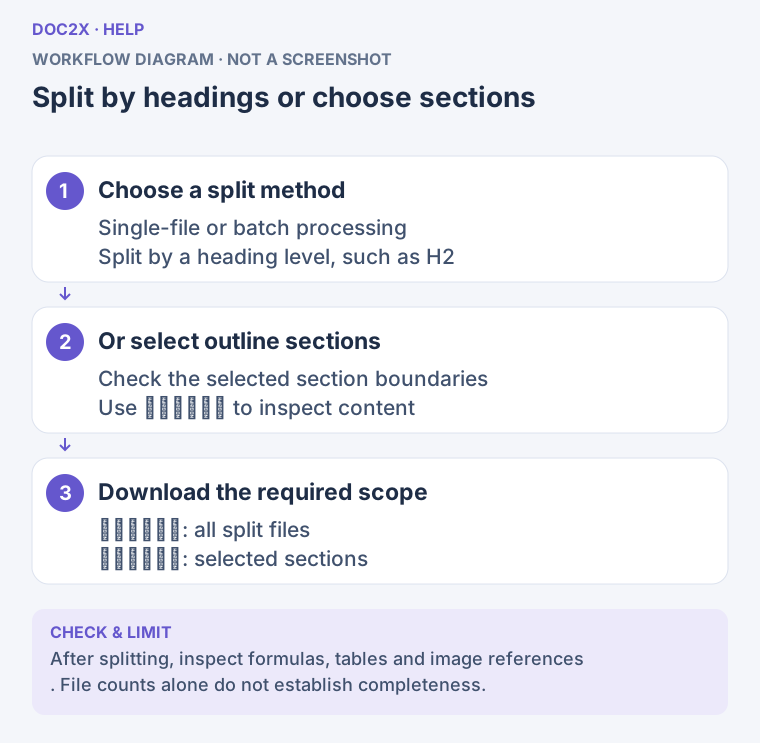
Split by headings or select specific sections from the outline. (workflow diagram). Open the image in a new tab to enlarge it.
Merge: put several notes into one document
- Open Merge (合并) and choose the two lesson files. The first selection accepts up to 10 files; the workspace can add files up to 20.
- Drag entries in File list (文件列表) into reading order. Remove any incorrect files.
- Review Merge settings (合并设置):
| Setting | Use |
|---|---|
| Separator (分隔符) | --- inserts a rule; “Filename as H1” makes each filename a chapter; “None” directly joins content |
| Heading normalization (标题规范化) | Shift heading levels +1, leave unchanged, or shift -1; inspect existing H1 headings |
| Generate contents (生成目录) | Create a contents list from merged headings, then test its links |
| Remove references section (剔除参考文献章节) | Enable only when those sections are unwanted; check for unintended removals |
| Deduplicate footnotes / reference anchors (去重脚注 / 去重参考锚点) | Use for repeated reference markers, then check their destinations |
- Choose Markdown as the output and click Start merging (开始合并).
- When Merge result (合并结果) shows Completed (已完成) and the source-file count, click Download merged file (下载合并文件).
- Open the
.mdand confirm Lesson 1 precedes Lesson 2, contents links work, and tables/formulas remain intact. Relative image references still need their resources.
Current PDF and Word behavior
Choosing PDF attempts to open browser printing. If the dialog appears, select “Save as PDF,” check pagination, and save. This is a print workflow rather than a direct PDF download. The print dialog may be blocked in embedded tool pages or some desktop environments. If it does not open, first download Markdown, then preview and print it from an editor or another application that supports Markdown. Split large documents if printing stalls.
The current Word option reports that Word conversion is not implemented and does not produce DOCX. Download the merged Markdown first, then use an editing workflow that supports Word export.
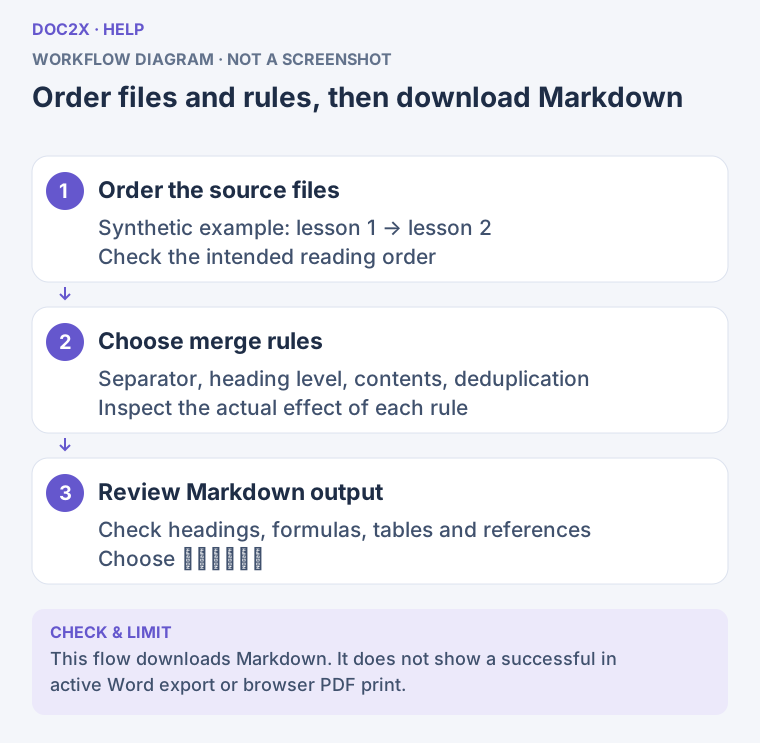
Arrange the files, choose merge rules, and download Markdown. (workflow diagram). Open the image in a new tab to enlarge it.
Format: choose rules and compare both sides
- Open Format (格式化), upload one
.md, or use the text-paste entry. The tool handles one text document at a time. - Inspect Original content (原始内容) on the left and Formatted result (格式化结果) on the right. An initial result is generated after upload; editing the source or settings updates it.
- Decide whether to retain Markdown or convert some styling to LaTeX. To keep
**bold**and*italic*, turn off Markdown to LaTeX bold/italic. - Start with Add spaces between Chinese/English/numbers (中英文/数字间加空格) as appropriate. Check code, links, and special formatting carefully, and use the limitations below when evaluating other switches.
- For math, try equation to $$, inline
\( ... \)to$ ... $, and the displayed math options. Change one group at a time and check delimiters, line breaks, functions, and symbols in the intended editor. - After reviewing the right-hand output, use its copy or download button. The left side also has copy/download actions; make sure you are saving the intended side.
Downloads remain .md, even when the text contains LaTeX commands. This does not compile a PDF or create a Word document. The right side displays output; edit text on the left and recheck, or copy it into the Markdown editor for further work.
How to treat visible advanced switches
The panel also shows switches for Chinese punctuation, abbreviations, Markdown lists, quotes, links, Markdown-to-LaTeX headings, aligned-to-align, removing math-environment stars, unlabelled equation-to-starred environments, and removing Markdown features. Some visible switches do not currently have an independently effective conversion. Check actual output instead of relying on the enabled state, and use manual editing when a required structural change does not occur.
Math conversion may change notation as well. For precise mathematical writing, test a short formula and confirm it renders correctly in the destination editor before processing a whole document. Restore the source or disable the rule if the result is unsuitable.
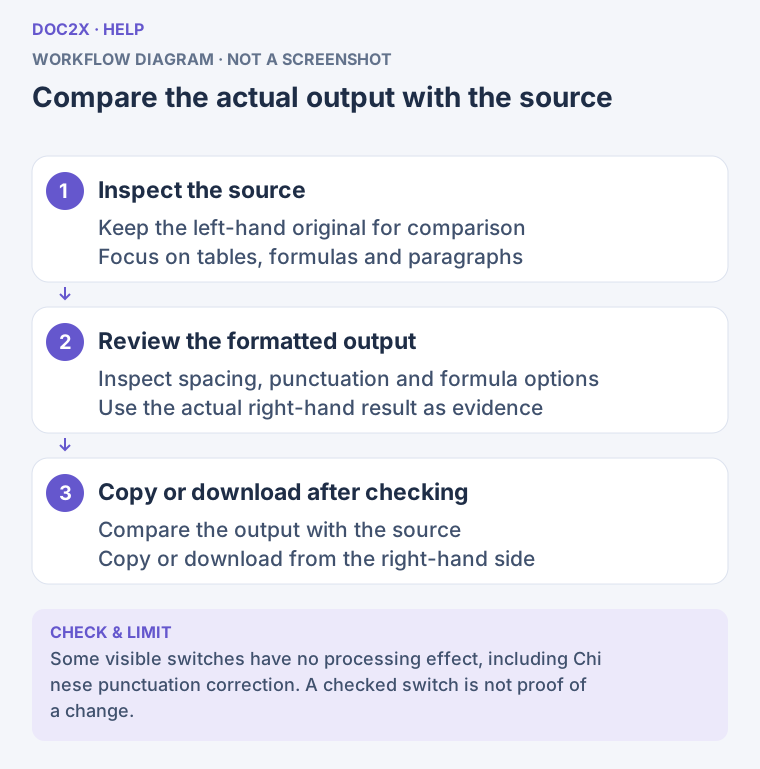
Compare source and output, then copy or download the result. (workflow diagram). Open the image in a new tab to enlarge it.
Tidying a table
There is no separate table-tidying menu, and the formatter does not guarantee automatic table reconstruction. Check these items in the source pane or Markdown editor:
- Keep the same column count in the header, separator, and each data row. The sample has three columns: Shape, Base, and Height.
- Keep
| --- | --- | --- |immediately below the header and avoid accidental line breaks inside rows. - Escape a literal
|according to the destination renderer's rules. Check merged cells or complex multi-row tables in an editor that supports their structure.
Preview the table in an editor before saving. If you need Excel, use the document-parsing or table-export workflow; this toolbox does not provide a direct XLSX export for the Markdown table.
Troubleshooting
| Problem | Recovery |
|---|---|
| Text is garbled | Save the source as UTF-8 in a text editor, then upload it again |
| No sections appear | Check # Heading or ## Heading syntax and select the matching level; normalize headings in the editor if needed |
| Images disappear after splitting | Restore the relative image directories; the ZIP contains split text rather than automatically collected original images |
| Merged heading levels are wrong | Adjust heading level and separator settings, merge again, and check the contents list |
| Word produces no download | It is not implemented here; download Markdown and use a Word-capable editing/export flow |
| PDF print dialog does not open | Download Markdown, then save a PDF from a printable editor or browser preview |
| Formatting changes formulas or styling incorrectly | Restore the original and disable rules one at a time; test small passages before copying the result |
| A switch seems ineffective | Check actual output; some advanced switches do not yet perform an independent conversion |
| Results disappear after refresh | Upload the original again; download before closing instead of treating the queue as a local library |