
Organize exam questions: from PDF to a reviewed question set
整理试题 (Organize exam questions) matches source questions with source answers while retaining formulas, options, illustrations, and recognized chapters. Review the matches against the PDF, then create a student paper, teacher handout, interactive exercise, teaching presentation, or a collection in the teacher question bank.
This tutorial uses a fictional “Triangles and Equations” exercise: question 1 asks students to solve
The control names below preserve the current Chinese interface labels so you can find them on screen.
Before you begin
Open 整理试题 from the Doc2X home page. If you see “这是示例效果” (This is an example), inspect the example questions, answers, and source locations, then click 整理我的试卷 (Organize my paper) or 开始新任务 (Start a new task). The example is labeled “不扣积分” (No points charged).
Sign in before using your own documents. Members can use this feature. Eligible nonmembers see a one-time trial with Qwen or LongCat; actual AI usage still consumes AI points. Check the current account screen for eligibility, available models, and balance notices. This workflow is available on the web, and the desktop client can also open the exam workspace.
Process one set of questions per task, using no more than two sources:
| Your material | What to select |
|---|---|
| One teacher-edition PDF with questions and answers | Select that file only |
| Separate question paper and answer booklet | Select the question paper first, then its matching answer booklet |
| Several papers, each with its own answers | Create a separate task for each paper |
| Questions only, with answers in another file | Add the matching answer document before starting |
New uploads must be PDFs, no larger than 300 MB each. You can reuse existing parsed documents. Newly uploaded PDFs must finish parsing before they become sources. Matching organizes answers already in the source; optional AI explanations are a separate generation step.
Step 1: select and preview the sources
- In 选择文档 (Select documents), click 上传 PDF (Upload PDF), drag PDFs into the dialog, or select entries under 从已解析的文档中选择 (Choose parsed documents).
- Use 搜索文档 (Search documents) to find a filename. Click 刷新 (Refresh) for updated results, or 加载更多 (Load more) for additional records.
- Completed uploads are selected automatically. Inspect the original PDF in the preview area to confirm the paper.
- A single file is labeled “从本文件提取题目与答案” (Extract questions and answers from this file). Two files are labeled “题目卷” (Question paper) and “对应答案卷” (Matching answer paper). Deselect an incorrect file before replacing it.
- Click 下一步:配置任务 (Next: configure task).
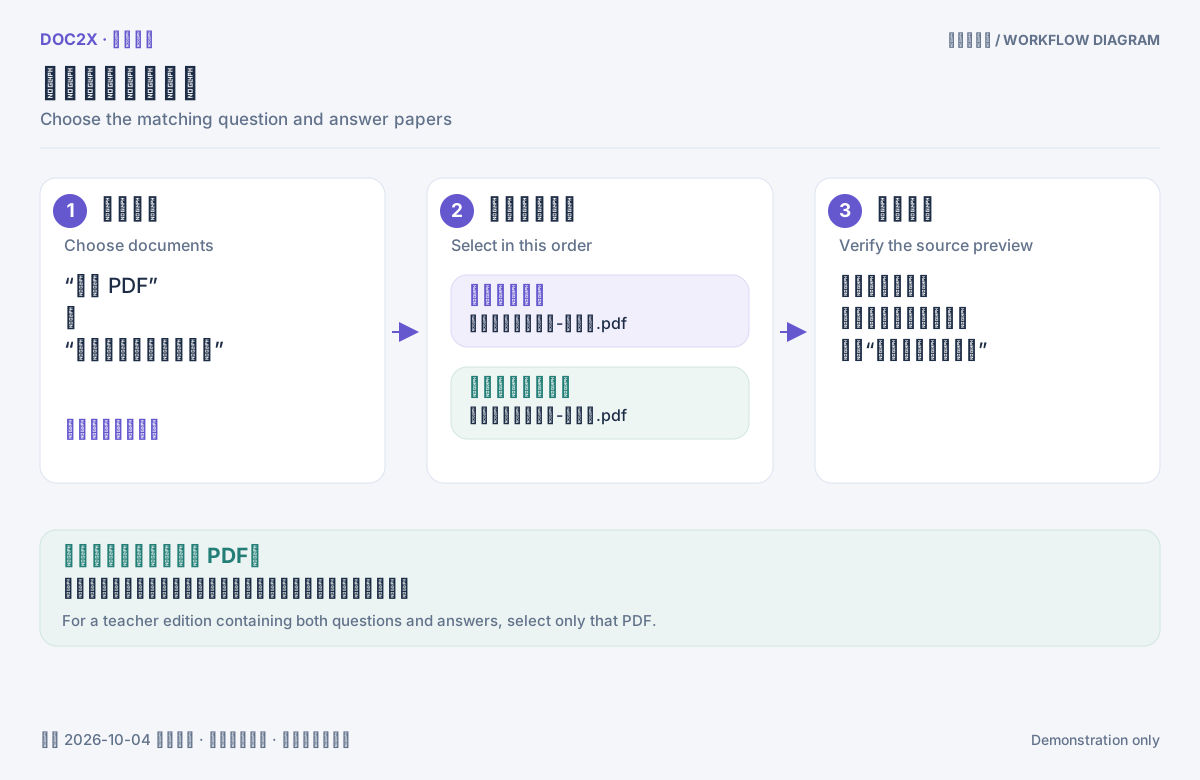
Figure: Workflow diagram: select a question paper and its matching answer booklet in order, verify the preview, and configure the task. Select only one PDF when it contains both.
Step 2: confirm roles and options
Check the source names in 配置任务 (Configure task). If two files are reversed, click 交换题目和答案 (Swap questions and answers). If the selected paper needs a separate answer booklet, click 补充答案文档 (Add answer document). Use 更换文档 (Change documents) to replace sources.
Choose a 模型 (Model). Leave AI 补充缺失详解 (AI supplements missing explanations) unchecked if you only need existing answers organized. When enabled, this option generates steps for questions lacking explanations after matching their source answers. It consumes AI points using the selected model and labels the result “AI 补充详解(非原文)” (AI explanation, not source text).
Click 开始整理试题 (Start organizing). The task moves through “排队中” (Queued) or “正在阅读和整理” (Reading and organizing). Long documents are processed in batches. Review the result when it shows “已完成” (Completed) or “请核对结果” (Please review). The task appears in the left history, with “结果保留至……” (Results retained until…) when an expiry is supplied.
Step 3: review each match against the PDF
The 逐题核对 (Review each question) area shows 原题 (Original question) beside 原文答案 (Source answer). Expand a question and click 定位题目原文 (Locate question source) or 定位答案原文 (Locate answer source). The PDF panel moves to the relevant location. On narrower screens, 查看原文 PDF (View original PDF) opens the source panel. Use its document selector to switch between sources.
Check the number, wording, options, formulas, and illustrations, then verify which answer belongs to the question. In the example, question 1 should have
Use these controls together to narrow a long list:
| Control | Purpose |
|---|---|
| 全部 / 已配对 / 待确认归属 / 未找到原文答案 / 尚未处理 / 已排除 | All / Matched / Assignment needs review / No source answer found / Unprocessed / Excluded |
| 全部章节 (All chapters) | Select a recognized chapter |
| 搜索题号或题干 (Search question number or text) | Enter a number or wording from a question |
| 显示更多题目 (Show more questions) | Display more items in the current filter |
“Unprocessed” does not mean there is no source answer: finish the remaining task first. A missing answer can also result from an unrecognized number or text merged into a neighboring answer. Check the PDF before deciding.
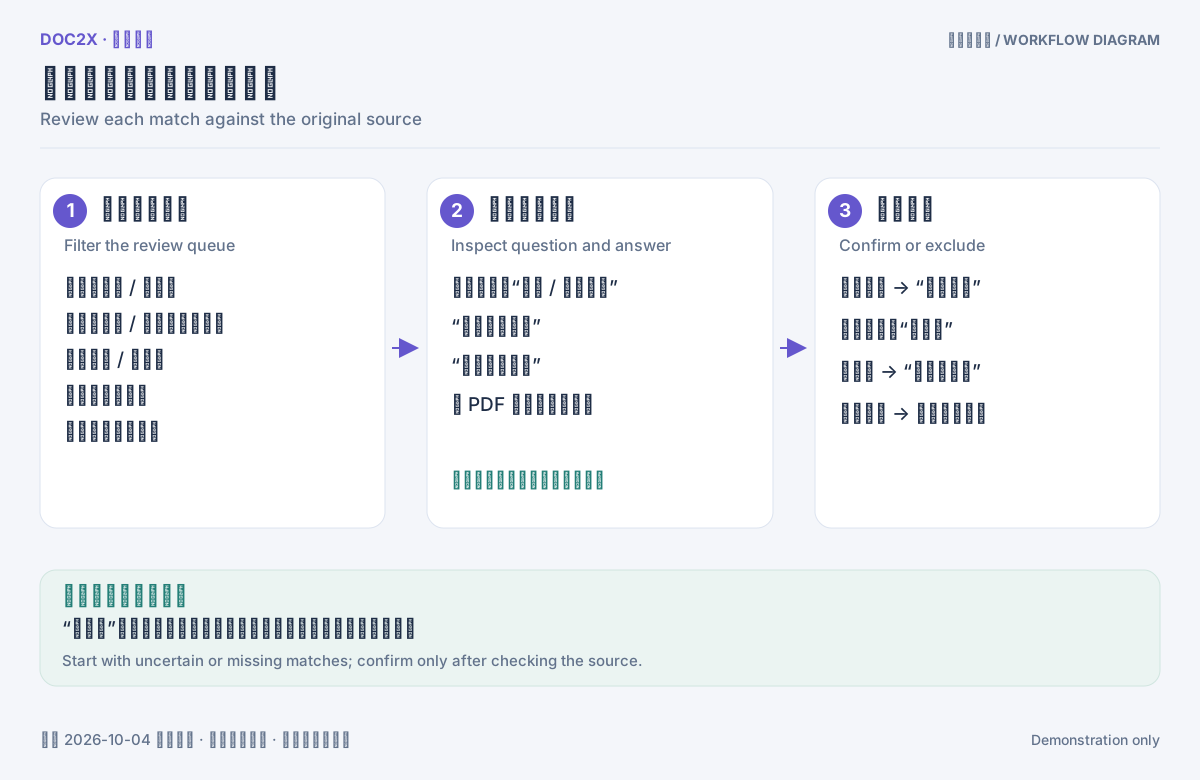
Figure: Workflow diagram: filter by status, chapter or question text, inspect both source locations, then confirm or exclude the match.
Step 4: correct answers and choose what to keep
An entire answer belongs to another question
Use 换成其他题配到的答案 (Use an answer matched to another question) beneath the question. Candidates show question numbers and text previews, with neighboring questions near the top. Check the source again, then click 确认配对. Also review the question that originally held that answer; selecting its answer here does not resolve that other question automatically.
This answer is mixed into the previous or next answer
- Click 看第 N 题答案的原文 (View question N's source answer) to identify the relevant paragraphs.
- Click 从相邻答案里选出本题答案 (Pick this answer from neighboring answers). A question that already has an answer offers 从相邻答案里选 (Pick from neighboring answers).
- Select the paragraphs that belong to this question. You can take paragraphs from one neighboring answer at a time; changing the source clears the previous selection.
- Check 同时从第 N 题的答案里去掉这些段落 (Also remove these paragraphs from question N). It is enabled by default. Turn it off if both answers should retain the paragraphs. A warning appears if the neighboring answer would become empty.
- Click 用作第 N 题答案 (Use as question N's answer), then review both affected questions.
An answer needs manual text
Click 手动填写本题答案 (Enter this answer manually) or 修改答案文本 (Edit answer text). Enter verified answer text and explanations, preserving the formula notation, then click 保存为本题答案 (Save as this question's answer). The answer is labeled “老师填写” (Teacher entered). This applies the text to the current result; you still need 保存修订 (Save revision) to save the task.
Use 恢复原文答案 (Restore source answer) to revert manual text, then review and confirm again. After changing an answer, an AI explanation generated for the old answer may no longer appear. Use the current question, answer, and source as your reference.
Leave a question out of the output
Click 不导出此题 (Exclude this question) to move it to the excluded group. Use 恢复导出 (Restore export) to include it again. 撤销确认 (Undo confirmation) returns a confirmed question to review.
If you see “公式修改未应用” (Formula change not applied), the original formula was retained. Expand the notice to compare the original with the rejected suggestion and inspect the PDF. Confirming the match does not apply that formula suggestion.
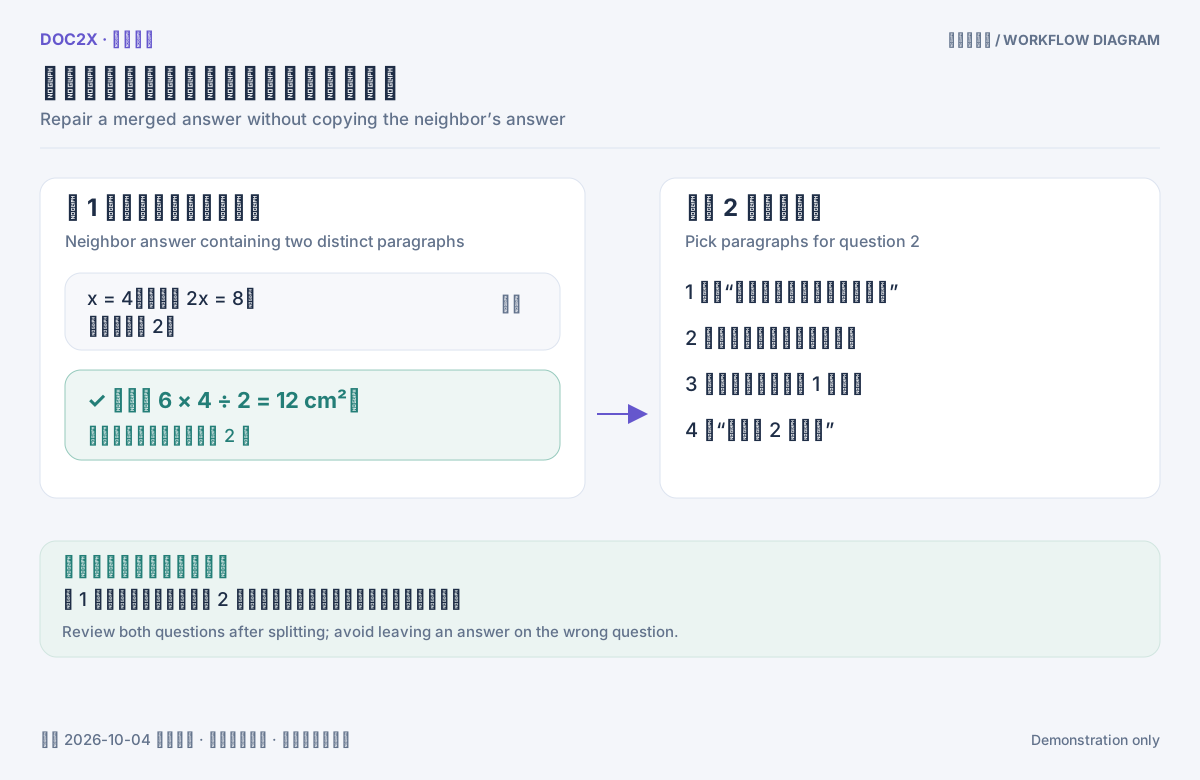
Figure: Workflow illustration: select only the paragraphs belonging to the current question, review removal from the neighbor, and check both questions afterwards.
Step 5: save and inspect the complete result
Click 保存修订 (Save revision). A successful save shows “修订已保存” and 已保存 · vN (Saved, version N). Click 预览完整结果 (Preview full result), then scroll through shared passages, questions around page breaks, formulas, and illustrations.
撤销修改 (Undo changes) restores a recent revision action. 还原原始结果 (Restore original result) restores the original generated result and clears current question decisions, so first preserve any work you need. If leaving or switching tasks opens “放弃未保存的修改?” (Discard unsaved changes?), choose 继续编辑 (Continue editing) to return and save. Choose 放弃修改 (Discard changes) only when you intend to lose them.
The 编辑结果 (Edit result) icon edits the entire text; 预览 (Preview) returns to the rendered view. Full-text editing restricts individual-question actions and structured range options. Ordinary combined formats export the edited text. Before returning to structured questions for separated layouts, interactive HTML, teaching PPTX, or JSON, preserve the edited text in another output, then restore and review the structured result again.
Step 6: export a paper, handout, or exercise
Click 导出整理结果 (Export organized result). Choose 文件格式 (File format), then content and scope.
| Goal | Format |
|---|---|
| Continue formatting in Microsoft Word | Word, downloaded as DOCX |
| Continue formatting in WPS | WPS, downloaded as adapted DOCX |
| Use a MathType formula workflow | Word MathType, downloaded as DOCX |
| Edit in Eduediter | Eduediter, downloaded as WSD |
| Read or print | PDF or HTML |
| Process text further | Markdown, packaged as ZIP when it has images |
| Reveal answers in a browser | 互动 HTML (Interactive HTML) |
| Project one question per screen | 一页一题演示 (One-question presentation) |
| Import or process structured data | 结构化数据 (Structured data), a JSON data package |
| Edit and download teaching slides | 教学课件 (Teaching courseware), then 进入课件编辑 (Enter courseware editor) |
Formats with a membership marker depend on your account entitlement. 导出前把图片变高清 (Enhance images before export) is optional image processing; it is not required for a normal export.
Create a student paper
- Choose Word.
- Set 题集内容 (Question-set content) to 仅题目 · 学生用 (Questions only, for students).
- Under 题号与章节 (Numbering and chapters), retain the original numbers or enable 按导出顺序重新编号 (Renumber in export order). Keep 保留原章节结构 (Retain original chapter structure) if needed.
- Set 导出范围 (Export scope) to 全部保留题目 (All retained questions), 当前筛选 (Current filter), or 指定章节或题目 (Specified chapters or questions). For a specified scope, use 整章选择 (Select whole chapter), then add or remove individual questions.
- Check “将导出 N 题” (N questions will be exported), then click 导出文件 (Export file).
Questions-only mode hides extracted answers and explanations. Answers already printed in a question's wording or illustration still need manual inspection and removal.
Create a teacher handout
Set content to 题目与答案 · 教师用 (Questions and answers, for teachers). Choose 原题+参考答案 (Question followed by answer), 题目、答案分开 (Questions and answers in separate sections), or 分开并用颜色区分 (Separate with colors). Markdown uses section headings; color styling is retained in Word, WPS, HTML, and PDF.
附图位置 (Illustration placement) defaults to 题干和选项之后(推荐) (After question and options, recommended), or you can choose 保持整理后的原位置 (Keep organized positions). Enable 附上原文出处 (Include source references) for traceability. Renumbering starts both questions and collected answers at 1 while retaining original numbers in the task record.
Where reliable chapters exist, enable 添加题集目录 (Add question-set contents) and expand the contents preview. Try 读取 PDF 书签补充章节 (Read PDF bookmarks to supplement chapters) if chapters are missing. This supplements the current preview and export without changing the original task. Questions can still be exported when the PDF lacks reliable bookmarks or chapters.
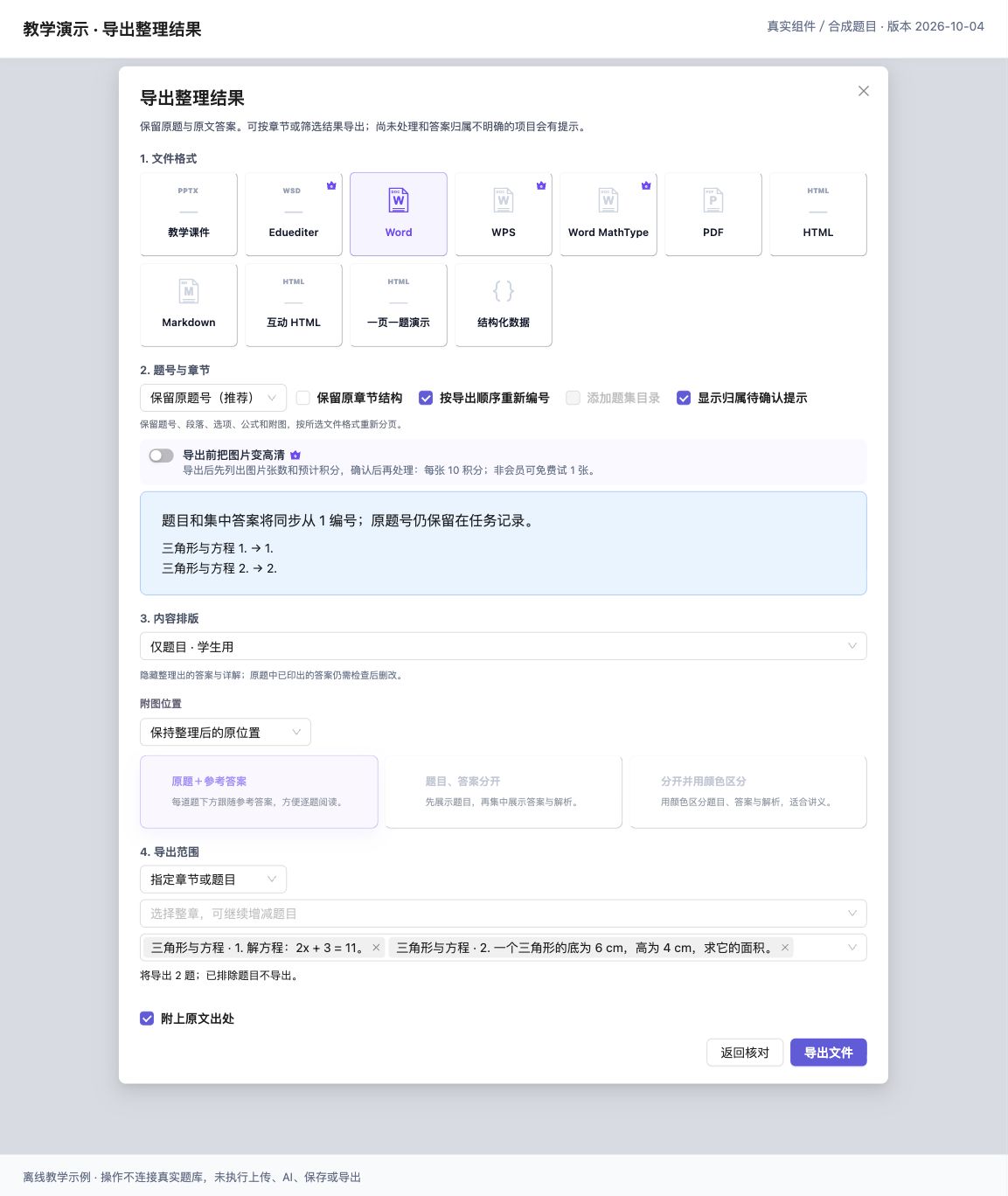
Figure: Choose the format, student or teacher content, and question scope, then verify the count. (Offline demonstration using the real component and synthetic teaching data; interface version 2026-10-04.)
Find downloaded files in the browser's download list or your chosen save location. Complete PDF export through the export or print-save flow offered by your environment. Open interactive HTML in a browser and click to reveal answers. Teaching courseware opens its dedicated editor first; continue with the teaching PPT tutorial. For long-term classification and storage, finish the import in the teacher question bank.
Troubleshooting
| Symptom | What to do |
|---|---|
| Uploaded document is missing from the list | Wait for parsing, then refresh. Check that it is a PDF no larger than 300 MB. Existing selections remain while you retry an incomplete upload |
| Many answers are missing or assigned incorrectly | Check that both files belong to the same paper and their roles are correct. Add the matching answer document, then organize again |
| “整理尚未完成,已保留现有结果” (Incomplete; existing results retained) | Save changes, then click “继续未完成部分” (Continue unfinished work). A continuation reuses successful pairs and retains confirmations/exclusions; full-text edits stay in the original record |
| “积分不足,整理已暂停” (Paused because points are insufficient) | After adding points, click “已补充,继续剩余题目” (Points added, continue remaining questions), or export completed matches with “导出已配对 N 题” |
| “重新核对用量” (Recheck usage) appears | Refresh the reconciliation state with that button, then continue when available |
| No questions found and continuation is unavailable | Use “检查所选文档” (Check selected documents). If the source is complete, copy the task ID from the left history and contact support instead of repeatedly uploading it |
| Missing illustrations block export | Click “重新加载图片” (Reload images) or “重试加载附图” (Retry loading illustrations) in the export dialog |
| Saving is unconfirmed or another window updated the task | Preserve any needed manual text, reopen the task, review the current version, and save again. Do not treat an unconfirmed save as complete |
| JSON, interactive HTML, or PPTX is blocked after full-text editing | First export the current edited text. These formats require the structured question result, so restore and review individual questions before using them |
Task results have the retention deadline shown in the interface. Download the files you need or confirm their import into the question bank after reviewing; temporary task history is not a permanent question library.