
Choose Export Formats, Content, and Layout
After parsing or translation is ready, use the reader's export button to open Export Document Settings (“导出文档配置”). First decide which content you need, which app will open it, and whether page positioning matters, then choose the format and layout. Reader columns do not automatically determine export layout.
This guide covers the workflow and conditions. For Word appearance, see templates. For equation workflows, see Word/MathType and WPS.
Step 1: Choose a Format for Your Use
| Interface option | Intended use | File or destination |
|---|---|---|
| Word | Continue editing text, tables, and equations in Word | .docx |
| WPS (Editable Equations) | A formula-editing workflow suited to WPS | .docx, not .wps |
| Word MathType | Use MathType equations in Word | .docx; supported equations become MathType, unsupported ones remain Word equations |
| Eduediter | Continue editing in Eduediter | .wsd |
| Markdown | Knowledge bases, notes, and Markdown editors | .zip for local images; .md for online images |
| LaTeX | Continue typesetting with TeX tools | .zip containing .tex and applicable resources |
| Typst | Continue typesetting with Typst | .zip containing .typ and applicable resources |
| HTML | Browser reading or further HTML processing | .html |
| Export to MD Editor | Adjust content in the app's Markdown editor first | Opens the editor; select it, then click Start Export |
WPS, Word MathType, and Eduediter appear only for supported result versions. Advanced exports check access when used. Some formats offer Try Once for Free when eligible; Eduediter requires membership. Follow the actual prompt. A file extension does not establish access, and file-export permissions are separate from clipboard permissions.
Check formula editing, tables, and images in the Word, WPS, or MathType environment you actually use. “Editable equations” does not guarantee lossless conversion of every complex formula.
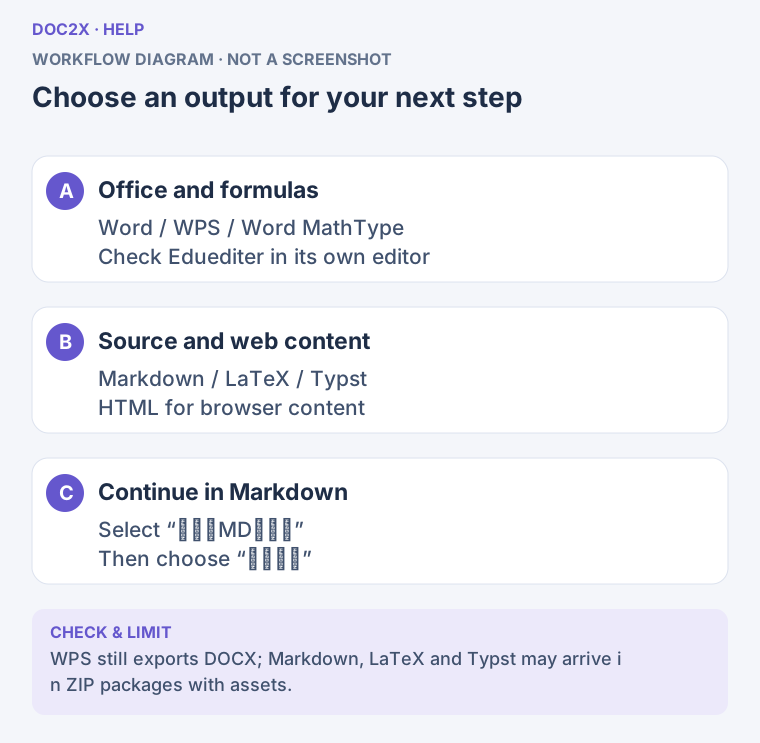
Choose an output for your next step (workflow diagram). Open the image in a new tab to enlarge it.
Step 2: Choose Word or PDF Handling for Parsed Results
Word Layout
Eligible v3 PDF or structured-image results show Word Layout → Page Layout after selecting Word, WPS, or Word MathType:
- Reflow (“流式排版”): Reorganizes text for paragraph edits, font changes, and templates.
- Preserve PDF Layout (“保留 PDF 版式”): For PDF sources, aims to preserve page dimensions and text/image positions.
- Preserve Image Layout (“保留原图版式”): The corresponding option for structured-image sources.
The app may remember the last submitted layout, so check it every time. Preserved layout supports further text and equation editing but does not guarantee an identical complex page. It hides the reflow Advanced Parsing Configuration, including Word templates.
Two Different PDF Actions
| Action | What it does | Conditions |
|---|---|---|
| Add Text Layer to Scanned PDF (“扫描 PDF 添加文本层”) | Preserves the scan appearance and adds searchable, selectable, copyable text | Source content, not a translated PDF; appears for PDF or eligible structured-image sources and checks export access |
| Generate PDF After Editing (“编辑后生成 PDF”) | Sends parsed content to the Markdown editor and opens PDF export guidance | Currently shown only for structured-image results in the parsing dialog; not a direct download preserving the original page |
To reflow ordinary PDF parsing results into a PDF, choose Export to MD Editor, follow the Markdown editor tutorial to review and adjust the content, then use its PDF export workflow. For translated PDFs, use the next section rather than Add Text Layer.
Step 3: Choose Translation Content and Page Effect
Formats depend on results that the task actually produced and has ready. The following describes the result reader; historical records, older versions, or incomplete outputs may offer fewer choices.
| Translation mode | Available workflow |
|---|---|
| Bilingual | Word, Markdown, LaTeX, Typst, HTML, the internal Markdown editor, and other eligible reflow formats; PDF uses Continuous Reading |
| Preserve Layout | Use PDF export for translation only or a side-by-side comparison. For editable formats, click More Formats · Create Bilingual Translation and export after that new task completes |
| Bilingual + Preserve Layout | When both outputs are available, use both reflow formats and fixed-layout PDF; eligible translations also offer Word preserving the PDF layout |
The combined mode is not limited to PDF. Nor does selecting that mode make every export available at every stage: the relevant content, PDF, and layout capability must be ready.
Content/Format Matrix for Bilingual and Combined Tasks
| Format and layout | Export content | Conditions |
|---|---|---|
| Reflow Word, Markdown, LaTeX, Typst, HTML, Export to MD Editor | Translation Only / Bilingual / Source Only | Usable bilingual content |
| Reflow WPS / Word MathType, Eduediter | Translation Only / Bilingual / Source Only | Bilingual content, supported v3 result, and applicable access |
| PDF → Continuous Reading | Translation Only / Bilingual / Source Only | Bilingual content; repaginates rather than preserving source pages |
| PDF → Preserve Original · Translation Only | Translation only | Fixed-layout PDF ready |
| PDF → Side by Side · Translation on Left | Translation left, source right | Fixed-layout PDF and original source available |
| PDF → Side by Side · Source on Left | Source left, translation right | Fixed-layout PDF and original source available |
| Word / WPS / Word MathType → Preserve PDF Layout | Translation only | Supported v3 task, fixed-layout result, saved translated Word layout capability, and access |
Follow this order:
- Choose Export Format. For non-PDF reflow formats, select Translation Only, Bilingual, or Source Only under Export Content.
- For PDF, choose Page Effect first. Only Continuous Reading offers those three additional content choices. The other three fixed effects already determine content and left/right order.
- If Word Layout appears, choose reflow or preserved layout. Preserve PDF Layout supports Translation Only; it does not produce a preserved-layout bilingual Word document.
- If told the historical translation has no saved Word layout, choose reflow. If a newly generated layout is needed, follow the prompt to translate again and check its available options.
- Fixed-layout PDFs offer More PDF Settings → PDF Bookmarks. Side-by-side output also offers Online Merge Export; enable that before Optimize PDF Size can be used.
In the translation-only reader for a pure Preserve Layout task, a message may say that only online export or translation-only export is supported. Enable Online Merge Export for a side-by-side PDF there, or export translation only. See New Translation for editable formats.
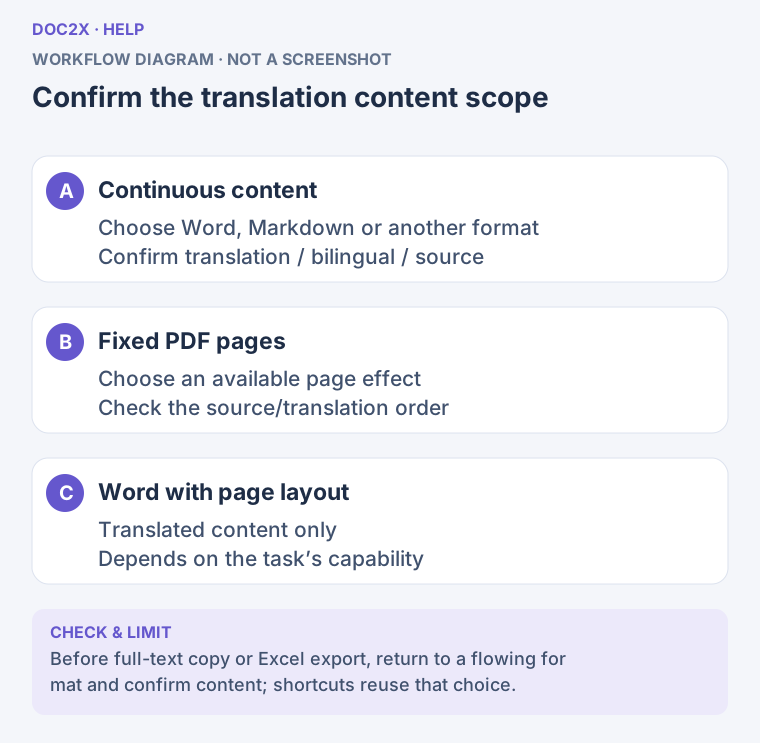
Confirm the translation content scope (workflow diagram). Open the image in a new tab to enlarge it.
Step 4: Adjust Settings Offered for the Format
Advanced Parsing Configuration (“高级解析配置”) starts collapsed, with Recommended Settings or a count of adjusted items. Only applicable options appear. If an option is absent, check the format and whether preserved layout is selected.
| Format/state | Main available settings |
|---|---|
| Markdown · Local Package | Cross-page tables, image references, formula delimiters; formula fallback for v3 |
| Markdown · Online Images | Image references, formula delimiters, remove comments, code indentation compatibility; no cross-page tables or formula fallback |
| LaTeX | Cross-page tables, formula delimiters; formula fallback for v3 |
| Typst | Cross-page tables; formula fallback for v3 |
| Word / WPS / Word MathType · Reflow | Cross-page tables; formula fallback and Word templates for eligible v3 results |
| Preserved-layout Word variants or scanned PDF text layer | No reflow advanced configuration |
| HTML, Eduediter, internal MD editor, and similar destinations | Do not expect every advanced option above |
Keep Images for Long-Term Use
Markdown's Image Resource References offers:
- Local Package (“本地打包”): Extract the ZIP and keep Markdown and image folders in their relative positions. Suitable for long-term storage, sharing, and offline use.
- Online Images (Valid for 30 Days) (“在线图床(30 天有效)”): Markdown references online images whose links expire after 30 days. For long-term use, choose Local Package rather than retaining only the online
.mdfile.
Tables, Formulas, and Templates
- Cross-page Tables: Preserve by Original Page retains page-based organization; Smart Merge attempts to combine tables. Check headers, merged cells, and continuation boundaries afterward.
- Markdown Table Format: HTML Tables retain merged cells and complex structure. Markdown Tables expand merged cells, keep content in the top-left cell, and simplify complex styles. Choose for your target editor.
- Formula Delimiters: Choose
\[ \]or$as required by the target tool. This changes formula markers; it does not convert equations to MathType. - Formula Fallback Level: Where offered, choose Preserve Formulas, Inline Formulas to Plain Text, All Formulas to Plain Text, or Smart Fallback. Use text conversion cautiously when mathematical editing matters.
- Word Template: Eligible reflow Word variants offer the default online template, General, Academic, Business, Elegant, Minimal, and Technical. Compare fonts and indentation in template previews.
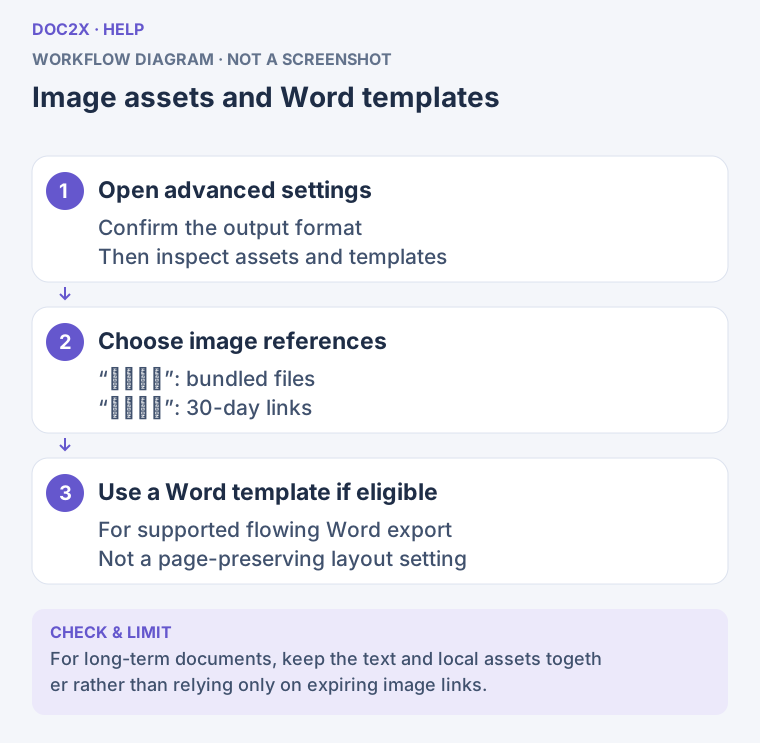
Image assets and Word templates (workflow diagram). Open the image in a new tab to enlarge it.
Step 5: Name, Save, and Check
- If the dialog offers Base Filename, enter a recognizable name. Add Task Date if needed, then check separators and filename preview. The pure Preserve Layout PDF entry keeps the existing name and has no filename editor. The export method determines the real extension.
- Fixed-layout translation PDFs retain the suffixes
仅译文(translation only),译文在左(translation on left), or原文在左(source on left) to distinguish versions. - On the web, follow browser download settings and check its downloads list. A folder picker is not guaranteed every time.
- On desktop, use Personal Settings → Default File Download Location → Choose Directory. The Settings link next to Save Location in the export dialog opens it too. Check whether that directory is enabled for this export.
- Click Start Export, wait for conversion and download, then open the result in the target app. Check complete pages, equations, tables, images, and source/translation order.
Copy Full Text and Export Tables
These are independent shortcuts: they run immediately when clicked, without Start Export.
- Copy Full Markdown: Copies to the clipboard; it does not create a file. If automatic copying is blocked, use Copy Full Text in the Manual Copy Markdown window, or Select All and press
Ctrl+C/⌘C. Prepare and copy again after editing the document. - Table Excel: Exports all recognized tables to one
.xlsx, with one sheet per table. It does not automatically turn body text or images into spreadsheet cells. If none are found, the app reports that the document contains no tables.
For a particular area, use Export This Paragraph's Tables to Excel or Export This Page's Tables to Excel in paragraph/page actions. Check merged cells, values, and formula characters in the XLSX. Failed image retrieval may leave [图片] placeholders; review the reported missing items.
In unified translation export, both shortcuts require bilingual content and follow the current content choice. Preserved-layout Word uses translation only. If a fixed-layout PDF effect is currently selected, switch to a reflow format such as Word or Markdown first, confirm source/translation/bilingual under Export Content, then use the shortcut. The PDF left/right order does not determine the shortcut content.
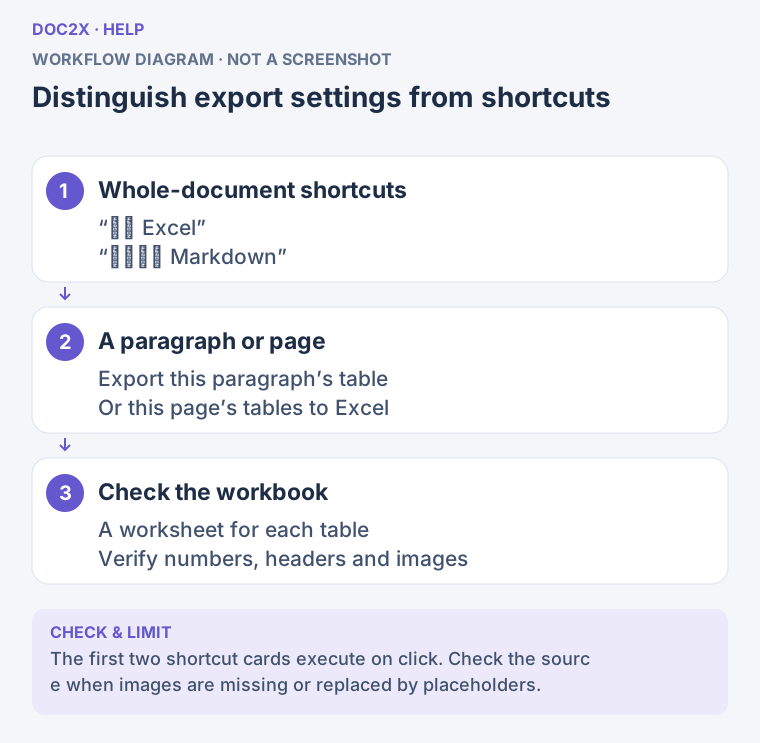
Distinguish export settings from shortcuts (workflow diagram). Open the image in a new tab to enlarge it.
If Export Does Not Finish
| Message or situation | Next step |
|---|---|
| Parsing export failed and settings were retained | Adjust settings if necessary and click Retry Export; uploading and parsing again are unnecessary |
| Combined translation export failed | The dialog retains choices and an error. Resolve the cause, then click Start Export again |
| A pure Preserve Layout PDF dialog closed but no file appeared | Check errors and browser downloads, then reopen PDF export if needed. Closing alone does not confirm a saved file |
| File generated, saving incomplete | Choose Use System Download (“改用系统下载”) or Not Now. A failed default-directory write does not require reprocessing the source |
| Certain conversion workflows report conversion complete but download incomplete | Use Download Again in that message; not every format has this button |
| You cancelled system saving | The file was not saved by that action. Export again or use a still-available download entry; cancellation is not a parsing failure |
| Access or trial quota is insufficient | Follow the prompt or choose an available format; avoid repeated clicks |
| You cannot find the file | Check browser downloads, the desktop default directory, and the actual extension. Extract ZIPs to find MD/TEX/TYP files and images |