
Zotero PDF Translation: Bilingual Reading and Batch Guide
Use the Doc2X Zotero translation plugin to translate full paper PDFs and save bilingual notes or layout-preserving PDFs under their original parent items. This guide covers setup, single-paper translation, Combine translation and sequential PDF batches. Check important terminology, equations and figures against the source. Illustrations show the Chinese workflow, with English instructions below.
Download the plugin and desktop client · Translation options overview (Chinese) · Already configured? Translate one PDF
Workflow
Install the matching plugin → sign in to the desktop client → configure translation → select PDFs → open notes and PDFs. Start with one short paper before processing a batch.
Choose your reading output first
| Task | Workflow | Check before starting |
|---|---|---|
| Read source and translation paragraph by paragraph | Bilingual translation | Note output settings and content completeness |
| Read a translation in the paper's layout | Layout-preserving translation | Translated PDF; side-by-side bilingual PDF depends on settings |
| Get both output categories | Combine translation | Pro access; two categories do not mean exactly two files |
| Process several papers | Select original PDFs and run a batch | File count, usage, individual results and parent items |
| Bring back a result already completed in Doc2X | Export an existing result to Zotero | Reuse the task; note or PDF routing depends on the result type |
Doc2X and other plugins such as Translate for Zotero / Zotero PDF Translate have separate packages and configuration. Doc2X obtains its account Token through the desktop client on the same computer; this field is not for an open-platform API key.
1. Download and install
Choose the correct package
Open the official download page and find the Zotero plugin card.
| Zotero version | Download option | Actual downloads checked on 2026-10-10 |
|---|---|---|
| Zotero 9 or 10, including 9.0.6 | 9 / 10 | Plugin v1.1.20; package declares Zotero 9.0 through 10.* |
| Zotero 7 or 8 | 7 / 8 | Plugin v1.1.18; package declares Zotero 7.0.0-beta.70 through 8.* |
| Zotero 6 | No current matching package | Review Zotero upgrade and plugin compatibility guidance first |
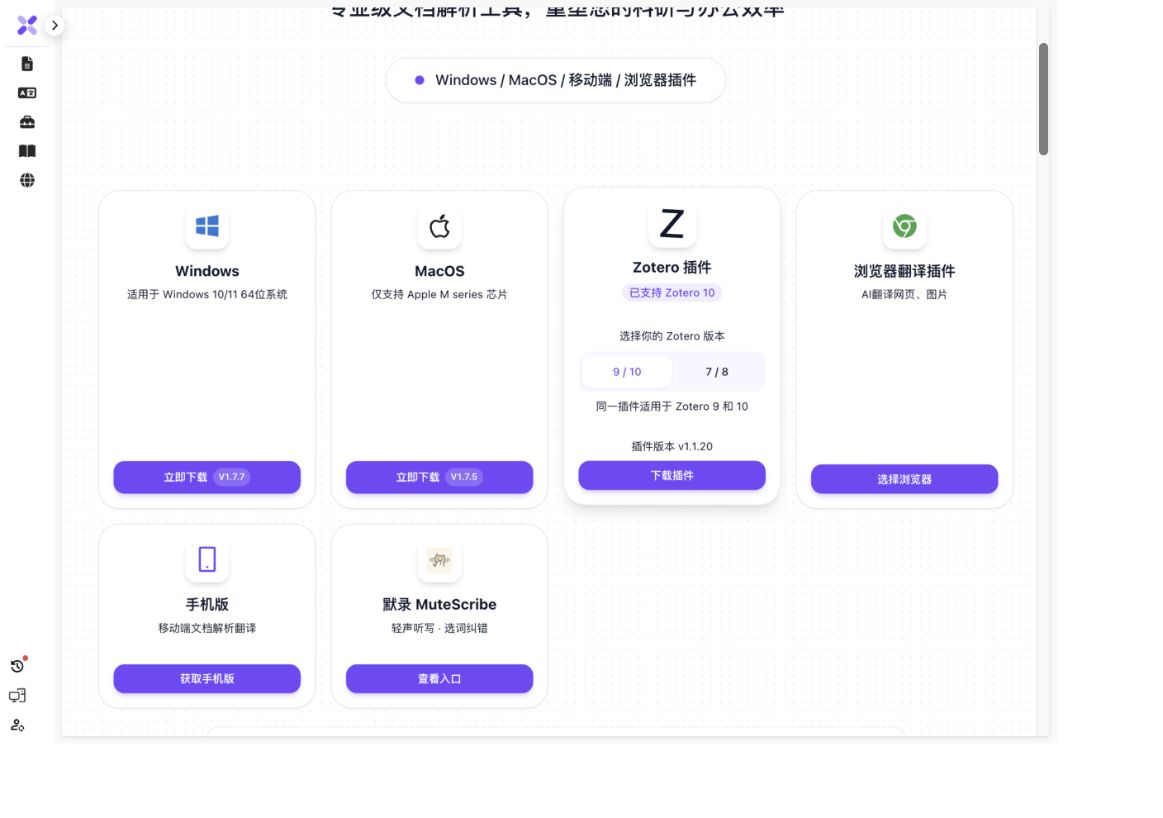
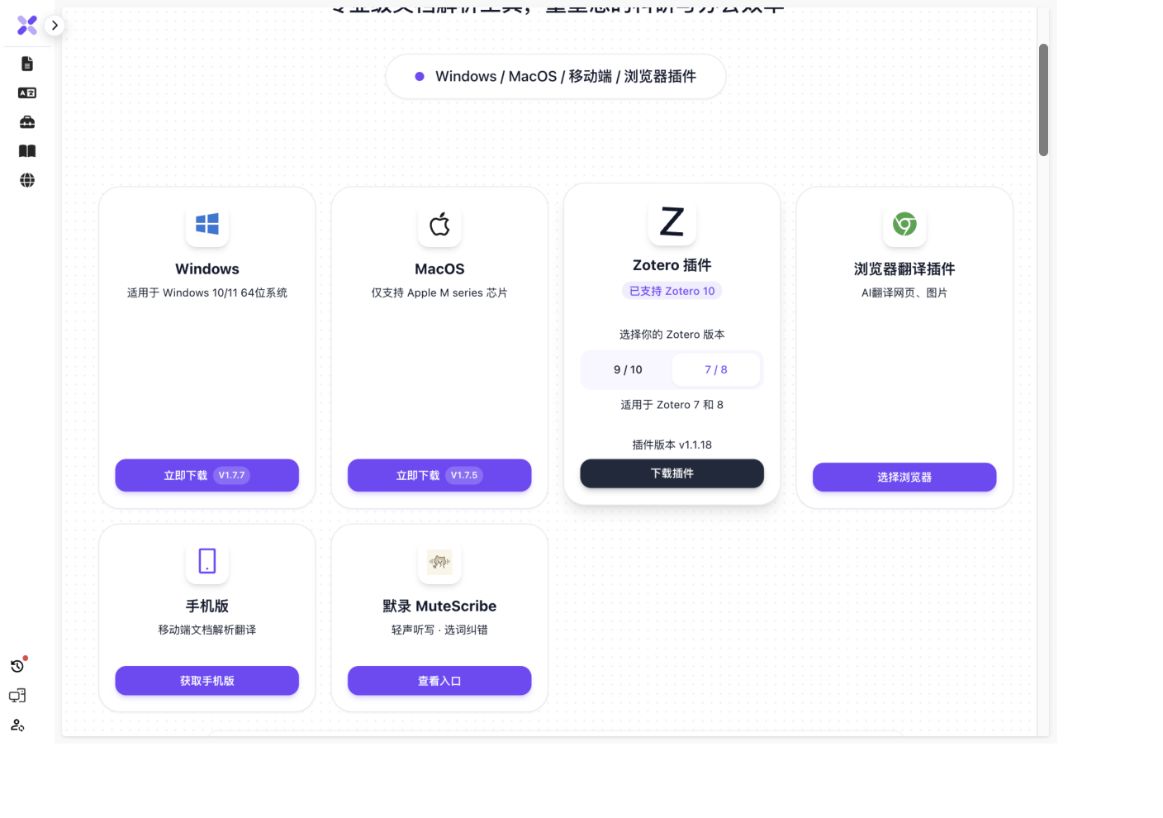
These screenshots and versions record the check on 2026-10-10. Both downloaded XPIs matched the SHA-256 of their respective official GitHub releases. The ranges come from manifest.json; Zotero was not installed or run during this check, so this is not runtime verification for every system or task. Use the live official page for current downloads.
The current English name is doc2x-ai-translate; version 1.1.12 and earlier used doc2x-parse. Choose by your Zotero major version rather than an old tutorial or filename. See the official 9/10 releases, official 7/8 releases, and download inspection record.
Keep the downloaded .xpi file intact. In Zotero, open Tools → Plugins, use the gear menu and Install Plugin From File, select the .xpi, and restart if prompted. Dragging the file into the plugin manager is another option.
Better Notes is no longer required. You may keep it if already installed. Use Windows 10/11; the Doc2X macOS desktop client currently targets Apple silicon.
Incompatible with Zotero 9.0.6
If you see doc2x-parse is incompatible with Zotero 9.0.6, confirm the major version in Zotero's About dialog and choose 9 / 10 on the official download page. The 7/8 branch declares a maximum of 8.*, so it is not the package for Zotero 9.0.6. The inspected 9/10 package's declared range includes 9.0.6.
Install the intact XPI in Zotero's plugin manager, restart if prompted, and check the Doc2X settings. If it still fails, report the Zotero, plugin and operating-system versions together with the complete error using the feedback section below. The Doc2X manifest does not establish compatibility for other plugins such as Better BibTeX or Zotero Connector.
Update an existing installation
Check for updates in Zotero's plugin manager, or install the matching .xpi from the website. If menus are missing or the plugin behaves incorrectly afterward, uninstall the old plugin, fully quit Zotero, reopen it, and install the correct package.
When moving from Zotero 7/8 to 9/10, switch to the 9/10 package. Keep the desktop client running and signed in. If authorization fails, separately check its version and connection using the desktop update guide.
2. Connect and configure

- Open the Doc2X desktop client, sign in, and keep it running on the same computer as Zotero.
- Open Zotero Settings → Doc2X. Settings is under Edit on Windows and Zotero on macOS.
- Click Get Token and verify the authorization status and available quota. Never share the Token in public screenshots.
- Select a model, target language, glossary, and output formats. Available models, membership requirements, and charges are shown in the current interface.
- Check I have completed the parsing and translation configuration before starting.
Output settings determine which notes and PDFs are saved. Enable the bilingual and layout-preserving outputs you need.
3. Translate one paper with Combine
The Chinese menu entry is PDF => 双语对照+排版翻译(Pro专属), meaning bilingual plus layout-preserving translation, Pro only. One task produces both types of reading results. Confirm that your account has the required Pro entitlement.
- Expand a paper's parent item and select its original PDF attachment.
- Right-click the PDF and open the Doc2X translation options submenu.
- Choose bilingual plus layout-preserving translation. If selecting from a parent with multiple PDFs, choose the intended attachment first.
- Wait for upload, parsing, translation, and saving to finish.

Operation diagram based on the actual menu. Placement can vary between Zotero versions.
What are the two result types?

- Bilingual notes: original and translated text for comparison. Text is translated rather than merely retained as the original. Original-only and translated-only notes can also be saved according to settings.
- Layout-preserving PDFs: a translated PDF preserving the original layout, with an optional side-by-side bilingual PDF according to your output settings.
“Two results” means two categories, not exactly two files. With relevant outputs enabled, a paper may produce three notes and two PDFs. Ignore options, recognition quality, and model behavior affect the contents; not every element is guaranteed to be translated.
Use the individual bilingual or layout-preserving menu if you need only one category. Use parsing when translation is unnecessary.
4. Translate multiple papers sequentially

- Expand paper items and select their original PDFs. Hold Ctrl on Windows or Command on macOS to select multiple attachments; Shift selects a range. Avoid selecting previously generated translated PDFs.
- Right-click and choose 批量双语对照+排版翻译 (batch bilingual plus layout-preserving translation). Individual bilingual and layout-preserving batch modes are also available.
- If selecting parent items, use 选择本次批量翻译的 PDF (choose PDFs for this batch), tick the intended files, and confirm the selection.
- Review the PDF count, filenames, and quota notice before confirming.
- Wait while the plugin completes one PDF before starting the next. Each paper's results return to its own parent item.
Each PDF creates a new task and consumes the applicable quota. The batch stops after the first failure. Choosing “stop batch translation after the current file” lets the current file finish and prevents subsequent files from starting.
5. Find your results
Expand the original paper's parent item:
- Open the bilingual, translated, or original MD notes to read their contents.
- Double-click the layout-preserving translated or bilingual PDF to open it in Zotero's reader.
- Supported result notes offer Doc2X: Preview Markdown and Doc2X: View on web. Combined tasks open the reading format associated with the selected result.
Filenames can include output type, language, and model. A batch does not put every result under the first paper.
6. Export an existing Doc2X result to Zotero
If a document is already processed in Doc2X, send the available result to an existing Zotero item without uploading the same PDF from Zotero again.
- On the same computer, start Zotero with the matching plugin and keep Doc2X desktop signed in.
- Open the parsing or translation result in Doc2X and click 导出 (Export).
- Select Zotero as the destination. Ordinary browsers or older desktop versions without this connection may not show it.
- Search in 请选择条目 (Select an item) and choose the correct literature item. If loading fails, click 重试 (Retry) and check that Zotero and its plugin are running.
- Click 导出到 Zotero (Export to Zotero) and wait for a success or error message.
- Return to the selected parent item, expand it and open the new note or PDF attachment to inspect the content.
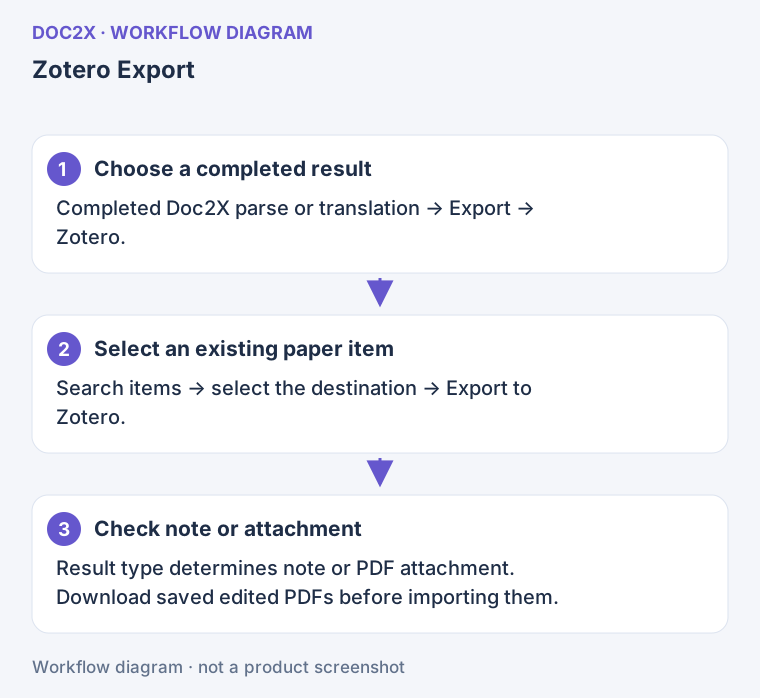
Diagram: Export an existing Doc2X result to a selected Zotero item; the result type determines whether it is a note or PDF attachment.
| Existing result | Current direct output |
|---|---|
| Parsing result | A content note under the item |
| Translation with comparison text | An item note; this note path is preferred when both result categories exist |
| Translation with only fixed-layout output | A PDF attachment |
| A PDF with saved edits | If the plugin cannot confirm the saved version, export the latest PDF first and manually attach it in Zotero |
This destination uses the running desktop/plugin connection. It is not an account added through the Notion/FlowUs-style Online Save Settings. Reconnect or restart the plugin and retry the item list after a connection error; do not create a new parsing/translation task merely because export failed.
Costs, failures, and repeat submissions
Parsing uses parsing pages; translation follows your model and account entitlements. Check the interface for current rules. Combine translation is not free translation, and batching does not waive per-file charges.
- Do not repeatedly click start while waiting. Starting the same PDF again in Zotero creates a new task and may consume pages and credits again.
- If parsing succeeded but translation failed, find the task in the Doc2X client and use the available Continue translation action, then export to Zotero. This avoids unnecessary repeat parsing.
- After a batch failure, identify completed files, resolve the failure, and select only unfinished files when resuming.
- Large documents and slower models can take time. Unchanged progress does not necessarily mean failure; inspect the task in the client. Start with a short PDF.
Frequently asked questions
How do I translate a full PDF with bilingual output?
Install the Doc2X plugin matching your Zotero version, sign in to the desktop client on the same computer, and configure the language, model and outputs. Right-click the original PDF attachment and choose a Doc2X translation option. Bilingual translation can save notes; layout-preserving translation can save a translated or side-by-side bilingual PDF according to settings. Check Pro access before choosing Combine, then inspect results under the original parent item.
Is full-paper translation free?
Installing a plugin and consuming processing services are separate. Parsing uses page quota, and translation costs depend on the model and account benefits. Combine requires Pro, and each PDF in a batch has its own usage. Check the current account prompt before starting; this guide does not promise unlimited free translation. Reuse completed results to avoid creating duplicate tasks.
The Combine or batch menu is missing
Check that you installed the latest package matching your Zotero version. Combine is Pro only. Batch menus require multiple eligible PDFs or parent items; notes, empty items, and single selections show different menus. Complete translation configuration first.
How do I choose between multiple PDFs under one item?
Right-click the intended attachment directly or explicitly choose it from the parent item's attachment selector. Review filenames again in the batch confirmation.
Get Token fails or the desktop client disconnects
Verify that the Doc2X client is running and signed in on the same computer. Restart both applications if needed, then obtain authorization again. An Open Platform API key is not the desktop Token used here.
Only one category of results appears
Check output settings, expand the parent item, and confirm the task has finished saving. Combine and standalone bilingual translation are different menu actions. Inspect the task before submitting it again.
Do I still need Better Notes as shown in the video?
No. Some steps in the older video are outdated. Follow this guide for current installation and menu instructions.
Feedback
Contact us with your Zotero version, plugin version, failure stage, and redacted screenshots. Do not share Tokens or sensitive account information.