
WebDAV: Back Up a Project as ZIP
WebDAV transfers start from a desktop project menu. The selected project materials are packaged into a ZIP and uploaded to your WebDAV space. This is one backup operation, not continuous folder monitoring or two-way sync.
Requirements
- A signed-in Doc2X desktop app with project-packaging support.
- A WebDAV-enabled account, server address and the app password required by your provider.
- Available parsing or translation results, with readable original PDFs and related resources.
Obtain the server address from the provider's settings. A browser file-sharing link is not a WebDAV endpoint.
1. Configure the server
- Open avatar → 账户管理 (Account management) → 转存设置 (Online Save Settings).
- Under 项目级备份 (Project backup), click 新增配置 (Add configuration).
- Fill in:
| Field | What to enter |
|---|---|
| 平台名称 (Platform name) | A recognizable name such as “Research drive”; use distinct names for multiple configurations |
| WebDAV服务器地址 (WebDAV server address) | The complete endpoint and required path supplied by the provider |
| 账号 (Account) | The WebDAV account or provider-specified username |
| 应用密码 (App password) | The application's password generated at the provider, as requested by the form |
- Click 保存 (Save). The client attempts to validate the connection. Resolve permission, directory or network errors; a completed form is not proof of a working connection.
- Return to the list and confirm the configuration is present. Use its edit action when changes are needed.
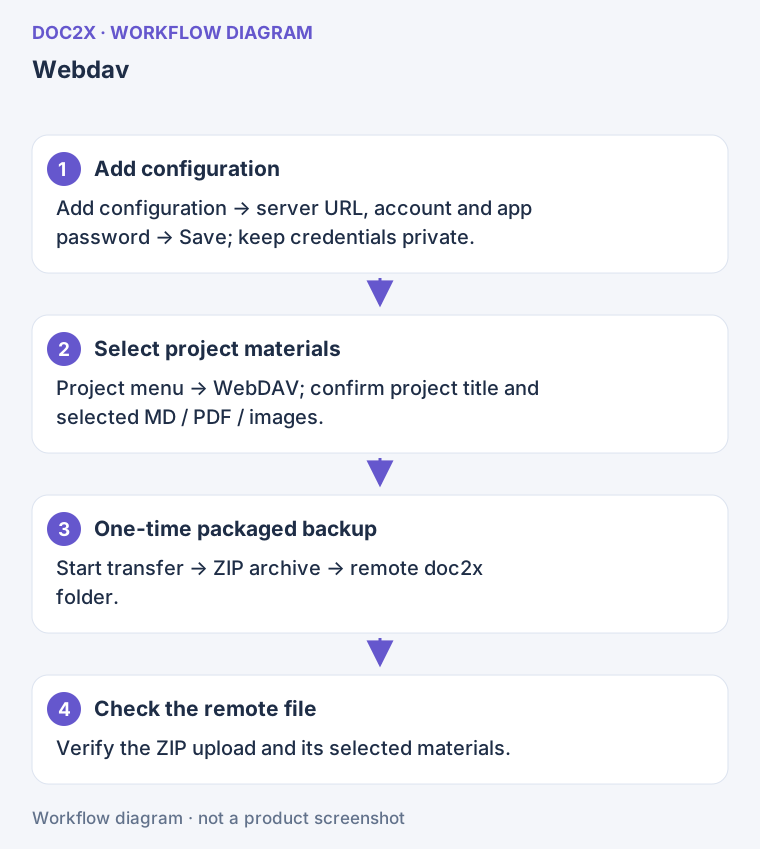
Diagram: WebDAV packages the selected project materials into a ZIP; check the file in the remote doc2x folder after upload.
Provider settings
Nutstore
Obtain the account, server address and app password from Nutstore's third-party application/WebDAV settings, then use them in the form above. Do not substitute a public sharing link for the server address.
Koofr
Find the WebDAV connection details in Koofr's account and app-password settings. Follow the requirements shown for your account and create a separate Doc2X configuration.
InfiniCLOUD
Check Apps Connection or the equivalent account section for your own server address and app password. Do not copy another account's regional server address or one from an old screenshot.
Other providers also need valid WebDAV connection details. If a private server or special network address is rejected, follow the error and confirm the supported endpoint requirements rather than resubmitting the same configuration repeatedly.
2. Select the project and files
- Return to 30天临时存储 (30-day temporary storage) and find the project.
- Open its menu → 转存第三方 (Transfer to a third party) → WebDAV. The single-Markdown-result dialog does not provide this project entry.
- Enter 项目标题 (Project title) and select the saved WebDAV configuration.
- In 文件列表 (File list), select 解析 Markdown (Parsed Markdown), PDF 原文 (Original PDF) and available translation results as needed.
- Check the offered original, translated, bilingual or PDF-layout choices. Selecting an option does not generate a missing translation.
- Review the title, configuration and scope, then click 开始转存 (Start transfer).
3. Verify the ZIP
Wait for downloading, image preparation, packaging and uploading to finish. In the destination WebDAV space, find the project's ZIP under doc2x.
Download or open the ZIP and inspect the original PDF, Markdown, translations and image resources. If a selected translation result cannot be retrieved, the operation may stop rather than upload an incomplete package. Resolve the missing source first.
Each operation includes only the selected content. Back up later translations separately. A same-name destination may be overwritten; use distinguishable project titles when retaining versions and check the resulting files in the drive.
Recovery
| Error or symptom | What to check |
|---|---|
| 401 / 403 or insufficient permission | Account, app password and directory write access; update the app password at the provider and edit the configuration if needed |
| 404 / missing directory | Endpoint and path; confirm it is not an ordinary webpage or share link |
| 405 / unsupported operation | Whether the service supports the required WebDAV folder and upload operations |
| Network or temporary server failure | Check service access and retry; avoid simultaneous copies of the same backup |
| Image/PDF download or packaging failure | Check source availability, resolve oversized resources as instructed, or update the desktop app |
| ZIP not found | Distinguish configuration-save success from project-upload success; check the selected configuration, doc2x directory and final task state |
Removing a WebDAV configuration in Doc2X removes that connection setup. Manage already uploaded ZIP files in the destination drive. Return to the transfer overview for other workflows.