
Doc2X MCP: Cherry Studio
Back: Doc2X MCP Guide
Cherry Studio is a GUI client. Setup is straightforward, but dependency installation and local file permissions are the most common failure points.
What You Need
- Node.js (LTS recommended) and
npx DOC2X_API_KEY(looks likeYOUR_DOC2X_API_KEY)- (Optional) other Doc2X MCP config (for example
DOC2X_BASE_URL/ timeouts / polling): see “Environment Variables” in the Doc2X MCP Guide - (Optional) if the network is unstable: a working proxy or npm registry mirror
Add MCP Configuration
In Cherry Studio, go to Settings → MCP Servers and configure doc2x-mcp:
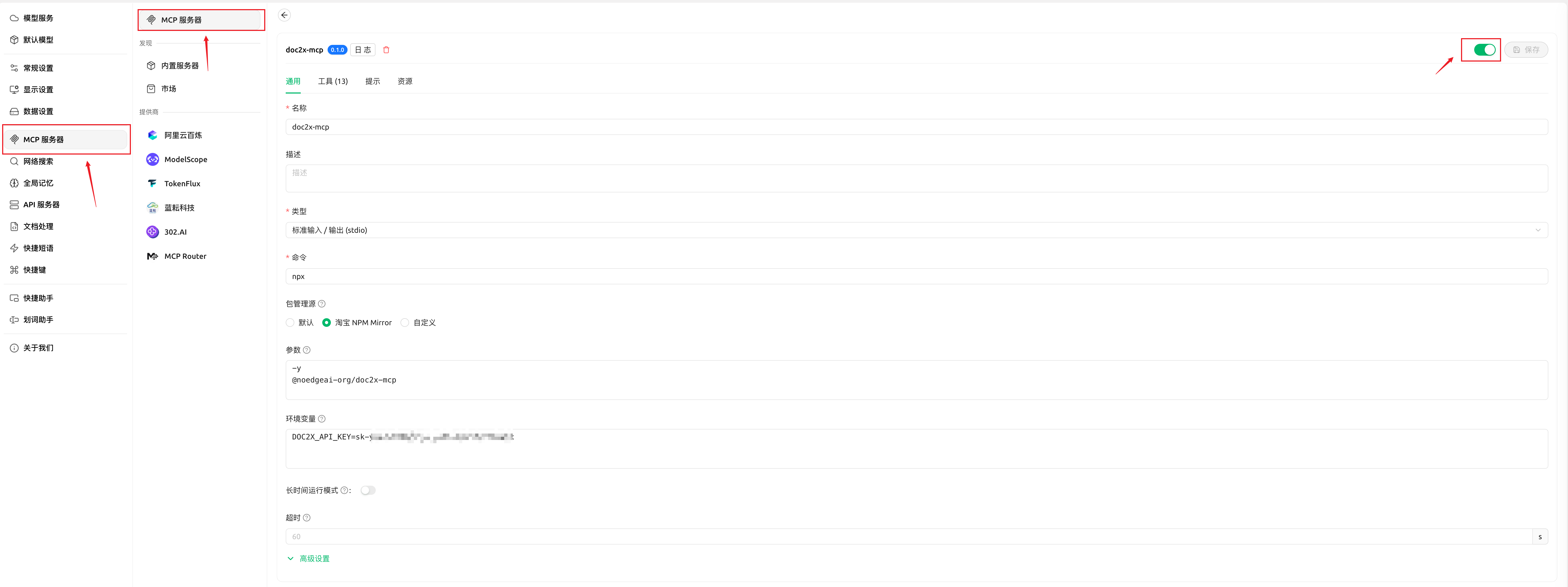
One generic example (fill the fields in Cherry Studio):
command:npxargs:-y @noedgeai-org/doc2x-mcp@0.1.5env:DOC2X_API_KEY=YOUR_DOC2X_API_KEY- (Optional) add other env vars like
DOC2X_BASE_URL=...; see “Environment Variables” in the Doc2X MCP Guide
- (Optional) add other env vars like
Check MCP
After saving the configuration, go back to Settings → MCP Servers:
- Ensure
doc2x-mcpis enabled - If there is a status/log entry, verify it started successfully (no errors)
Enable Local File Capability
Doc2X MCP can read a local pdf_path accessible to its process. @cherry/filesystem is an optional client helper for selecting/listing files, not a required API argument. Enable it only when needed and restrict its directory access:
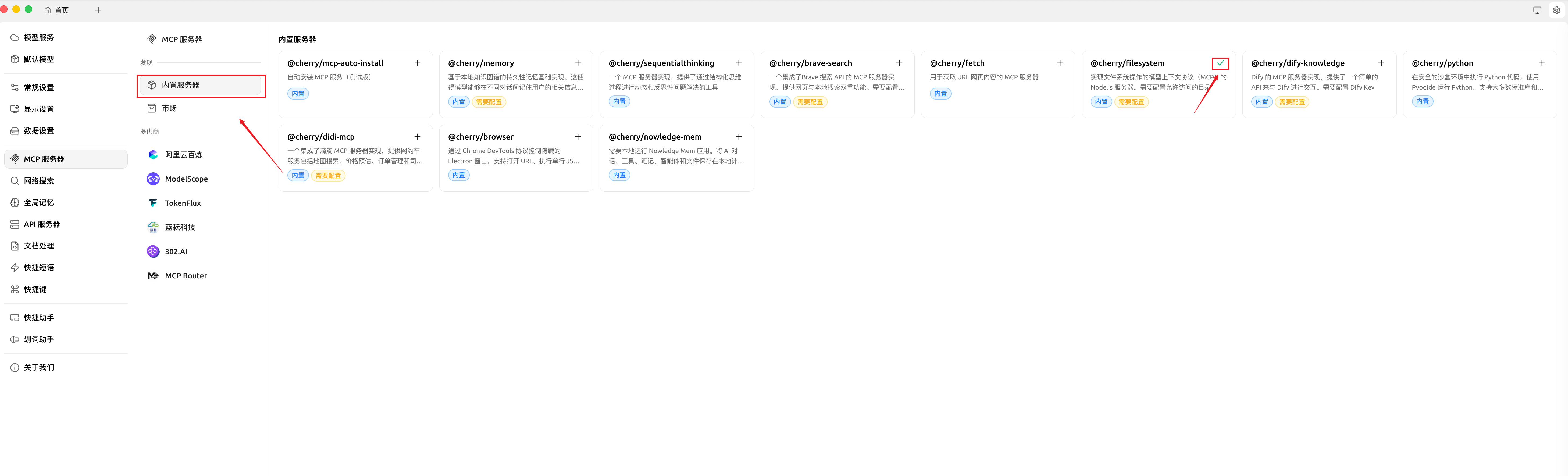
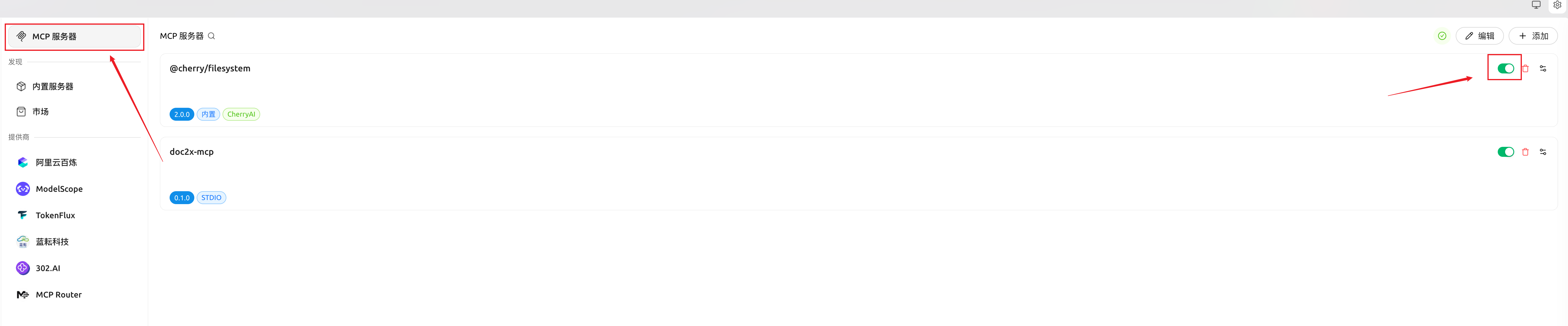
Note: you usually need to explicitly allow which directories Cherry Studio can access.
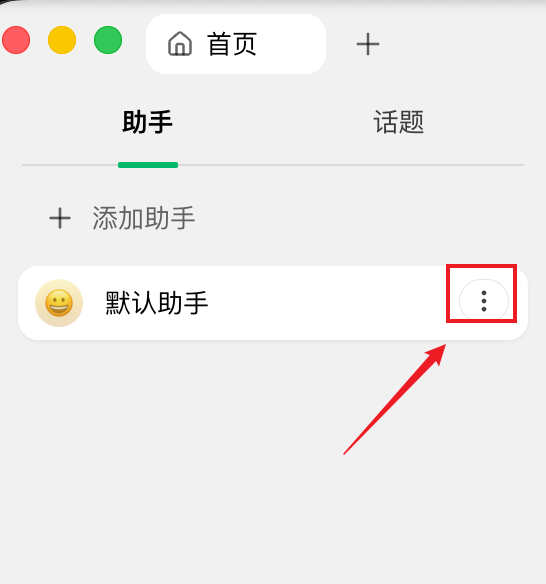
Enable doc2x-mcp in Chat
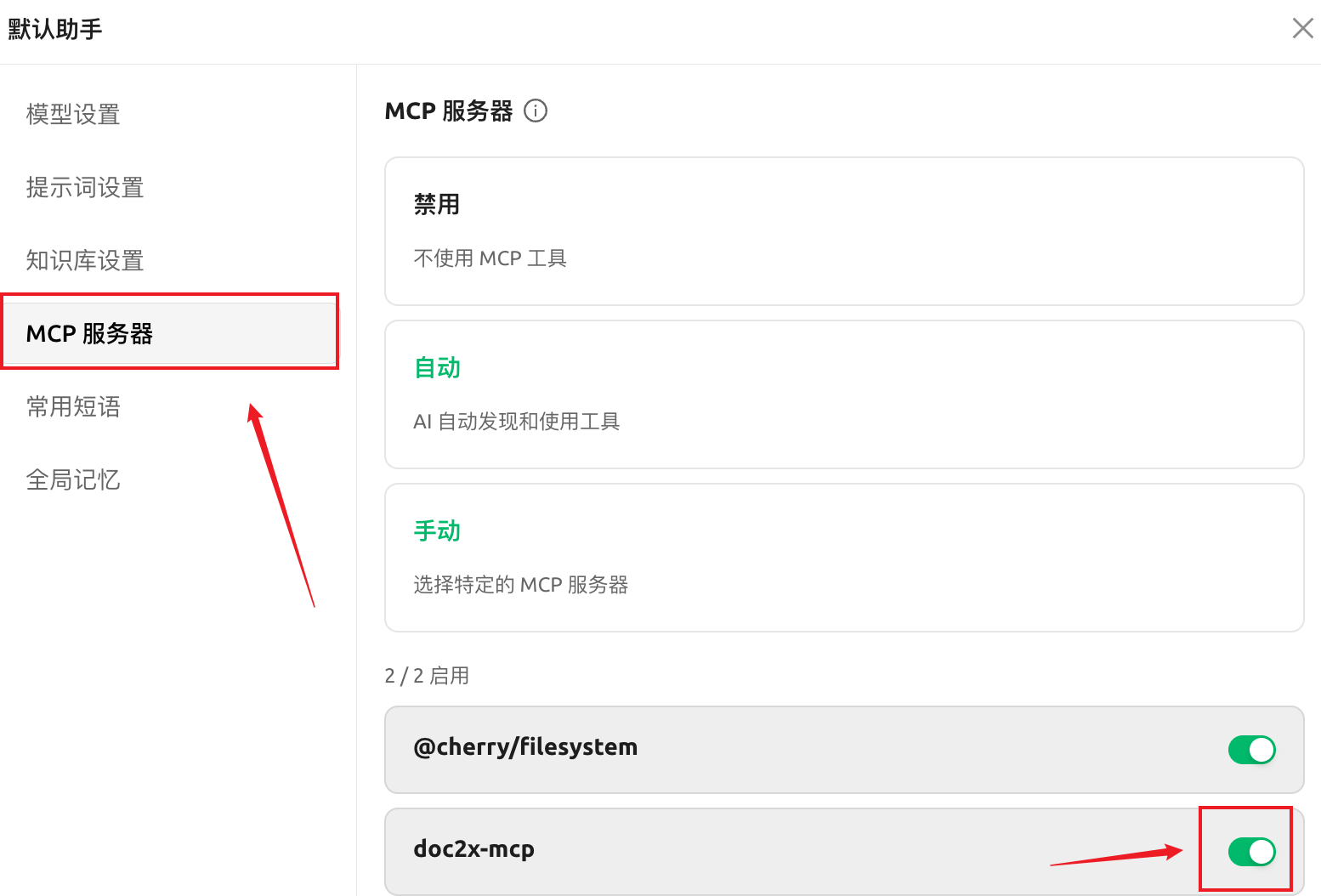
Use doc2x-mcp
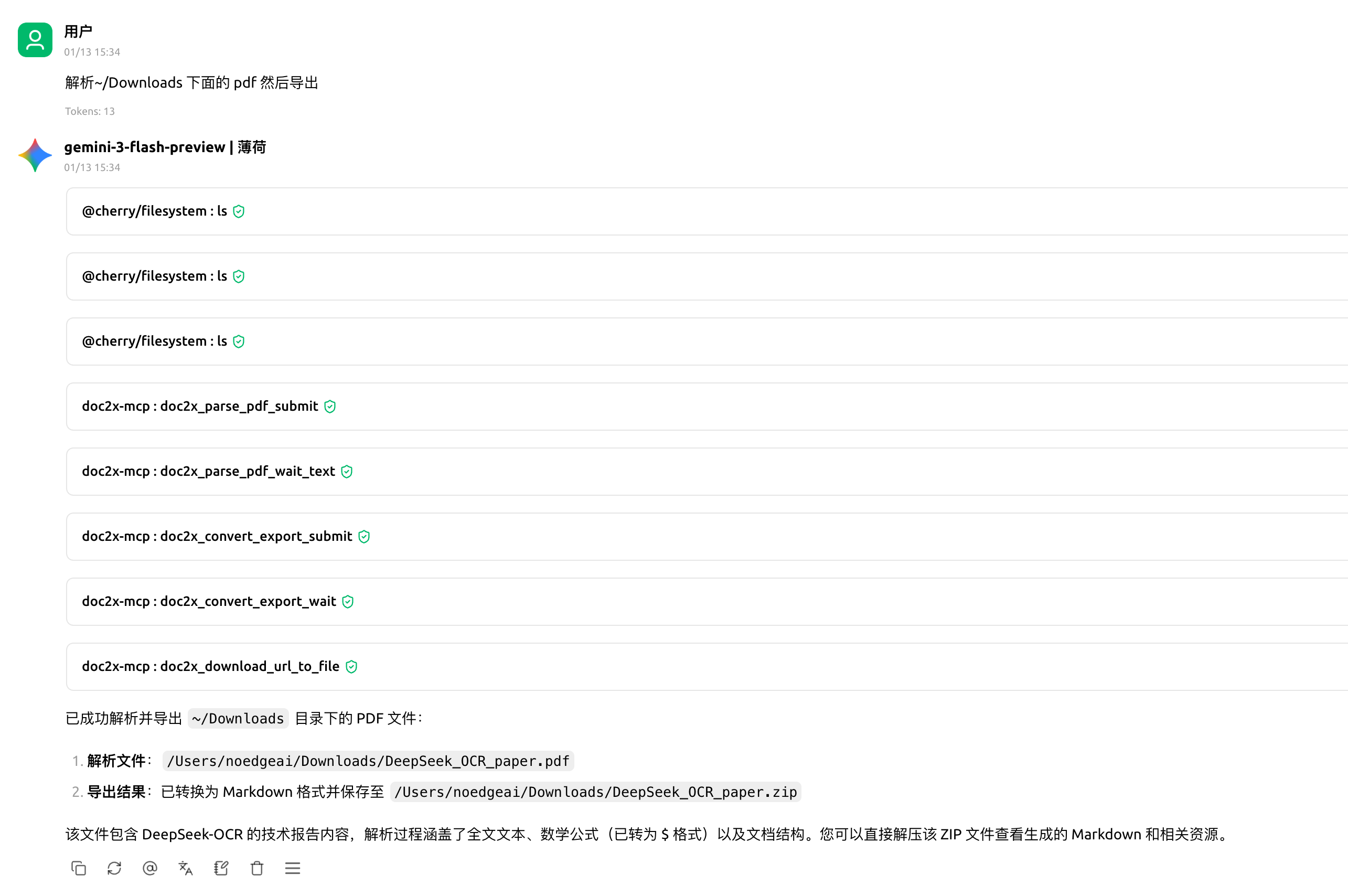
Start with a minimal flow:
- Enable
doc2x-mcpin the chat (as shown above) - Ask the model to parse a specific target file (for local files, ensure filesystem permissions cover the path)
Example prompts:
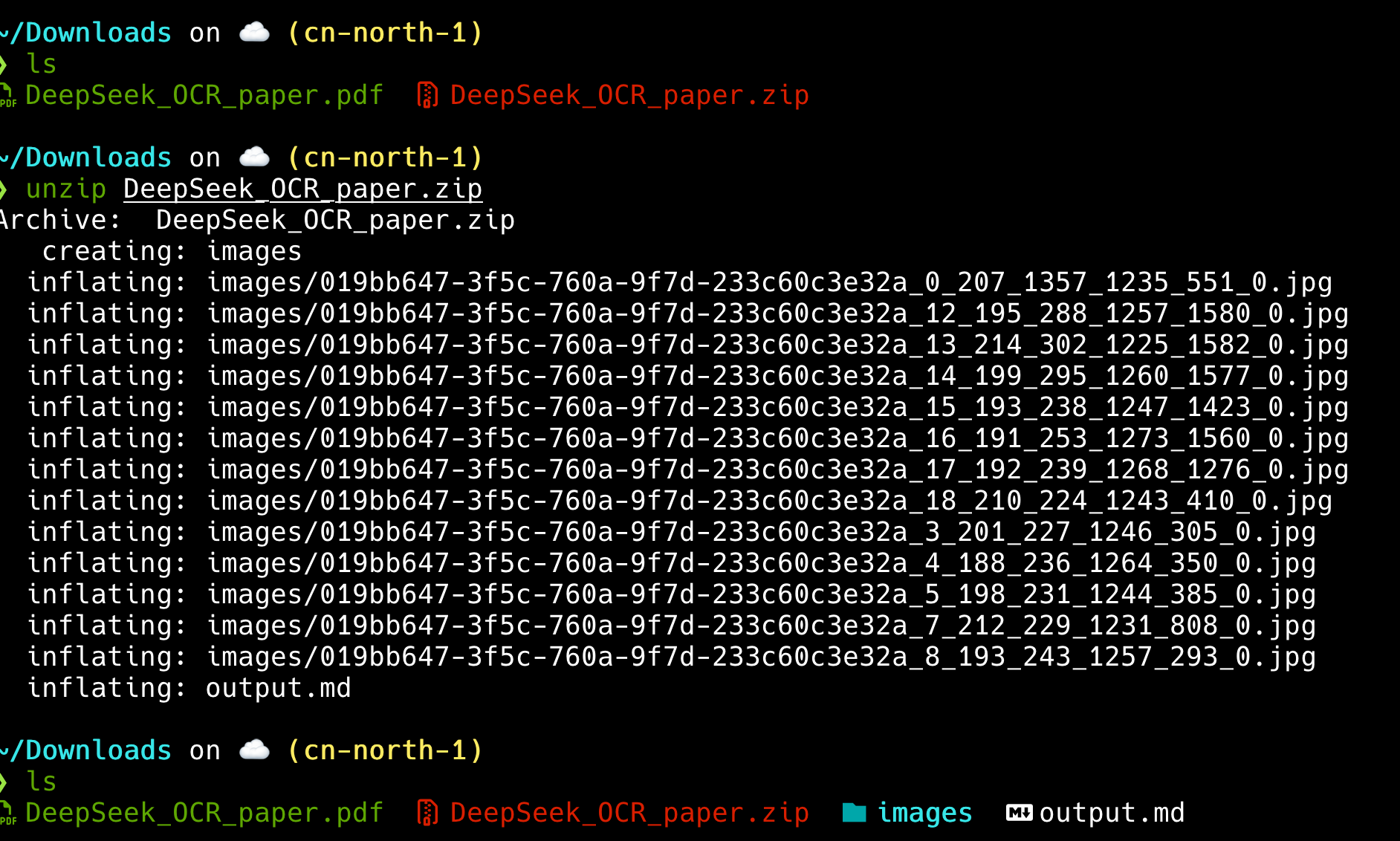
Use doc2x-mcp to parse the selected PDF and export it as Markdown.Use doc2x-mcp to parse this PDF and tell me where I can view/download the exported result.
Troubleshooting
- If installation fails, check network/proxy and consider switching npm registry (
npm_config_registry) and pinning a known-good version. - If local files can’t be read, ensure
@cherry/filesystemis enabled and the allowed directory scope includes your target files.
Version, paths, and completion checks
This page configures MCP 0.1.5. Existing screenshots illustrate client steps; labels may change with client versions. Use Node.js 18+ and obtain an API Key from the Open Platform. YOUR_DOC2X_API_KEY is a placeholder: keep the real value in private local configuration, not chat or version control.
After connection, confirm the tool list includes doc2x_parse_pdf_submit and export/download tools. Supply an absolute input path and output directory, authorize one submission, retain uid, and wait for parsing success before export. Follow the complete tool sequence and prompt.
Ask for actual saved paths, then open the result and check images, formulas, and page order. A progress screenshot is not export-success evidence. On timeout query the original uid. Input paths must be readable on the MCP host and the output directory writable. Real parsing consumes platform quota; a connected server alone is not task authorization.