
Desktop Transfers: Choose the Right Entry
A transfer sends the results currently available to the selected service. Later edits, new translations and new files are not continuously synchronized. Check the source content and destination each time.
Before you start
Use the signed-in Doc2X desktop app and complete the parsing or translation task first. Open the avatar menu → 账户管理 (Account management) → 转存设置 (Online Save Settings) to connect a service. Then return to the relevant result or project menu to transfer content.
Choose by source
| Source | Start here | Destinations | Where to check success |
|---|---|---|---|
| One parsing result or available comparison-translation text result | Result menu → 转存第三方 (Transfer to a third party) | Notion, FlowUs | A newly created page in the service |
| Multiple existing text results | 多选操作文件 → 多选文件 → 批量转存 | Notion, FlowUs | The pages created for each file |
| Parsing, original PDF and available translations in one project | Project menu in 30天临时存储 → 转存第三方 | WebDAV, NotebookLM | A ZIP in WebDAV, or sources in a NotebookLM notebook |
| Keep cloud results on this computer | Project menu → 导入到本地 (Import locally) | Permanent local storage | Local records and the disk folder |
| Send an existing result to a literature item | Result 导出 (Export) → Zotero | A connected Zotero item | A note or PDF attachment |
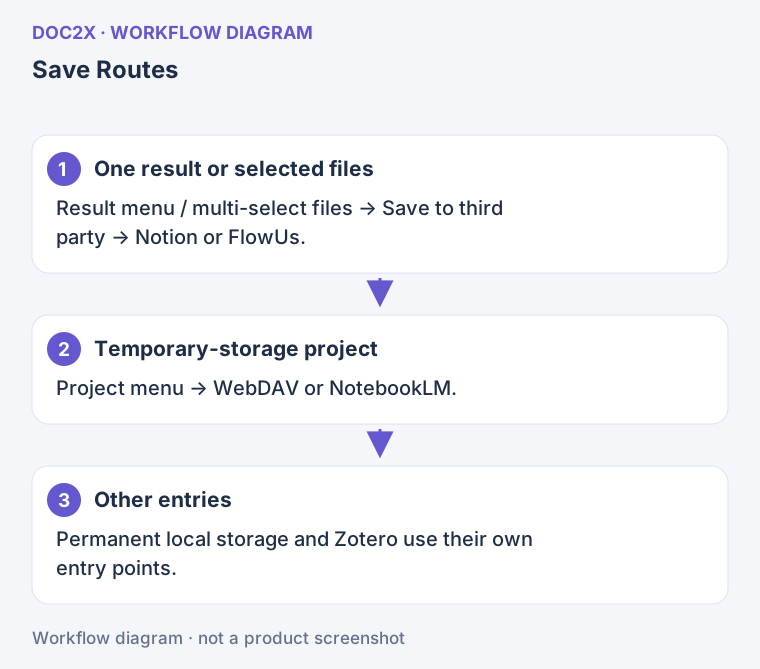
Diagram: Choose an entry by source: result content goes to Notion/FlowUs; project materials go to WebDAV/NotebookLM.
If WebDAV or NotebookLM is missing from a single-result dialog, return to the project menu. The project dialog does not list Notion or FlowUs. Use the desktop app if the browser does not show these desktop transfer entries.
Complete one transfer
- Check the source: make sure parsing or translation has finished and select the intended result. Wait for a busy project to become ready.
- Connect the destination: on first use, click 去配置 (Configure) and complete authorization or WebDAV setup in Online Save Settings.
- Return to the source: reopen Transfer to a third party and confirm the platform and authorization state.
- Check the scope: document transfers use a 页面标题 (Page title) and, for translations, 导出内容 (Export content). Project transfers use a 项目标题 (Project title), destination and 文件列表 (File list).
- Start the transfer: monitor its progress and item results. Do not switch Doc2X accounts while it is running.
- Inspect the destination: check the page text, tables, images or project files before organizing them further.
Destination guides
- Notion: authorization and content pages
- FlowUs: authorization, API permission and transfer
- WebDAV: project ZIP backups
- NotebookLM: project materials in a notebook
- Batch transfer of existing results
- Local archives and Markdown files
- Zotero plugin and result export
Connection and storage boundaries
Authorization means the desktop app has connection information. Third-party eligibility, page access, capacity and network restrictions still apply. A Doc2X membership does not provide the other service's authorization or subscription.
Notion and FlowUs create content pages; WebDAV packages the materials selected for that operation; NotebookLM imports research sources. Keep original files separately when you need a backup. Download the originals and results, or complete a permanent local import.
For partial success, already transferred or authorization failures, see transfer troubleshooting before retrying, to avoid creating duplicate content.