
Account, Membership and Usage Checks
This guide covers sign-in, account recovery entries, membership/quota checks and what to inspect when a payment or task outcome is unclear. Current account pages determine available membership and prices; this tutorial does not replace the terms shown at purchase.
1. Sign in to the right account
- Open the Doc2X workspace and click 登录 (Sign in) at the bottom of the sidebar, or open the sign-in dialog from a feature prompt.
- Choose 验证码登录 (Code sign-in), enter a supported +86 phone number, receive and enter the code, then sign in. Use 密码登录 (Password sign-in) if you have a password.
- Where the wide-screen interface offers WeChat QR sign-in, scan with WeChat. First-time WeChat sign-in may still require phone verification.
- Open avatar → 账户管理 (Account management) → 我的账户 (My account), and check the phone number, username and membership.
- To continue web/desktop history, use the same account on both.
If you forgot a password, use code sign-in first, then reset it below. An external application's authorization page may offer only phone sign-in to preserve its pending request; follow that page rather than starting a separate flow that loses the request.
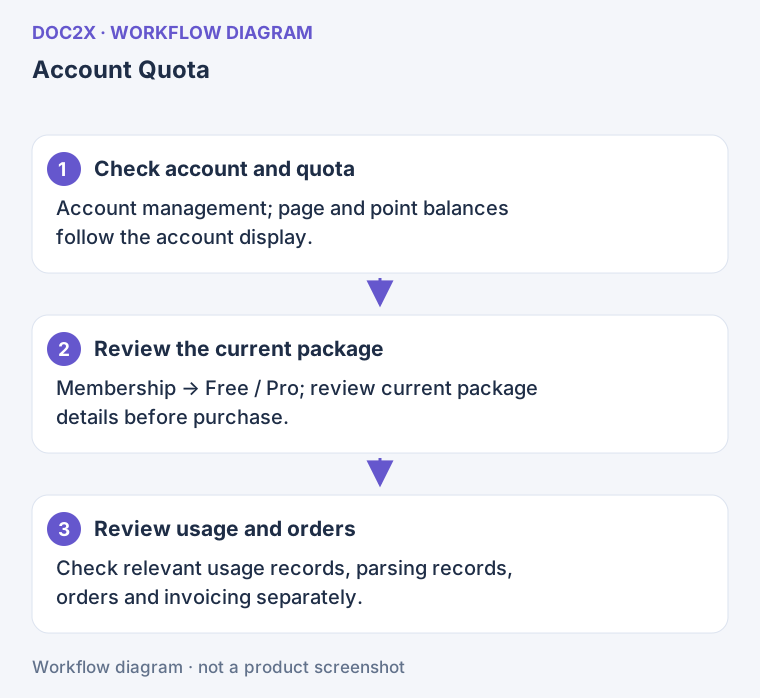
Diagram: Check account, quota and records separately: review the package before purchase and the relevant usage record afterward.
2. Profile and connections
View the profile in Account management → My account. Displayed phone, username and registration fields are not general editable profile fields.
Change the phone number
- Click 更换手机号 (Change phone) and check eligibility.
- Verify the old number as instructed.
- Enter the new +86 number and its verification code, check the number and submit.
- Confirm the updated number in My account. Follow frequency or eligibility errors rather than repeatedly submitting.
Link or unlink WeChat
Use 绑定微信 (Link WeChat) or 解绑微信 (Unlink WeChat) and complete the confirmation. Check the resulting state so that future scans access the intended Doc2X account. Any binding reward is determined by the current account result.
Redeem a code
Enter an acquired code under 使用兑换码 (Use redemption code), then click the redeem button. After success, inspect membership and quota. Invalid, used and restricted-code messages require different handling; entering text does not itself grant benefits.
3. Reset a password
- Sign in with a verification code, then open Account management → 重置密码 (Reset password).
- Enter the phone number and obtain a verification code.
- Enter and confirm the new password. The current form requires 8–24 characters with uppercase letters, lowercase letters and digits; follow its allowed special-character list.
- Confirm 密码重置成功 (Password reset succeeded), then use the new password when needed.
If a code does not arrive, check the number and SMS reception, then wait for the countdown or rate-limit prompt before trying again. Do not share verification codes.
4. Membership and current packages
- Inspect the sidebar's Free / Pro balance card: parsing quota, advanced points and validity are separate fields.
- Open avatar → 会员服务 (Membership services), or the membership page.
- Compare the currently displayed duration, quota and conditions, then select the package or add-on you need. Accounts may see different catalogues.
- In payment confirmation, recheck product, price, payment method and any required service notice. Confirm again if the price changes.
- If you decide to buy, use the offered Alipay, WeChat or other currently available method.
- Return to Doc2X, check refreshed membership/quota and verify the order under 订单与开票 (Orders & invoices).
This page does not promise fixed package prices, perpetual free allowances or a trial count shared by every account. Read the current linked terms for special membership packages.
Upgrade to lifetime membership with previous-member credit
The 老会员升级终身会员 (Previous-member lifetime upgrade) card appears in My account only when the server has enabled the credit rules, returns eligible credit for the current account, and a lifetime offer is on sale. If the card is absent, do not calculate a promised credit from old orders alone. Check the account and current membership page, then contact support if needed.
- Under Account management → My account, review the card's historical membership purchase count, paid total, available credit and amount due. Click 补差价升级 (Upgrade by paying the difference) to open Membership services. You can also inspect the lifetime card there directly or follow an available upgrade prompt.
- Check the offer and eligibility. The current credit notice covers membership packages paid through WeChat or Alipay before October 4, 2026, 00:00 Beijing time, using the actual amount paid for eligible orders. Add-ons, redemption codes, gifted memberships, refunded orders and orders with a refund in progress are excluded. Credit is capped at CNY998, and at least CNY1 must remain payable, so the current price also limits the applied credit. Follow the current account result and purchase notice for eligibility and amounts.
- Click 补差价升级终身会员 (Upgrade to lifetime by paying the difference). Read the displayed lifetime service notice, including validity, reserves, credit and refund conditions. If proceeding, select 我已阅读并同意以上说明 (I have read and agree to the notice), then click 同意并付款 (Agree and pay). If the notice has changed, use 刷新页面 (Refresh page), then read and confirm again.
- Recheck the total price, previous-member credit and amount due in the payment dialog. Displayed credit does not complete payment. The amount charged is determined when the order is created; the WeChat QR dialog displays that order amount when supplied by the server. Check the final amount in the payment app before paying.
- After success, return to Membership services and inspect 本周额度 (Weekly quota) and 储备 (Reserves) separately. The upgrade notice says existing pages and points remain as reserves, valid long term and used automatically after weekly quota runs out. Unused weekly quota does not roll over. Verify the credited account state and the notice accepted at purchase.
If the dialog says 暂时无法确认最新商品信息,尚未下单 (Unable to confirm current product information; no order placed), click 重新获取 (Fetch again). For 商品价格或权益已更新,请确认当前信息 (Price or benefits updated; confirm current information), review the changes and click 确认更新后的套餐 (Confirm updated package). After a payment request error, check the payment result below before retrying or choosing another method. Repeated payment clicks are not a way to verify credit.
When payment status is unclear
Keep the message and inspect Orders & invoices and the balance. If paid but not yet refreshed, avoid paying again immediately. Confirm the same account and product, and contact support with the order reference. Account switching during payment can interrupt the flow; return to the original account to check.
Use Membership services for personal web/desktop purchases. API 开放平台(开发者) (API platform for developers) is a separate product entry, not personal membership top-up.
5. Free quota and points exchange
Check in
- Open avatar → 免费额度 (Free quota), shown as 已签到 (Checked in) after today's check-in.
- Review today's state, conditions and monthly count.
- Complete the current-day check-in and verify the balance after success.
The page may not open automatically each time; it remains available manually. Follow its displayed date, count and result, and do not resubmit an already claimed check-in.
Exchange for parsing pages
Under Membership services → Points exchange, enter pages, check the required points and click 兑换解析页数 (Exchange for parsing pages). 补充积分后兑换 (Add points before exchanging) opens the relevant offer and is not a completed exchange. See the points guide.
6. Task usage and orders
| What to check | Entry | How to inspect it |
|---|---|---|
| Parsing tasks and usage | Avatar → 解析记录 (Parsing records) | Compare time, state and result; scroll for older records |
| Translation usage | Usage page → 翻译记录 (Translation records) | Check the task/model and available result |
| AI calls or image-related usage | Usage page → AI 消费 (AI usage) | Use the offered categories, task details and pagination |
| Purchase status | Avatar → 订单与开票 (Orders & invoices) | Check amount, method and state; adjust the date range for older orders |
| Invoices | Invoice list in Orders & invoices | Check application state; open the download link when complete |
Orders are separate from processing tasks. Parsing/translation records do not provide a general billing-export button; do not look for an entry that is not offered.
Request an invoice when needed
Select eligible orders, open the invoice form, and enter its requested invoice type, company name, tax number, email and other fields. Review before submitting. Track the request in the invoice list and download when complete.
Read states and prompts for unselectable orders; do not purchase again to change invoice status. For refunds and eligibility, consult the existing refund policy and the corresponding order-page entry.
Inspect historical rebate statistics
- Open avatar → Account management → Rebate overview. This entry retains historical summaries; invitation promotion and reward rules have been removed.
- Select today, 7/14/30/60/90/180 days or 1/2 years.
- Compare registrations, rebate count, remaining gold coupons and total gold coupons for the period. Changing periods requests fresh data; default zero values during a failed request do not establish a confirmed balance.
- Use Contact customer service for questions about historical amounts. Redeem membership opens the current membership page; inspect its conditions before deciding.
This page has no invitation-code generation, withdrawal, itemized rebate history or export control. Historical statistics do not establish that new invitation campaigns are open; old reward rules cannot predict new earnings.
7. Caches, sign-out and account closure
Clear local caches
My account → 清除本地缓存 (Clear local caches) lets you select caches such as Markdown editing, reading, export preferences, whiteboards and PPT projects. Save important documents first and inspect the selected categories. Cleanup cannot be undone and does not delete cloud history or the entire permanent archive folder.
Sign out or switch accounts
Use 退出登录 (Sign out) in the avatar menu and confirm. Other tabs may report a changed session; sign in or refresh as instructed. Save edits and check queues/transfers before switching accounts.
Close an account
Use the entry in My account only when you intend to close it. Read the current notice, complete phone verification and the final confirmation. If sign-in offers cancellation of a pending closure, follow that page's verification flow. This tutorial does not redefine closure periods, data handling or refund rules; follow the notice displayed at the time.
8. Save a screenshot shortcut and check permission
- In the desktop client, open avatar → Account management → Screenshot shortcut. The web settings menu does not expose this desktop entry.
- Click Start recording. On macOS the client checks and, if needed, requests screen capture permission. Follow the system prompt; the recording modal can still open after a failed permission check, so its presence does not confirm permission.
- In Set shortcut, hold a modifier (Ctrl/Alt/Shift/⌘) and a regular key, then release and inspect the displayed combination. A single F function key is also valid. Save is disabled for modifiers alone.
- Click Save and check the saved combination on the settings page. Cancel or Esc closes recording without saving the new combination.
- Trigger the combination in the client and verify that capture starts. See the desktop capture guide for the capture workflow. A displayed combination does not guarantee successful system registration or screen access.
If nothing happens, save a combination that does not conflict with the system or another app, then test again. If macOS permission was denied, follow the system screen capture permission prompt to allow Doc2X and reopen the client if instructed. Repeated shortcut recording does not restore permissions; clearing account cache does not grant screen capture permission.
If a discrepancy remains
Contact support with the web/desktop environment, time, task/order reference, message and checks already performed. Hide phone numbers, verification codes, tokens and payment credentials in screenshots.