
Teaching materials: edit handouts, reuse templates and save outputs
A teaching material combines questions, sections, explanatory text and knowledge cards in an editable document. One body of content can serve as a student handout, exam / practice paper or question-by-question lesson. This guide uses a self-written “Triangles classroom practice.” For importing, reviewing and selecting questions, see the teacher question-bank guide. Labels below match the Chinese interface.
Step 1: Check the space and open or create a material
Sign in to the teacher question-bank website, check the current space, and open 教学材料. Search existing materials with 搜索材料标题或正文, then open a card. Materials created by importing, paper composition or templates can be continued here.
To create one:
- Select 新建教学材料.
- Enter 材料标题, such as “Triangles classroom practice.”
- Choose 知识讲义, 试卷, 逐题授课 or 空白材料 under 起始模板.
- Select 创建并打开.
The knowledge-handout starter provides sections for learning objectives, prerequisites, concepts and conditions, methods and common mistakes, worked examples, differentiated practice and a summary. A blank material starts empty. To use a saved template, select 从模板新建, search and preview the structure, enter a title, then choose 用此模板创建. Fill question placeholders before outputting or teaching from the material.
Creating, copying and editing require editing permission in the current space. If creation is awaiting confirmation, continue the original operation to recover the same material instead of repeatedly creating new ones.
Step 2: Organize sections, explanations and questions
The editor has a section outline and insertion controls on the left, content in the center and 输出设置 on the right. Set 插入位置 to the end or a target section before adding questions, explanations or knowledge cards.
| Control | Purpose |
|---|---|
| 添加章节 | Add a heading, choose level 1–6, and move it up or down |
| 添加知识讲解 | Write objectives, concepts, methods or a summary; change 文本类型 between body, explanation and heading |
| 从题库选题 | Insert reviewed questions, including selections from an existing question basket |
| 新建题目并入库 | Save a new question into the library and use it in this material |
| 插入知识卡 | Insert a saved knowledge card, optionally with its linked examples and explanations |
| 上移 / 下移、移除内容 | Reorder or remove a content block; grouped-question actions affect the group |
| 复制样式 / 粘贴样式 | Reuse formatting across blocks |
For formulas in explanatory text, focus the insertion position before using the formula tools. Put preparation notes in a text block and enable 仅教师可见. Check the student preview before distribution. For student fill-in explanations, enable 学生填空版, edit the version with blanks and set note-taking space. Recheck that version whenever the complete explanation changes.
Question references display 固定版本 N. 改编另存为新题 creates an adapted question while preserving the original; 编辑题库原题 changes the library original. Use 检查原题更新 when you want a newer question version, or 检查知识卡更新 for a knowledge card. Editing an original does not automatically change the version used in a material.
Expand 查看答案与解析 to review answers. In handout mode, each question can follow the material's answer setting or use 练习 · 隐藏答案, 例题 · 题后解析, or 答案册集中列出. Multiple-choice options can use automatic layout or one, two or four options per row.
When original-paper scores need confirmation, enter the correct points per question or use 一键设分值 / 设分值, then save. Unconfirmed points should not be treated as a checked exam total.
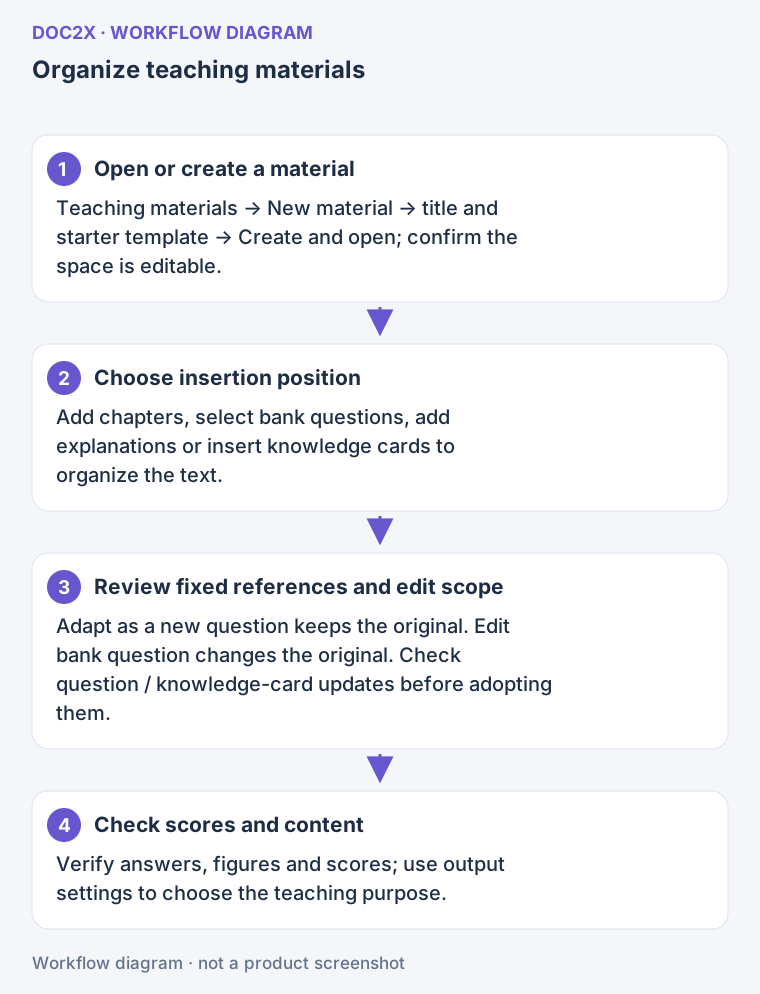
Workflow illustration: choose an insertion position, then combine sections, questions, explanations and knowledge cards using fixed revisions.
Step 3: Set the intended output
The three 教学用途 choices keep separate output settings while sharing the same content:
| Purpose | Check before use |
|---|---|
| 学生讲义 (Student handout) | Worked-example explanations, hidden practice answers and student fill-in text |
| 考试 / 练习卷 (Exam / practice) | Question order, points, hidden answers, cover information, student fields and columns |
| 逐题授课 (Question-by-question teaching) | Complete explanations, answer-reveal sequence and whether teacher content should be shown |
Check 阅读对象 (student / teacher), 题号规则 (continuous, restart by section, or source numbering), 答案位置 (hidden, after each question, or answer booklet), 纸张 (A4 / A3), and 分栏 (one / two). Set the outline, source display, one-question-per-page option and subtitle as needed.
知识讲解 → 学生填空版 applies to student output. Teacher output and question-by-question teaching retain complete explanations. The 教师备注 switch appears only for teacher output; enable it only when those notes belong in that output.
For formal papers, open 试卷版式. Choose a preset, then adjust cover information, school and exam names, date and duration, total score, student fields, instructions, score table, headers, footers, page numbers, watermarks, binding margin or seal line. Observe the 所有格式 and 打印 / Word markers: individual layout features support different output formats. Check the final output preview as well as the layout illustration.
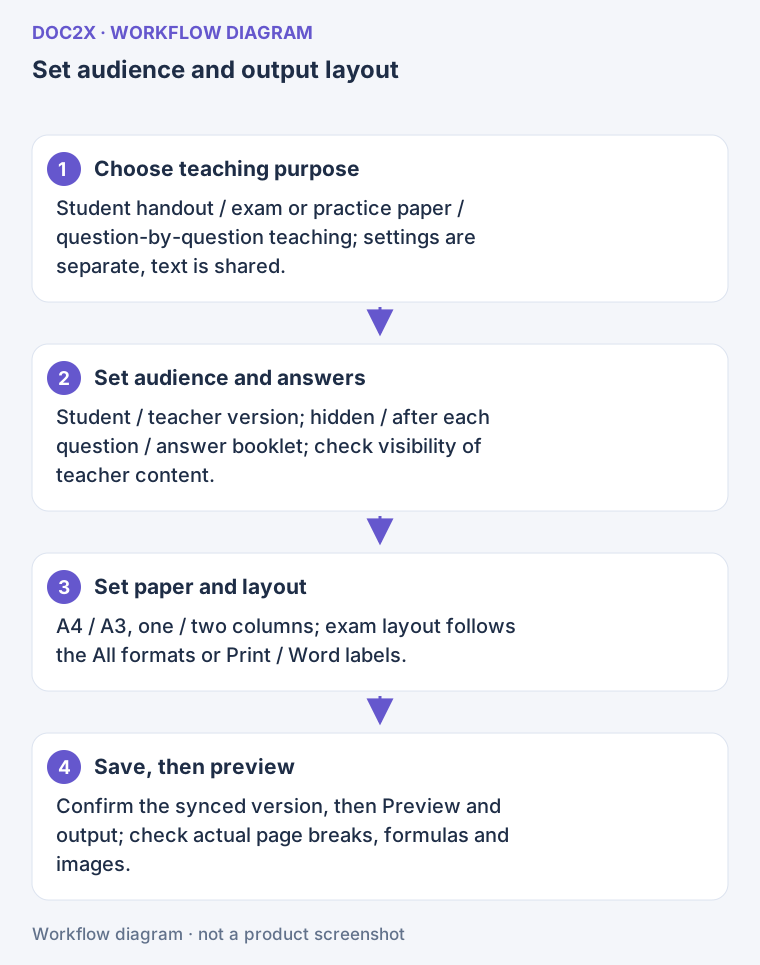
Workflow illustration: one body keeps separate settings for three teaching purposes; check audience, answers and layout, then save and preview.
Step 4: Save and handle synchronization or history
The editor displays synchronization status and provides 保存. At the end of an edit, save and wait for 本机有未同步修改 to become 已同步 · 版本 N before using 预览与输出 or 开讲. A local draft is recovery content on that device, not confirmation of a saved space version.
If the status is 等待合并, choose 合并修改. Edits in different locations have been merged automatically. For each conflicting location, choose 保留我的修改 or 保留协作者的修改, then 应用合并. Review the result, save and confirm the new version before outputting.
For 连接中断 · 草稿保留 or 保存未完成 · 草稿保留, keep the page and content, restore connectivity, and confirm the save. For 访问权限已变化, restore the appropriate permission and refresh to recheck access. An unavailable output button does not mean the file was lost.
Select 历史 to open 保存历史 and inspect a version, including the question and knowledge-card versions it referenced. Restoring an older version creates a new revision while preserving history. Previously published materials and QR codes do not update automatically.
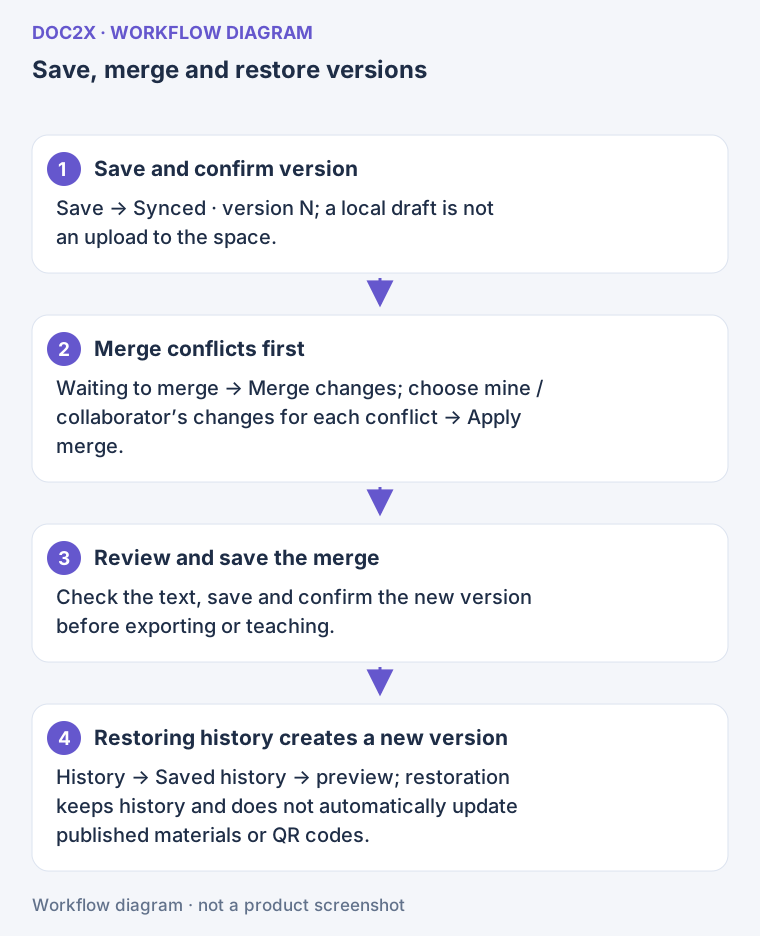
Workflow illustration: local drafts and cloud revisions differ; merge conflicting edits field by field, while history restoration creates a new revision.
Step 5: Preview, output or use the material with students
- Save and confirm the revision, then choose 预览与输出.
- Check the title, numbering, answers, formulas, images, pagination and audience.
- Select 导出文件, a format, and 教学用途. Formats include Word native equations, WPS, Word MathType, EE, PDF / print, HTML, structured data, offline classroom HTML and teaching PPTX.
- Use 开始导出 for ordinary files. For PDF, choose 打开打印 / PDF, then print or save as PDF in the system dialog.
- Server-converted files can be downloaded again under 最近导出 for the displayed 24-hour retention period. Save needed downloads in your own folder.
To change answer placement, paper size or layout, return to the editor, save, and export again. Word and related formats follow the Doc2X export entitlement and billing information displayed in the interface. To export selected questions without editing a material, use the question-bank export workflow.
Offline classroom HTML and teaching PPTX use the saved question-by-question teaching settings. PPTX equations are SVG images, not native editable Office equations. PPTX is generated in the browser and does not use the server's 24-hour recent-export record. This output does not open an online slide editor; the main site's teaching PPT workspace is a separate workflow.
Use 开讲 to present, or choose the saved material under 答疑发布 / 练习与批改 to distribute student links. See classroom and student workflows. A publication uses a fixed saved version; later material edits do not automatically alter it.
Step 6: Reuse materials and templates
In the material list, select 复制为新材料, enter a new title, and, if sections exist, optionally select 只复制所选章节. Choose the sections and 复制并打开. This creates an independent version for another class.
The editor's 应用模板 applies paper size, answer placement, layout and default block styles while keeping the body content. Use 撤销 to undo it. 从模板新建 instead creates a new material.
To reuse a structure, save the material and choose 保存为模板. Enter a name and purpose, choose private or current-space visibility, optionally retain explanation text and images, then save. Questions become placeholders. See collaboration and templates for community sharing, favorites and member permissions.
Troubleshooting
| Situation | Next step |
|---|---|
| Preview, export or presentation is unavailable | Save first; check synchronization conflicts, permissions, placeholders and unconfirmed points |
| The library question changed but the material did not | Check original-question updates, review the newer reference and save |
| An insertion section or template slot changed | A collaborator may have changed the structure; select the current location again |
| A new question was saved but did not replace the reference | Check material permissions and reference changes, then select the saved question again |
| A deleted material needs restoring | The current recycle-bin page lists questions only; preserve needed material copies before removal |
Continue with importing and composing papers, templates and team collaboration, or answers, practice and teaching.