
Browser Extension: Installation, Translation and Reading Workflows
The Doc2X browser extension supports bilingual webpages, selection/hover translation, input translation, images/comics, existing video captions, a reading assistant, and handoff of webpages/PDFs to the document workspace. This tutorial covers installation and all seven tasks, using public or self-made material about saving water at school.
Get the current package and browser-specific guide from the official extension page, or open Desktop & Plugin Downloads (电脑版&插件下载) from the web app's user menu. Available controls depend on the browser, extension version and website. A layout that works on one site does not guarantee identical behavior everywhere.
1. Choose the Installation Method
| Browser | Official package and installation | What to remember |
|---|---|---|
| Chrome / Edge | Download ZIP, extract it and load the folder | Keep the folder; reload the extension and refresh webpages after updating |
| Firefox | Download XPI and load it temporarily | Reload after restarting the browser |
| Safari | On macOS, download ZIP and open the included extension app | This is separate from the Doc2X desktop client; enable it in Safari and authorize the target site |
The official installation section shows the current version, download and steps. The package can be downloaded directly; translation and AI services use the account's applicable entitlements. This distribution method does not mean the extension is listed in every browser store.
Chrome
- Download the Chrome ZIP from the official page and extract it into a permanent folder.
- Locate the folder directly containing
manifest.json; keep the whole folder. - Open
chrome://extensionsin Chrome and enable Developer mode. - Click Load unpacked and select that folder, rather than the ZIP or the individual manifest file.
- Pin Doc2X from Chrome's extension menu.
- Open the extension, sign in and refresh existing webpages.
See Chrome's official loading instructions.
Edge
- Get the Chrome/Edge ZIP from the official entry and extract it to a permanent folder.
- Open Extensions → Manage extensions, or
edge://extensions. - Enable Developer mode, choose Load unpacked and select the folder directly containing
manifest.json. - Open Doc2X from the extension menu, sign in and refresh the target webpage. After updates, reload the extension and refresh the page again.
See Microsoft Edge's official sideloading guide.
Firefox
- Download the Firefox
.xpifile from the official page; do not extract it. - Open
about:debugging#/runtime/this-firefoxand select This Firefox. - Click Load Temporary Add-on and select the XPI.
- Open Doc2X from the extension menu, sign in and refresh your webpage.
- Repeat temporary loading after restarting Firefox. The current package is not a permanently installed, store-signed add-on.
See Mozilla's temporary-installation documentation.
Safari on macOS
- Download and extract the Safari ZIP to get
Doc2X Browser Extension.app. - Move the app to Applications and open it. It hosts the Safari extension and is separate from the Doc2X desktop client.
- In Safari, press
⌘,, open Extensions and enable Doc2X. - Review website access. You can retain Ask and approve the target website when using it.
- Open the target page and Doc2X, follow Safari's website authorization prompt, and sign in.
The current official guide identifies the Safari package as signed and Apple-notarized, using normal extension activation without disabling system protection. See Apple's Safari extension instructions.
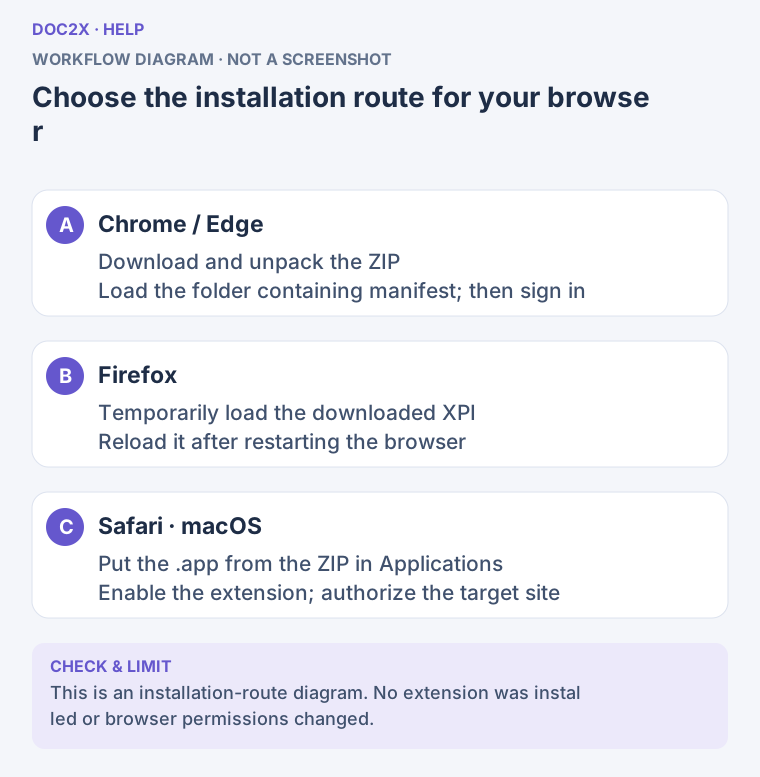
Installation routes: load an unpacked folder in Chrome/Edge, temporarily load XPI in Firefox, or enable the macOS extension app in Safari. (workflow diagram). Open the image in a new tab to enlarge it.
2. Check the Setup Before First Use
- Open a short, ordinary public webpage, such as an English article about saving water.
- Open Doc2X from the browser toolbar and check the extension's own sign-in state. Being signed in to the web app does not necessarily mean the extension is ready.
- Check the target language, model and quota offered by the current feature.
- Confirm that the extension can access the current site, especially in Safari.
- Refresh the target page after installation or an update, then start translating.
Translation and AI features may use online services. Model availability, quota and membership follow the account and feature notices. A free package download does not make every operation free.
3. Bilingual Webpages: Read an Article
Use this when: You want to read an article in place and compare it with the original.
- Open the article and wait for its text to load.
- Open the extension's webpage translation function, set the target language using its current options, and start translating the page.
- Read paragraph by paragraph beside the original. Check negation, numbers, units and quotations.
- Use selection or hover translation for an unclear sentence rather than relying only on the whole-page translation.
- For a structured overview, continue with the reading assistant or the document-workspace handoff below.
For practice, use this self-written passage and check its meaning in the translation:
Close the tap while washing your hands with soap.
Report leaking taps to the school office.
Choose one water-saving action your class can keep doing this week.
Bilingual display is a reading view on the webpage, not a downloaded Word/PDF file. For a file, use Document handoff and export.
4. Selection and Hover: Understand a Word or Sentence
Use this when: You understand most of the article and need help with a few expressions.
- Select a word or complete sentence in the loaded article, such as
Report leaking taps to the school office. - Use the extension's selection-translation entry to read the local translation or explanation.
- If an isolated word does not fit the context, select the complete sentence and check again.
- Check the installed version's trigger and interaction settings before using hover translation. If it offers a trigger dot after selection, select the text first, then click or hover over that dot as configured; do not assume that hovering over the article text alone starts translation.
- Ask the reading assistant a specific follow-up, such as “Does this sentence ask students to repair the tap or report it?”
Selection works with selectable webpage text; use image translation for lettering inside an image. Hover triggers depend on the extension version. Desktop-client global selection shortcuts should not be assumed to apply to the browser extension.
5. Input Translation: Draft, Translate and Review
Use this when: You are composing a web email, comment or discussion post in another language.
- Open the site's input area and write a short draft, such as “Our class plans to check the taps near the classroom this week. How should we report a leak?”
- Use the extension's translation function for that input area and set the required language.
- Check that the result preserves the recipient, timing, request and tone.
- Review the final text in the website's input area, together with recipients or publication scope.
- Only then use the website's own Send or Publish action.
Web editors vary. If the current input area has no supported entry, prepare your text in a plain draft instead of assuming every editor supports the same replacement operation.
6. Images and Comics: Check Text and Reading Order
Use this when: You need to read lettering in a poster, diagram or comic.
- Open the image-containing page and wait for the target image to load clearly.
- Use the extension's image/comic translation feature for the image you want to read.
- For multiple comic images, follow the continuous-processing options currently available and check which images were actually included.
- Compare with the original, checking names, speech-bubble order, vertical text and small lettering.
- For manual text changes, layout adjustments or poster export, use an image you are entitled to process in the image translation and layer editor.
Reading an image translation does not automatically create editable Word output, nor guarantee complete processing of every comic site, long image or unloaded image. Use the current feature's available save options. For explicit image/PDF/PPTX exports, continue in the image workspace.
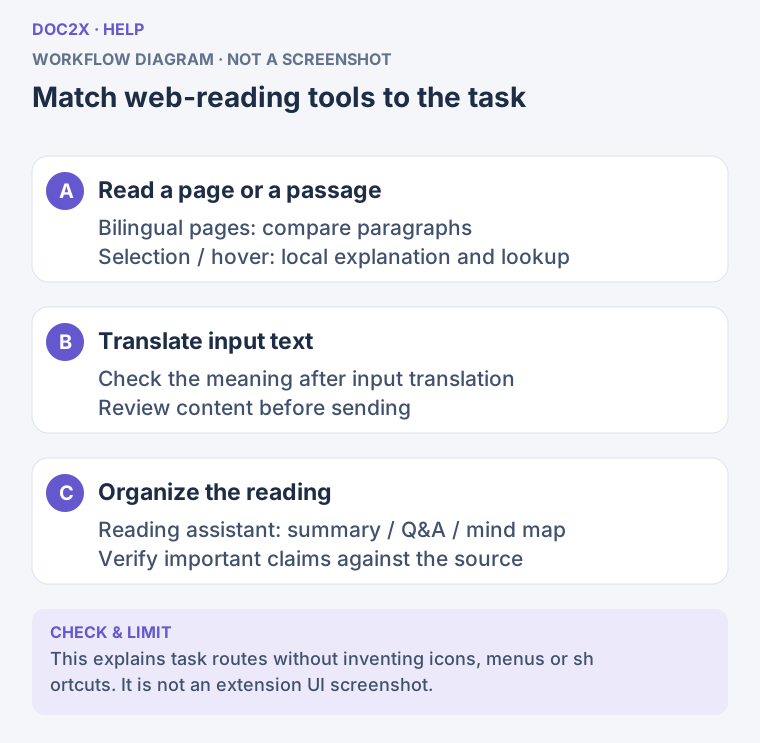
Web-reading workflows: page translation, local word lookup, input translation and the reading assistant serve different tasks. (workflow diagram). Open the image in a new tab to enlarge it.
7. Bilingual Video Captions: Translate Existing Subtitles
Use this when: A course, interview or video on a supported website already has captions.
- Play the video and confirm that an existing caption track is available; select the track you want to read.
- Open Doc2X's caption-translation feature and use its current bilingual display settings.
- Adjust caption style and display as needed, checking that they do not cover important diagrams or teaching material.
- Pause when necessary to compare the translation with the original captions and visuals.
- After changing videos, check again for an available caption track and support on that website.
This translates existing captions. It does not automatically transcribe speech from a video without captions. Repeatedly enabling translation will not create a missing transcript. Displaying captions also does not mean a subtitle file has been downloaded.
8. Reading Assistant: Summary, Questions and Mind Maps
Use this when: You need to extract key points, understand an argument or prepare a discussion.
- Open the webpage to analyze, then open the extension's Reading assistant (阅读助手).
- Start with a summary and specify its purpose and length: “Turn this water-saving article into five classroom points, retaining the author's limitations.”
- Ask a focused question: “Which actions can students complete themselves, and which require school staff?”
- Check the answer against the original. Verify any numbers or conclusions that you cannot find in the source.
- Use the mind-map function to organize a structure such as “Situation → Actions → Responsible people → Checks.” Confirm that the branches cover the article's main points.
- Record the verified notes in your own document. For analysis across several sources, continue with Multi-document AI Reading.
Summaries, answers and mind maps organize information in different ways. A summary is not a sentence-by-sentence translation, and every statement in an assistant response should not automatically be treated as a fact from the source.
9. Hand Webpages/PDFs to the Workspace and Export
Use this when: You found a resource in the browser and need to parse, translate, edit or download a document.
- Open the webpage or PDF. For PDF resources, look for the extension's PDF discovery translation (PDF 嗅探翻译) entry where available.
- Use the extension's current Doc2X workspace connection action to enter the relevant document-processing flow.
- In the workspace, check the filename, content and page count. A translated webpage does not mean the document task has already been processed.
- Choose parsing or translation according to the task. Check language, model, page range and quota before submitting.
- After completion, review text, tables, formulas and images, then open the result's export function.
- Choose an appropriate format: Word for further text editing, Markdown for writing, or a supported PDF option for page-oriented reading. See Choosing an Export Format.
- Download and open the file locally. Saving and recovery follow the workspace's record and file rules; keeping a translated tab open is not a file backup.
If the current webpage has no supported handoff entry, upload a PDF you are entitled to obtain through Doc2X's regular upload flow. Document format, page limits, storage periods and quotas still apply.
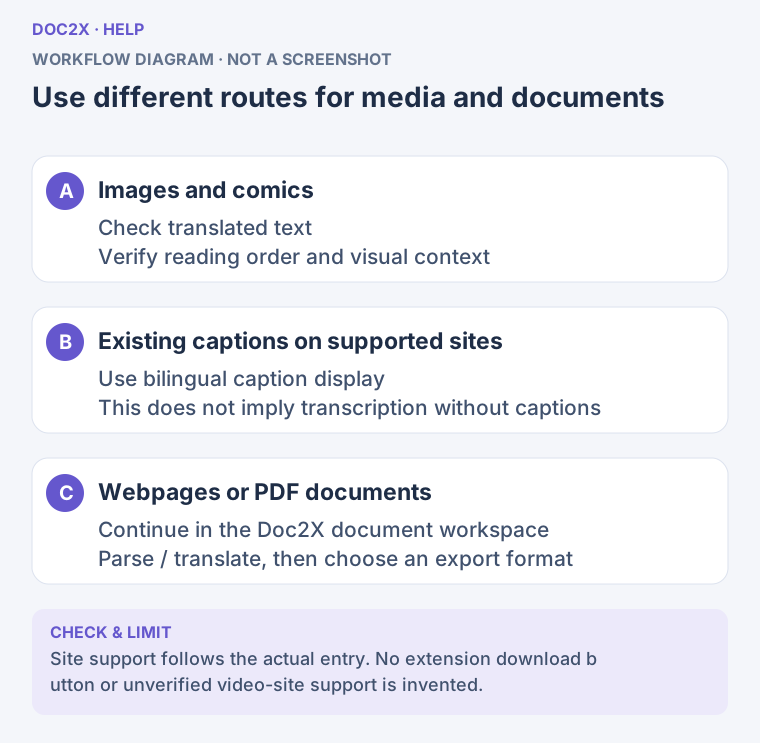
Media and document workflows: read translated images and existing captions, or hand webpages/PDFs to the document workspace. (workflow diagram). Open the image in a new tab to enlarge it.
10. Updates and Troubleshooting
Updating
- Chrome / Edge: Extract the new package into the fixed directory, reload Doc2X in extension management, then refresh reading tabs.
- Firefox: Remove the old temporary instance and load the new XPI. Reloading is still needed after a browser restart.
- Safari: Quit Safari, replace the extension app with the new version, reopen it and check the extension switch and site permissions.
Use the version currently offered by the official installation page. If a package is unavailable or downloading fails, retry from the installation section instead of relying on an old version number in a tutorial.
| Symptom | What to check |
|---|---|
| Chrome/Edge cannot find the manifest | Extract the ZIP fully and select the folder directly containing manifest.json, not the archive or its parent folder |
| An existing page does not change after installation | Confirm the extension is enabled and signed in, then refresh the page |
| Firefox loses the extension after restart | The current installation is temporary; load the XPI again |
| Safari app is installed but unavailable | Check the extension switch in Safari Settings and access for the current site |
| A feature entry is missing on one site | Check the installed version and site support; try an ordinary public text page to verify basic translation |
| Text inside an image cannot be selected | Use image translation, or the image workspace for proofreading and export |
| Bilingual captions do not appear | Confirm that original captions exist and the site is supported; this is not captionless speech transcription |
| Translation or the assistant reports insufficient quota | Follow the current account, model, points or membership notice |
| Translation is visible but no file was saved | A reading view and file export are separate; use the relevant workspace to export |
When reporting a problem, include the browser, extension version, website, feature and failing step, with a public example or redacted image. The official feature page describes the current supported scope.