
Question bank collaboration: public resources, sharing, templates and teams
This guide uses a self-written “Triangles classroom practice” to explain where shared content lives, what other teachers receive, and how to recover deleted questions. Open the separate teacher question bank through the getting-started guide, sign in, and check the current space in the upper-left corner. Interface labels below match the Chinese interface.
Choose the right sharing method
| Goal | Entry | What the recipient receives |
|---|---|---|
| Reuse public papers or examples | 公开题库 (Public library) | An editable copy in the current space |
| Let colleagues browse a library over time | Library header → 共享 (Share) | A read-only subscription; copy questions before adapting them |
| Edit team questions and materials together | 空间与成员 (Spaces and members) | Access to a team space according to the assigned role |
| Reuse sections and layout | 模板社区 or 从模板新建 | An independent material with question placeholders |
| Give students answers or collect homework | 答疑发布 or 练习与批改 | Student links described in the classroom guide |
Joining a team does not share your private space automatically. Check the space before copying, importing, creating content or managing members. The question bank runs as a separate website; desktop-client links open the workflow in a browser.
1. Copy public resources into the current space
- Open 公开题库 and choose 高考真题 (Exam papers) or 教学示例 (Teaching examples).
- Filter exam papers by region / paper name, year and paper type, then choose 查看试卷.
- Expand the reference answers and explanations. Use 打开原卷第 N 页 or 打开原卷 PDF to check the original text, formulas and images.
- Check the current space, then select 复制到我的题库 or 复制到团队题库.
- After the confirmation that the paper was copied, select 打开我的副本. Questions enter the current space's uncategorized / pending-review area with their source information. Check the answers before confirming, classifying or composing a paper.
The current exam-paper interface copies a whole paper. It has no per-question multi-selection or destination-library dialog. Copy and review first, then use the question-bank workflow to classify or select questions. Teaching examples offer 查看答案 followed by 加入我的题库 / 加入团队题库.
Public originals are read-only. Copying requires editing permission in the destination space. If the result is uncertain, use the retry-copy or recover-copied-paper action to check the original operation before creating another copy.
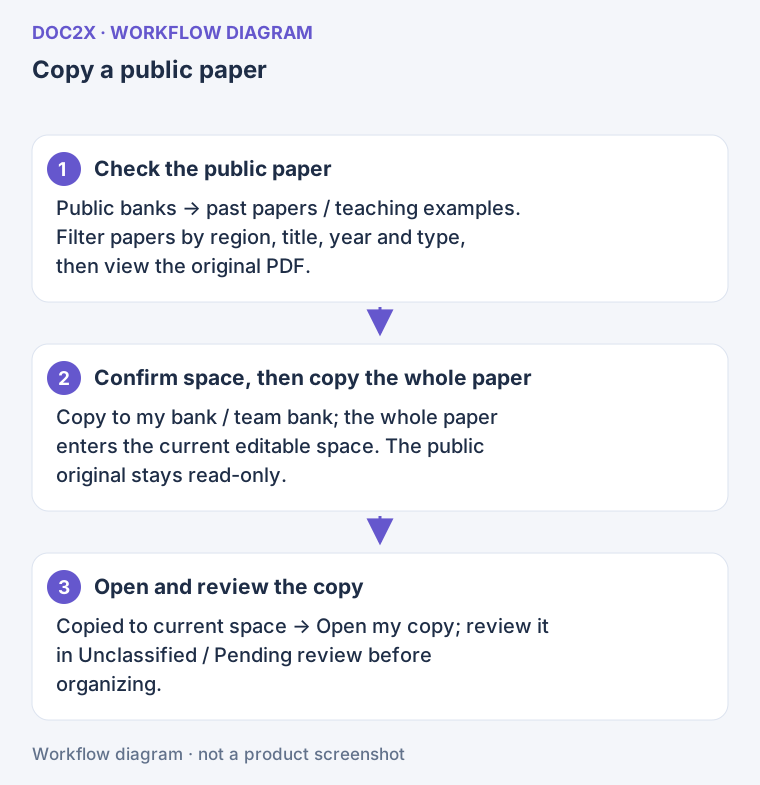
Workflow illustration: check the public original, then copy the whole paper into the current space’s uncategorized / pending-review area; the original is read-only.
2. Share a library for colleagues to subscribe
Share and subscribe
- Select a library in the question center. Its space creator or an administrator chooses 共享 in the library header.
- Choose 仅限拿到链接的老师 (Teachers with the link) or 在共享题库目录中公开 (Listed publicly). Add an introduction and sharer name.
- Review the content, select 开始共享, and copy the link for the intended teachers.
- The recipient signs in, checks the introduction and sample questions, then selects 免费订阅. Follow any membership requirement shown on the page.
- The library appears under 订阅的题库. 发现 also opens available shared resources. Browse read-only, then use 复制到我的题库 to edit a copy, or 加入试题篮 to compose a paper.
A subscription does not add the recipient to the source space or allow editing the originals. Adding a shared question to the basket first copies it into the recipient's space. Pending-review questions, teacher notes, tags and source files are excluded from sharing. Copies are independent and do not automatically receive later source edits.
Pause, reset a link or stop sharing
The same panel offers 暂停 / 恢复, 重置链接 and 停止共享. Resetting a link does not remove existing subscribers. If sharing is stopped and started again, recipients must subscribe again. Copies already made remain in their spaces.
Use team membership, described below, when colleagues need to edit the same content together.
Copy or move your own questions between spaces
Select questions and open 批量整理 / 共享. Choose 复制到空间 or 移动到空间, then select the destination space, library and directory. For cross-space operations, check whether teacher notes should be copied too. Confirm the operation; if its result is pending, continue checking that same operation.
The destination must be editable. Moving also requires editing permission in the source. A copy includes question text, options, answers and images, but not private source-PDF links. Moving across spaces places the original questions in the recycle bin; existing materials retain their referenced versions. Questions can still appear in the 全部题目 aggregate view after a successful move.
3. Reuse structure and layout through templates
Discover, favorite and create
- Open 模板社区 → 发现模板. Search by template name, purpose or sharer; filter by school stage, subject and purpose. Sort by 最近分享 or 使用最多.
- Open 预览模板 and check sections, styles and placeholders.
- Enter a new material title and select 用此模板创建材料. The current space must be editable.
- Fill the new material's question and knowledge-card placeholders, edit the text, save and preview. See editing teaching materials.
- Favorite useful templates and reopen them from 我的收藏, or copy a template link.
Question cards use a question basket, not favorites. Favorites here belong to templates. A material created from a template is independent: source updates or stopping the share do not change it.
Save your own template and choose its visibility
Save a teaching material, then select 保存为模板 → 保存为讲义模板. Fill 模板名称 and 用途说明. Keep a new template or select an existing one to replace under 保存方式. Set 可见范围 to 仅自己 or 当前空间的所有成员. If retaining explanation text and images, select 同时保留讲解文字与配图 only after checking that members should see those contents. Select 保存模板.
Templates retain sections, layout and styles; questions become placeholders. Saving a space template does not publish it in the community.
Share a template outside the space
The space creator or an administrator selects 分享我的模板 in the community, chooses a source template, and fills the name, attribution, purpose, school stage and subject. Choose 仅凭链接访问 or 在社区公开展示, and decide whether to include public explanation text.
Review the preview, confirm that the public content has been checked and may be copied for free, then select 确认分享模板. The community version excludes teacher-only blocks, original-question references and internal sources. Check any retained public text and images yourself.
Under 本空间的分享, use 更新分享版本, 重新分享模板 or 停止分享. Updates affect the shared version used for future copies, not materials others have already created.
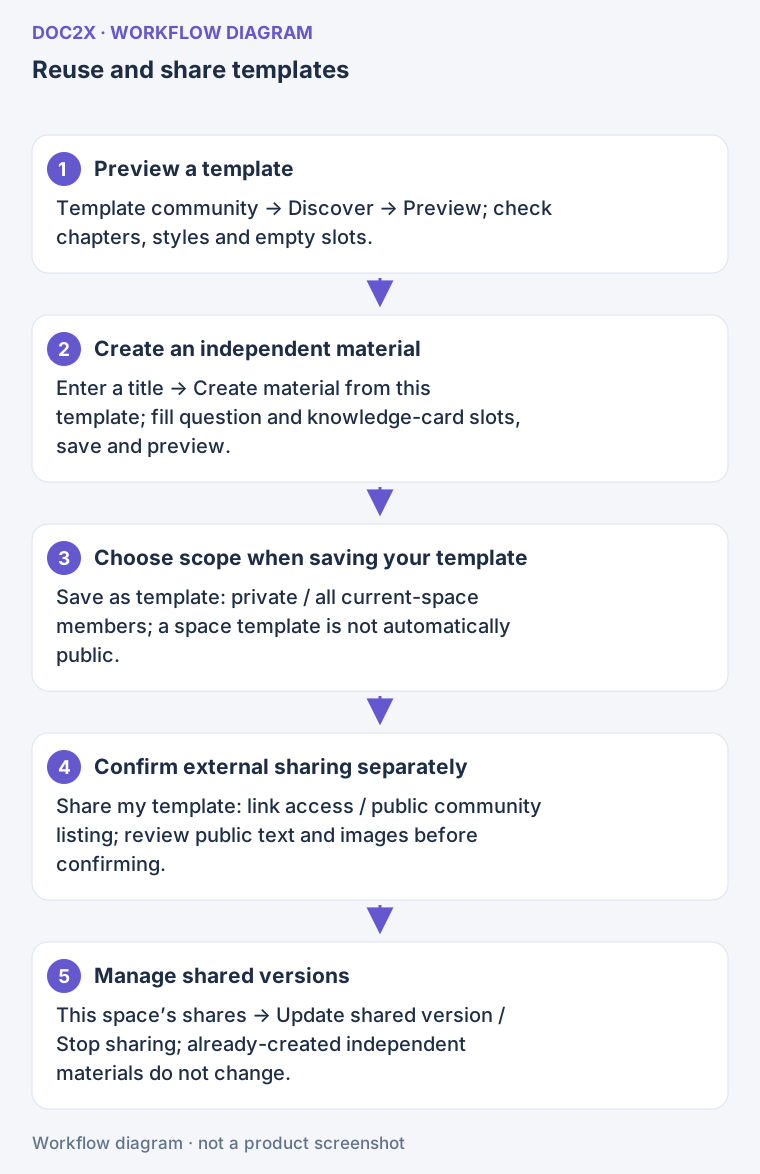
Workflow illustration: create an independent material from a community template; space-template visibility and external sharing are separate choices.
4. Create a team and manage members
Open 空间与成员 → 创建团队空间, enter 团队名称, and choose 创建. Switch to the team, choose an invitation role, and select 生成邀请链接. A colleague signs in on the invitation page, chooses 接受邀请, then switches into the team space.
| Role | Scope |
|---|---|
| 创建者 (Creator) | Manages the team, invitations and members; edits content; can initiate team transfer |
| 管理员 (Administrator) | Manages members and invitations and edits content; cannot change or remove the creator or other administrators |
| 可编辑 (Editor) | Creates and edits questions and materials, composes papers, and publishes practices and answer pages |
| 只能发布 (Publisher) | Views content and publishes practices and answers without editing questions or materials; available only when enabled by the service |
| 仅查看 (Viewer) | Views and exports without editing |
An invitation is single-use and expires. Refresh its status or choose 撤回邀请 in invitation records. Revoking an unused invitation does not remove someone who has already joined; use the 团队成员 list to change a member's role or remove them.
Team capacity follows its creator's plan and shares the relevant capacity with that creator's private space and other owned teams. Check the displayed capacity and plan information if creation or importing is limited.
The creator can transfer the team to an existing member, who must accept. The recipient's plan is checked. After transfer, the former creator remains an administrator and old unused invitations become invalid. A non-creator can choose 退出此团队: team content remains, but that person loses access. Recheck your space and role after permission changes before continuing an edit.
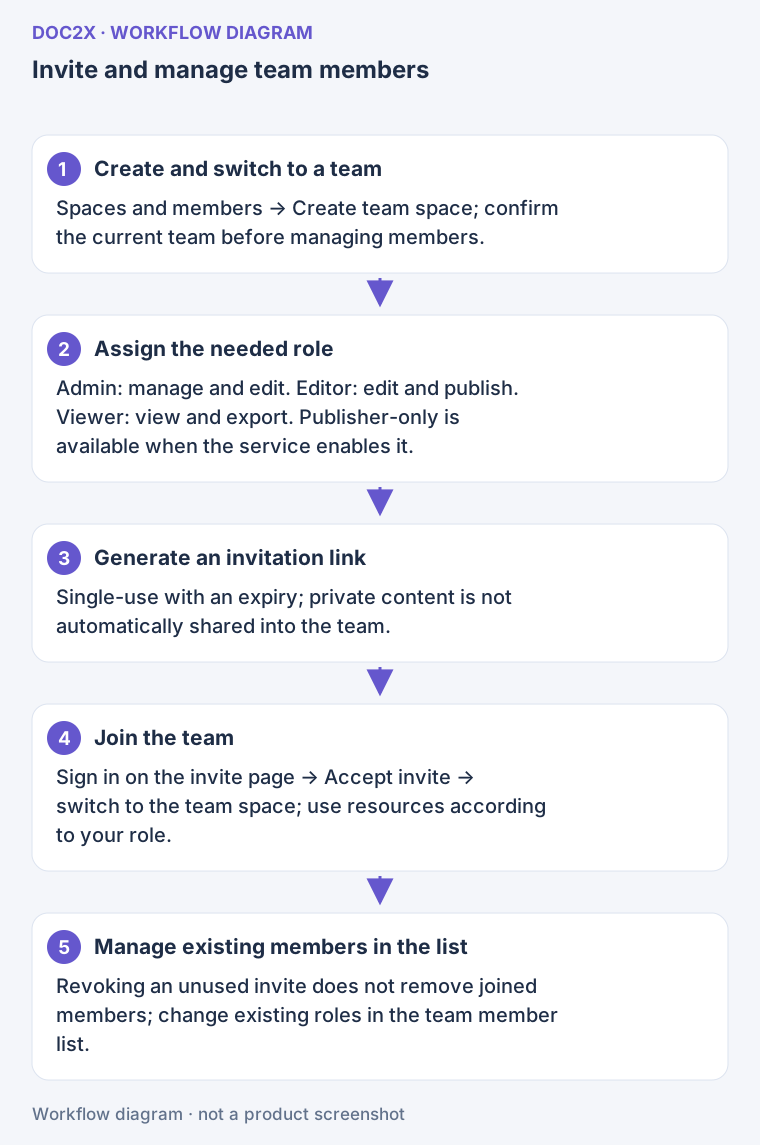
Workflow illustration: choose an invitation role; private content is not automatically shared, and revoking an invitation does not remove an existing member.
5. Restore deleted questions or delete them permanently
Open 回收站, find a question card and choose 恢复题目. Return to the question center to locate it. Restoration and deletion require editing permission. The list displays 30 entries per page.
Recycled questions still count toward capacity. If a question is no longer needed, choose 永久删除, review the confirmation, then 确认永久删除. This cannot be undone. The service refuses permanent deletion when a historical teaching material still references the question; retain that historical reference instead of repeatedly retrying.
The current recycle-bin page lists questions only. Although the material list also has a move-to-recycle-bin action, do not assume this page can restore teaching materials or knowledge cards. Preserve a needed copy or output before removing a material.
6. Check capacity and unused images
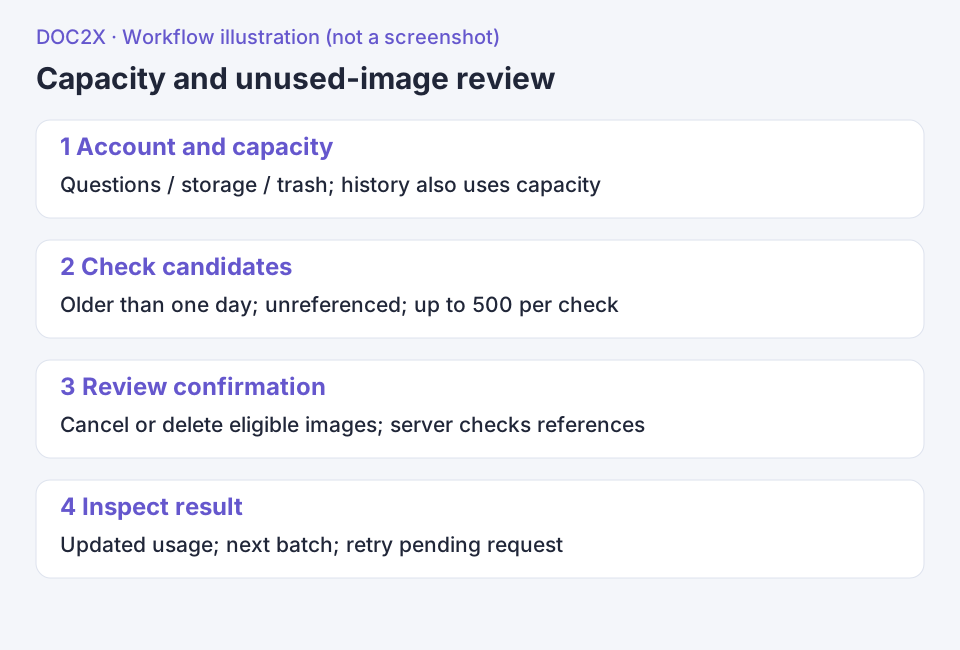
- Click 题库容量 (Question-bank capacity) in the sidebar to open 账号与容量 (Account and capacity). Inspect question and storage usage against their limits. Check 回收站题目 (Trashed questions): they still count toward capacity, and history versions and images also occupy storage.
- In 清理未使用图片 (Clean unused images), click 检查可清理资源 (Check cleanup candidates). Only images older than one day with no question, history-version or published-material reference are listed. Review the count and total size; an empty result says no images can be cleaned and resources in use are retained.
- If you decide to proceed, click 清理未使用图片 to open confirmation and read the server reference-check notice. Cancel to return. The confirmation button 清理 (Clean) actually deletes eligible images and refreshes capacity; confirm only after deciding the resources are no longer needed.
- Each check examines at most 500 images. Check again after completing a batch. If a failed request leaves 继续上次清理 (Continue previous cleanup) visible, reopen confirmation and retry that same batch. This is a pending request retained by the current page, not a task history guaranteed to survive a page reload. A result may say the images are now used or already cleaned and require no further deletion.
Exceeding the plan pauses additions; saved content remains available to view, export and delete. Development limits are not commercial entitlements; additions are unavailable when the formal plan is not configured. A read-only space cannot check or confirm cleanup. This tutorial reviews the workflow without executing deletion.
Troubleshooting
| Situation | Next step |
|---|---|
| Copy, create or edit is unavailable | Check the current space and role; copy subscribed resources into an editable space |
| A copied public paper cannot be found | Check uncategorized / pending review in the current space, or select 打开我的副本 |
| Template creation is awaiting confirmation | Continue checking the existing operation in the same panel |
| An invitation is invalid | Ask the team administrator to check expiry, use or revocation and create a valid invitation |
| Someone still has questions after sharing stops | Existing copies remain independently saved |
Continue with importing and classifying questions, editing materials, or answer publication, practice and classroom teaching.