
Markdown editor: prepare text, formulas, tables, and images for export
The Markdown 编辑器 (Markdown editor) turns existing Markdown or copied document content into notes, handouts, and reports, then exports Word, PDF, and other formats. Compare source and preview while checking formulas, tables, and image references.
This walkthrough uses a fictional classroom exercise: solve
First, identify which editor you opened
| Entry point | Content and saving scope |
|---|---|
| 实用工具 → Markdown 编辑器 (Utilities → Markdown editor) | Standalone page. With an identified signed-in account, it automatically writes that account's draft on this device. When signed out, do not rely on recovery after leaving |
| The Markdown editor option in a parsing export | Sends the selected result to the standalone editor; new edits are not automatically written back to the source task |
| 编辑与转换 Markdown (Edit and convert Markdown) in a reader's page/paragraph controls | A separate copy of that fragment. Its notice says the original document stays unchanged; export needed files before closing |
| 编辑解析结果 / 编辑译文 (Edit parsing result/Edit translation) | Saves revisions of the original task; follow Review and edit results |
A device-local draft is not a cloud document, cross-device synchronization, or a permanent backup. Do not assume it survives browser changes, cleared local data, or account changes. Export content you need before starting another document.
Step 1: open the editor and add content
- Open Markdown 编辑器 from 实用工具. If a local draft appears, check whether you intend to continue it.
- Click 源码 (Source) and paste your Markdown. If content came from a parsing result, check whether it includes the entire document, a selected page, or one paragraph.
- For practice, paste the example below without overwriting a draft you need.
- Select 对照 (Compare) to view source and rendering together. On narrow screens, switch between 源码 / 预览 (Source/Preview).
# Classroom exercise

Solve \(2x+3=11\), giving \(x=4\).

The triangle's area is:

\[
S=\frac{1}{2}\times6\times4=12
\]

| Item | Value |
| --- | --- |
| Base | 6 |
| Height | 4 |
The preview should show a heading, an inline formula, a displayed area formula, and a two-column table. Check the preview after each edit before adding more content.
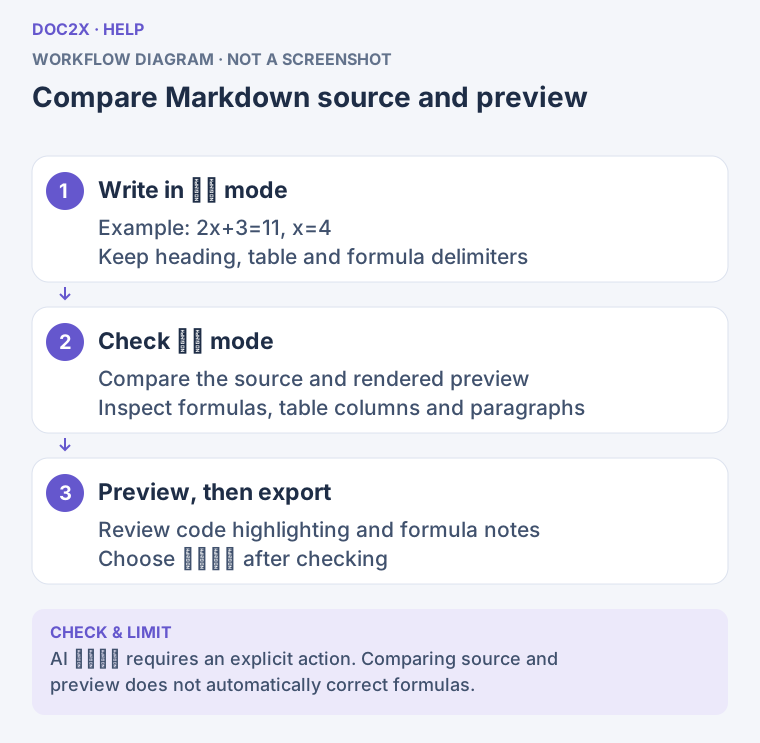
Compare Markdown source with its rendered preview. (workflow diagram). Open the image in a new tab to enlarge it.
Step 2: correct text and formulas
Edit text, headings, lists, and formulas in the source. If you change the equation's 11 to 15, also check its solution rather than leaving the old answer.
Use \( ... \) for inline formulas and \[ ... \] for displayed formulas. Open 公式说明 (Formula help) for the interface's guidance. Preserve complete delimiters, backslashes, and braces: \frac{1}{2} needs two pairs of braces, and x^2 means something different from x_2.
AI 补全公式 (AI formula completion) is enabled by default and checks LaTeX that lacks formula delimiters. It does not verify mathematical reasoning or solve the exercise for you. Its model may need to load on first use. Check the preview and notices after changing content; existing formulas and code blocks are preserved according to its rules. If a completion is wrong, use the notice's undo action or turn the switch off and fix it manually. 代码高亮 (Code highlighting) helps you read source; it does not establish mathematical correctness.
Step 3: prepare tables
For a simple table, use the source toolbar's 表格 (Table) button to choose rows/columns and insert the markup. Edit it while preserving the header separator and a consistent column count. Changing the height from 4 to 5 also requires a separate check of the area formula. The rendered preview is not a table editor in which you can click cells to change them.
Complex tables copied from parsing results may use HTML <table> markup, which can represent merged cells. Do not casually remove rowspan, colspan, or table tags. If you prefer clicking cells and adding or removing rows/columns, use the visual table controls in the parsing/translation result editor before exporting or transferring the content to Markdown.
Markdown export offers HTML 表格 (HTML tables) and Markdown 表格 (Markdown tables). HTML preserves merged cells and complex structure, but some Markdown applications have limited editing or formula rendering inside HTML tables. Markdown tables suit common note editors; merged cells are expanded, content stays in the upper-left cell, and complex styling is simplified. Check the chosen output in your target application.
Step 4: resolve and check images
Reference an existing image in the source, for example:
Pasting the reference does not supply the image file. When images need to be attached or 检查并替换导出图片 (Check and replace export images) appears:
- Click 选择原图片 (Select original images) and choose matching files, or use 选择图片文件夹 (Select image folder) to resolve several references.
- For each unresolved or unreadable image, click its 选择原图替换 (Choose an original image to replace it) action.
- Check the preview, especially duplicate filenames, labels inside diagrams, and images inside tables.
- Resolve the remaining errors before exporting. Retain image assets with a Markdown file you plan to keep locally.
The picker accepts supported types such as PNG, JPEG, GIF, WebP, and BMP. Remote or embedded images that fail to load can also be replaced individually; other text and images are retained. A preview image's 变高清并替换 (Enhance and replace) action changes the current Markdown. Follow its own access and points notices; it does not automatically update the source task.
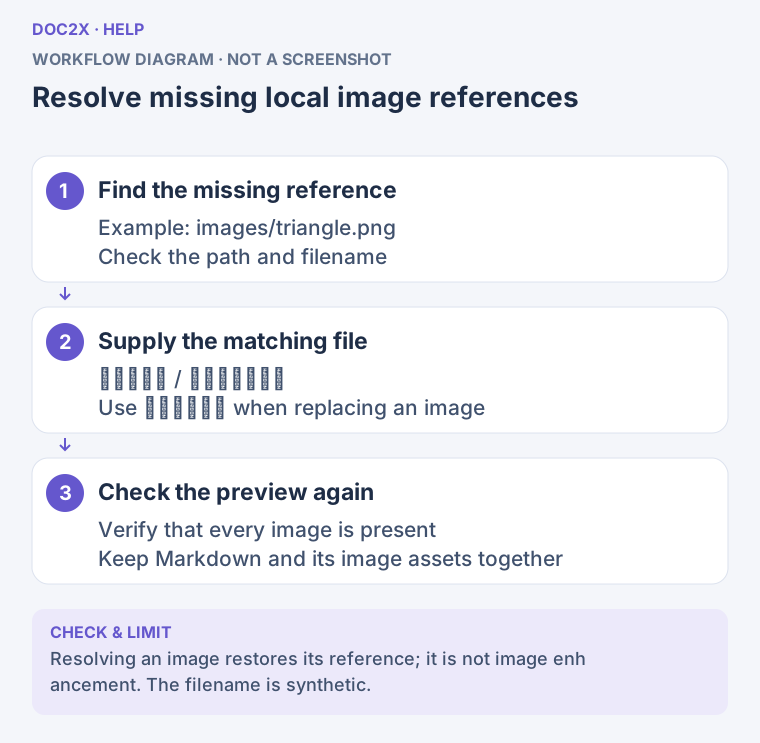
Resolve image references and check the preview; retain both text and image files. (workflow diagram). Open the image in a new tab to enlarge it.
Step 5: export and check the resulting file
- Click 导出文件 (Export file) to open 导出编辑内容 (Export edited content).
- Select a format and read its description and membership badges.
- Resolve missing images through the dialog's available controls. For Markdown, also choose the table mode.
- Click 导出 (Export) for the selected format. If it requires sign-in, the button says 登录后导出 (Sign in and export); follow the prompt.
- Open the downloaded file and inspect heading levels, formulas, tables, and every illustration.
| Format | Purpose and sign-in condition |
|---|---|
| Markdown | Preserves text and formula source for further editing; no sign-in needed for export; keep the image assets too |
| HTML | Browser reading; no sign-in needed for export |
| Reading, printing, and sharing; no sign-in needed for export | |
| Word | DOCX with native editable equations; sign-in required |
| WPS | DOCX for WPS equation editing; sign-in required |
| Word MathType | DOCX for a MathType workflow; sign-in required |
| Eduediter | WSD for further text and formula editing; sign-in required; read the font notice |
Follow current format cards and prompts for additional access requirements. Sign-in does not imply every format is free. Export a Markdown backup before starting sign-in or leaving the page. If a notice says the content and format were restored after sign-in, check them before continuing; do not assume every entry point has identical recovery behavior.
Close a fragment editor or recover a device-local draft
The reader's 编辑与转换 Markdown dialog explicitly says to edit and export here while leaving the original document unchanged. Export first, then click 返回文档 (Return to document). If 离开当前编辑? (Leave this edit?) appears, choose 继续编辑 (Continue editing) to return. 放弃本次修改 (Discard these changes) abandons the fragment edits you have not preserved. The fragment does not become a new parsing or translation task version.
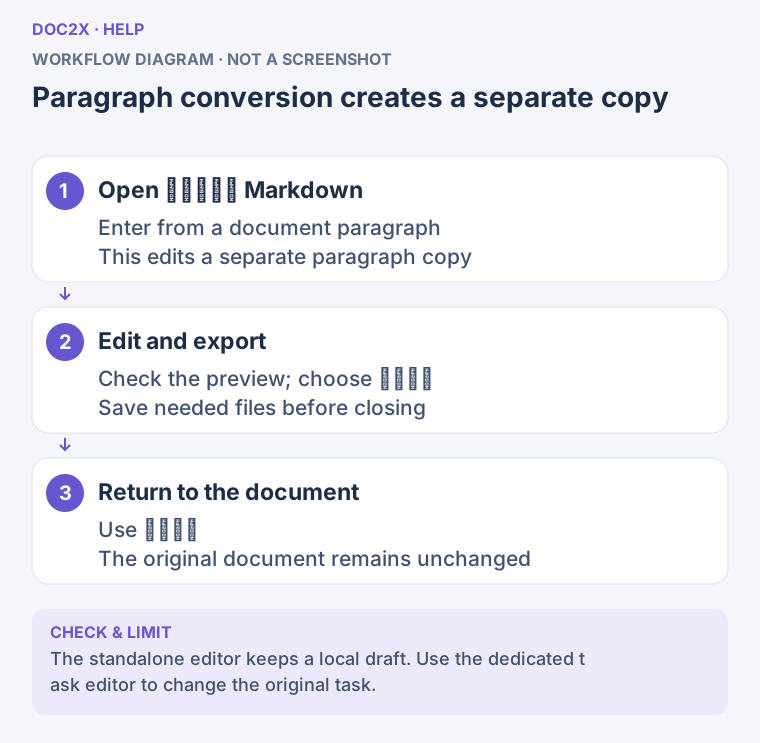
A paragraph conversion edits a separate copy; export needed files before closing. (workflow diagram). Open the image in a new tab to enlarge it.
The standalone page writes a device-local draft when a signed-in account owns it. If another draft is offered, preserve the current file before using 切换草稿 (Switch draft). For a draft loading error, click 重新载入草稿 (Reload draft), rather than replacing existing work with blank content. If the draft cannot be saved on this device, export a file immediately.
| Problem | What to do |
|---|---|
| A formula appears as raw commands | Check delimiters, braces, and backslashes; read Formula help, correct the source, and inspect the preview |
| Preview fails | Source remains available; click 重新渲染 (Render again), and export a Markdown backup if needed |
| Table columns are misaligned | Check the separator row, column counts, and pipe characters inside cells; preserve HTML for complex tables |
| Images are missing in preview or export | Attach originals or replace individual images; verify that remote images are still accessible |
| Export is unavailable | Check that content is nonempty and resolve in-progress exports, image errors, or sign-in notices |
| The original result is unchanged after returning | Fragments and standalone Markdown do not automatically write back; use Edit parsing result/Edit translation for task revisions |
See Export formats and settings for Word, WPS, and equation compatibility. For question/answer matching and outputs organized by question, use Organize exam questions.