
Document questions and research: from a question to an export with evidence
Use 多文档 AI 对话 (Multi-document AI chat) to compare sources, organize findings, and return from citations to the original PDFs. For a question about the document you are already reading, use 与当前文档对话 (Chat with this document) in the reader.
This walkthrough uses two fictional PDFs, “Campus Water Pilot A” and “Campus Water Pilot B.” A reports a four-week pilot, a 12% reduction in water use, and no weather control. B reports eight weeks, a 9% reduction, and a concurrent comparison group. These are demonstration figures, not research findings. The Chinese control labels below match the current interface.
Before you begin: choose an entry point
| Your task | Entry point and conditions |
|---|---|
| Ask a quick question about the current document | Parsing reader → AI 功能 (AI tools) → 与当前文档对话 → 迅速 (Quick); choose an available model |
| Analyze more deeply or reference another PDF in the reader | Select 深入 Agent (In-depth Agent), or add an existing PDF with @; this entry requires membership |
| Compare sources, ask follow-up questions, and export the conversation | 实用工具 (Utilities) → 文档 AI (Document AI) → 多文档 AI 对话; the reader's AI menu can also open it with the current document selected |
The multi-document workspace accepts 1–20 parsed sources per task. New uploads must be PDFs, no larger than 300 MB each, and must finish parsing before use. For Word or PowerPoint files, first follow Office document conversion, then select the resulting parsed record.
Sign in to use your own documents. Members can use multi-document chat. Eligible nonmembers see a one-time trial for this feature, limited to Qwen or LongCat; actual usage still consumes AI points. Eligibility, models, and balance notices on screen take precedence. The reader's Agent entry and the standalone workspace have different access rules; a trial does not make all AI models free.
If the page says 这是示例效果 (This is an example), inspect the built-in answer and source citations first. Viewing the example uses no points, but you cannot ask it follow-up questions. Click 向我的文档提问 (Ask my documents) or 开始新任务 (Start a new task). The desktop client opens an independent workspace; its return control takes you back to the main Doc2X window.
Step 1: select and check your sources
- In 选择文档 (Select documents), click 上传 PDF (Upload PDF), drag PDFs into the dialog, or select records under 从已解析的文档中选择 (Choose parsed documents).
- Use 搜索文档 (Search documents) to find a filename. Click 刷新 (Refresh) for recent records or 加载更多 (Load more) for older entries.
- Wait for new files to finish parsing and become selected. A message also confirms when a cached parsing result is reused.
- Select the two demonstration reports and check their titles and content in the original PDF preview. At the 20-source limit, deselect a source before replacing it.
- Click 下一步:配置任务 (Next: configure task). Choose a 模型 (Model), read its description, and click 完成配置 (Finish configuration). Use 更换文档 (Change documents) to return to source selection.
Closing the source dialog does not commit temporary selections; use Next to apply them. New tasks in the standalone workspace use the Agent workflow. The Quick switch belongs to the reader's chat window.
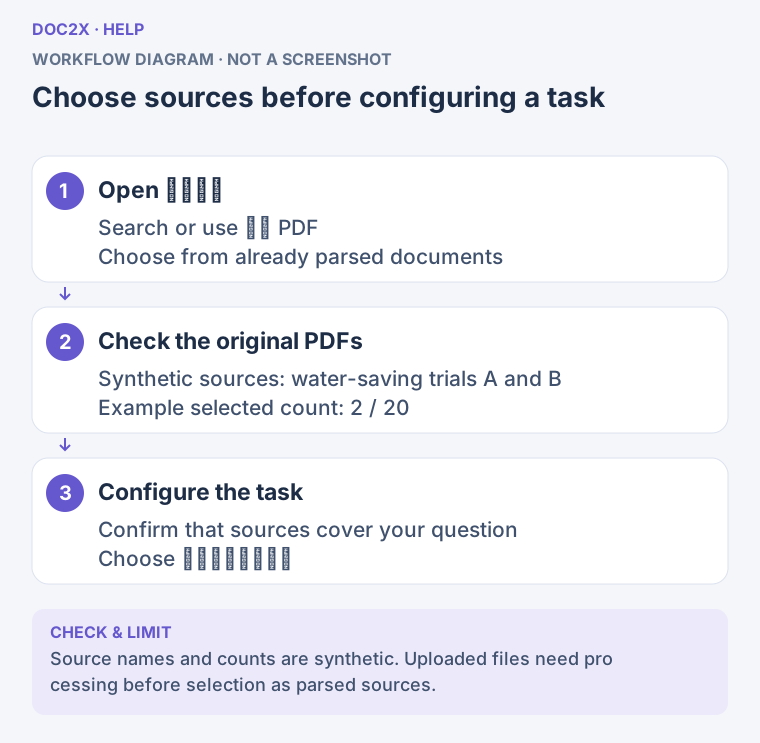
Select parsed sources, check the original PDFs, then configure the task. (workflow diagram). Open the image in a new tab to enlarge it.
Step 2: ask a question you can verify
In 向文档提问 (Ask the documents), type a request and click 发送 (Send) or press Enter. For example:
Compare the duration, water-use change, and limitations of reports A and B.
Use a table and cite the source for every number.
Separate explicit source statements from your inferences.
Write “not provided” where the documents contain no evidence.
Specify the comparison criteria, output structure, and evidence you need. This makes missing details easier to notice than a generic request to summarize. Type @ to find and reference your existing PDFs; check the source chips above the input before sending.
The task shows 排队中 (Queued) or 正在阅读和整理 (Reading and organizing). Expand the execution record to see retrieval, section reading, and evidence checks. Wait for the current task before sending another question. To cancel, click 停止 (Stop) and check the resulting status. You can also leave and reopen the task from 任务历史 (Task history).
Step 3: verify the evidence and ask follow-up questions
- Check whether the answer addresses the request. In this example, four/eight weeks and 12%/9% must remain attached to the correct reports.
- Click a citation number, or expand 原文依据 (Source evidence) and click 定位原文 PDF (Locate source PDF).
- Check the filename, page, and highlighted area. A citation without precise coordinates may only locate a page. Check unexpected page numbers manually; a highlight alone does not prove the conclusion.
- Use 切换原文文档 (Switch source document) to inspect another source. On narrower screens, 查看原文 PDF (View source PDF) opens the source panel.
- Continue with the same sources, for example: “Why can we not judge which pilot is more effective from the percentage reduction alone? Cite the reported limitations.” Use 折叠这轮对话 / 展开这轮对话 (Collapse/expand this round) to navigate longer conversations.
If evidence is insufficient, the answer is partial, or items are unconfirmed, check whether the selected files contain the missing information. Narrow the question or add the correct source. Changing sources starts a new conversation with the next question; the previous result may remain visible, with a notice that the sources have changed.
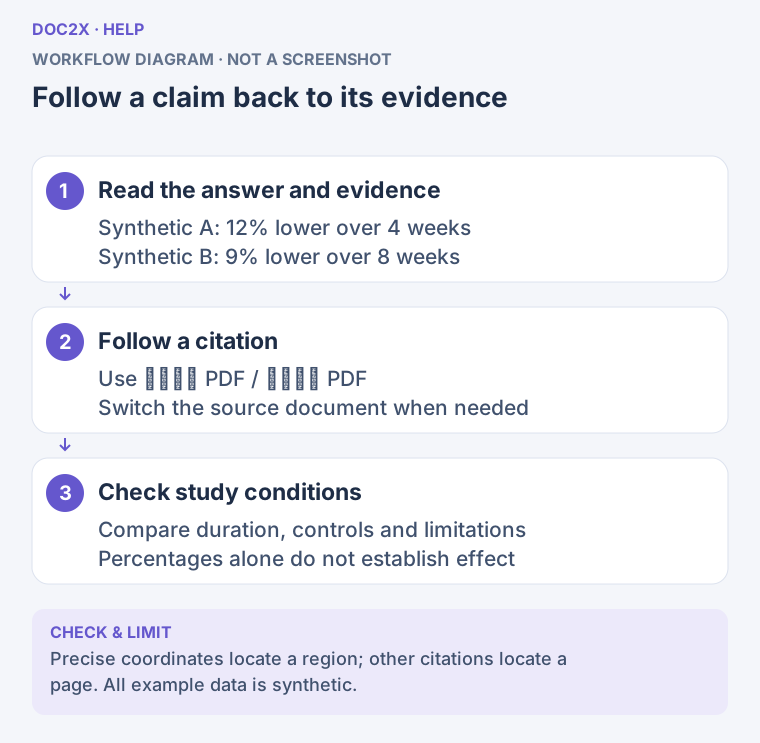
Follow a citation to check the source; citations without coordinates only locate a page. (workflow diagram). Open the image in a new tab to enlarge it.
Step 4: copy, revise, and save an answer
After an answer loads, 复制回答 (Copy answer) copies the displayed text of the current answer. To retain several rounds and evidence, use conversation export below.
The 编辑结果 (Edit result) icon opens the current result text. Switch to 预览 (Preview) to check formulas, tables, and paragraphs. This changes the revision of that answer, not the source PDF. Click 保存修订 (Save revision), then wait for 修订已保存 (Revision saved) or 已保存 · vN (Saved, version N) before switching tasks.
撤销修改 (Undo changes) reverses a recent revision action. 还原原始结果 (Restore original result) restores the initially generated answer; save again to retain that state. If asked to discard unsaved changes, choose 继续编辑 (Continue editing) to return and save, or 放弃修改 (Discard changes) only when you no longer need them.
Step 5: export the conversation
- Click 导出上下文 (Export context).
- Under 选择对话轮次 (Choose rounds), select individual rounds or use 全选 / 清空 (Select all/Clear). Running rounds are excluded; wait for a returned result. A returned round marked as needing more information may be available but still requires review.
- Select 你的问题 (Your questions), Doc2X 回答 (Doc2X answers), and 原文依据 (Source evidence). Questions and answers are selected by default; evidence is not. Select it explicitly for notes that readers need to verify.
- Choose Word, WPS, Word MathType, PDF, HTML, Markdown, or Eduediter. Follow the formats and membership badges shown in the dialog. WPS and Word MathType also produce DOCX files.
- Click 导出所选内容 (Export selected content). Open the file in the target application and check the selected rounds, conclusions, source excerpts, and formulas.
This creates a document containing the selected conversation and evidence; it does not download all source PDFs. The current round uses its current text; other rounds load their own results. Save revisions first so reopening and later exports remain consistent. If the selection is too large, export fewer rounds at a time. The limit is 1,000,000 bytes of selected text, not one million characters.
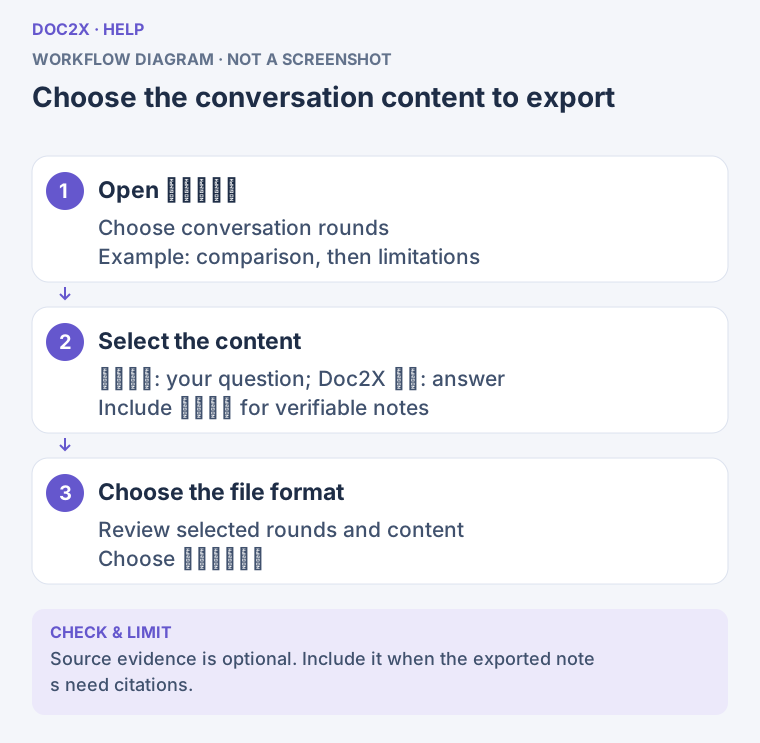
Choose rounds and content; include source evidence for verifiable notes. (workflow diagram). Open the image in a new tab to enlarge it.
Use single-document chat in the reader
Open a parsing result and select AI 功能 → 与当前文档对话. The default 迅速 (Quick) mode suits questions such as “Explain the symbols in this formula” or “List three points from this section.” Select an available model, enter the question, and send it. Ordinary chat can use a free model; other models follow the displayed access rules.
Members can select 深入 Agent, choose a model, and ask a deeper question. Adding other PDFs with @ also enters Agent mode. Check citations, then use 打开任务详情与导出 → (Open task details and export) to enter the full workspace, or use the answer's available edit, save, and export controls. Switching back to Quick asks you to remove additional references; subsequent questions use only the current document. Earlier Agent answers remain available when you switch back. Save answer revisions before changing modes.
Recover history and resolve common problems
任务历史 groups rounds by conversation. You can rename a conversation or copy its task ID to check AI task usage. The sidebar states 记录保留 30 天 (Records retained for 30 days), and individual tasks may show an expiry date. Download important notes rather than relying on the history list for long-term storage.
| Problem | What to do |
|---|---|
| A newly uploaded file is missing | Wait for parsing, refresh, clear the search, or load more records |
| The original PDF cannot load | Retry in the source panel and check that the current account can still access the source |
| The answer cannot load or is empty | Use 重新加载结果 (Reload result); if empty, edit the question and narrow its scope before submitting again |
| The task exceeds limits or times out | Reduce the source count, split the documents, or ask about one section or comparison criterion |
| A save is unconfirmed or another window updated the result | Copy text you need to preserve, reopen the task, and compare with the saved revision before saving again |
| The session expired or access was denied | Sign in with the account that owns the task and reopen it from history |
| Points are insufficient or usage is being reconciled | Follow the balance or usage-record notice before retrying; copy the task ID to identify the run |
To correct source recognition, see Review and edit results. For suggestion-by-suggestion corrections, see AI proofreading. Teachers can use Organize exam questions; for general presentations, see AI PPT.